

Slackアカウントで2FAを有効にする方法
更新日:2026年8月4日
2要素認証(2FA)を設定すると、パスワードが漏えいした場合でもSlackアカウントを保護できます。以下の手順に沿って、iPhone、iPad、MacのAuthenticator AppでSlackの認証コードを生成してください。
サインインしてアカウント設定を開きます
Web ブラウザで Slack ワークスペースにサインインし、アカウント ページ (my.slack.com/account/settings) に移動します。
二要素認証の拡張
[2 要素認証] の横にある [展開] をクリックして、セットアップ オプションを表示します。
セットアップを開始する
[2 要素認証のセットアップ] をクリックし、パスワードを入力して続行します。
認証アプリのオプションを選択します
[アプリを使用する] をクリックして、テキスト メッセージではなく TOTP 認証アプリを使用して 2 要素認証を設定します。
Authenticator App で QR コードをスキャンします
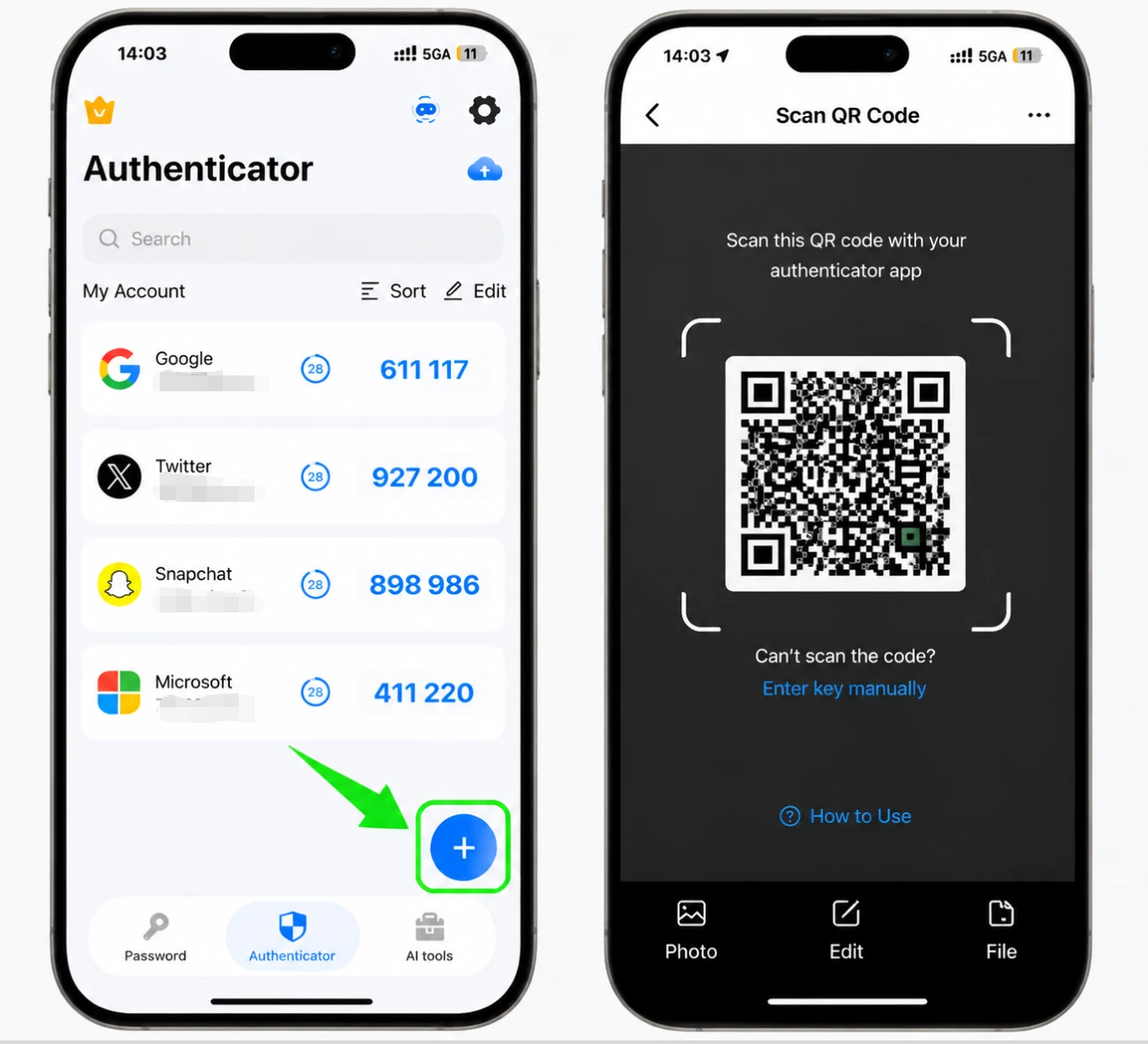
iPhone で Authenticator App を開き、+ ボタンをタップし、Slack に表示された QR コードをスキャンします。スキャンできない場合は、Slack に表示される秘密キーを使用してコードを手動で入力することを選択します。
6桁のコードを入力して確認してください
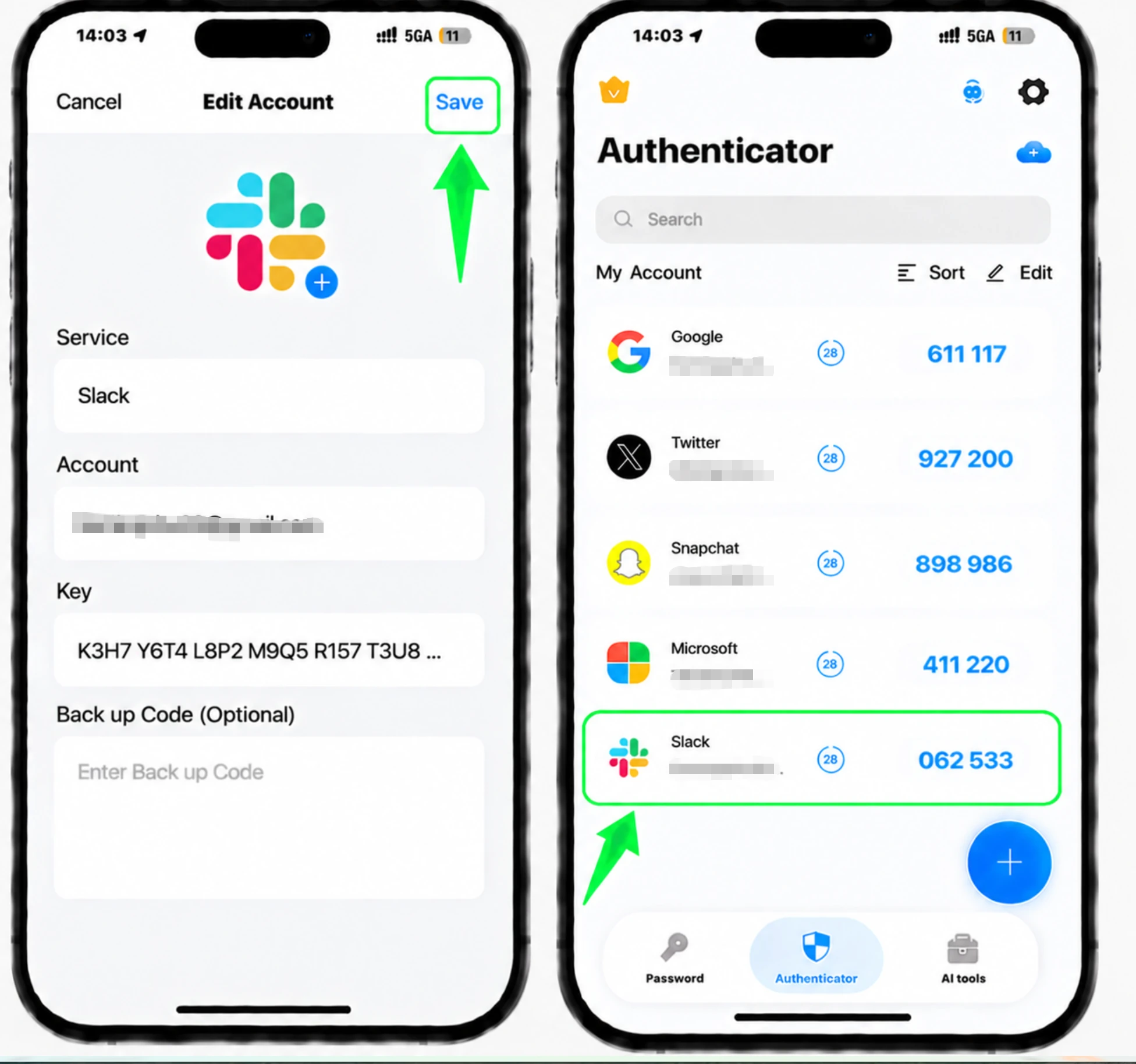
Slack の 2FA 設定ページに戻り、認証アプリによって生成された 6 桁の確認コードを入力し、[コードを確認] をクリックして確認します。
バックアップコードを保存してください
Slack は 2FA を設定するときにバックアップ コードを提供します。認証アプリにアクセスできなくなった場合、各コードはサインインに 1 回しか使用できないため、コードを安全な場所に保存してください。アカウント ページでいつでも再び見つけることができます。


バックアップと復旧
Slack は 2FA を設定するときにバックアップ コードを提供します。認証アプリにアクセスできなくなった場合、各コードはサインインに 1 回しか使用できないため、コードを安全な場所に保存してください。アカウント ページでいつでも再び見つけることができます。
以上で完了です。Slackアカウントは2要素認証で保護されました。復旧情報は安全に保管し、画面が変更された場合はサービスの公式ドキュメントをご確認ください。


