

Binanceアカウントで2FAを有効にする方法
更新日:2026年8月4日
2要素認証(2FA)を設定すると、パスワードが漏えいした場合でもBinanceアカウントを保護できます。以下の手順に沿って、iPhone、iPad、MacのAuthenticator AppでBinanceの認証コードを生成してください。
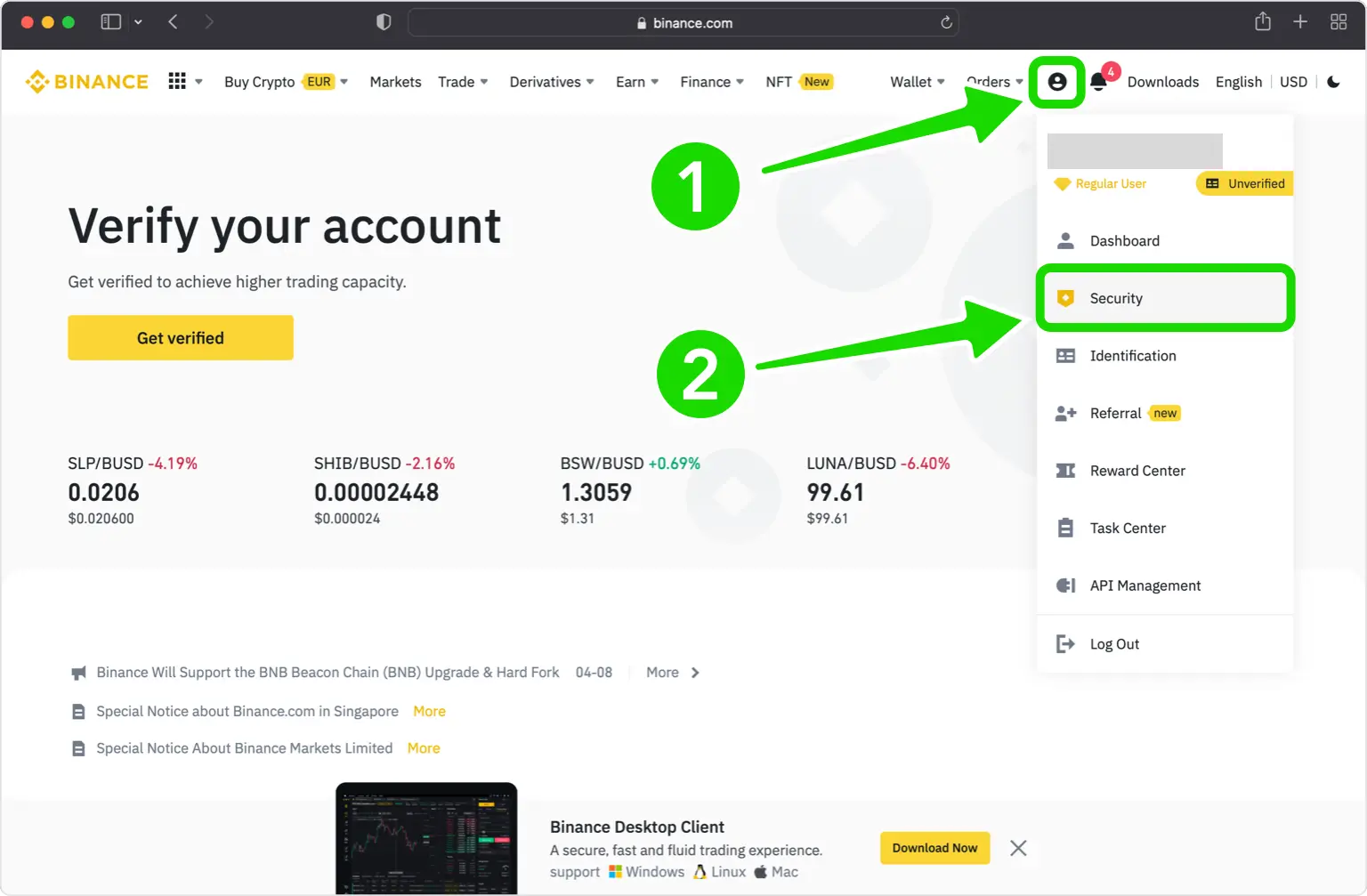
セキュリティ設定を開く
Binanceのウェブサイトにログインし、右上のプロフィールアイコンから「セキュリティ」を選択します。
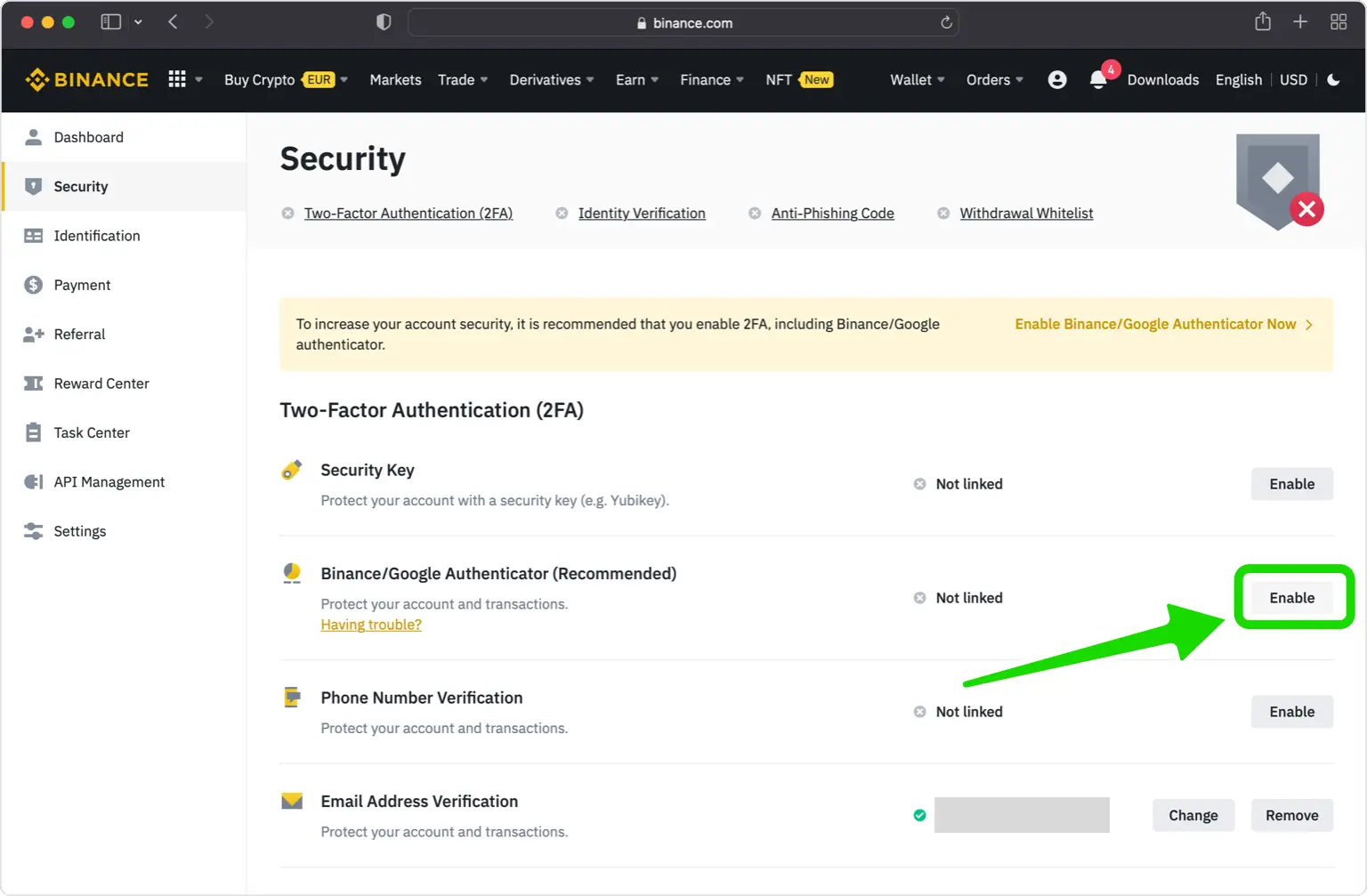
Authenticator Appを有効にする
セキュリティ設定でAuthenticator Appを見つけ、「有効化」または「管理」を選択します。
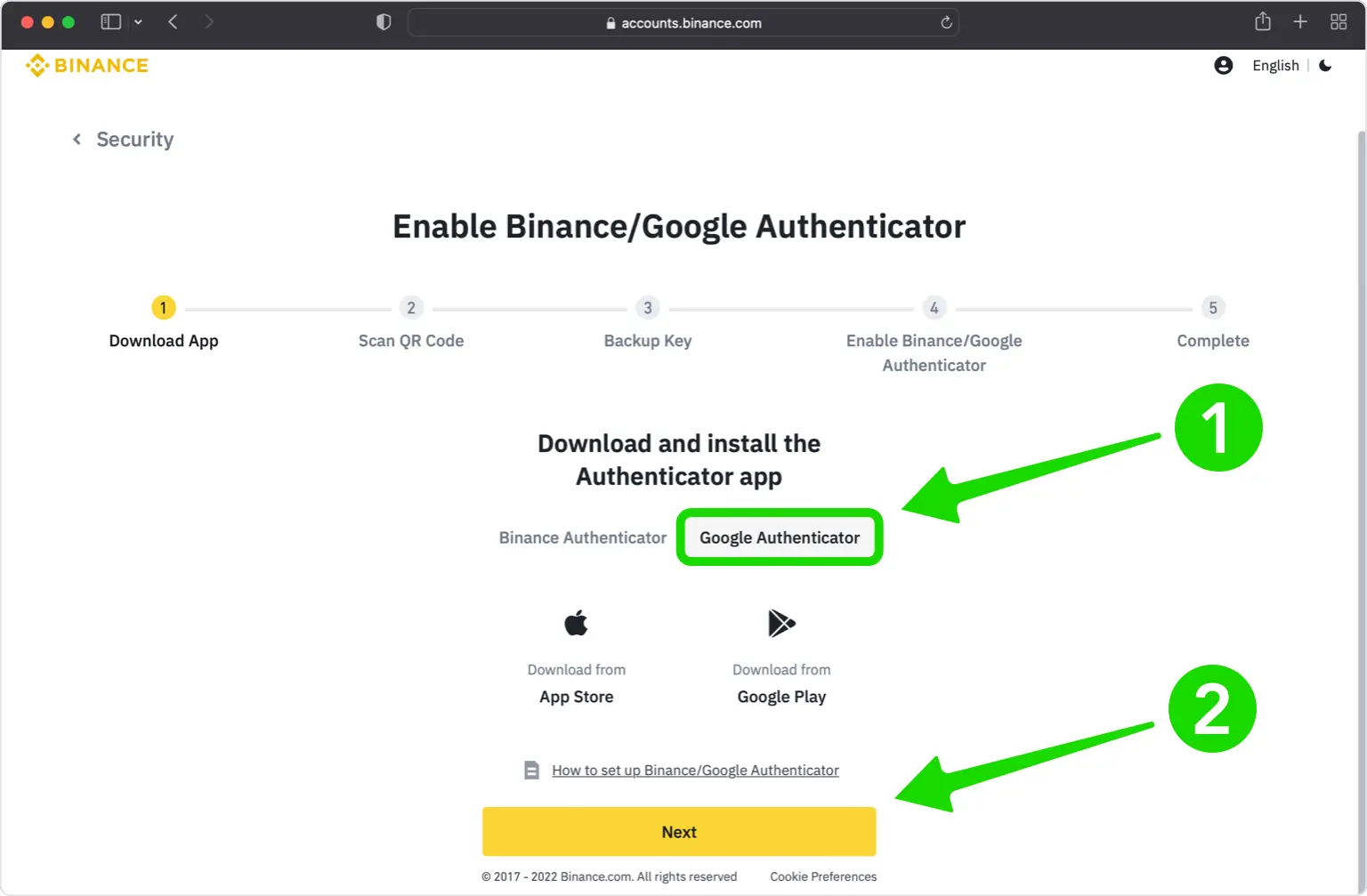
認証方法にAuthenticator Appを選ぶ
認証方法としてAuthenticator Appを選択し、「次へ」をクリックします。
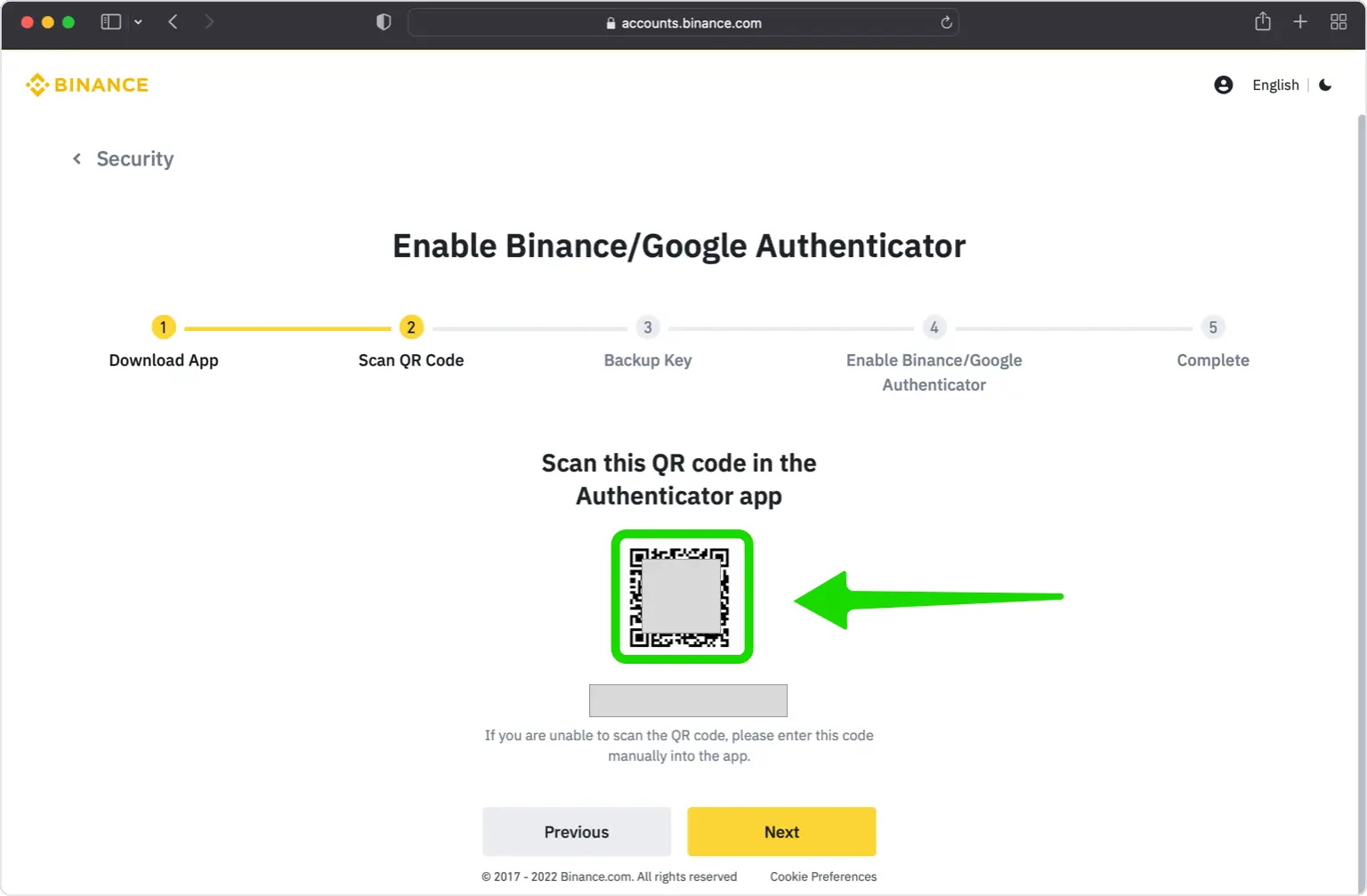
QRコードと設定キーを表示する
BinanceにQRコードと設定キーが表示されます。この画面を開いたままにします。
Authenticator AppでQRコードを読み取る
Authenticator Appを開いて+をタップし、「QRコードをスキャン」を選びます。設定キーを手動入力することもできます。
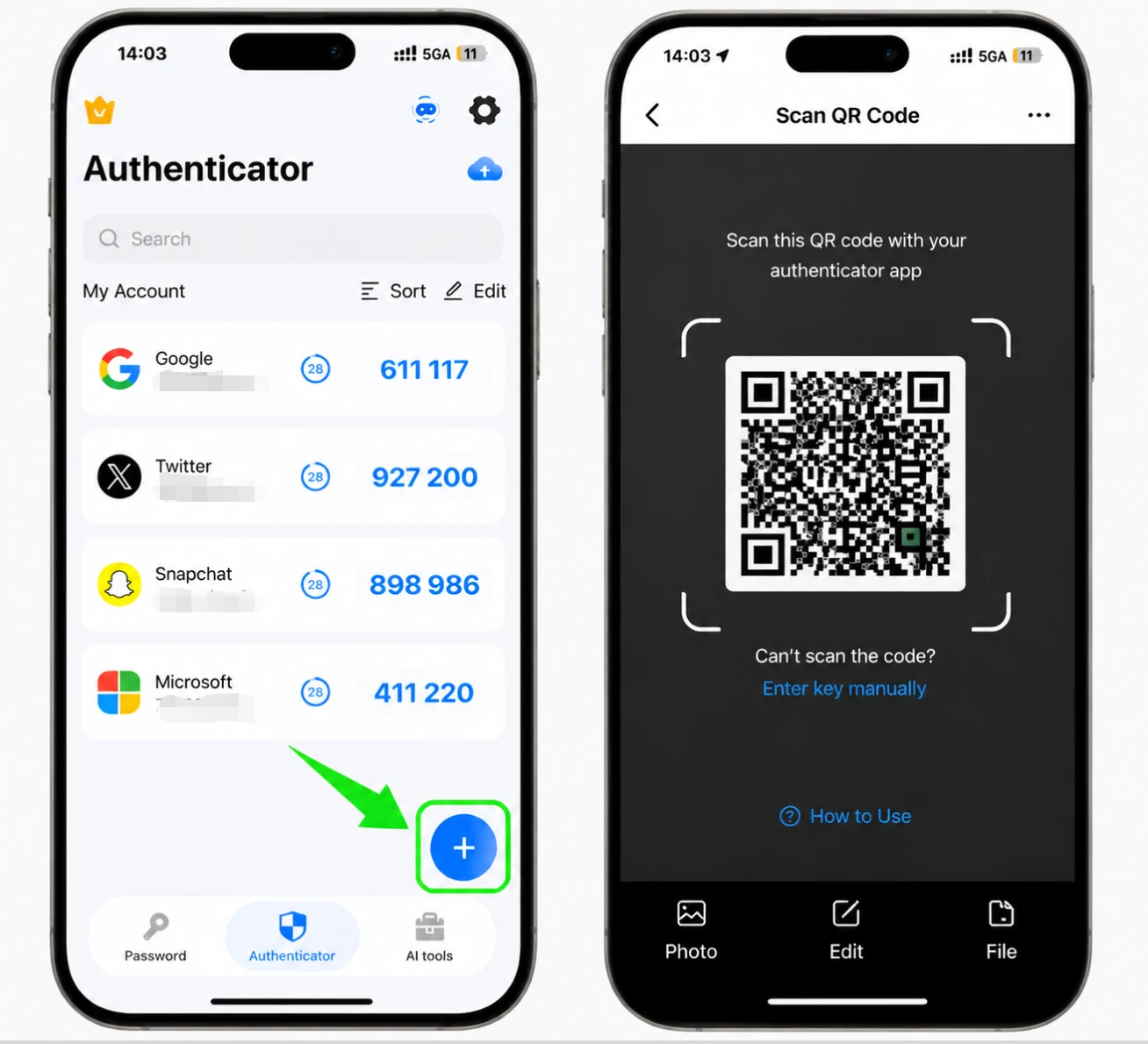
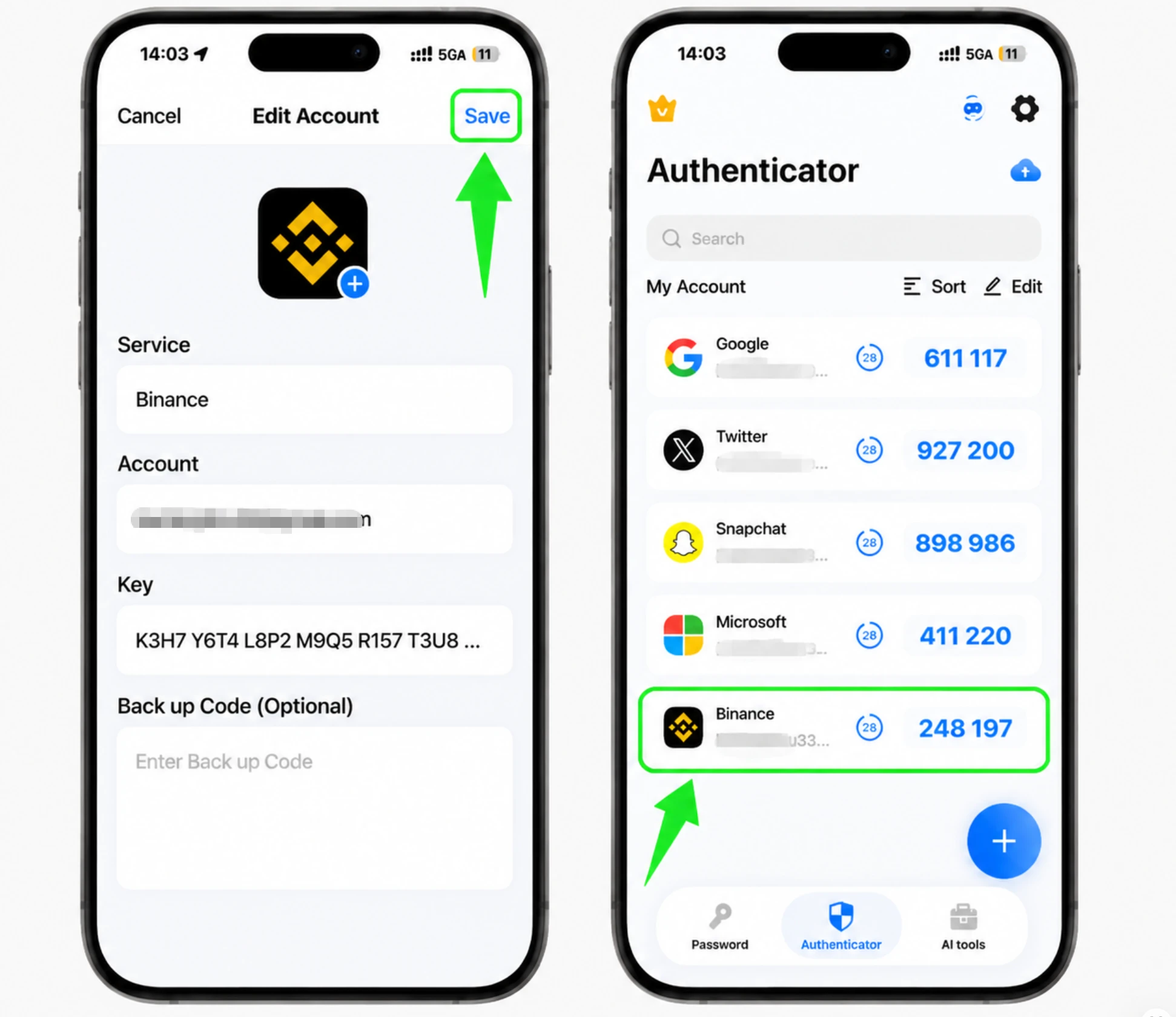
新しい項目を保存してコードをコピー
自動入力されたBinanceの項目を保存し、現在の6桁コードをコピーします。
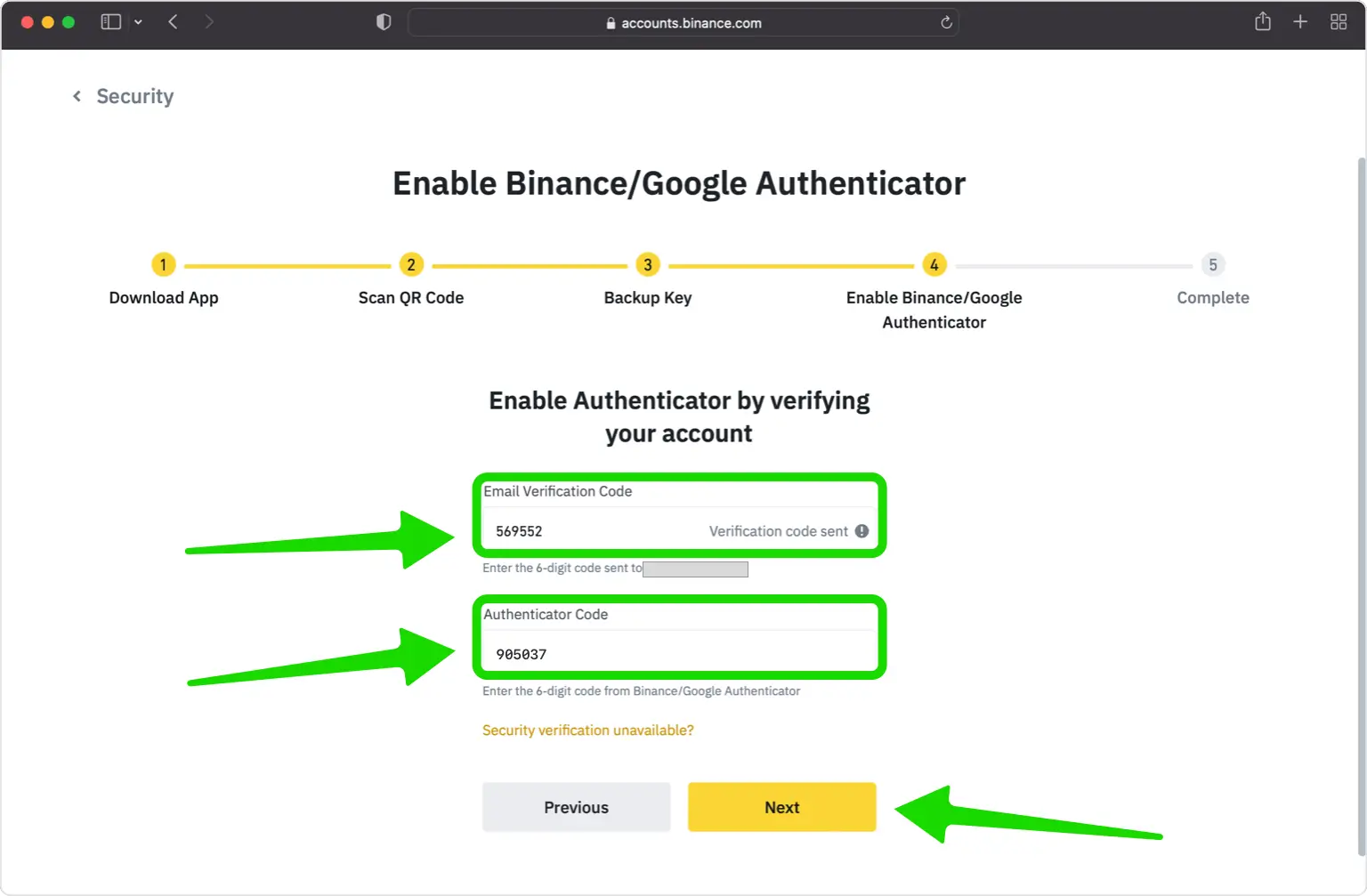
Binanceでコードを確認する
Binanceで「次へ」をクリックし、メール認証コードとAuthenticator Appの6桁コードを入力します。
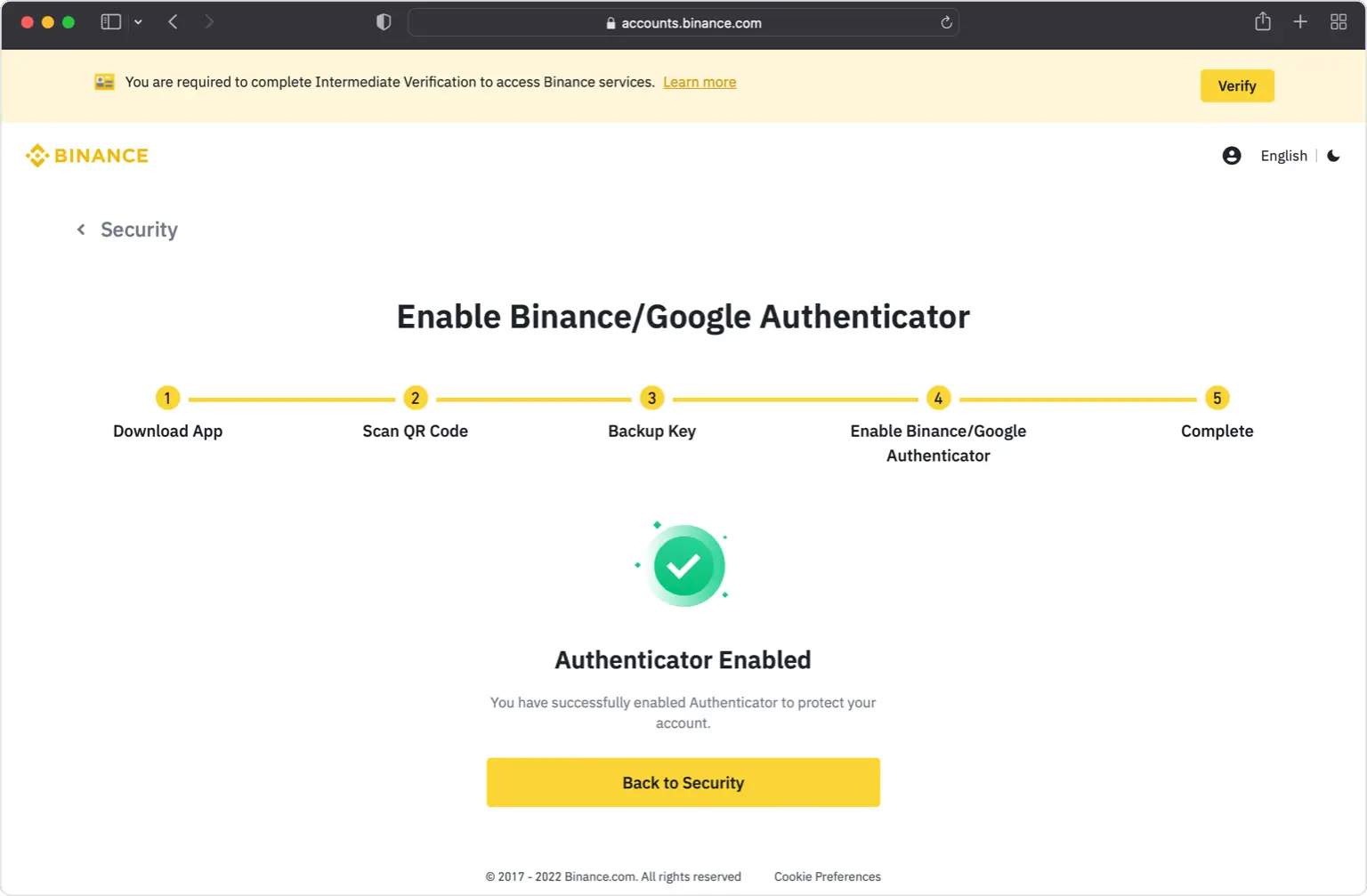
2要素認証が有効になりました
Binanceに有効化完了が表示されます。以後のログインではAuthenticator Appのコードを使用します。
バックアップキーを保存する
先ほど表示された設定キーまたはバックアップキーを控え、安全なオフライン環境で保管します。


バックアップと復旧
Binanceは使い捨ての復旧コード一覧を発行しません。代わりに、設定時に手動入力用と同じ設定キー(バックアップキー)が表示されます。書き留めてオフラインで保管してください。認証端末を利用できなくなった場合は、このキーを使って新しい認証アプリにアカウントを再登録できます。キーも失った場合は、Binanceのアカウント復旧または本人確認手続きで2FAをリセットする必要があります。
以上で完了です。Binanceアカウントは2要素認証で保護されました。設定中に問題が発生した場合は、Binance公式ヘルプページをご覧ください。安全にご利用ください。


