

Notionアカウントで2FAを有効にする方法
更新日:2026年8月4日
2要素認証(2FA)を設定すると、パスワードが漏えいした場合でもNotionアカウントを保護できます。以下の手順に沿って、iPhone、iPad、MacのAuthenticator AppでNotionの認証コードを生成してください。
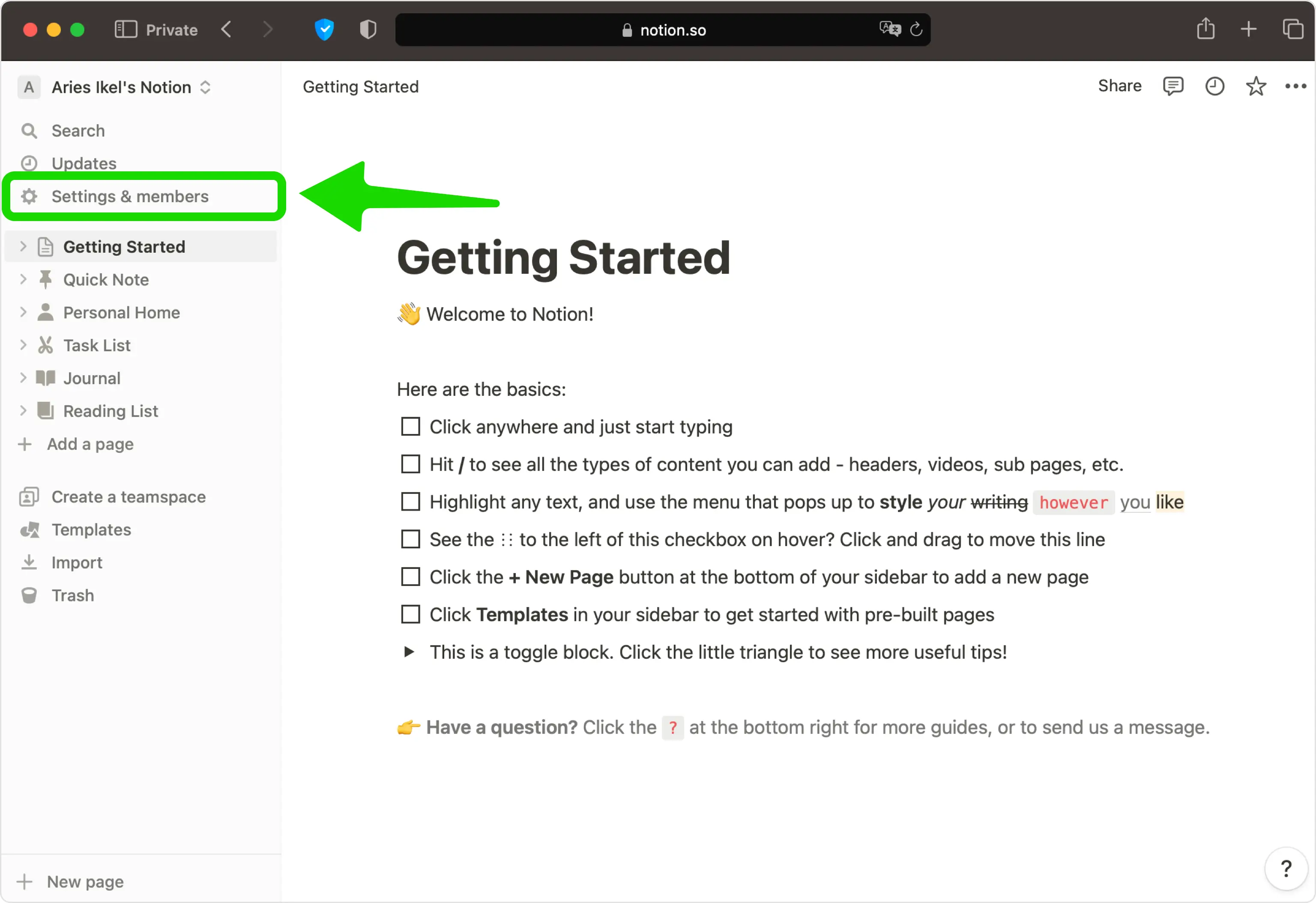
Notion の設定を開きます
Web 上の Notion にサインインし、左側のサイドバーから [設定] を開き、設定メニューの上部で名前/アカウントを選択します。
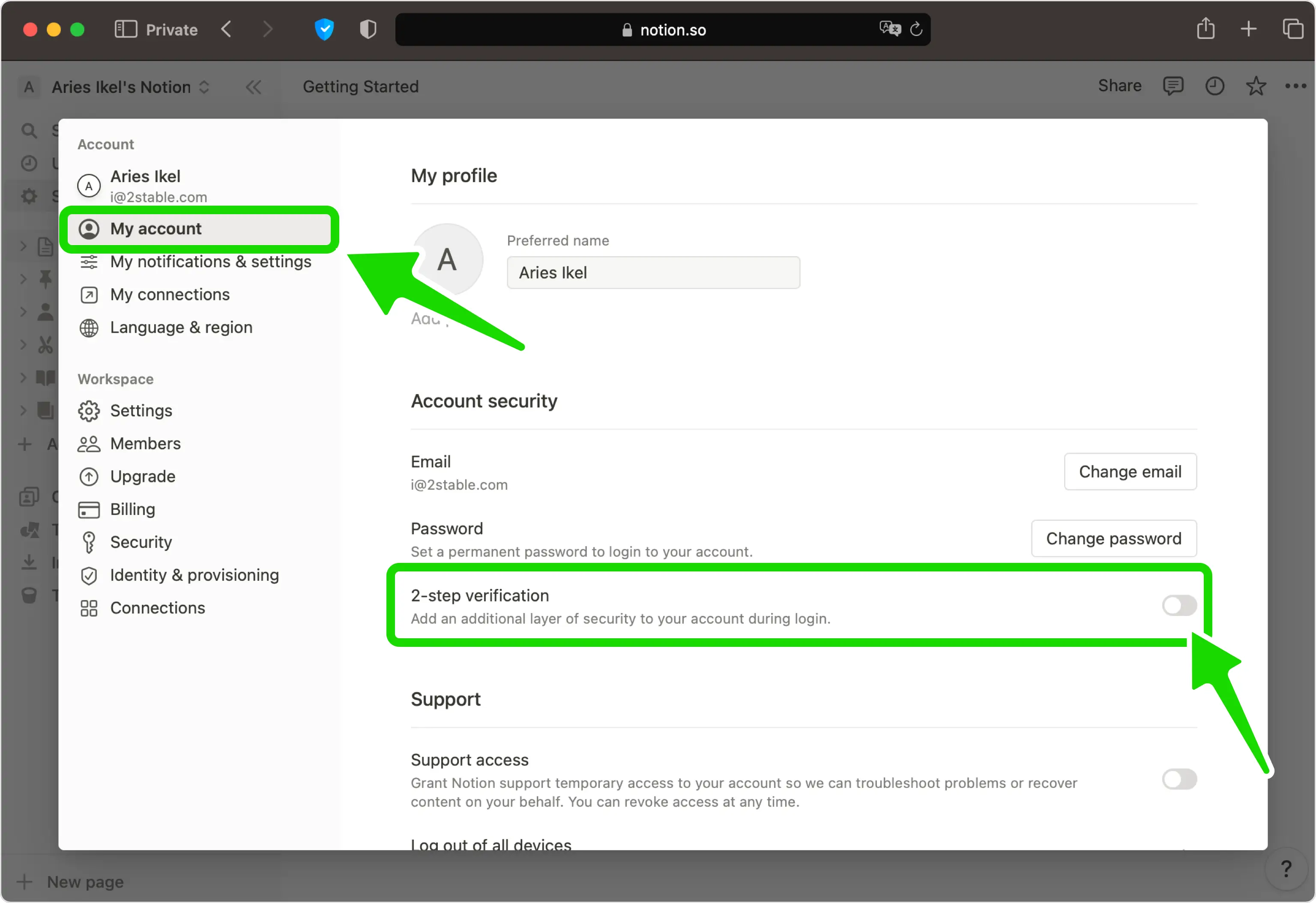
2 段階認証をオンにする
[アカウント セキュリティ] セクションで、2 段階認証をオンにします (バージョンによっては、これが [認証方法の追加] アクションとして表示される場合があります)。
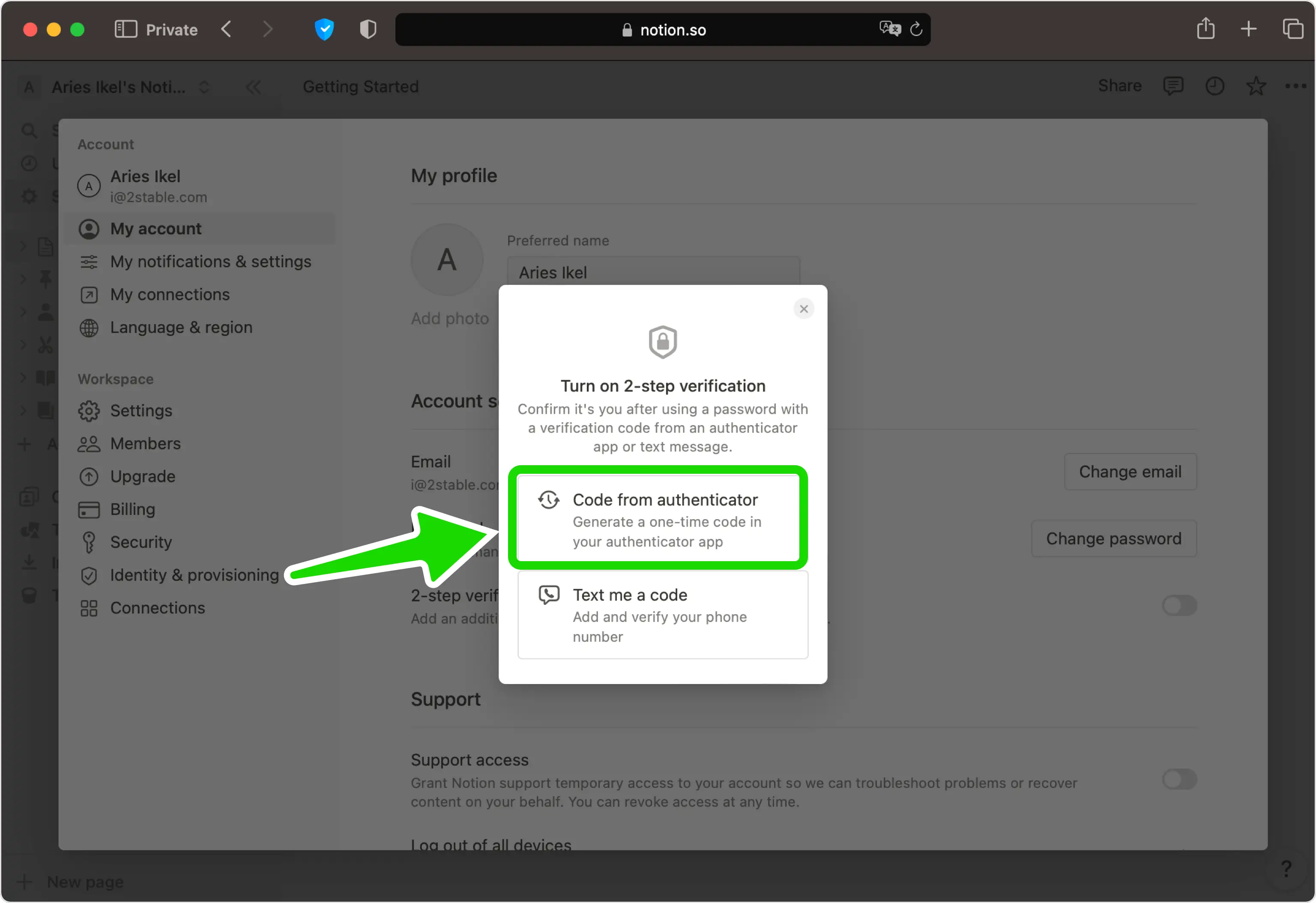
認証オプションを選択します
検証方法として「認証システムからのコード」を選択します。一部の地域では、これが唯一のオプションとして提供されています。
QRコードを表示する
Notion に秘密キーを含む QR コードが表示されます。携帯電話に手を伸ばす間、このページは画面上で開いたままにしてください。
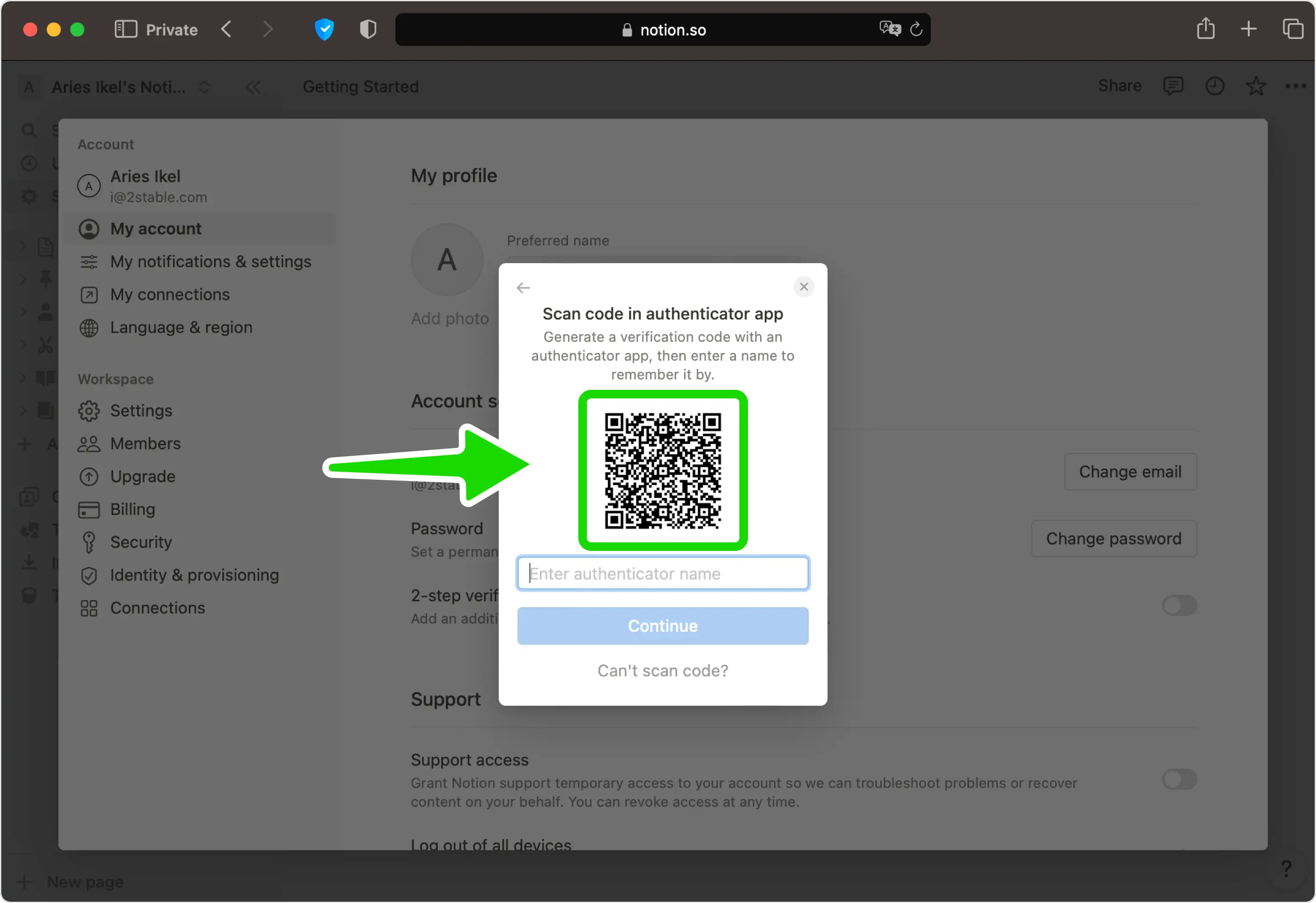
Authenticator App で QR コードをスキャンします
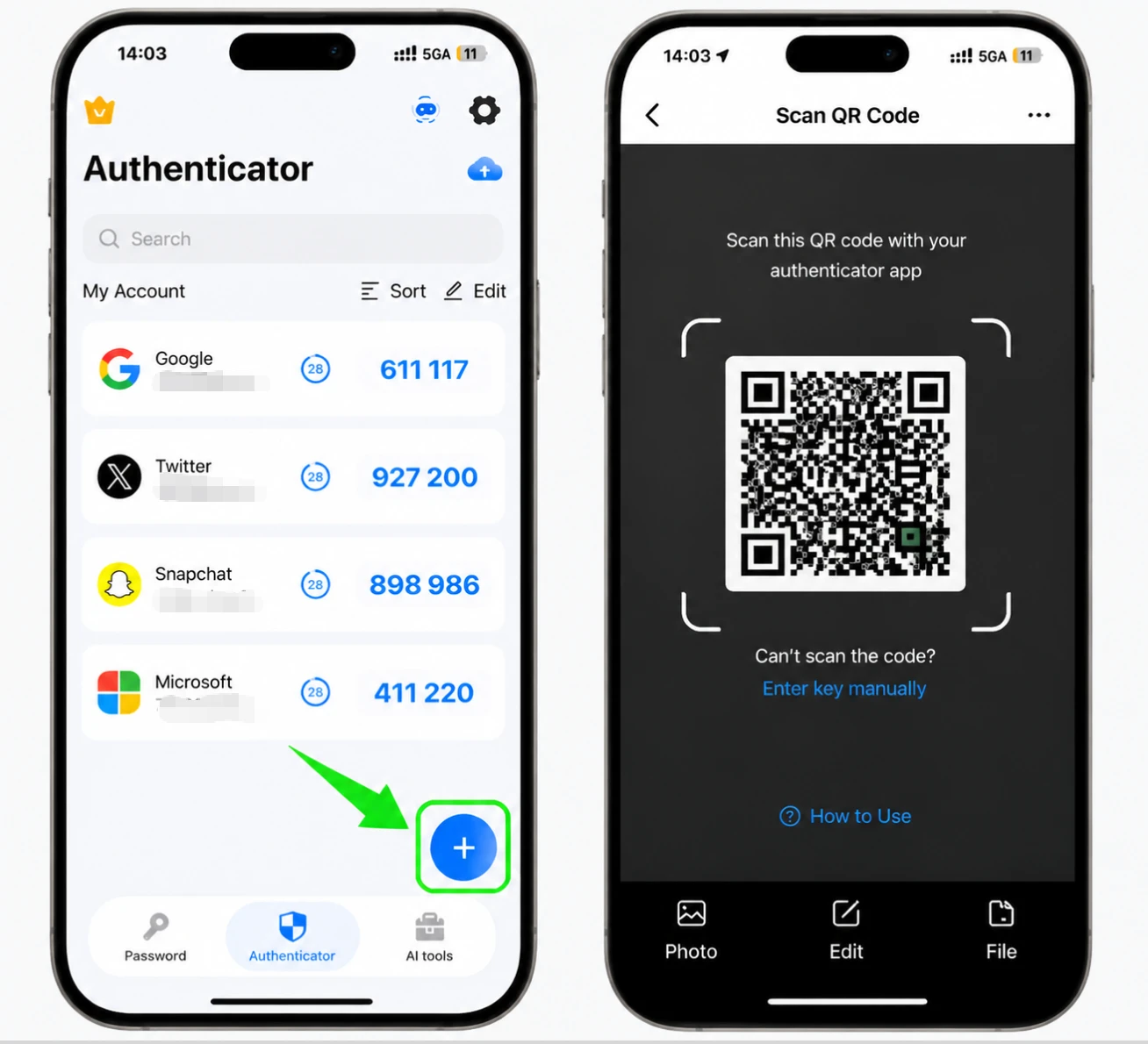
iPhone で Authenticator App を開き、+ ボタンをタップし、携帯電話をかざして Notion によって表示される QR コードをスキャンします。スキャンできない場合は、代わりに秘密キーを手動で入力してください。
アプリにアカウントを保存する
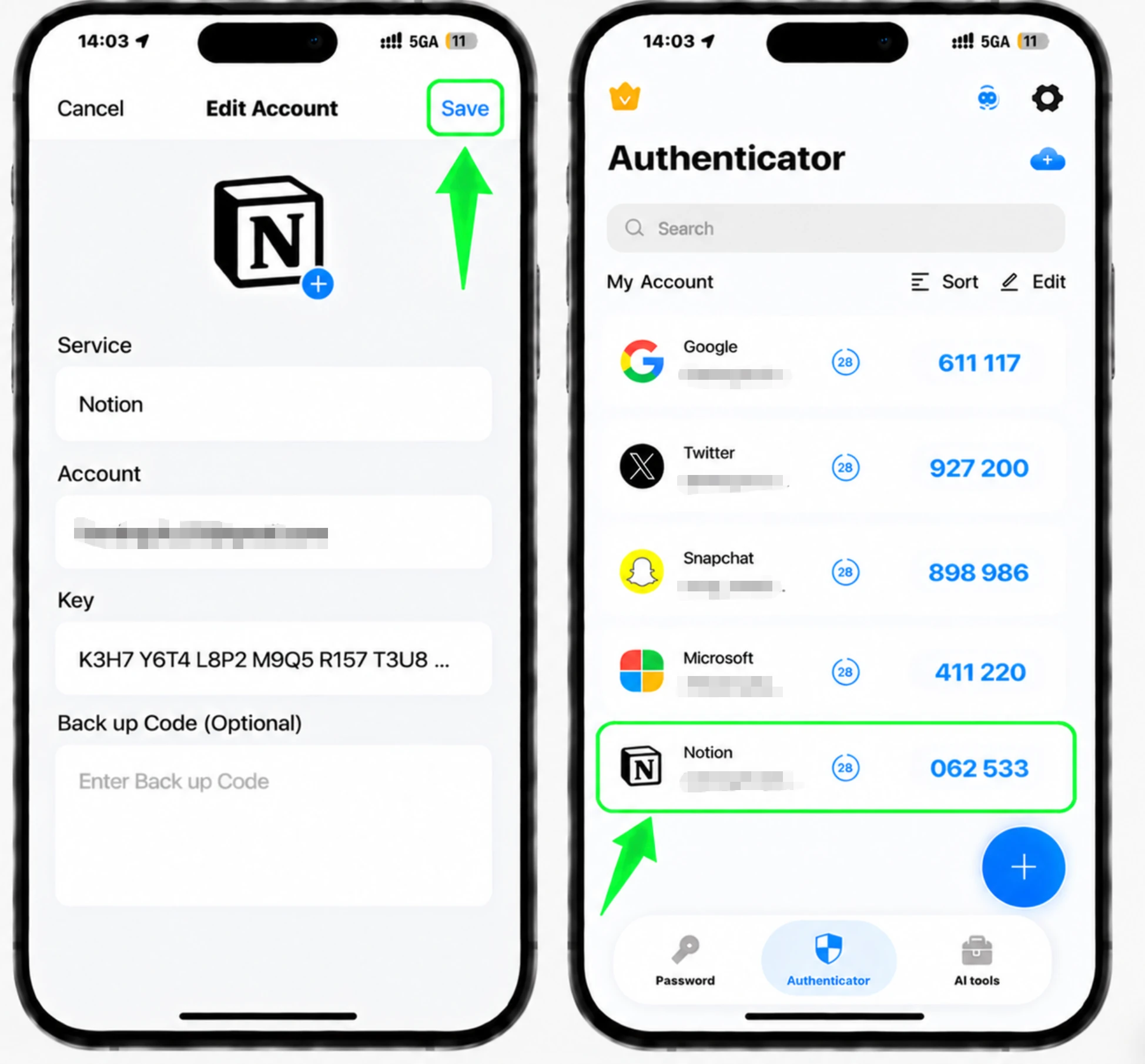
スキャン後、Authenticator App によって Notion ロゴ、アカウント名、秘密キーが自動的に入力されます。アプリで「保存」をタップして、新しいエントリを保存します。
メソッドに名前を付けます
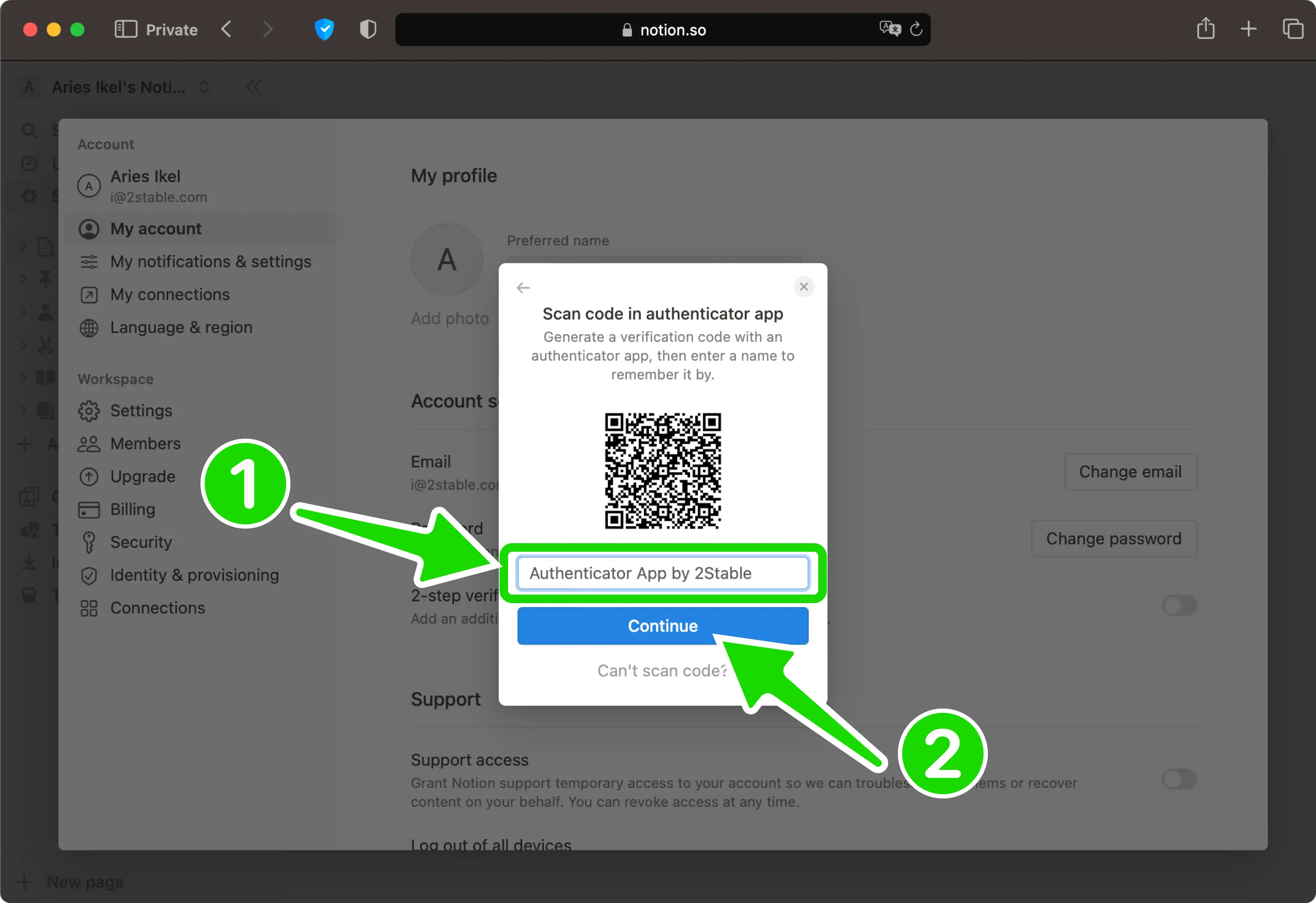
Notion Web ページに戻り、後で認識できるようにこの認証方法の名前を入力し、「続行」をクリックします。
確認コードを入力してください
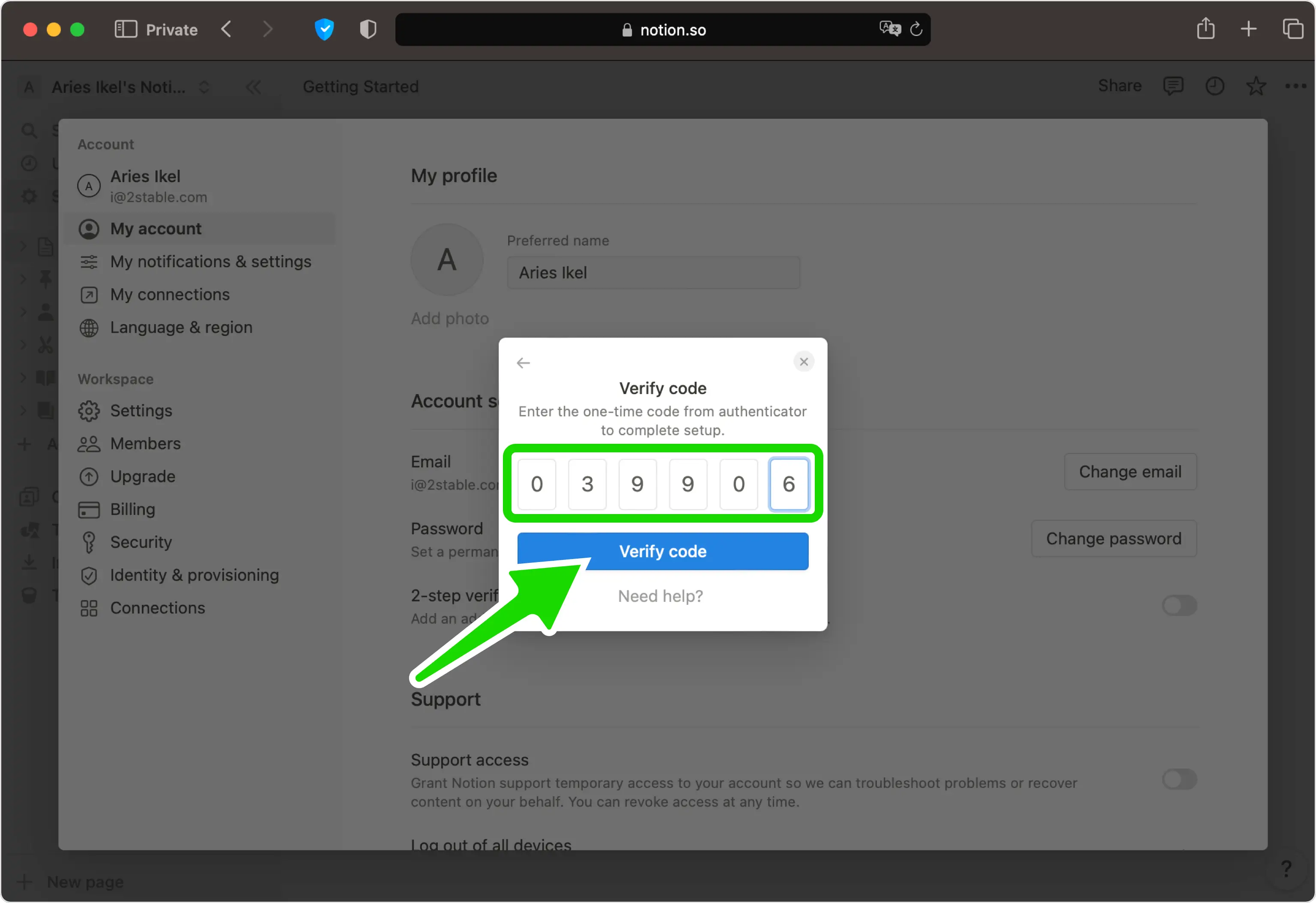
Authenticator App の 6 桁のワンタイム コードを Notion のフィールドに入力し、[コードを確認] をクリックして確認します。
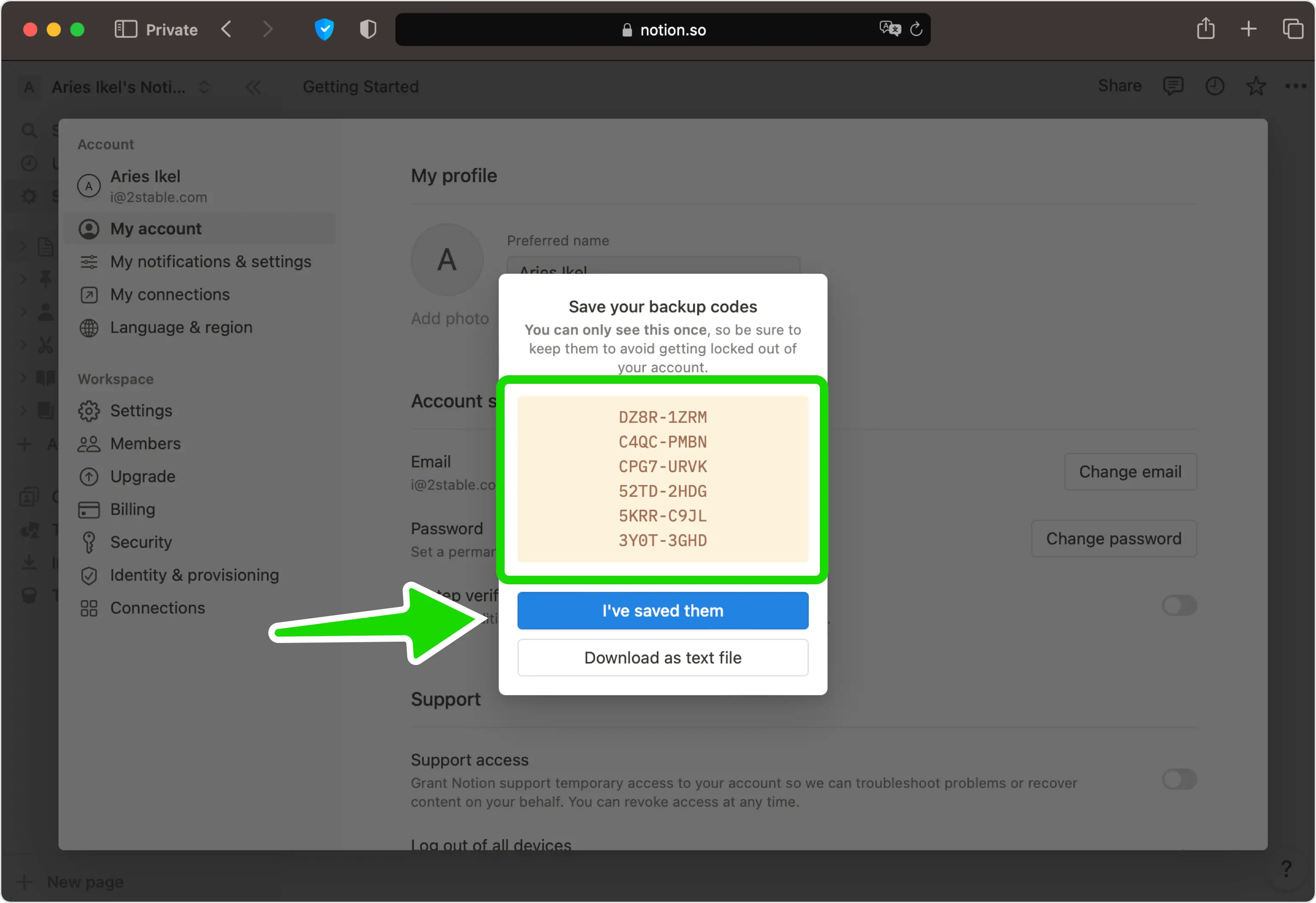
バックアップコードを保存してください
二段階認証が有効になりました。これが最初の方法である場合、Notion には一連のバックアップ コードが表示されます。それらを安全な場所に保存し (それぞれ 1 回のみ機能します)、「保存しました」を押して終了します。


バックアップと復旧
二段階認証が有効になりました。これが最初の方法である場合、Notion には一連のバックアップ コードが表示されます。それらを安全な場所に保存し (それぞれ 1 回のみ機能します)、「保存しました」を押して終了します。
以上で完了です。Notionアカウントは2要素認証で保護されました。復旧情報は安全に保管し、画面が変更された場合はサービスの公式ドキュメントをご確認ください。


