

GitHubアカウントで2FAを有効にする方法
更新日:2026年8月4日
2要素認証(2FA)を設定すると、パスワードが漏えいした場合でもGitHubアカウントを保護できます。以下の手順に沿って、iPhone、iPad、MacのAuthenticator AppでGitHubの認証コードを生成してください。
設定を開きます
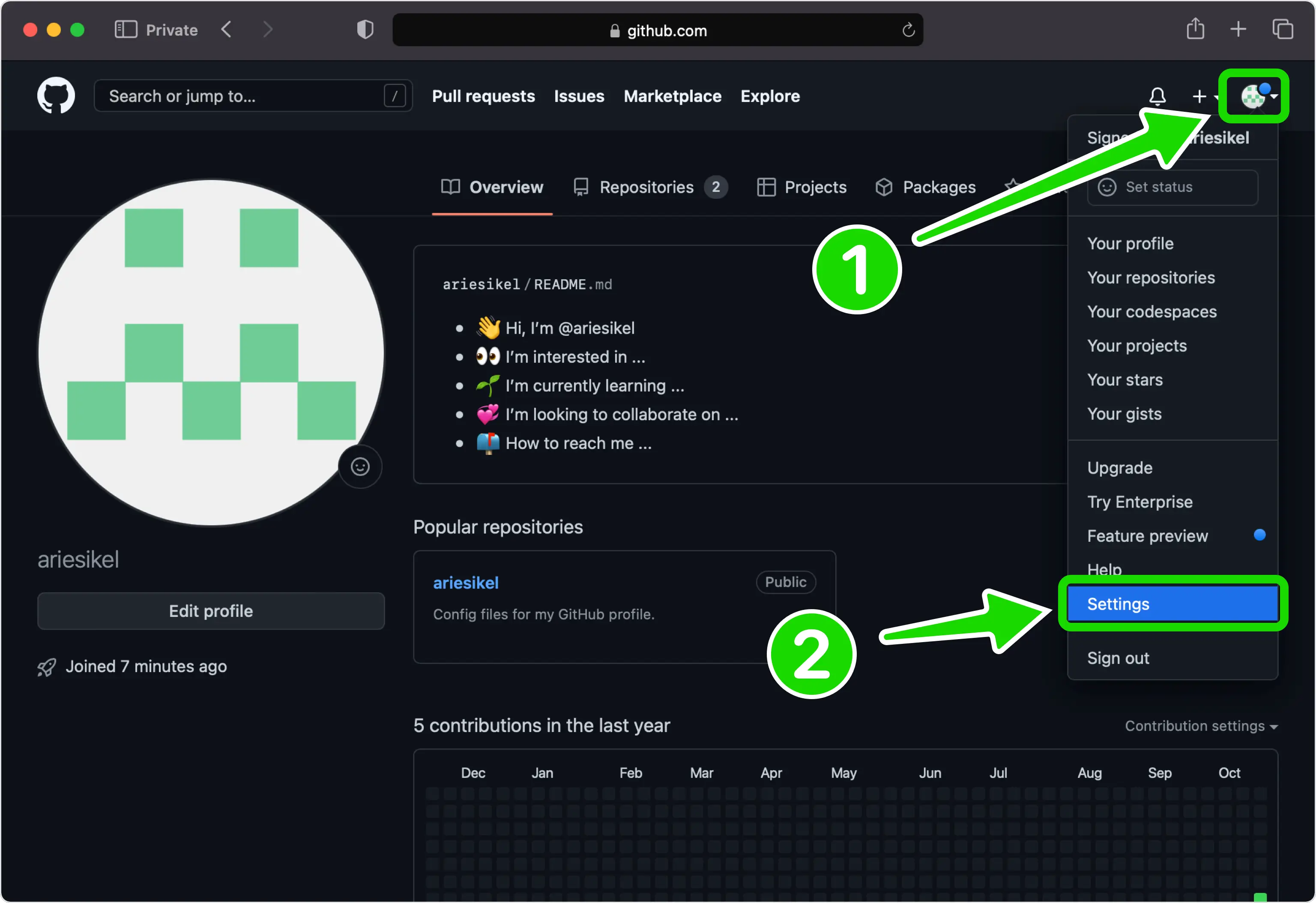
github.com にサインインしているときに、任意のページの右上隅にあるプロフィール写真をクリックし、ドロップダウン メニューから [設定] を選択します。
二要素認証を有効にする
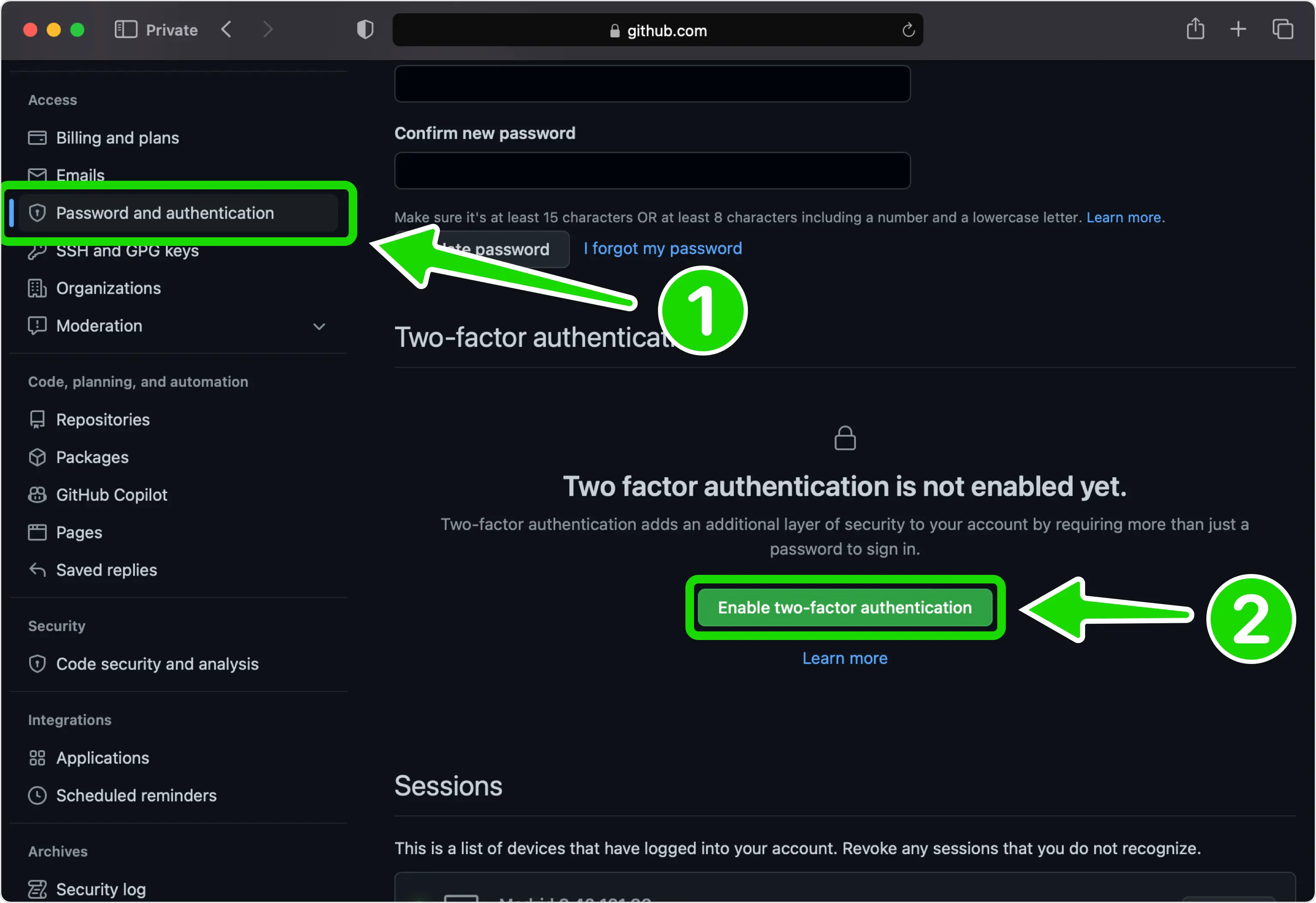
左側のサイドバーの「アクセス」の下で、「パスワードと認証」を開きます。 [2 要素認証] セクションまでスクロールし、[2 要素認証を有効にする] をクリックします。
アプリを使用してセットアップすることを選択します
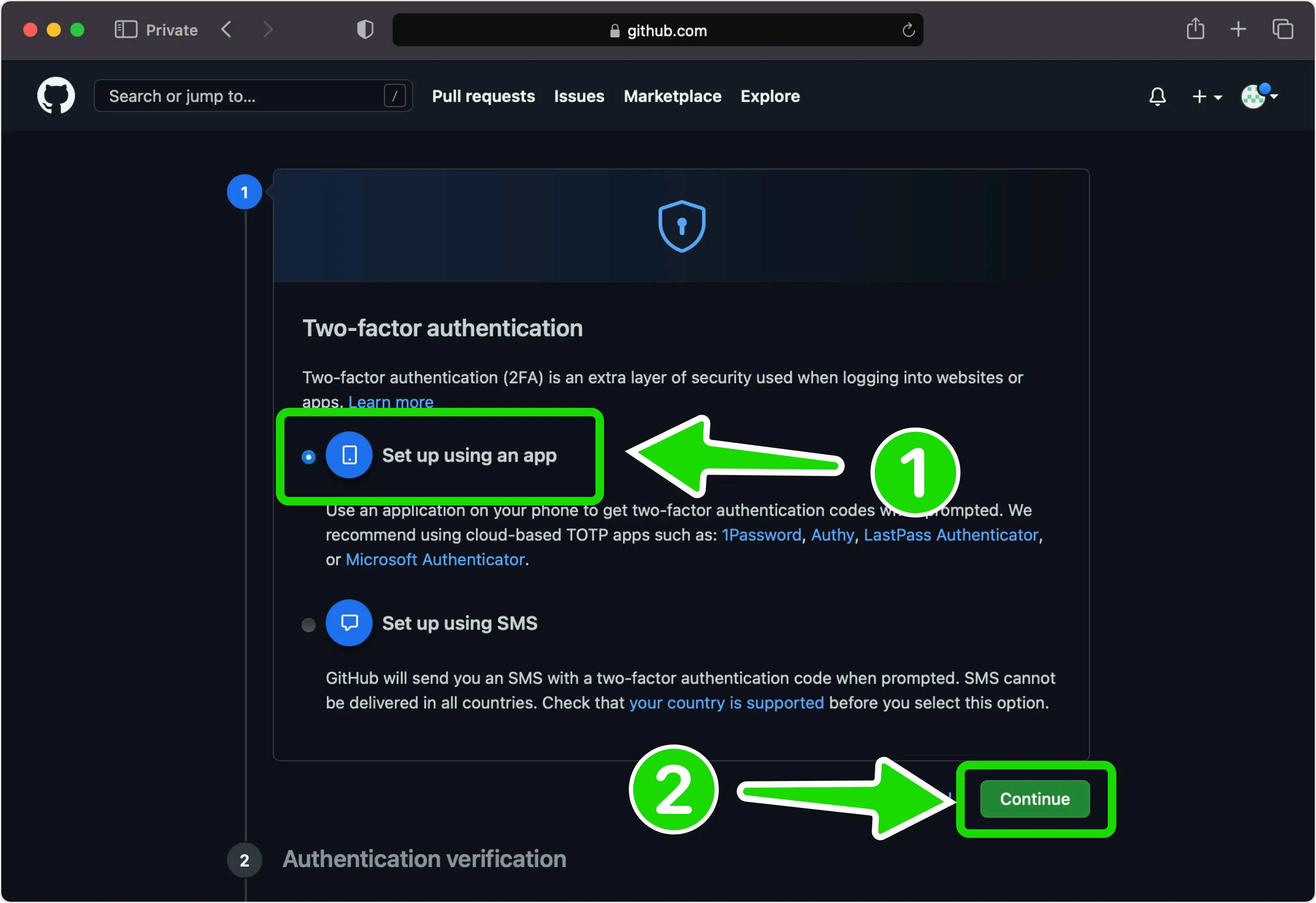
認証方法として「アプリを使用してセットアップ」を選択し、「続行」をクリックして QR コードに進みます。
GitHub で QR コードを表示する
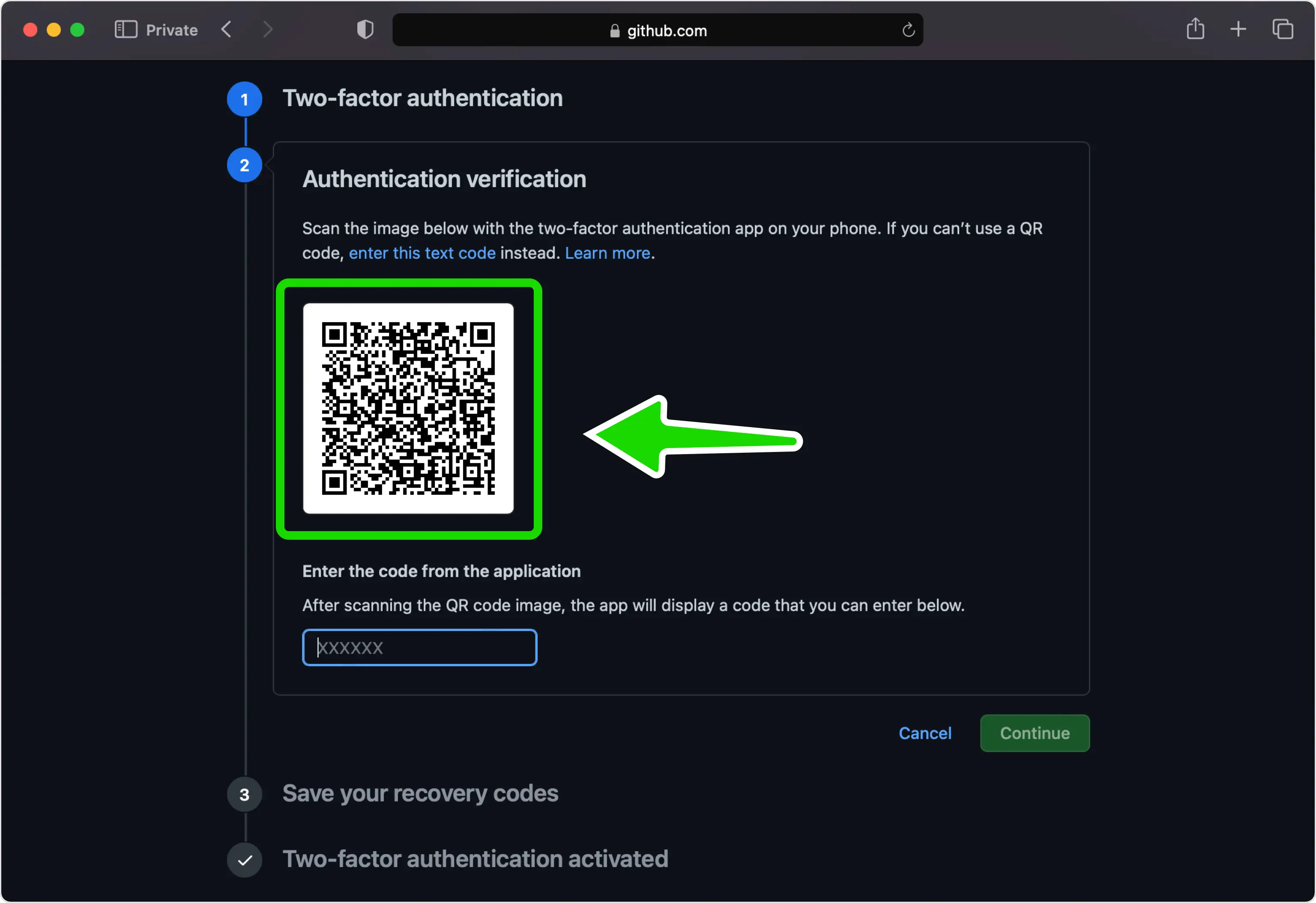
GitHub では、認証アプリのセットアップ画面に秘密キーをエンコードする QR コードが表示されるようになりました。 iPhone に手を伸ばす間、このページはコンピュータ上で開いたままにしておいてください。スキャンできない場合は、セットアップ キーをクリックして手動入力用のコードを表示します。
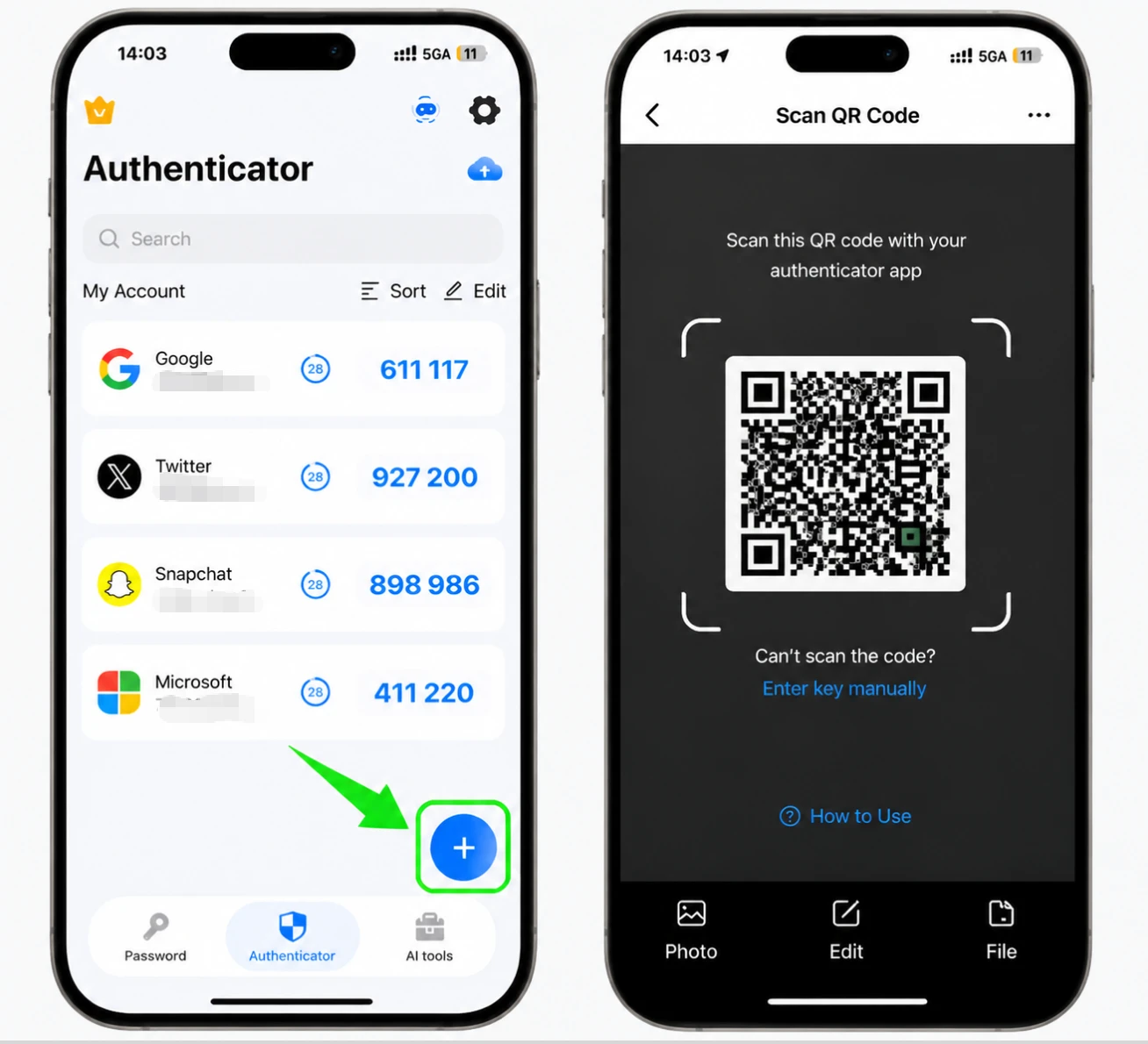
Authenticator App で QR コードをスキャンします
iPhone で Authenticator App を開き、+ ボタンをタップします。携帯電話を画面にかざして、GitHub に表示される QR コードをスキャンします。
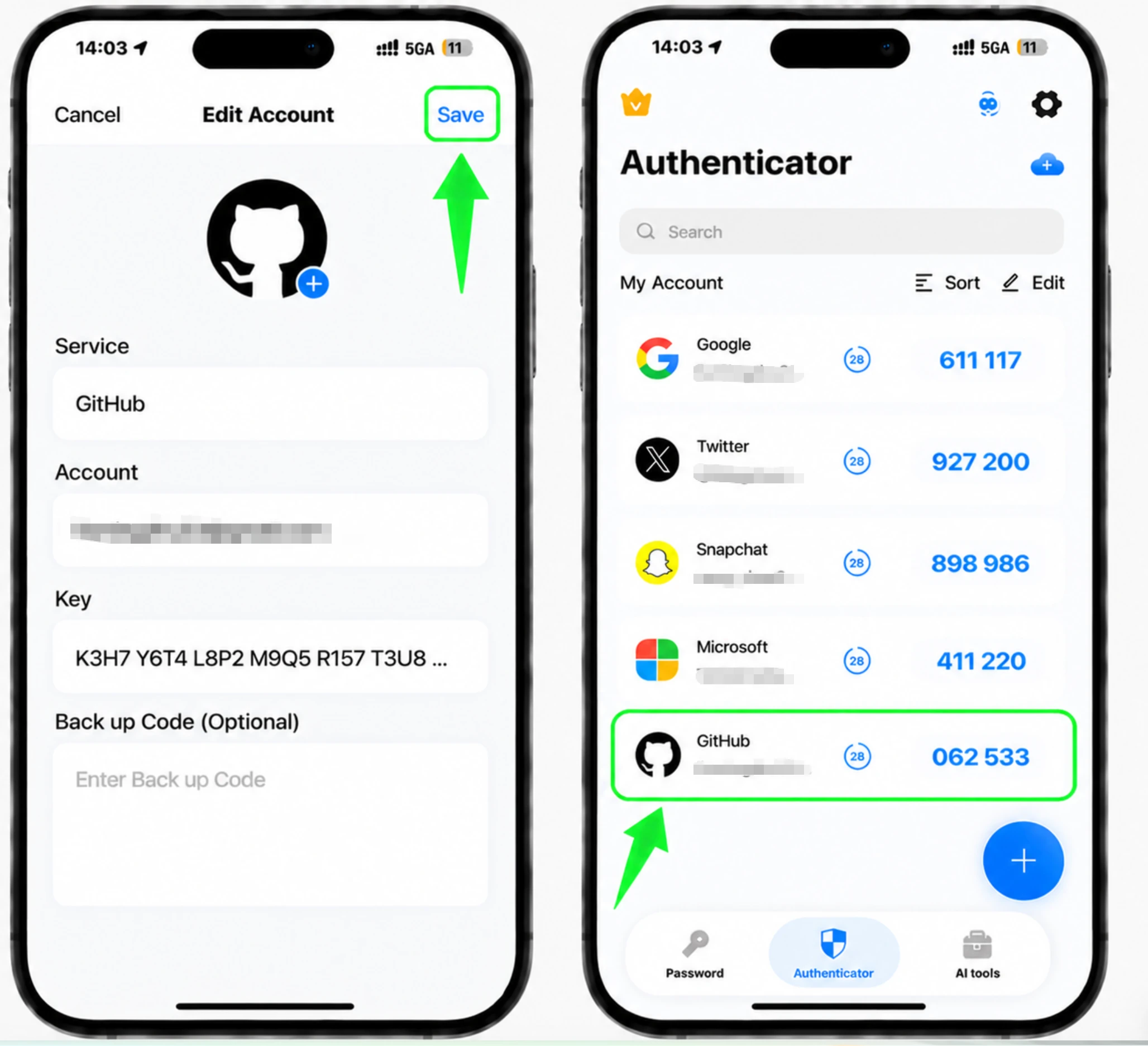
GitHub エントリをアプリに保存します
スキャン後、Authenticator App は自動的に GitHub ロゴを選択し、アカウント名と秘密キーを入力します。 [保存] をタップして、アプリにエントリを追加します。
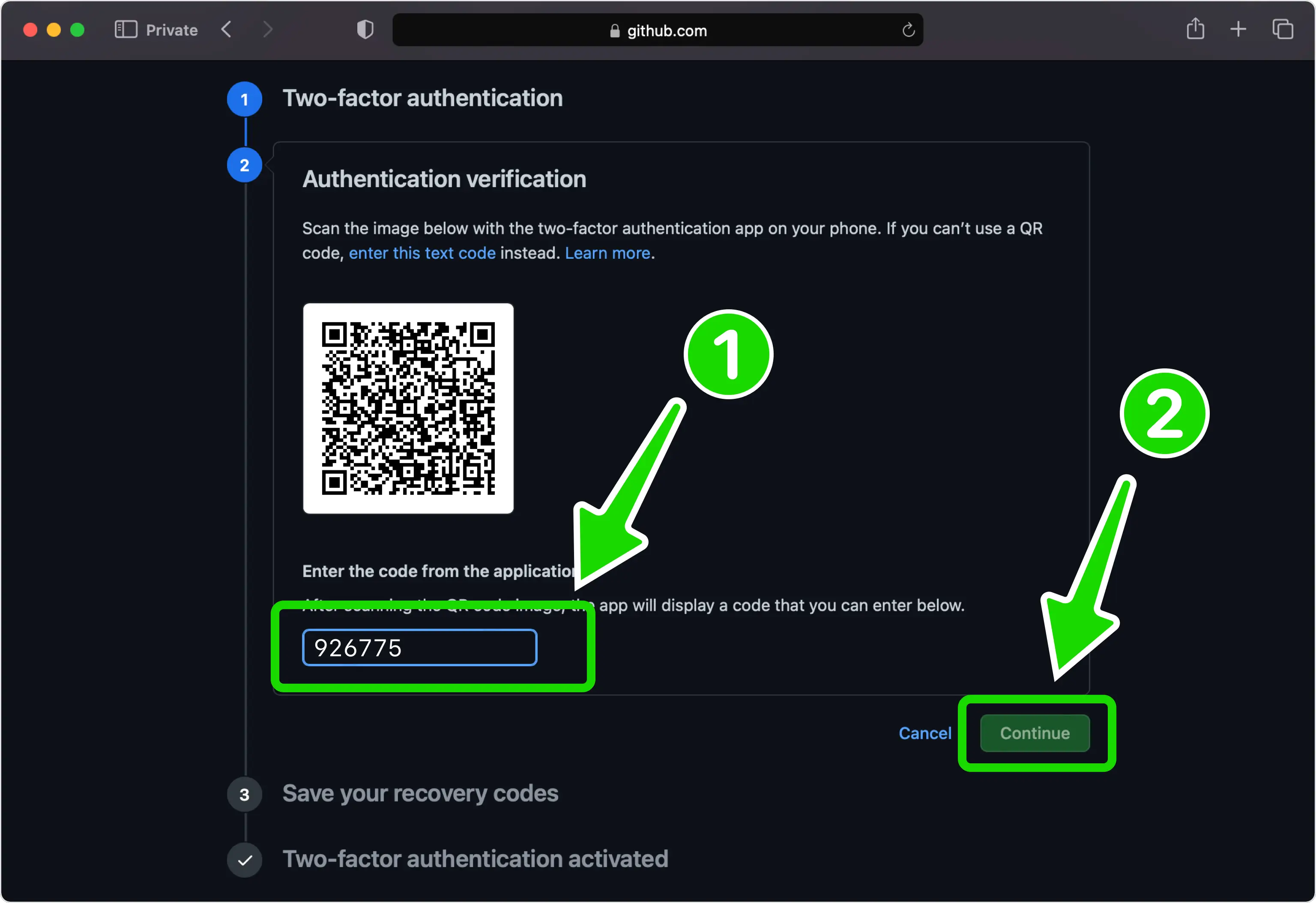
6桁の認証コードを入力してください
Authenticator App は、数秒ごとに更新される 6 桁のコードを生成します。 GitHub 上のフィールドに現在のコードを入力し、「続行」をクリックします。
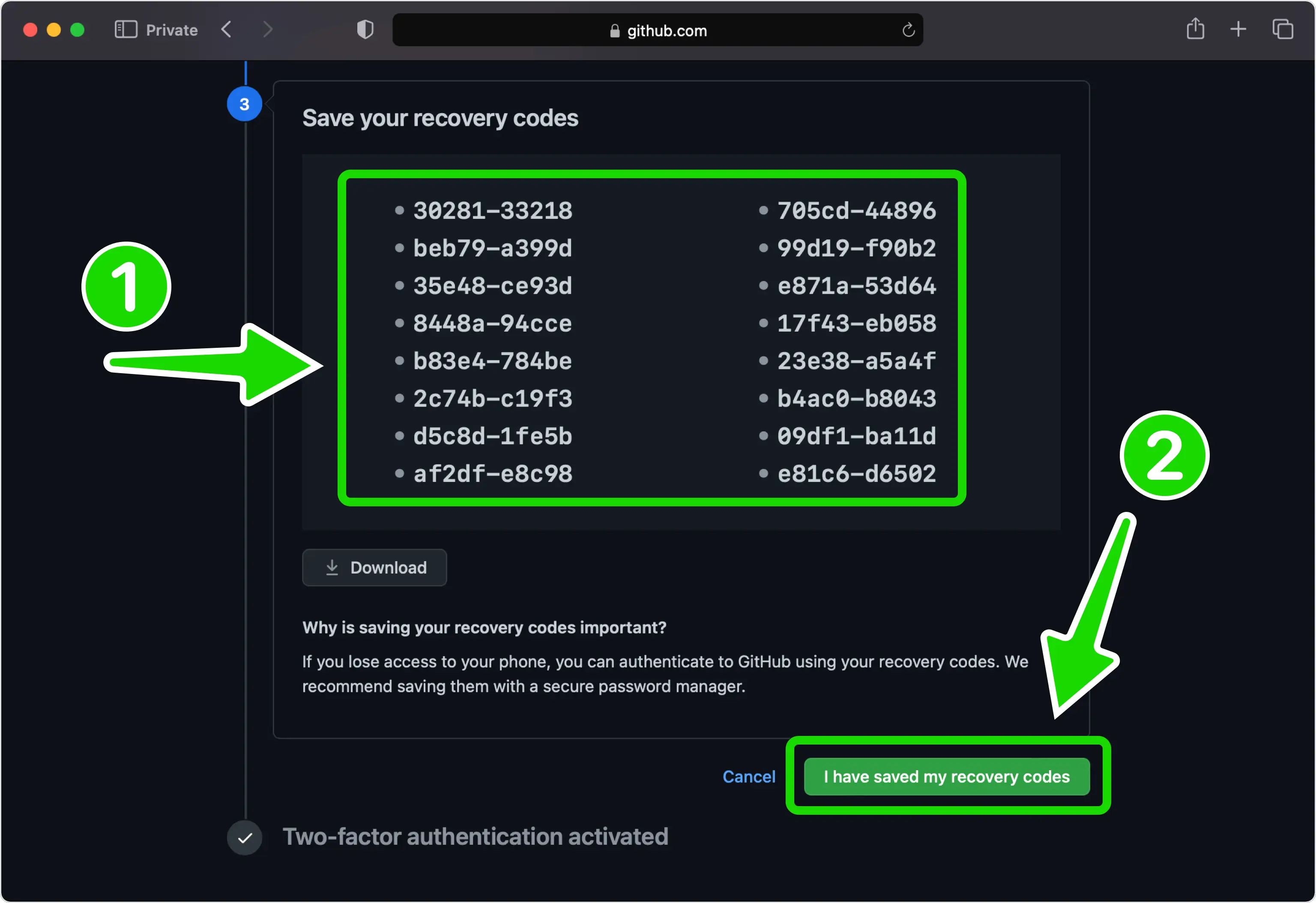
リカバリコードを保存してください
GitHub には、携帯電話を紛失した場合にアカウントに戻るためのリカバリ コードのリストが表示されます。 [ダウンロード] をクリックして安全な場所に保存し、[リカバリ コードを保存しました] をクリックします。
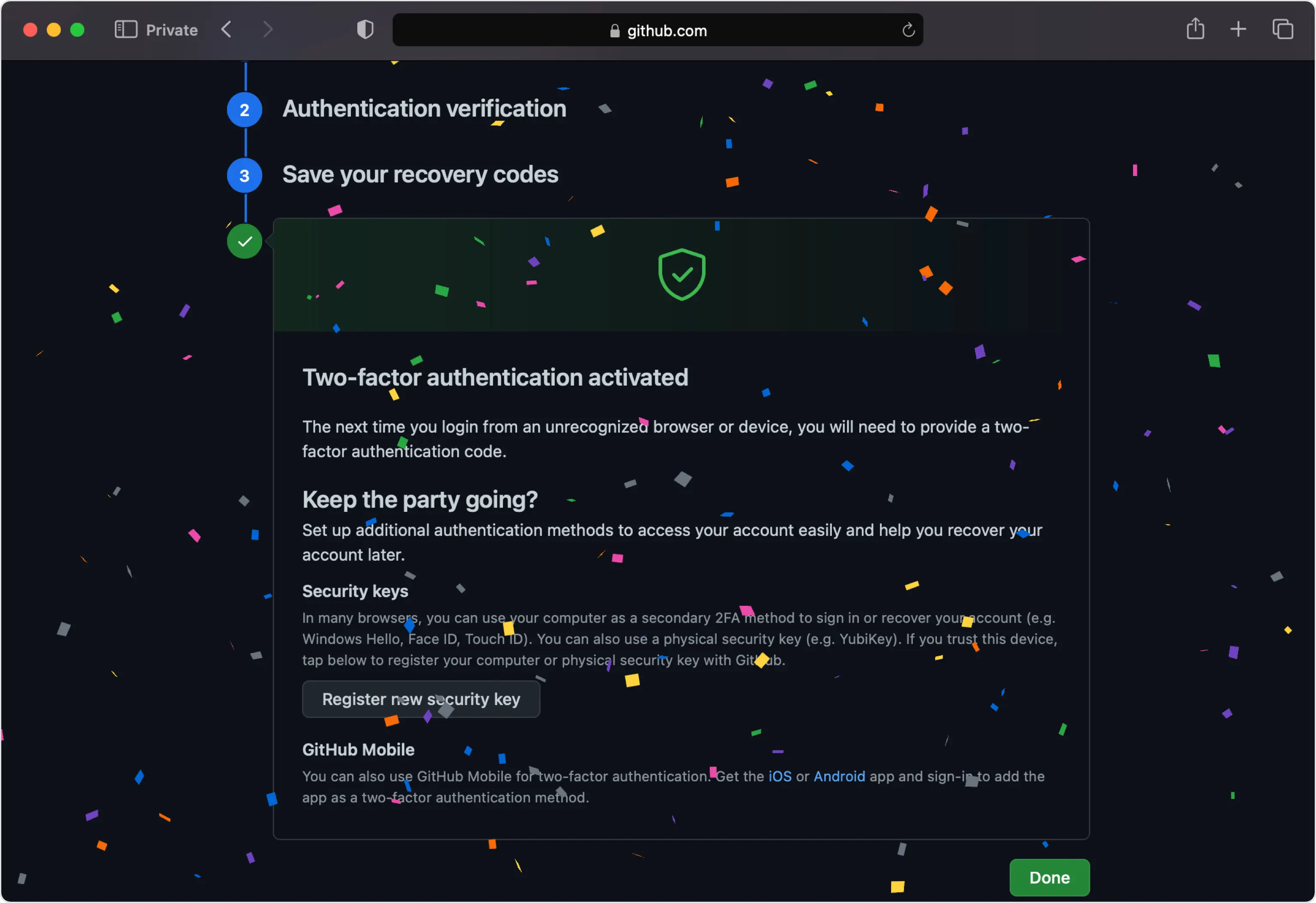
もう終わりです
GitHub アカウントで 2 要素認証がアクティブになったので、サインインするときに Authenticator App のコードを入力します。GitHub では、サインアウトしてから再度サインインしてテストすることをお勧めします。



バックアップと復旧
GitHub には、携帯電話を紛失した場合にアカウントに戻るためのリカバリ コードのリストが表示されます。 [ダウンロード] をクリックして安全な場所に保存し、[リカバリ コードを保存しました] をクリックします。
以上で完了です。GitHubアカウントは2要素認証で保護されました。復旧情報は安全に保管し、画面が変更された場合はサービスの公式ドキュメントをご確認ください。


