

How to enable 2FA for your Zoom account
Updated August 4, 2026
Two-factor authentication (2FA) protects your Zoom account even if your password leaks. Follow the steps below to generate Zoom verification codes with the Authenticator App on your iPhone, iPad or Mac.
Sign in and open your Profile
Sign in to the Zoom web portal in your browser. In the navigation menu, click Profile, then scroll to the Sign In section and find Two-Step Verification.
Start setup for the Authentication App
Next to Authentication App, click Set Up. When prompted, enter your account password to enable two-step verification, then click Next.
Scan the QR code with your Authenticator App
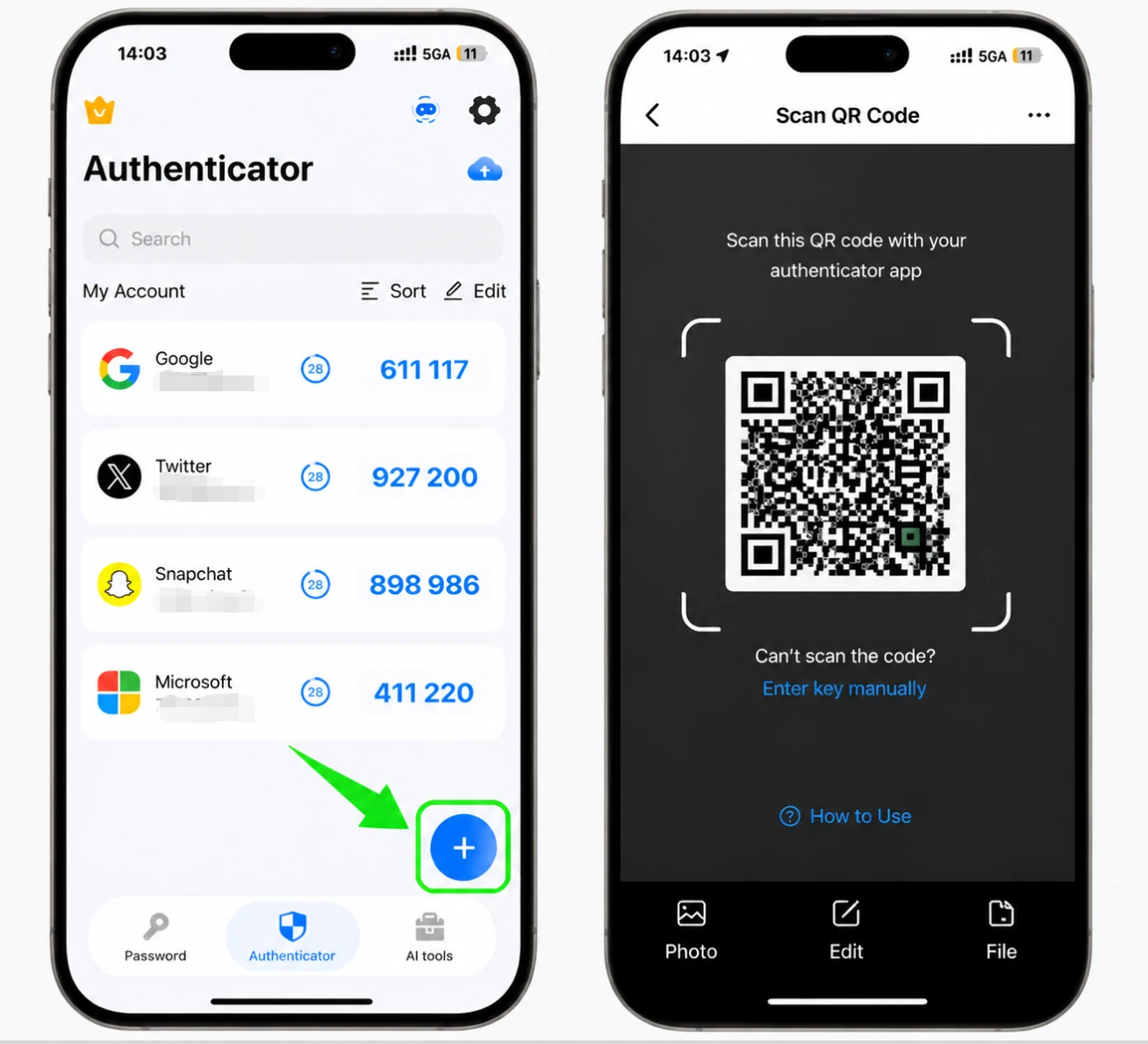
Zoom displays a QR code. Open the Authenticator App on your iPhone, tap the + button, and scan the QR code shown by Zoom. If you cannot scan it, choose the manual option and enter the secret key shown by Zoom instead.
Enter the 6-digit code and verify
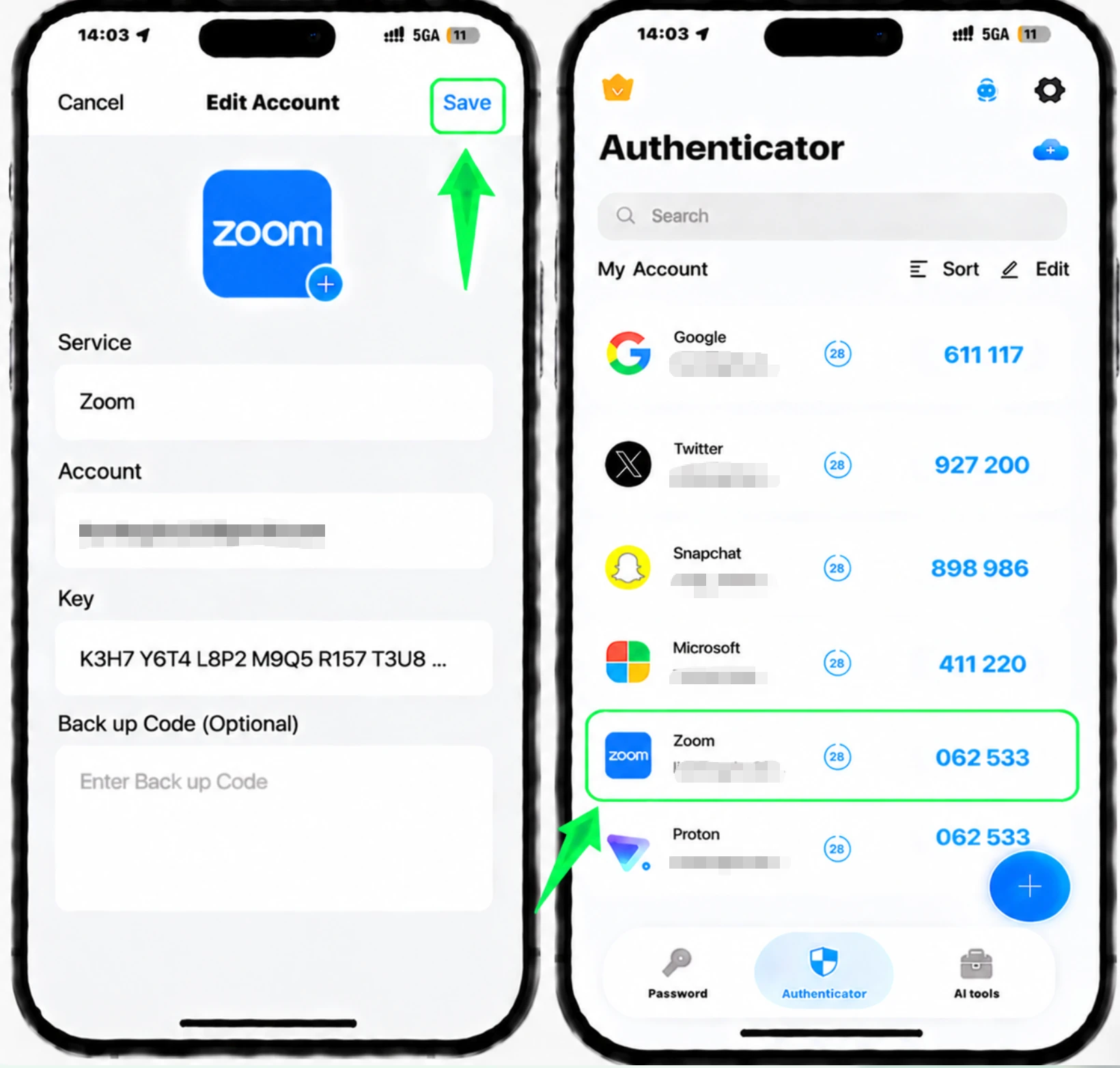
Click Next on Zoom. Then enter the 6-digit, one-time code generated by your authenticator app and click Verify.
Save your recovery codes and finish
After verification, Zoom shows your recovery codes. Click Download or Print to save them somewhere safe, then click Done to complete setup.



Backup & recovery
After verification, Zoom shows your recovery codes. Click Download or Print to save them somewhere safe, then click Done to complete setup.
That's it — your Zoom account is now protected with two-factor authentication. Keep your recovery information safe and follow the service's official documentation if its interface changes.
See all 2FA methods supported by Zoom →


