

Cómo habilitar 2FA para su cuenta Binance
Actualizado el 4 de agosto de 2026
La autenticación de dos factores (2FA) protege su cuenta Binance incluso si se filtra su contraseña. Siga los pasos a continuación para generar códigos de verificación Binance con Authenticator App en su iPhone, iPad o Mac.
Abrir la configuración de seguridad
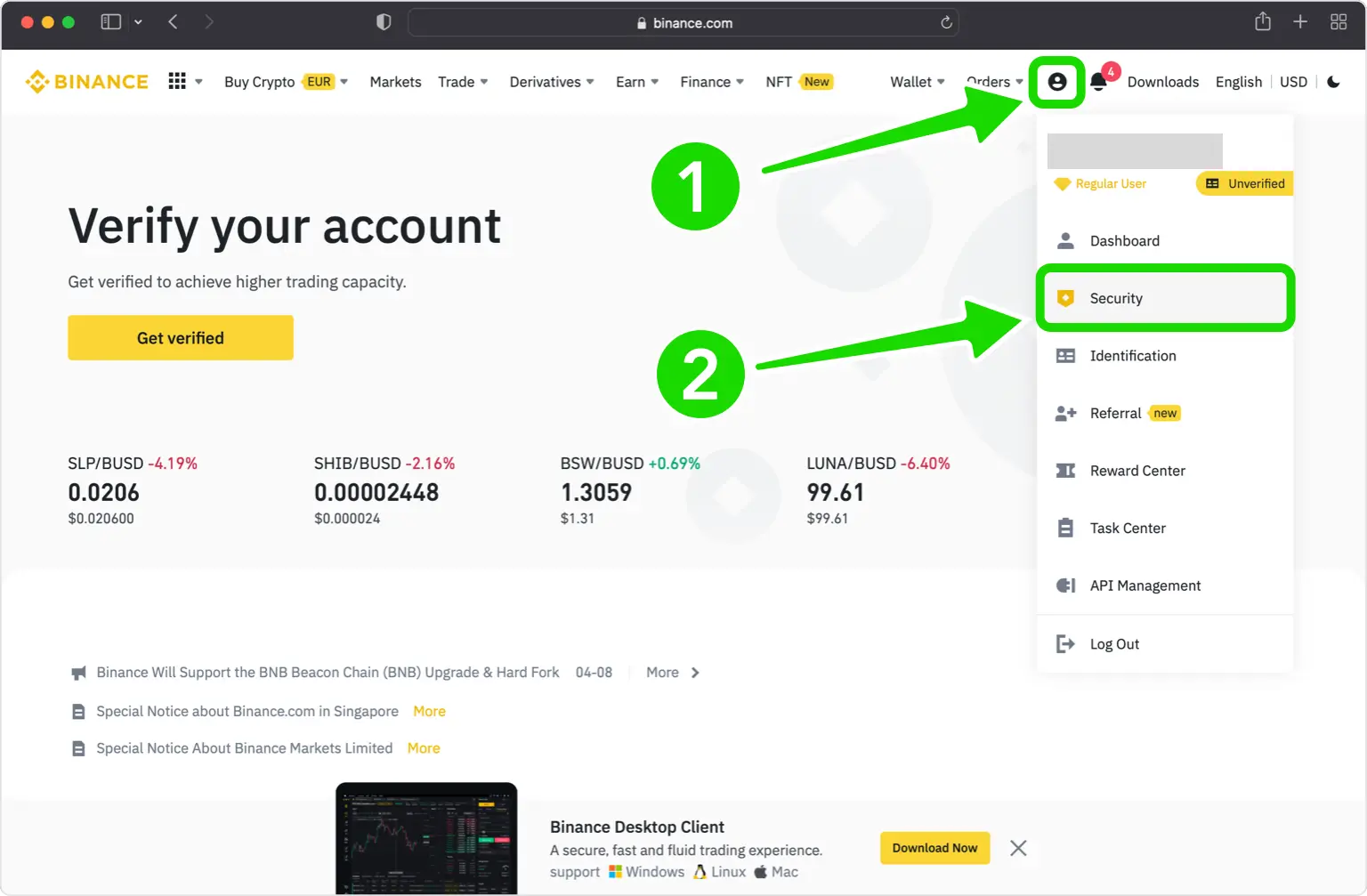
Inicie sesión en el sitio de Binance, haga clic en el icono de perfil de la esquina superior derecha y elija «Seguridad».
Activar Authenticator App
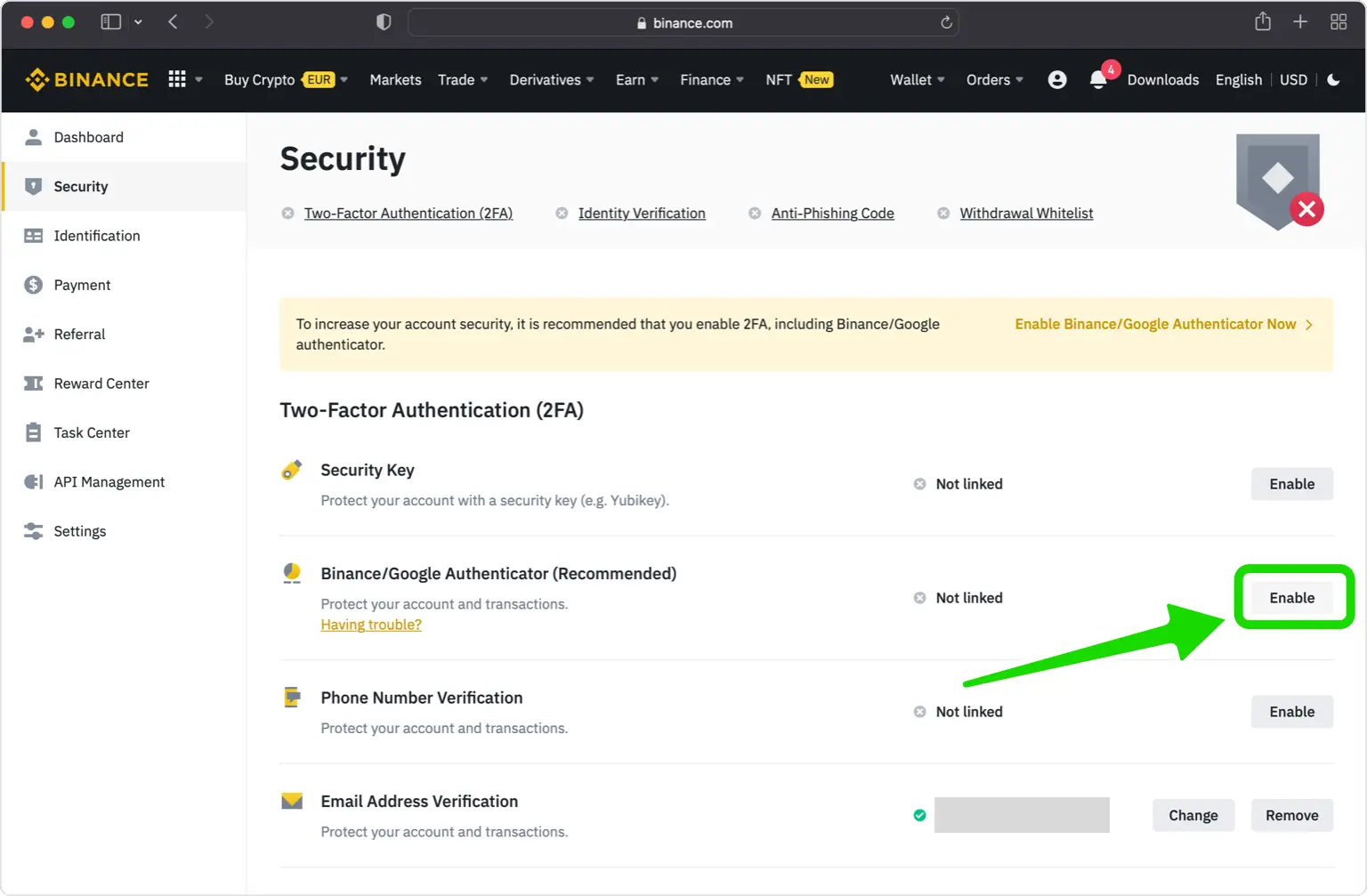
En la configuración de seguridad, busque Authenticator App y haga clic en «Activar» o «Administrar».
Elegir Authenticator App como método
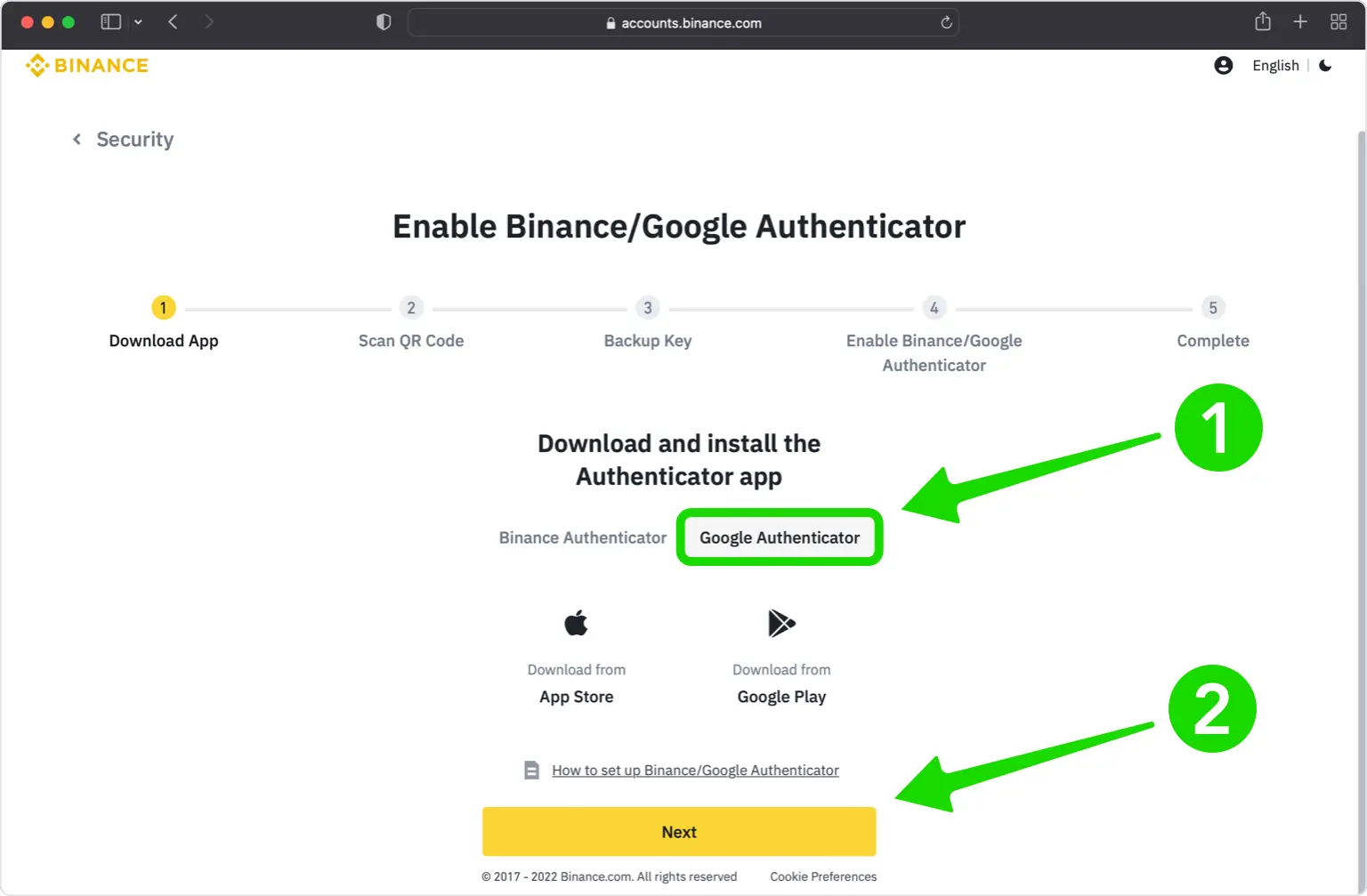
Seleccione Authenticator App como método de verificación y haga clic en «Siguiente».
Ver el código QR y la clave
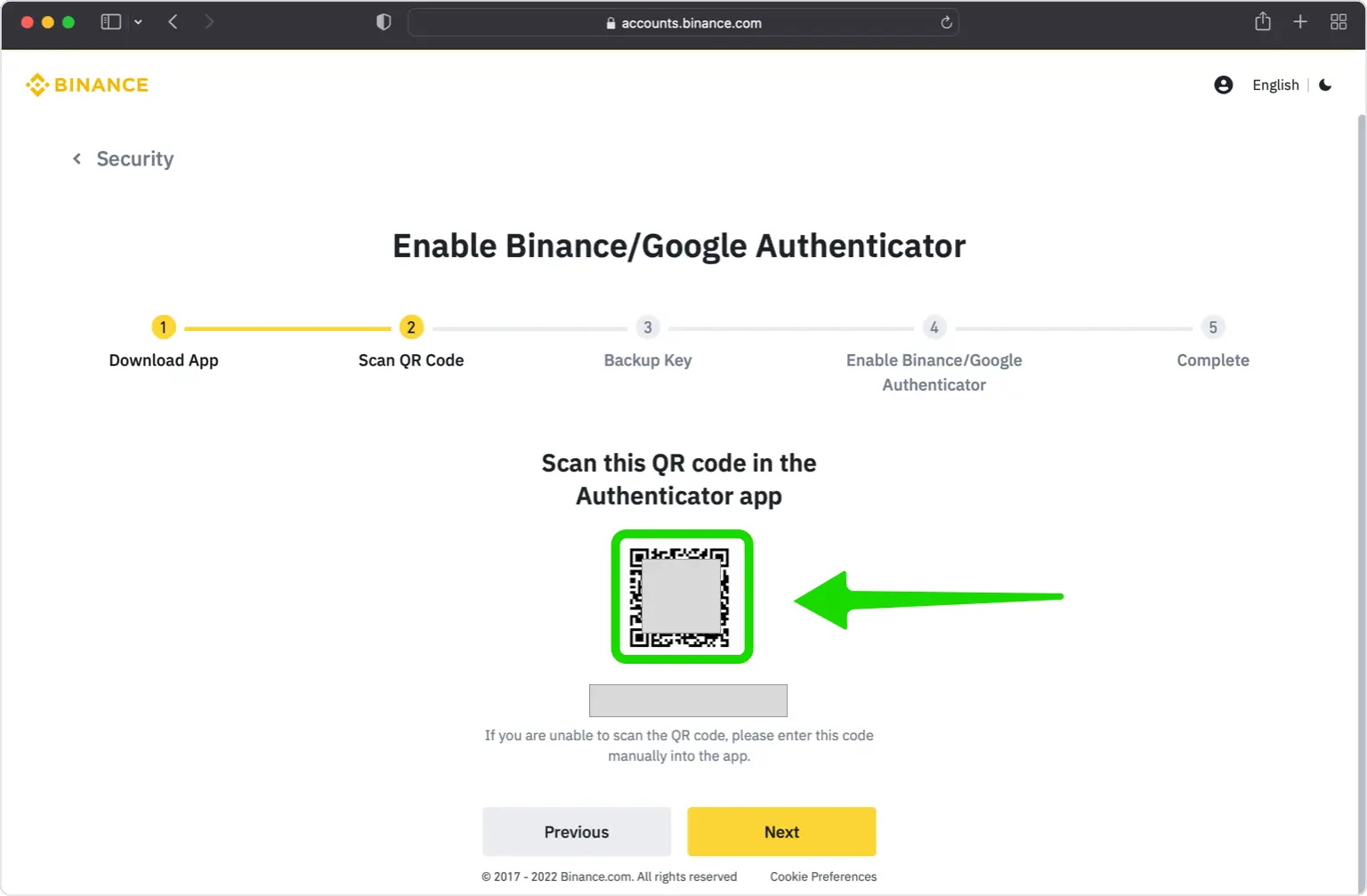
Binance mostrará un código QR y una clave de configuración. Mantenga esta ventana abierta.
Escanear el código QR
Abra Authenticator App, toque + y elija «Escanear un código QR». También puede introducir la clave manualmente.
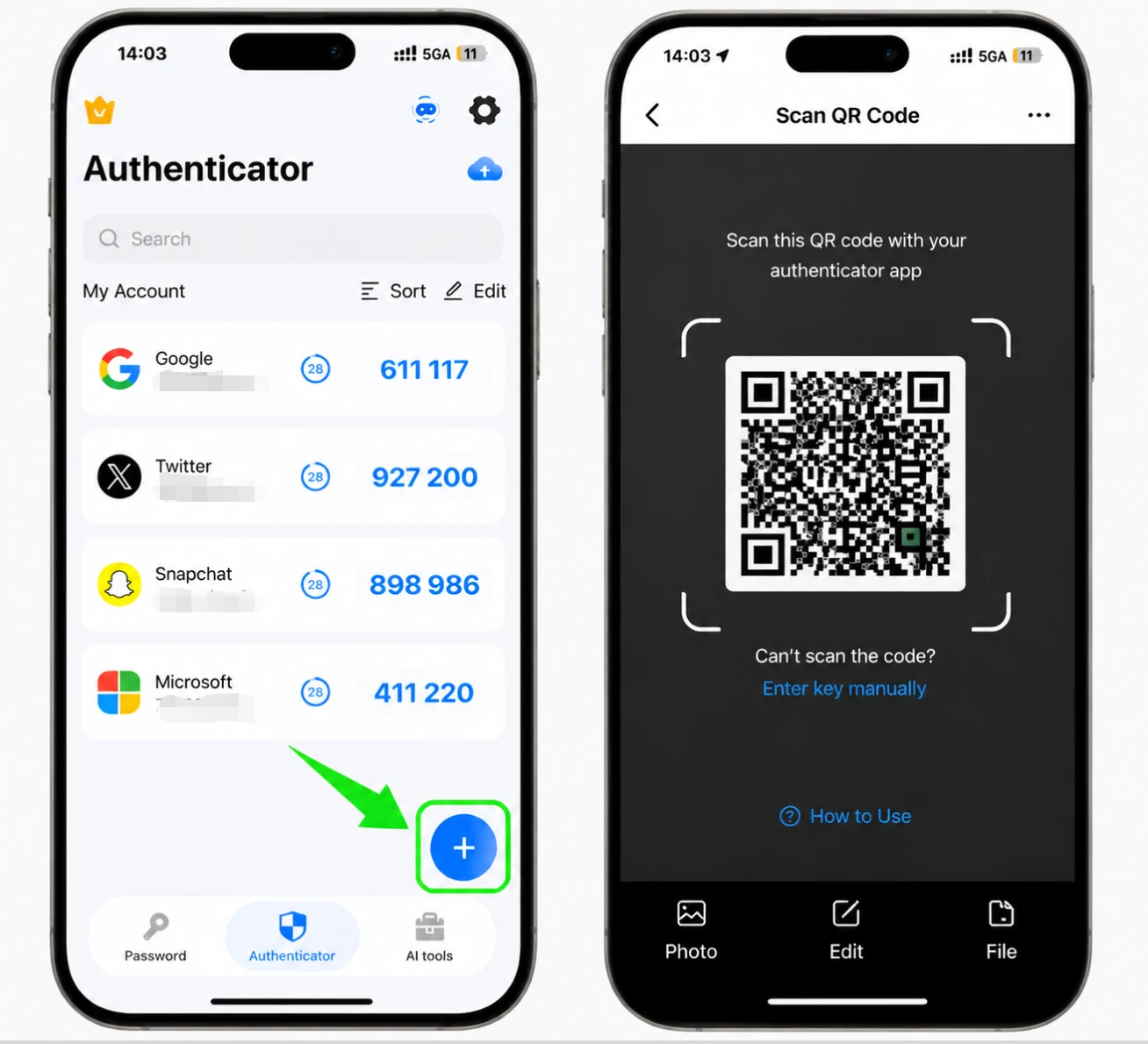
Guardar la entrada y copiar el código
Guarde la entrada de Binance completada automáticamente y copie el código actual de seis dígitos.
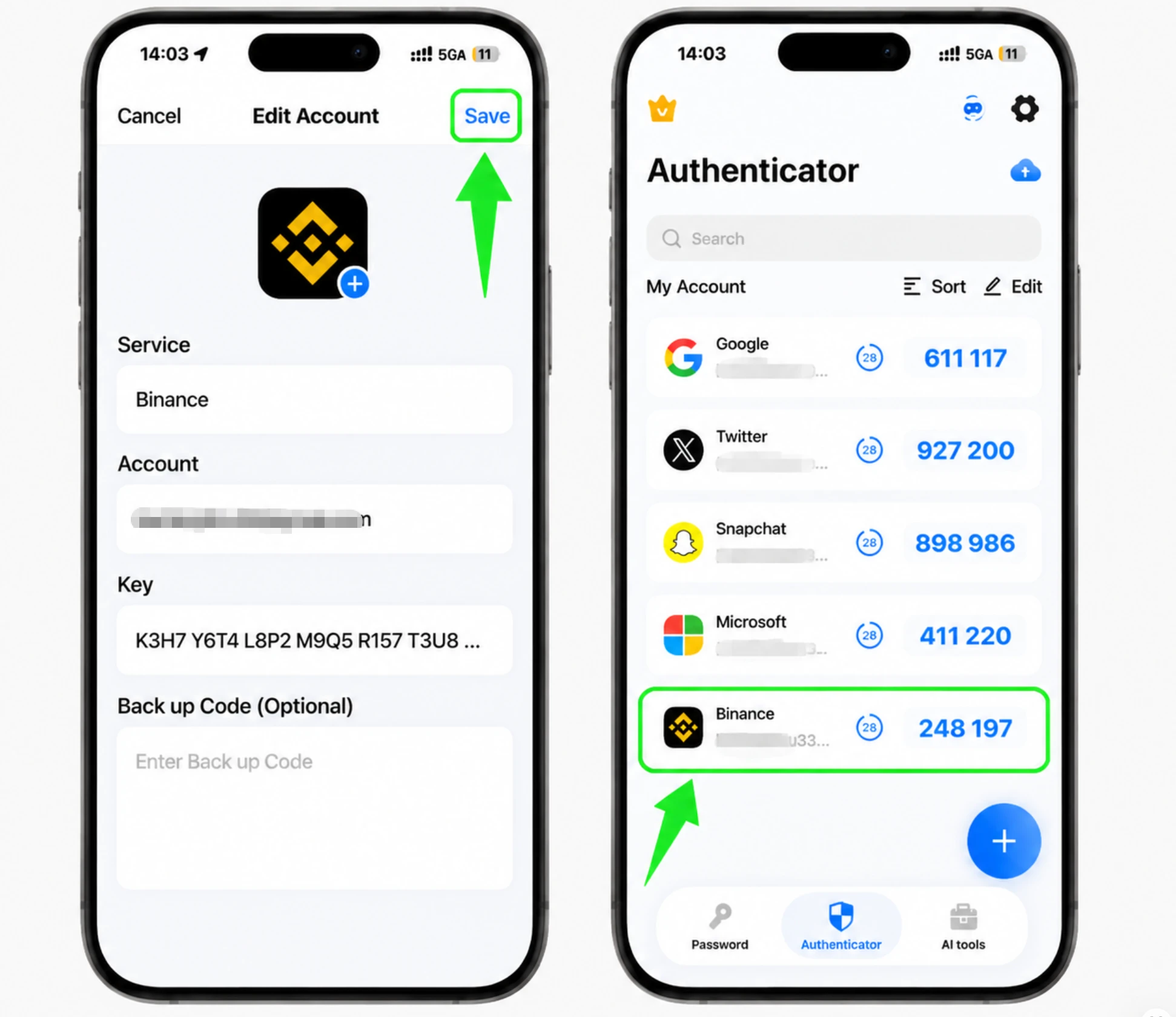
Verificar el código en Binance
En Binance, haga clic en «Siguiente», introduzca el código recibido por correo y después el código de Authenticator App.
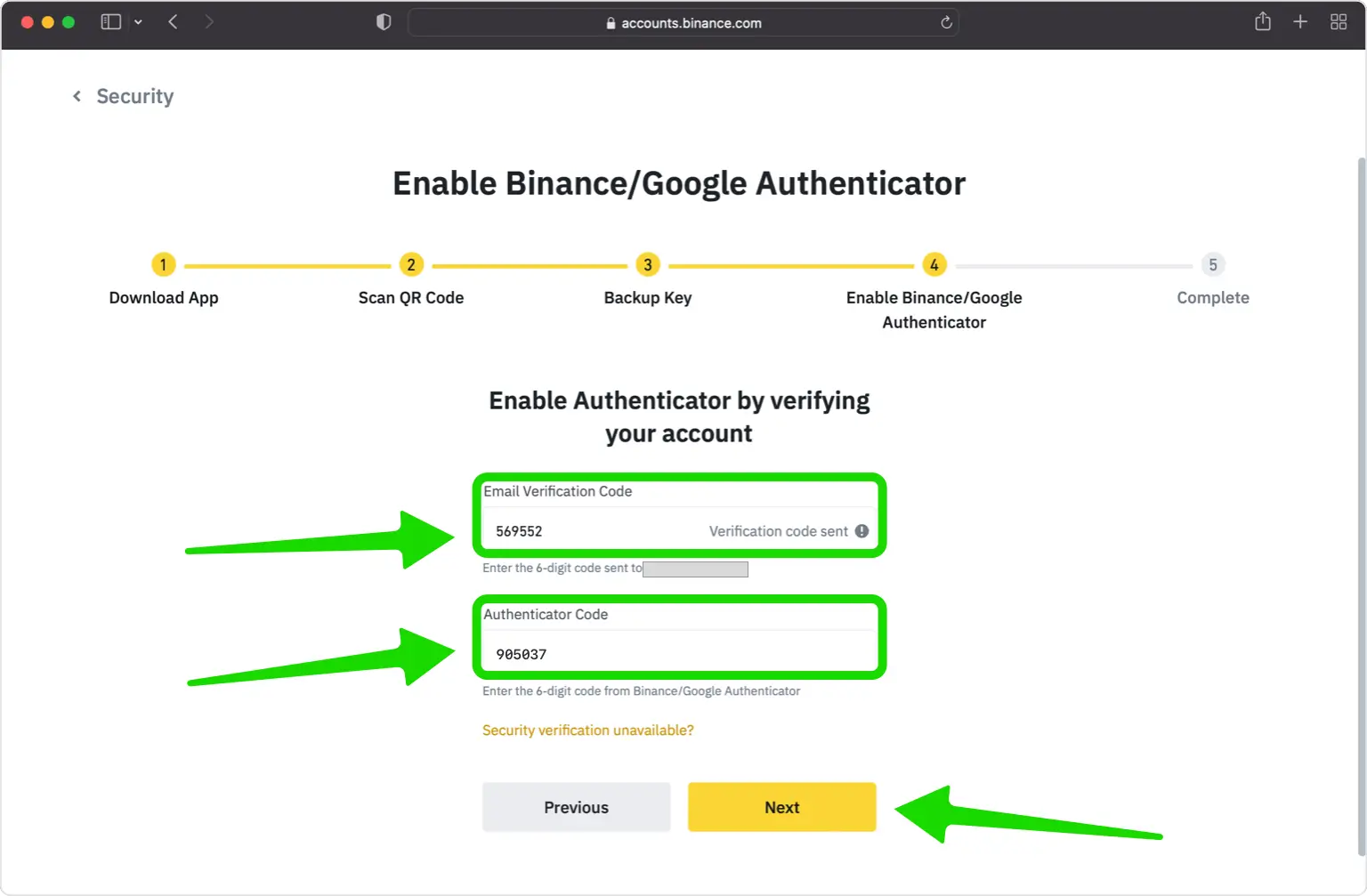
La autenticación de dos factores está activa
Binance confirma la activación. A partir de ahora usará un código de Authenticator App al iniciar sesión.
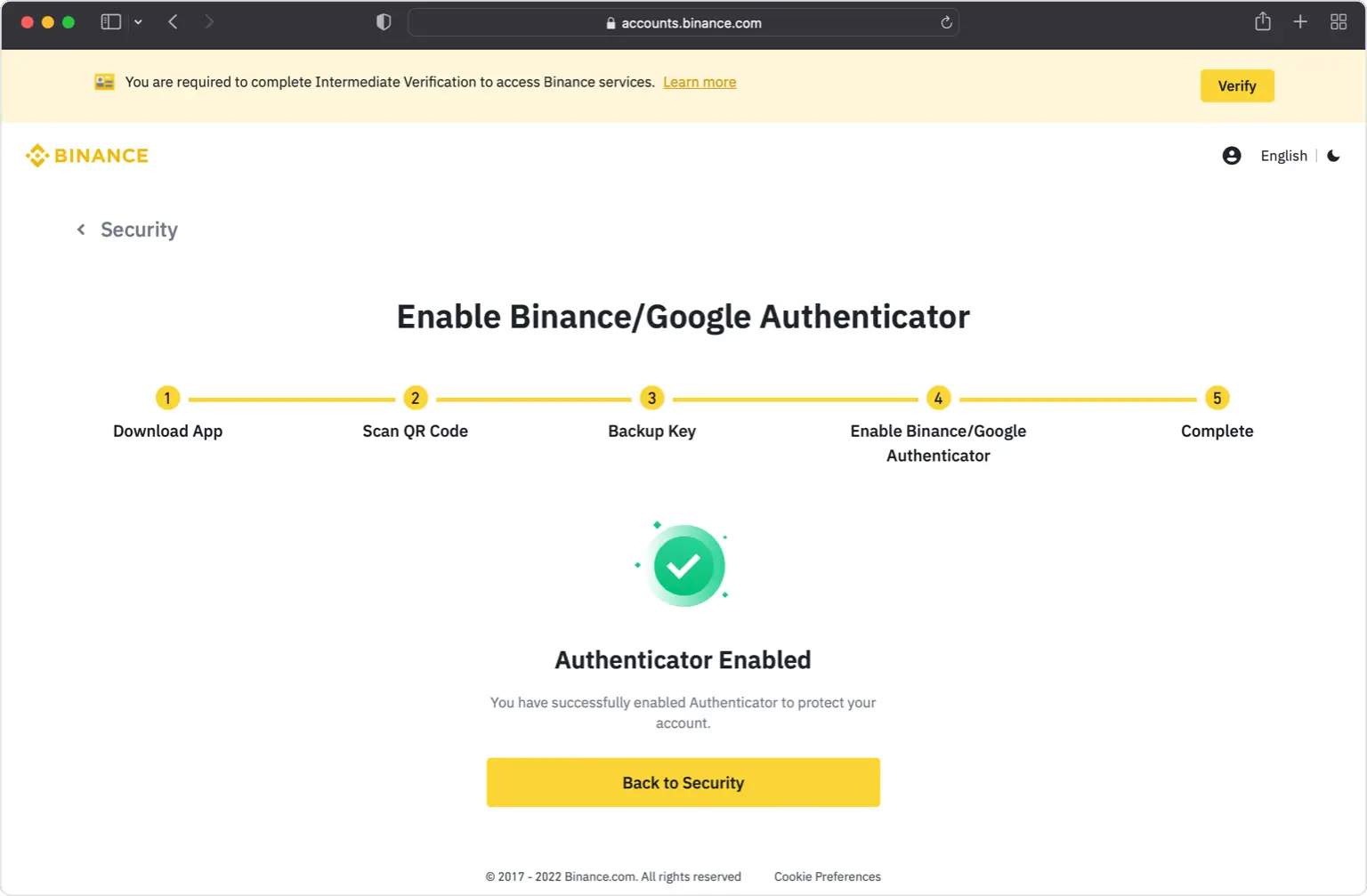
Guardar la clave de respaldo
Anote la clave de configuración o respaldo mostrada anteriormente y guárdela sin conexión en un lugar seguro.


Copia de seguridad y recuperación
Binance no proporciona una lista de códigos de recuperación de un solo uso. Durante la configuración muestra una clave de configuración o respaldo, la misma que se utiliza para la entrada manual. Anótela y guárdela sin conexión. Si pierde el acceso al dispositivo autenticador, podrá usarla para volver a añadir la cuenta en otra aplicación. Si también pierde la clave, deberá restablecer la 2FA mediante la recuperación de cuenta o la verificación de identidad de Binance.
Listo: su cuenta de Binance ya está protegida con autenticación de dos factores. Si tiene algún problema, visite la página de ayuda oficial de Binance. ¡Manténgase seguro!
Ver todos los métodos 2FA soportados por Binance →


