

Cómo habilitar 2FA para su cuenta Dropbox
Actualizado el 4 de agosto de 2026
La autenticación de dos factores (2FA) protege su cuenta Dropbox incluso si se filtra su contraseña. Siga los pasos a continuación para generar códigos de verificación Dropbox con Authenticator App en su iPhone, iPad o Mac.
Abra el menú de su cuenta y vaya a Configuración
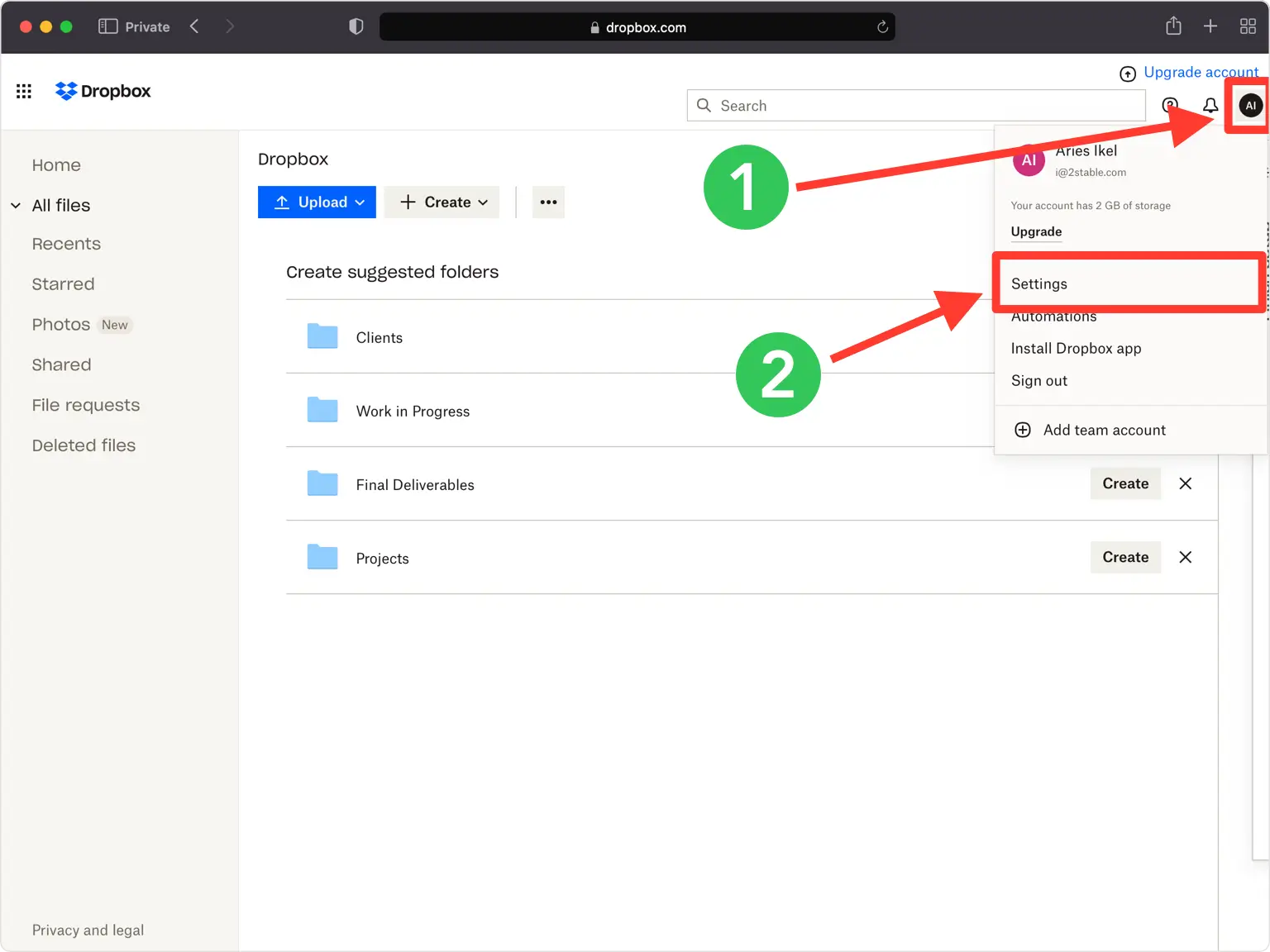
Inicia sesión en dropbox.com en un navegador web. Haga clic en el ícono de su cuenta (su foto de perfil o sus iniciales) en la esquina superior derecha, luego elija Configuración en el menú desplegable.
Active la verificación en dos pasos en Seguridad
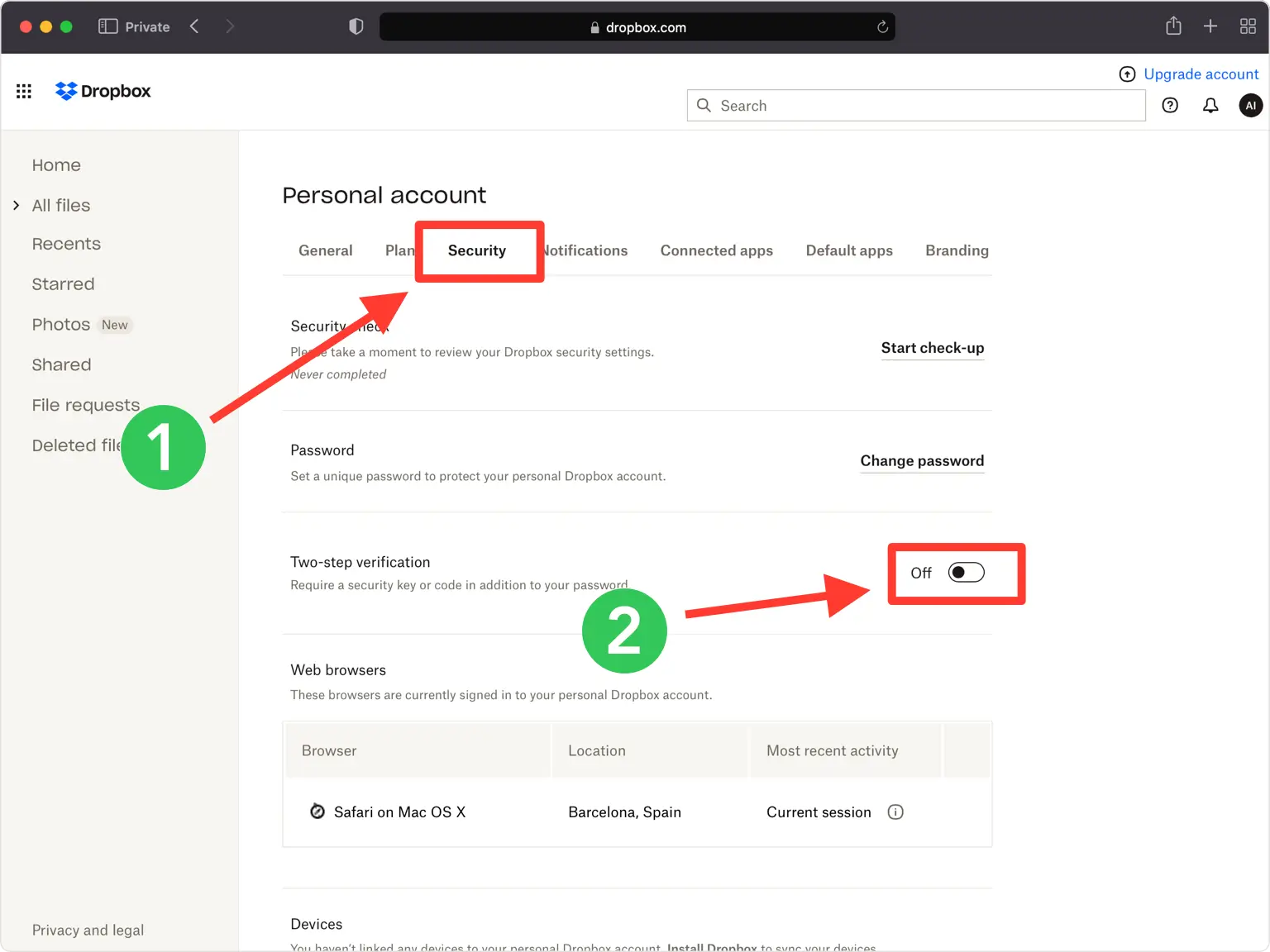
Abra la pestaña Seguridad y busque la sección Verificación en dos pasos. Haga clic en el interruptor para activarlo, luego vuelva a ingresar su contraseña y haga clic en Enviar cuando se le solicite.
Haga clic en Comenzar
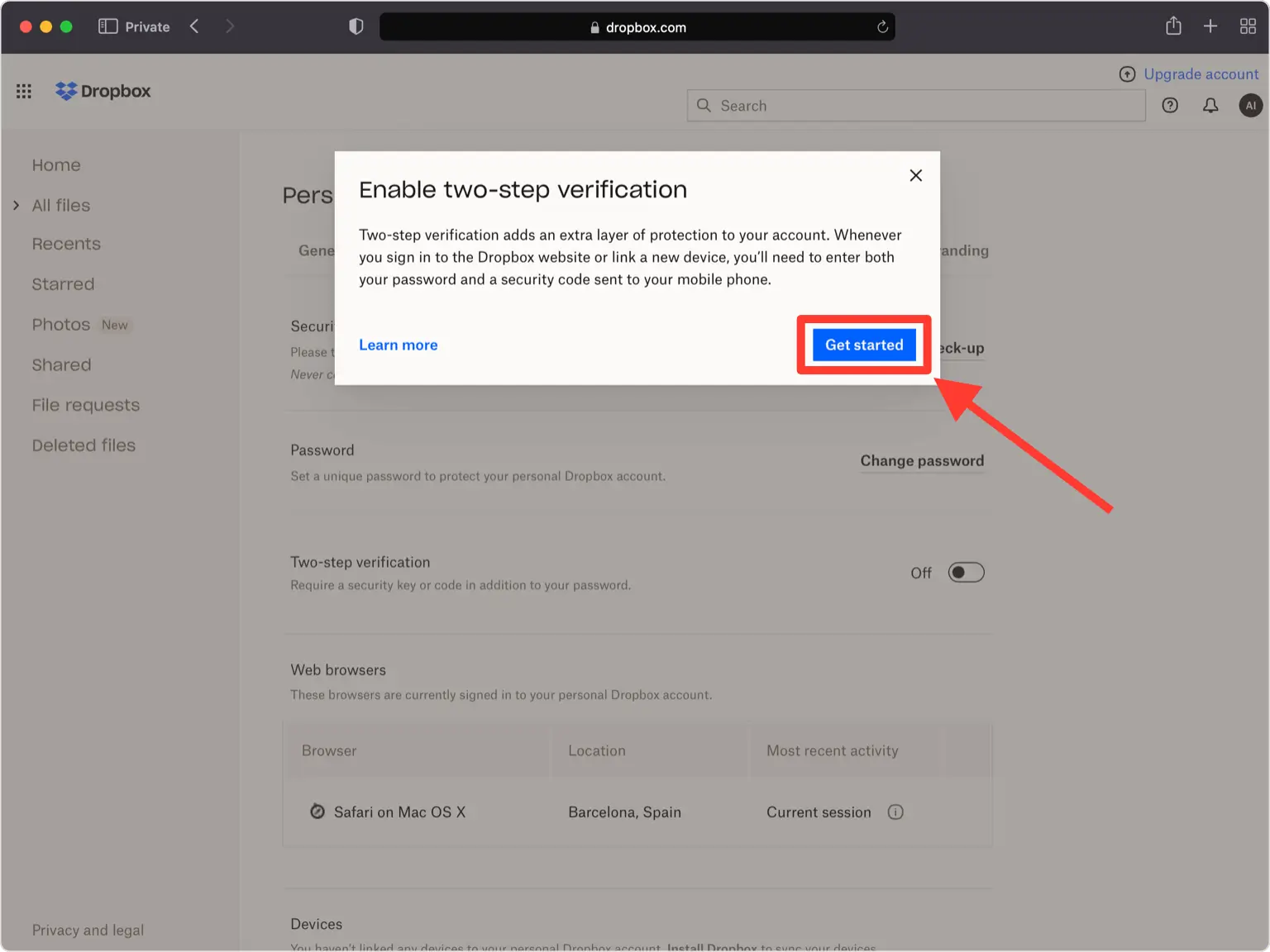
Dropbox abre un breve asistente de configuración para la verificación en dos pasos. Haga clic en Comenzar para continuar.
Elija la opción de la aplicación de autenticación
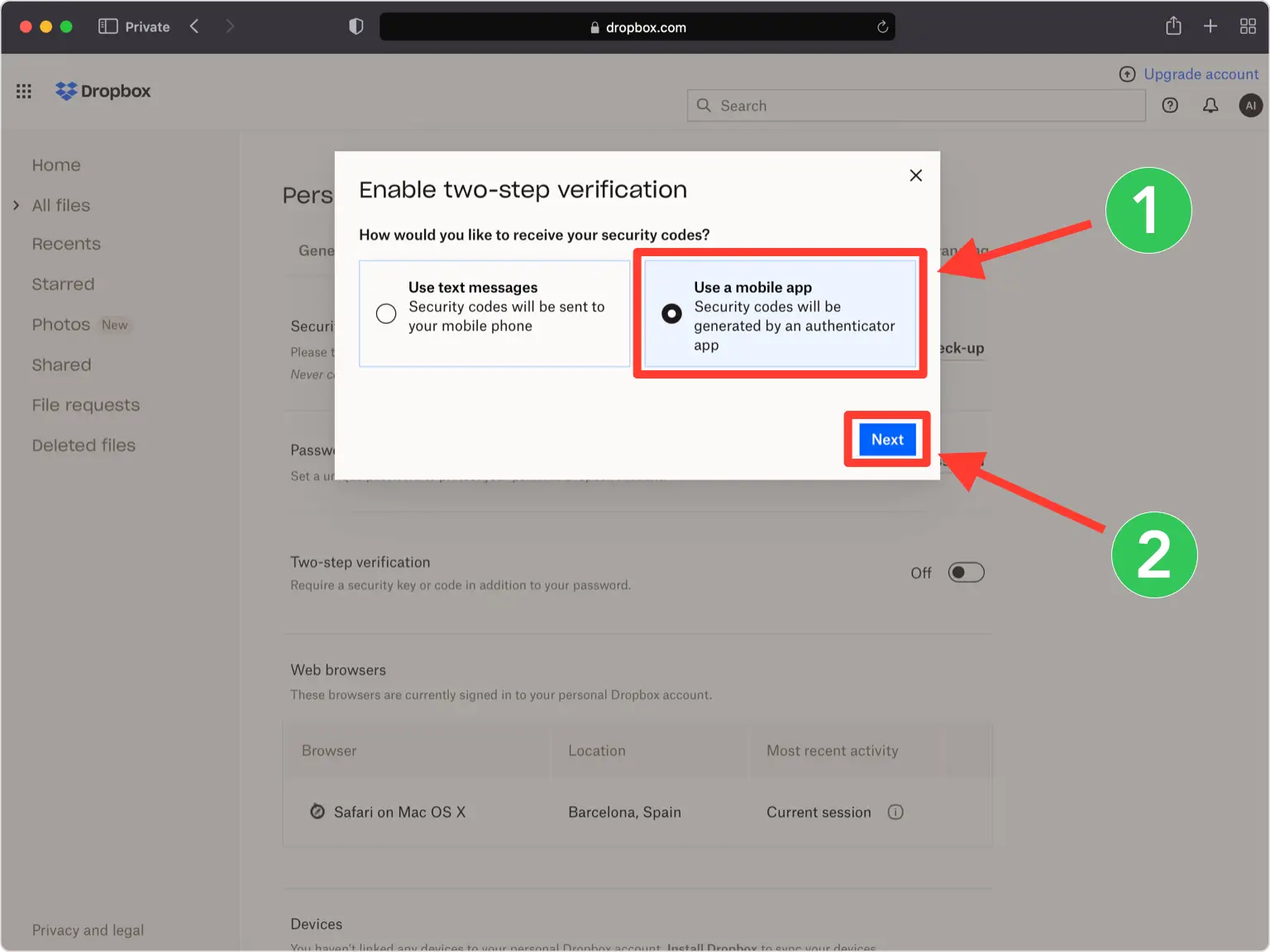
Cuando se le pregunte cómo desea recibir sus códigos, seleccione la opción de la aplicación de autenticación móvil (que se muestra como Usar una aplicación móvil) y luego haga clic en Siguiente.
Ver el código QR
Dropbox muestra un código QR (junto con una clave secreta) en una ventana emergente. Deje esta ventana abierta en su computadora mientras toma su teléfono.
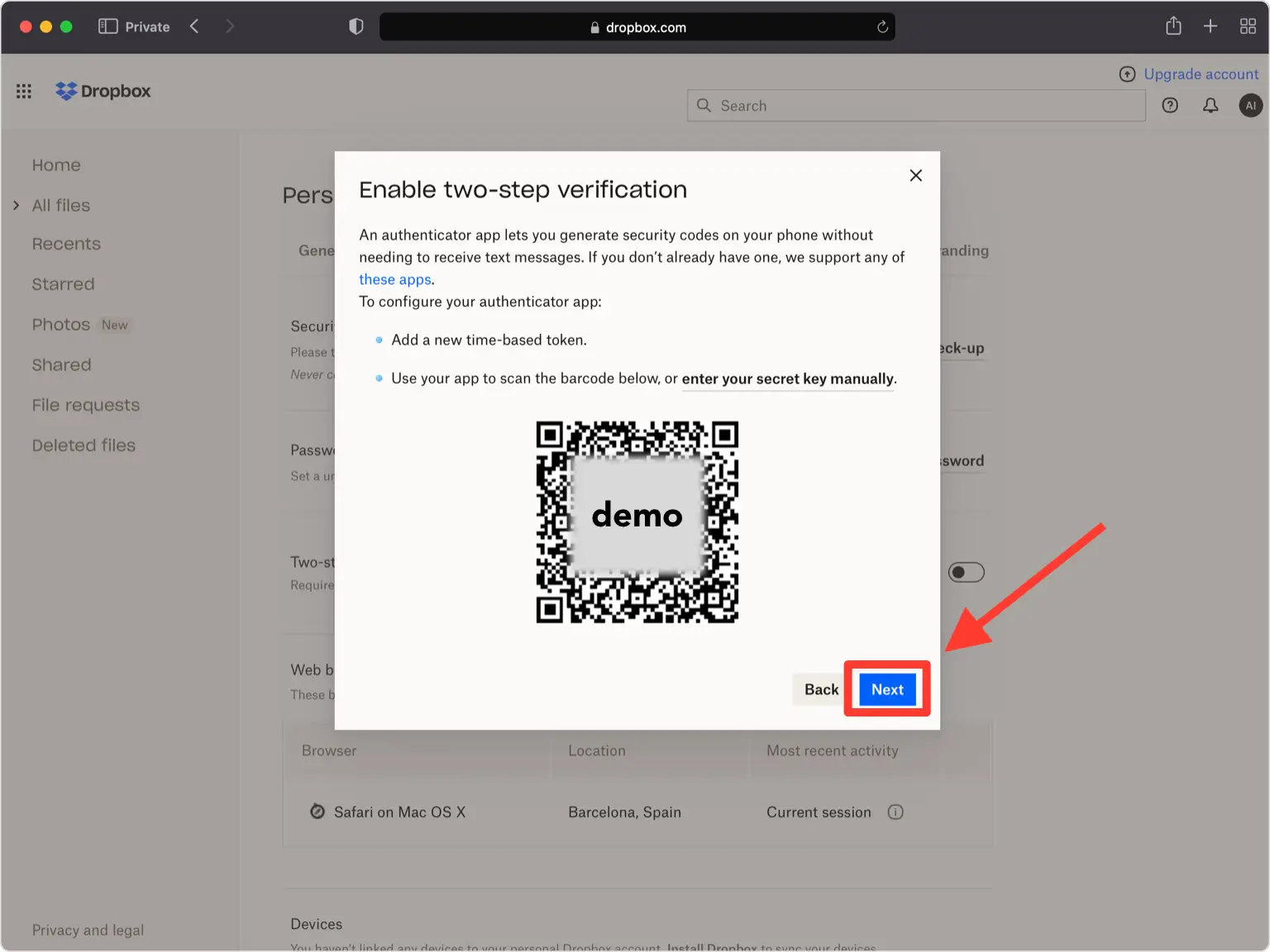
Escanea el código QR con tu Authenticator App
Abra Authenticator App en su iPhone, toque el botón + en la parte inferior de la pantalla y apunte su teléfono a la pantalla para escanear el código QR que muestra Dropbox. Si no puedes escanearlo, usa la opción manual e ingresa la clave secreta de Dropbox.
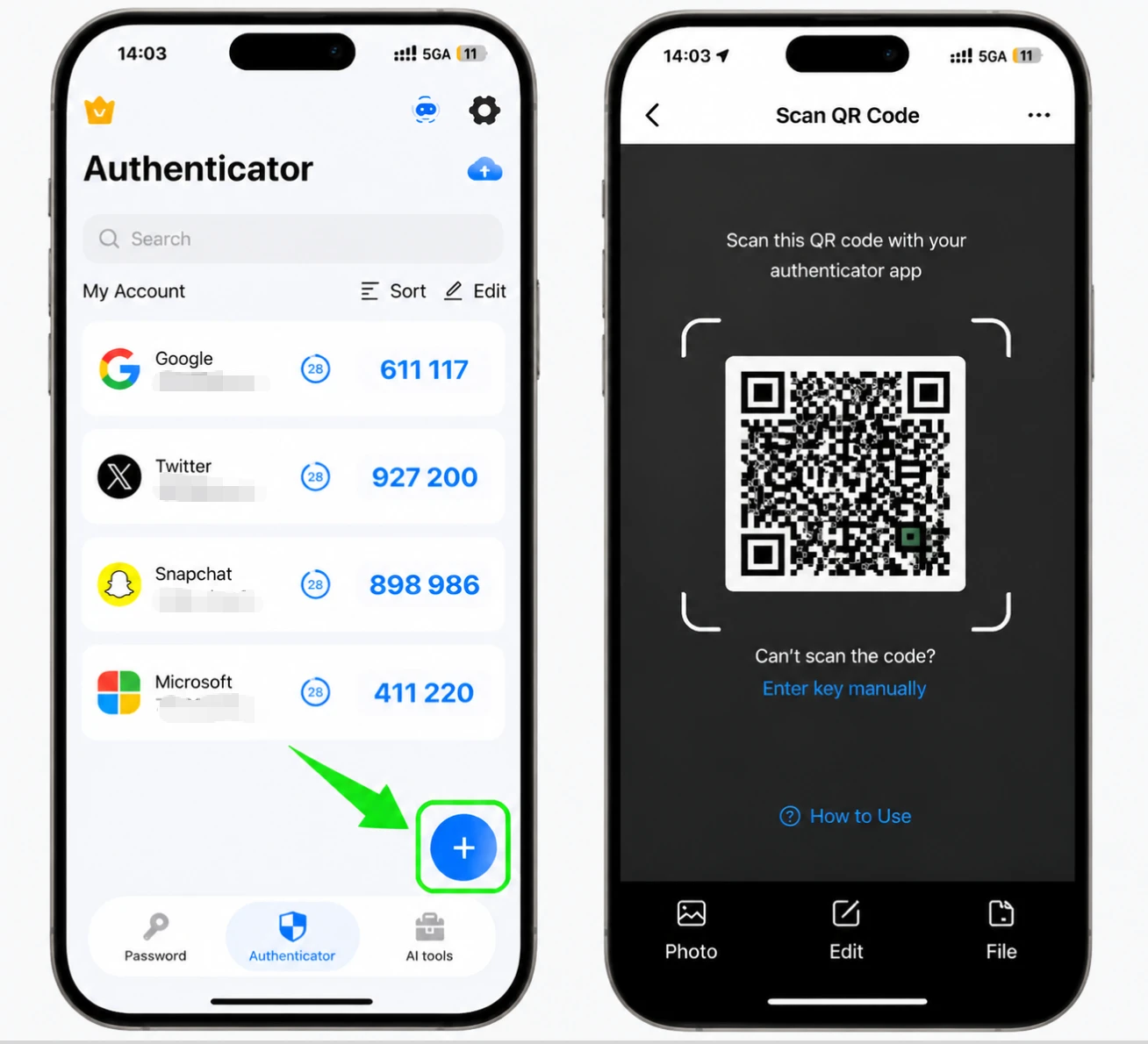
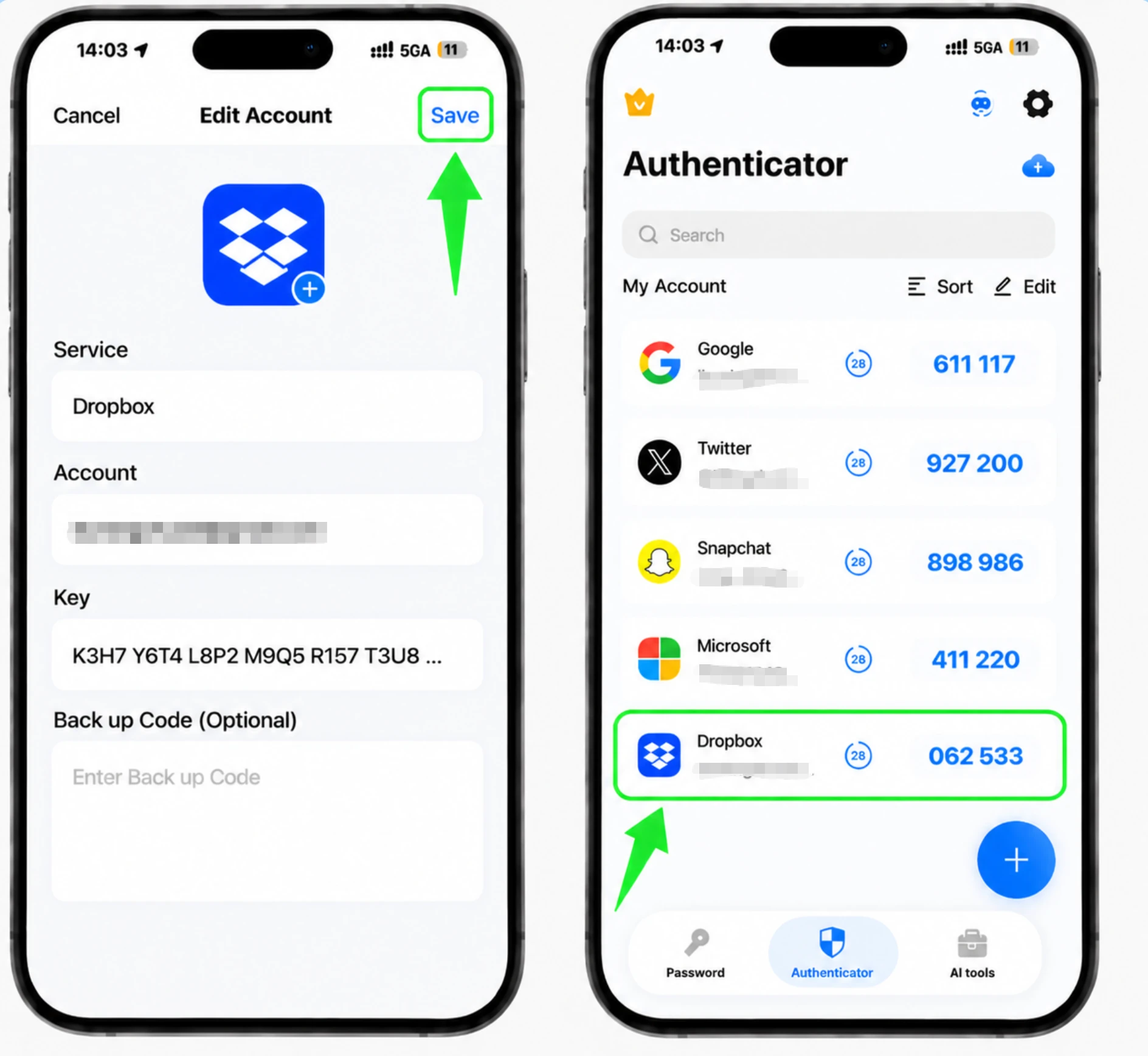
Guarde la entrada de Dropbox en la aplicación
Después del escaneo, Authenticator App completa automáticamente el logotipo de Dropbox, el nombre de la cuenta y la clave secreta. Ajuste el ícono o el nombre si lo desea, luego toque Guardar para agregar la cuenta.
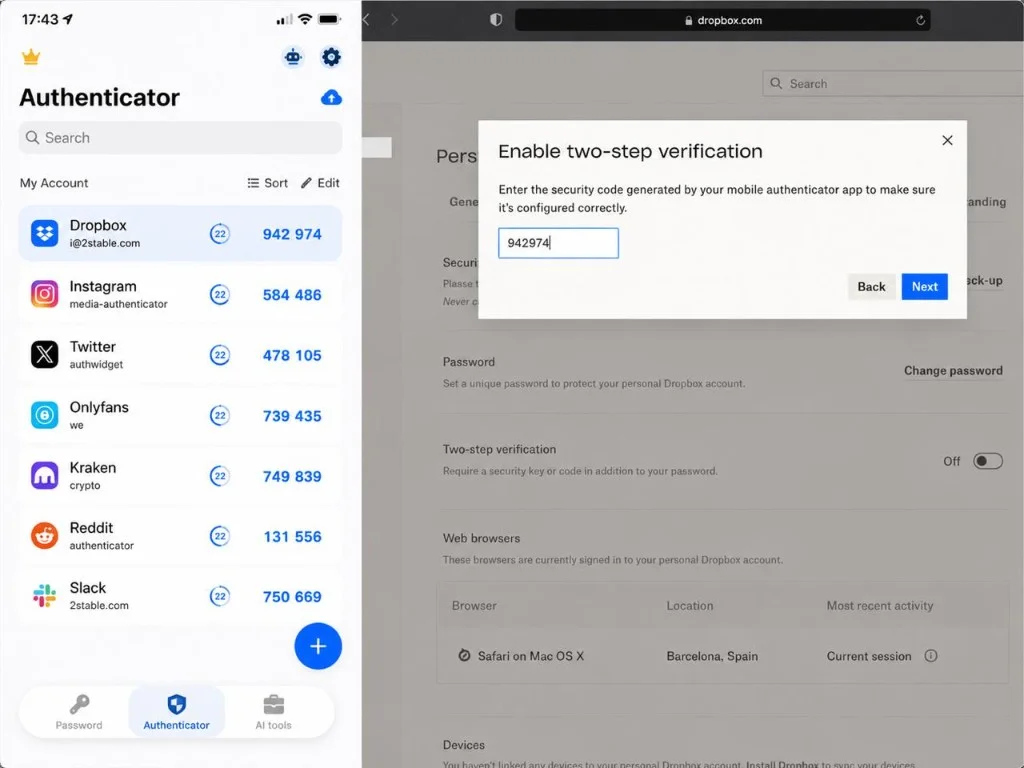
Ingresa el código de verificación de 6 dígitos
Lea el código de 6 dígitos que su Authenticator App ahora muestra para Dropbox y escríbalo en Dropbox, luego haga clic en Siguiente. El código se actualiza cada 30 segundos, así que ingresa el actual de inmediato.
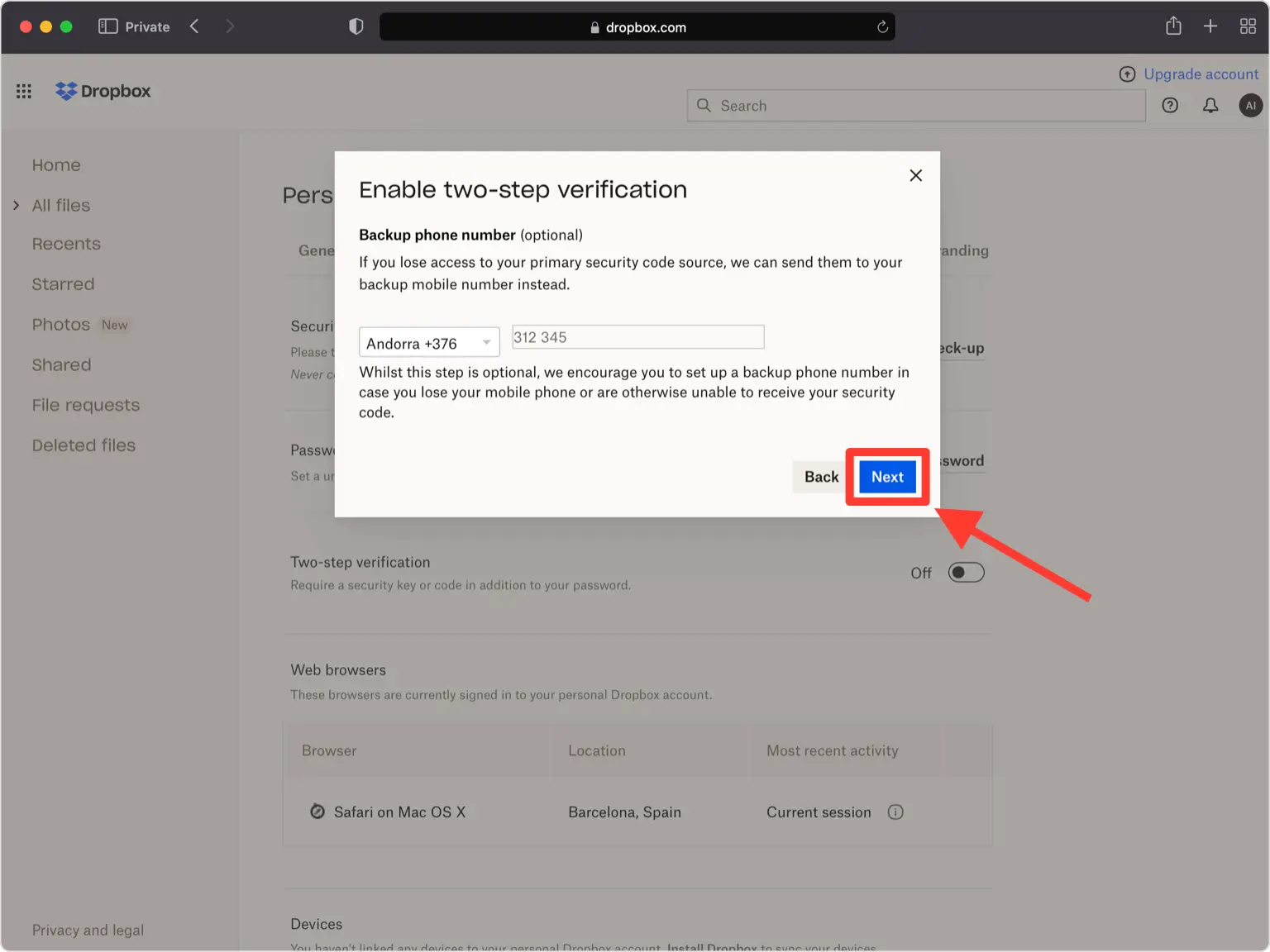
Agregar un teléfono de respaldo (opcional)
Puede agregar un número de teléfono secundario para recibir códigos de mensajes de texto como respaldo u omitir este paso. Haga clic en Siguiente cuando haya terminado.
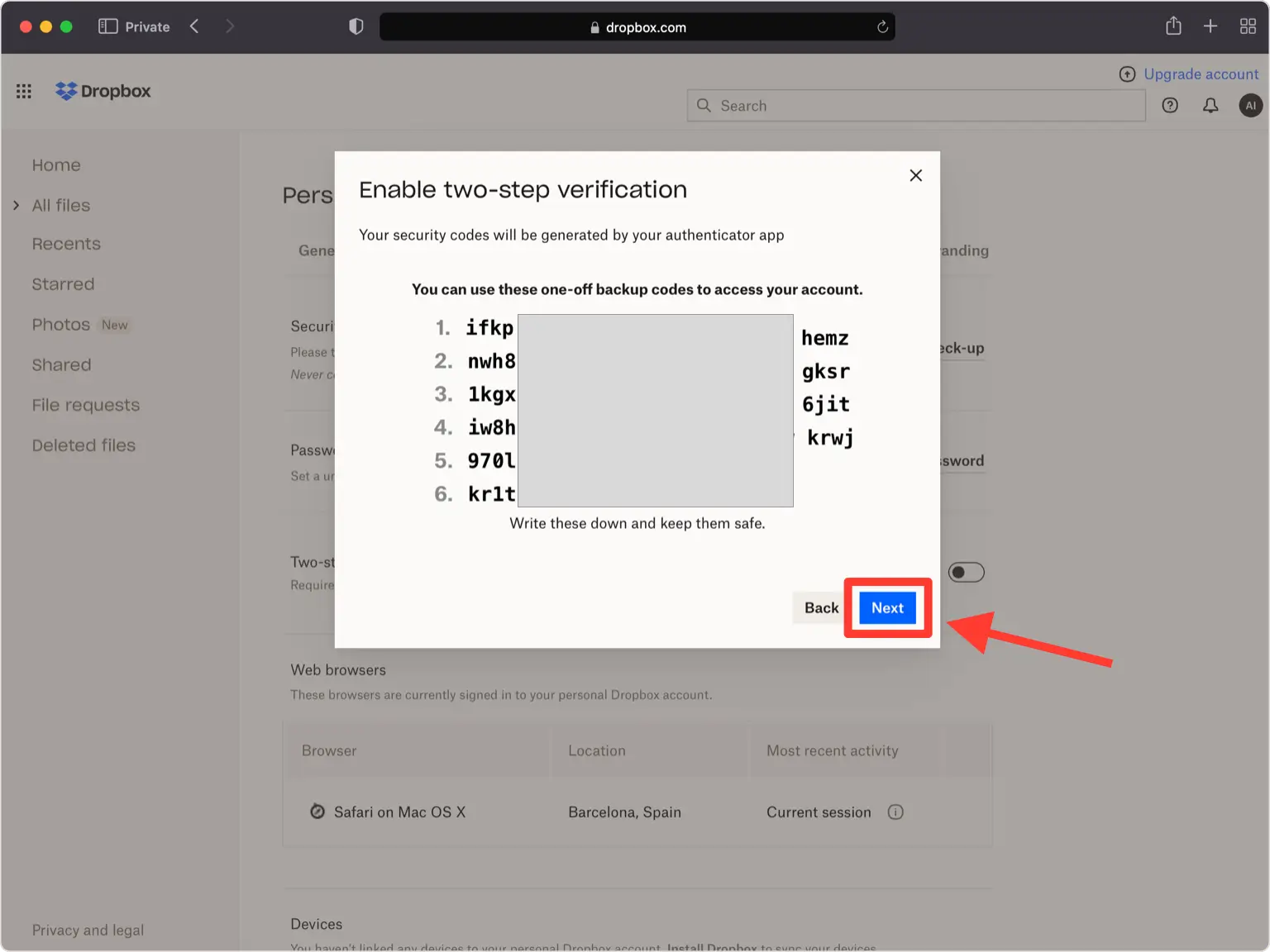
Guarde sus códigos de recuperación
Dropbox genera un conjunto de 10 códigos de respaldo únicos. Guárdelos en un lugar seguro (cada uno funciona solo una vez si pierde el acceso a su aplicación de autenticación), luego haga clic en Siguiente.
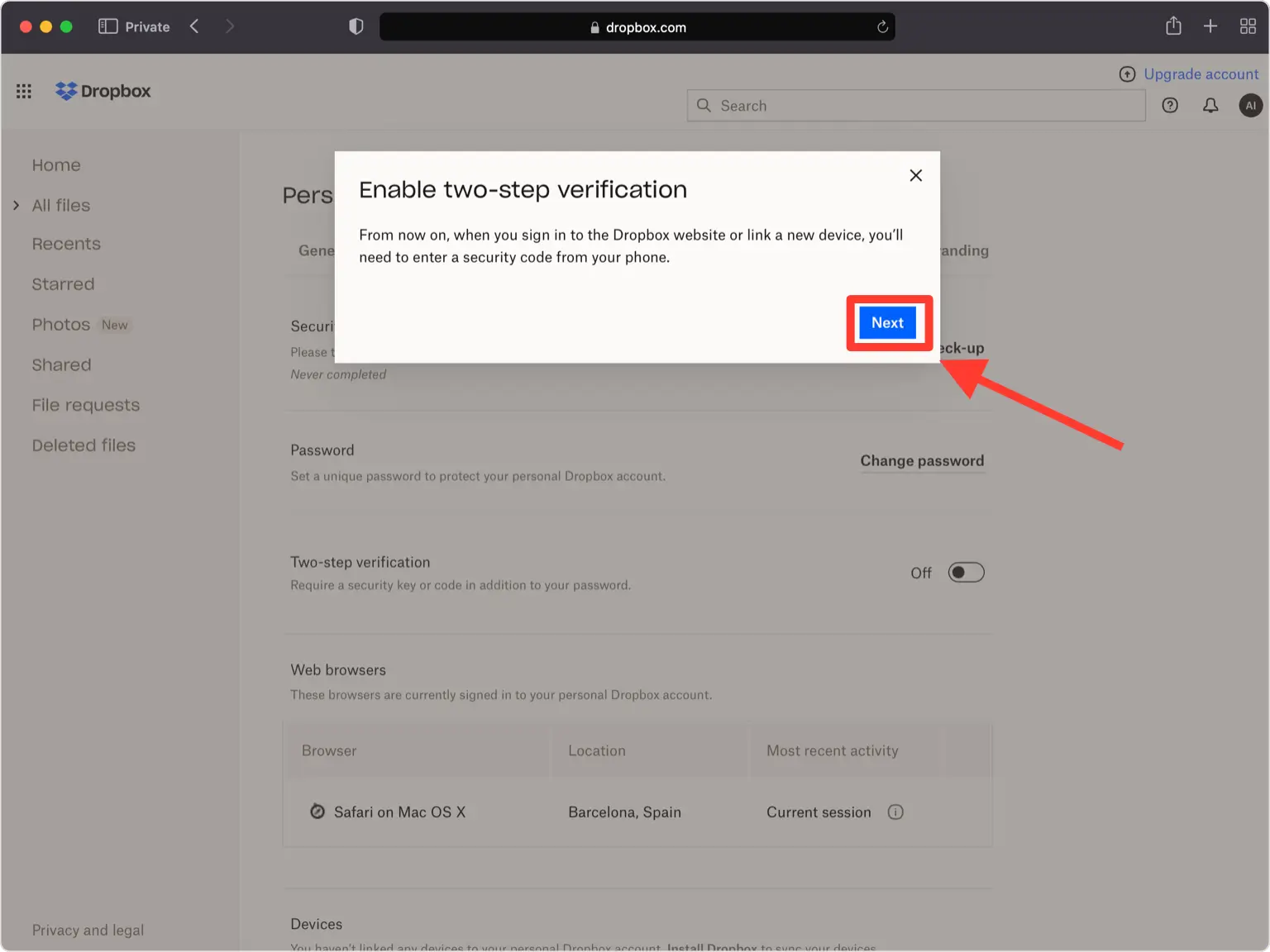
Finalizar la configuración
La verificación en dos pasos ahora está habilitada en tu cuenta de Dropbox. De ahora en adelante, ingresarás un código de tu Authenticator App cuando inicies sesión.



Copia de seguridad y recuperación
Dropbox genera un conjunto de 10 códigos de respaldo únicos. Guárdelos en un lugar seguro (cada uno funciona solo una vez si pierde el acceso a su aplicación de autenticación), luego haga clic en Siguiente.
Listo: su cuenta de Dropbox ya está protegida con autenticación de dos factores. Guarde la información de recuperación de forma segura y consulte la documentación oficial del servicio si cambia la interfaz.
Ver todos los métodos 2FA soportados por Dropbox →


