

How to enable 2FA for your X (Twitter) account
Updated August 4, 2026
Two-factor authentication (2FA) protects your X (Twitter) account even if your password leaks. Follow the steps below to generate X (Twitter) verification codes with the Authenticator App on your iPhone, iPad or Mac.
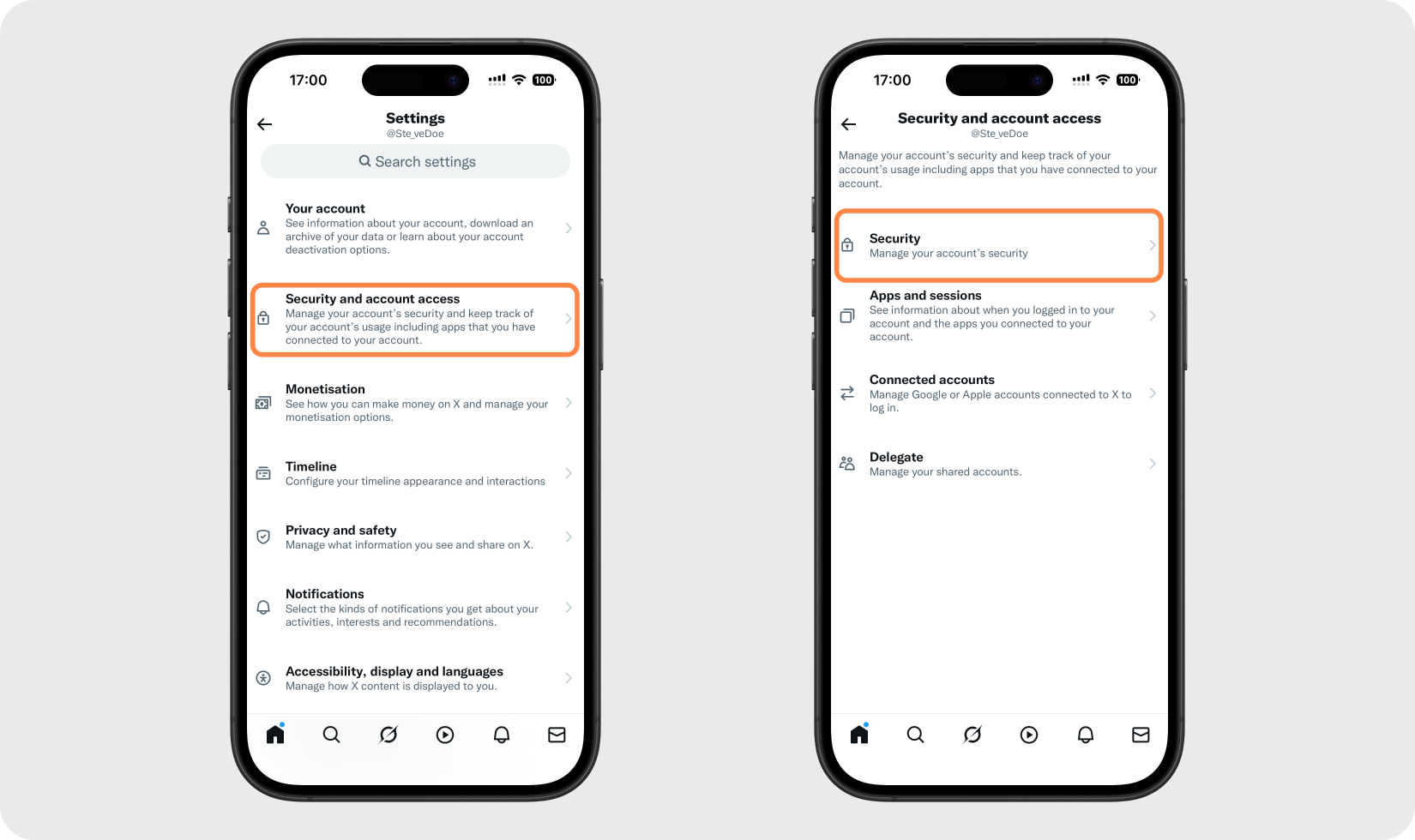
Open your X app and go to Settings
Sign in to your X account, then tap your profile picture to open the sidebar. Tap Settings and privacy to reach your account settings.

Go to Security settings
In the Settings menu, tap Security and account access, then choose Security.
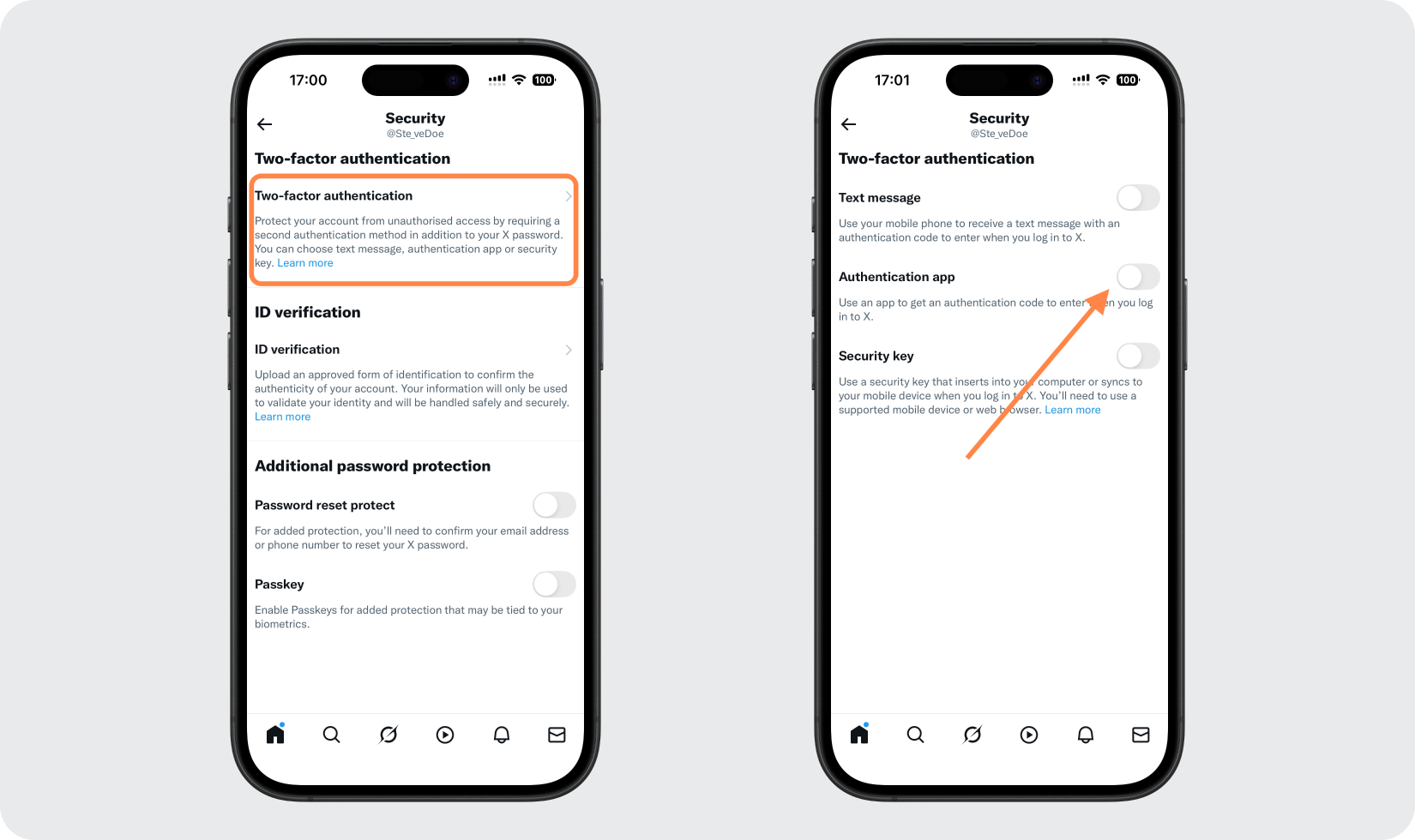
Choose the Authentication app method
Tap Two-factor authentication to see the available methods (Text message, Authentication app, Security key). Turn on the Authentication app option.
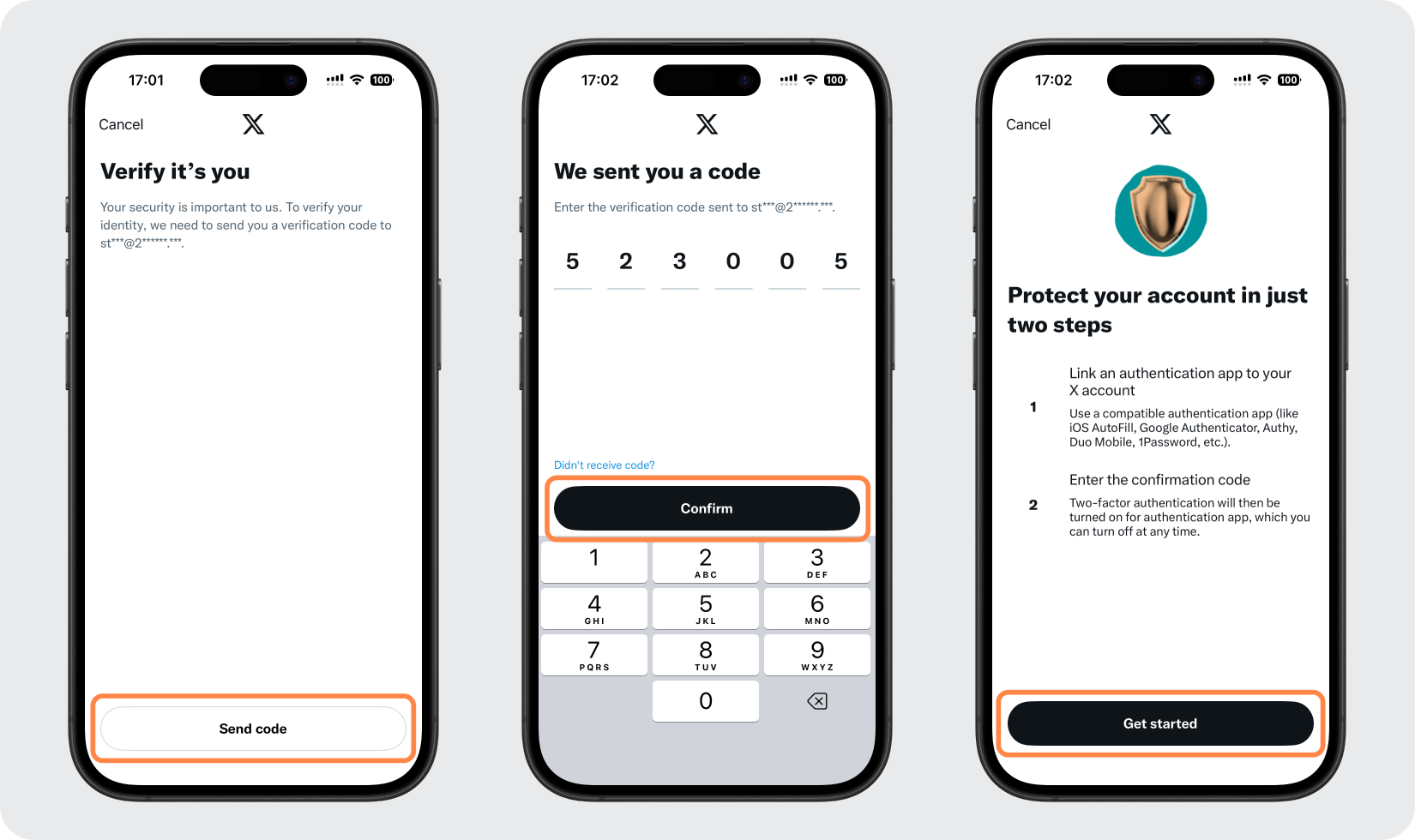
Confirm your identity and start setup
Verify it's you by entering your X password or a code X emails you. Then tap Get started to begin linking the app.
Open the Authenticator App
Tap Link app. X opens the Authenticator App on your iPhone with your account details already filled in. Tap Save to add the account.

Enter the code to confirm
Your Authenticator App now shows a 6-digit code for X. Copy it and paste it into the field on X, then tap Confirm to finish enabling two-factor authentication.

Save your X backup code
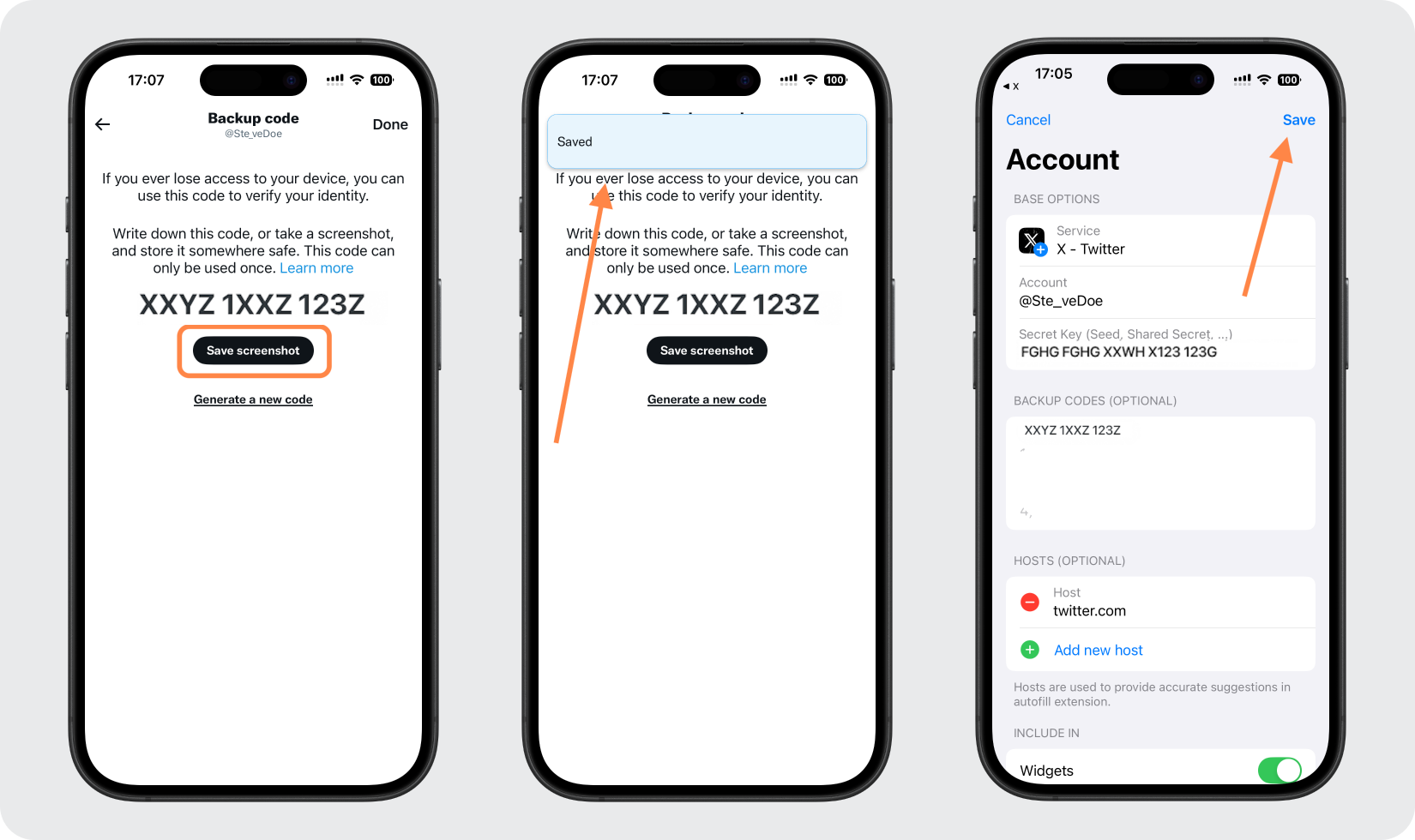
After setup, tap Get Backup Code, then save it (for example with Save Screenshot). Store this single code somewhere safe so you can sign in if you ever lose access to your Authenticator App; you can also view it later under Backup Codes in your X settings.



Backup & recovery
After setup, tap Get Backup Code, then save it (for example with Save Screenshot). Store this single code somewhere safe so you can sign in if you ever lose access to your Authenticator App; you can also view it later under Backup Codes in your X settings.
That's it — your X (Twitter) account is now protected with two-factor authentication. Keep your recovery information safe and follow the service's official documentation if its interface changes.
See all 2FA methods supported by X (Twitter) →


