

Cómo habilitar 2FA para su cuenta Microsoft
Actualizado el 4 de agosto de 2026
La autenticación de dos factores (2FA) protege su cuenta Microsoft incluso si se filtra su contraseña. Siga los pasos a continuación para generar códigos de verificación Microsoft con Authenticator App en su iPhone, iPad o Mac.
Abra el menú de su cuenta de Microsoft
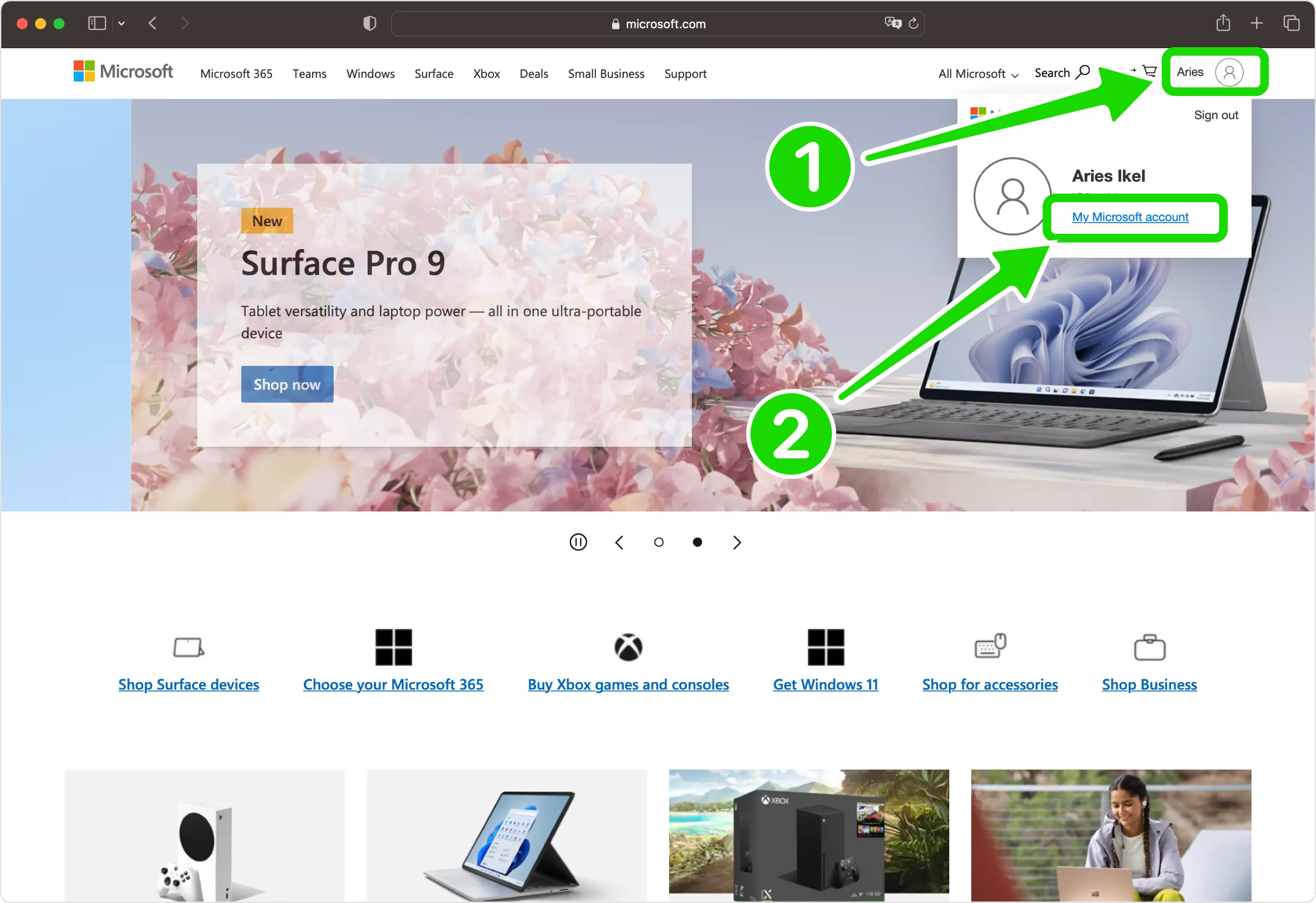
Inicie sesión en su cuenta de Microsoft, haga clic en el icono de su cuenta en la esquina superior derecha y elija Mi cuenta de Microsoft en el menú desplegable.
Vaya al panel de seguridad
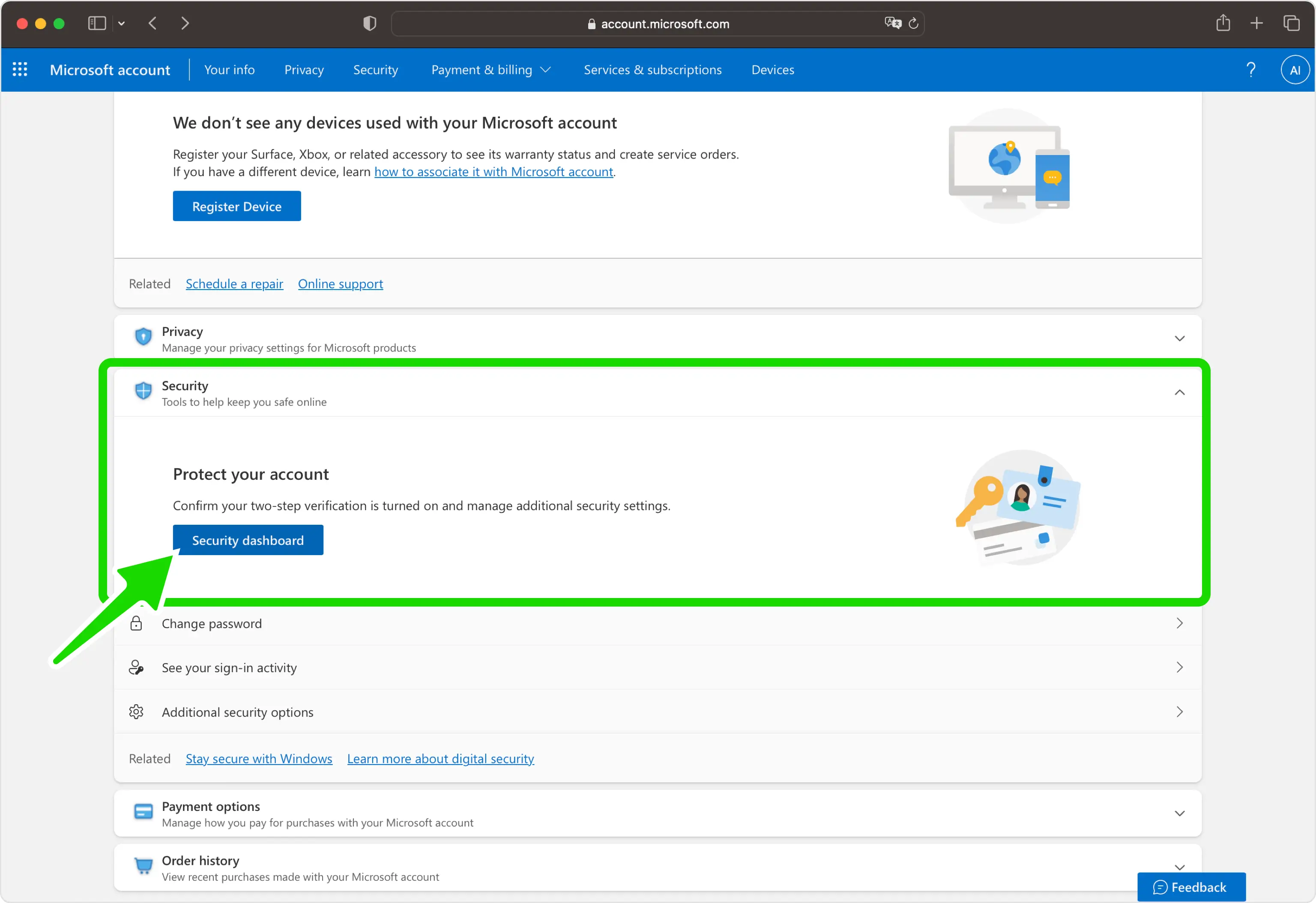
Busque la sección Seguridad de la página de su cuenta y haga clic en el botón Panel de seguridad para abrir su configuración de seguridad.
Abra "Administrar cómo inicio sesión"
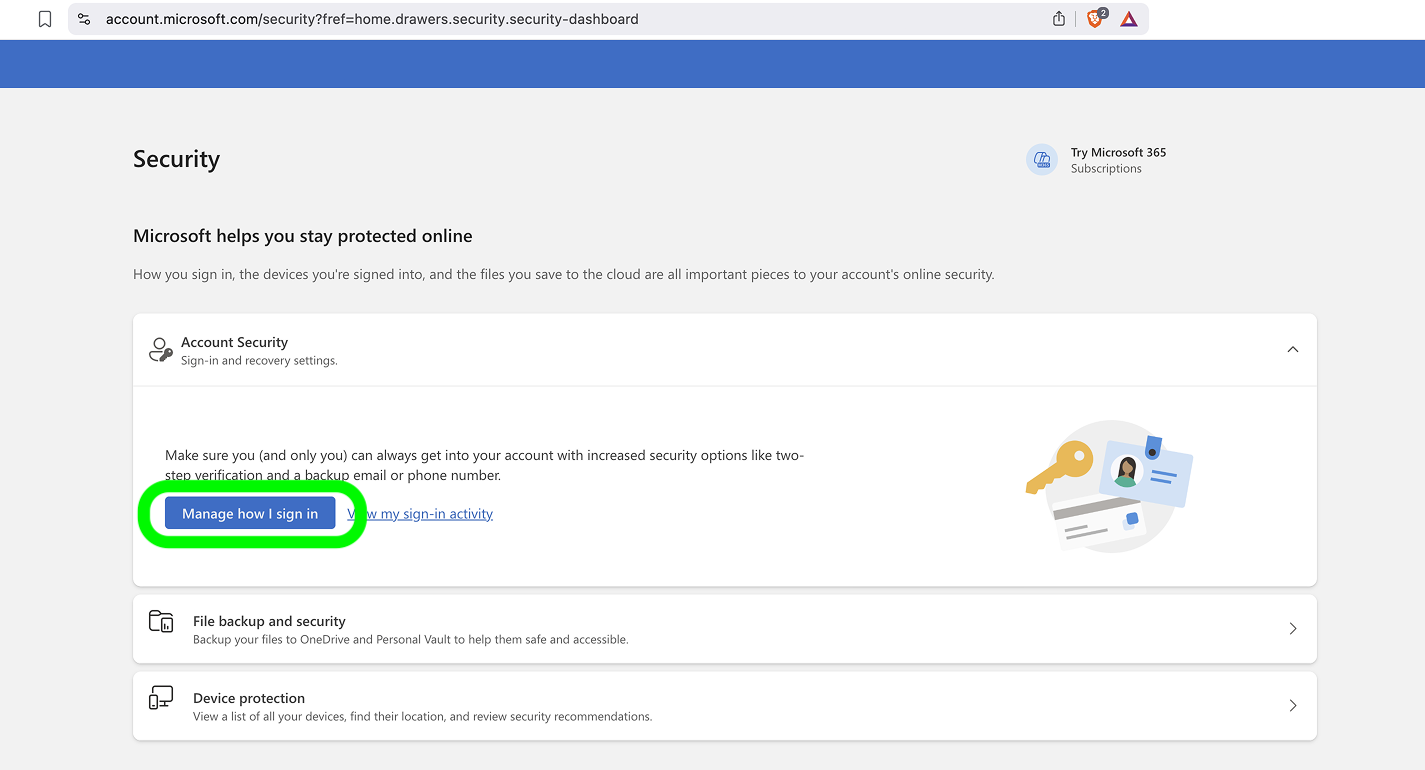
En Seguridad de la cuenta, haga clic en Administrar cómo inicio sesión para ver todas las formas en que puede verificar su identidad.
Activar la verificación en dos pasos
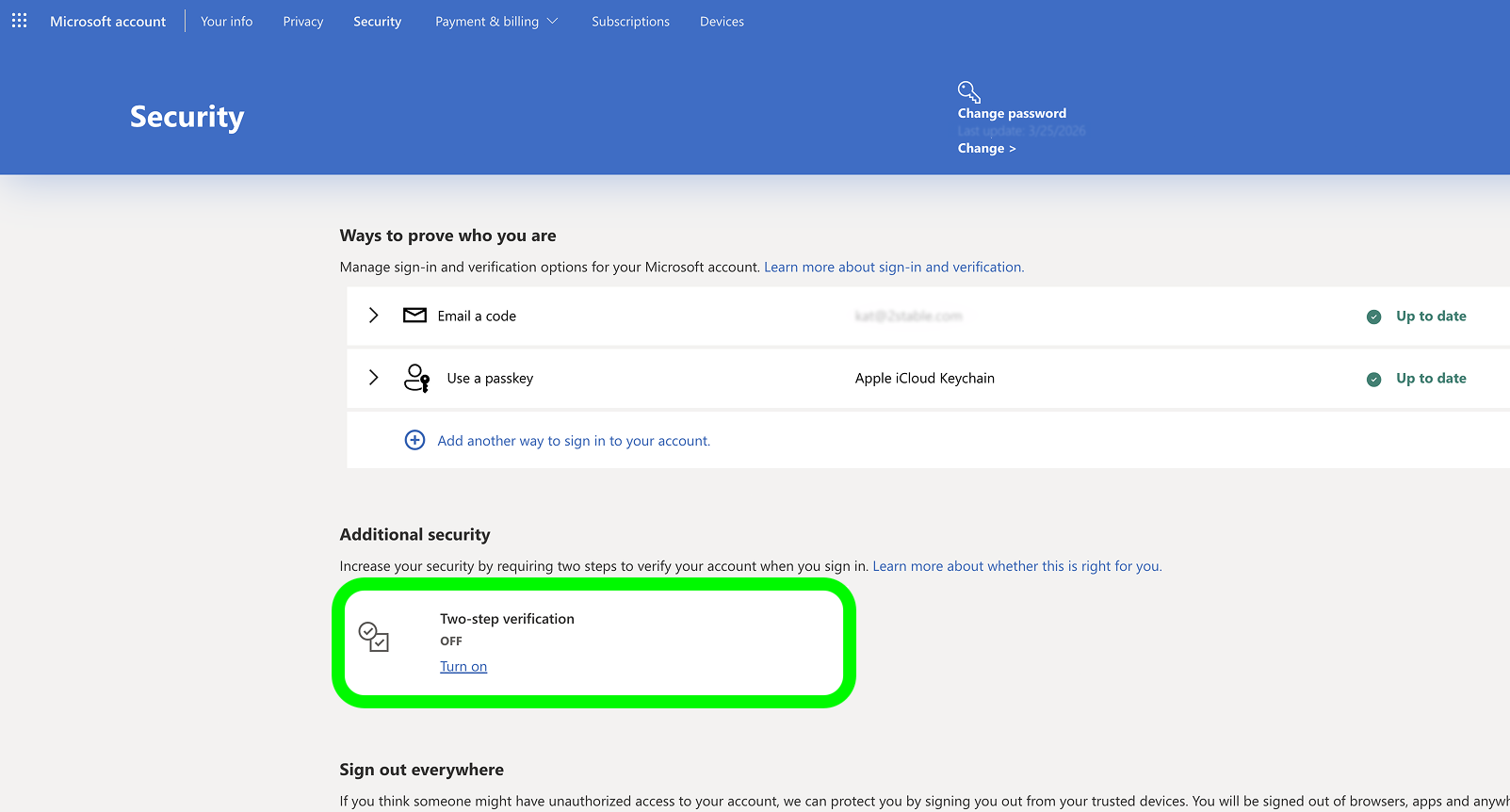
En la sección Seguridad adicional, busque Verificación en dos pasos y haga clic en el enlace Activar para iniciar la configuración.
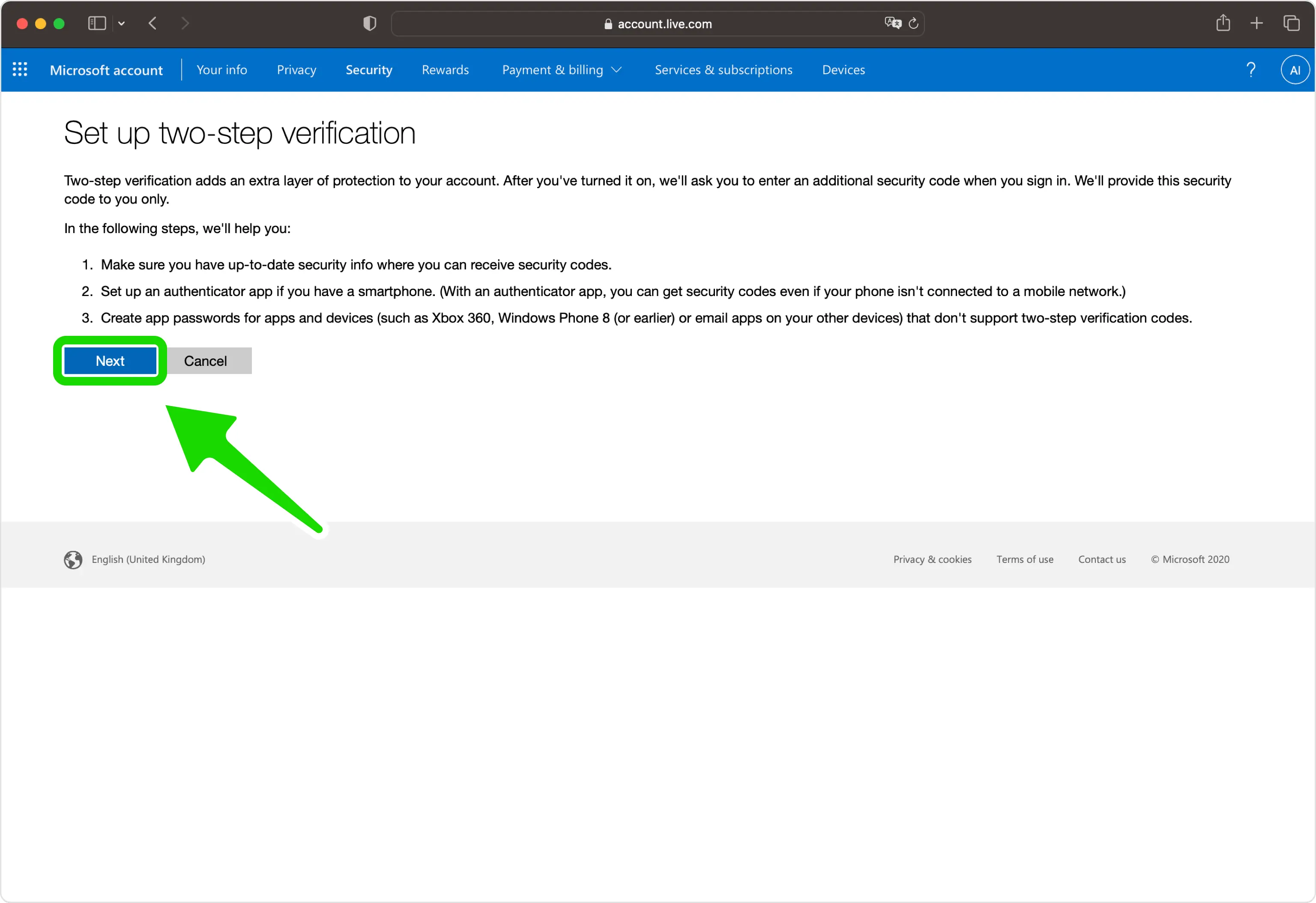
Comenzar la configuración de la verificación en dos pasos
Lea la pantalla de introducción y haga clic en Siguiente para continuar con el asistente de configuración.
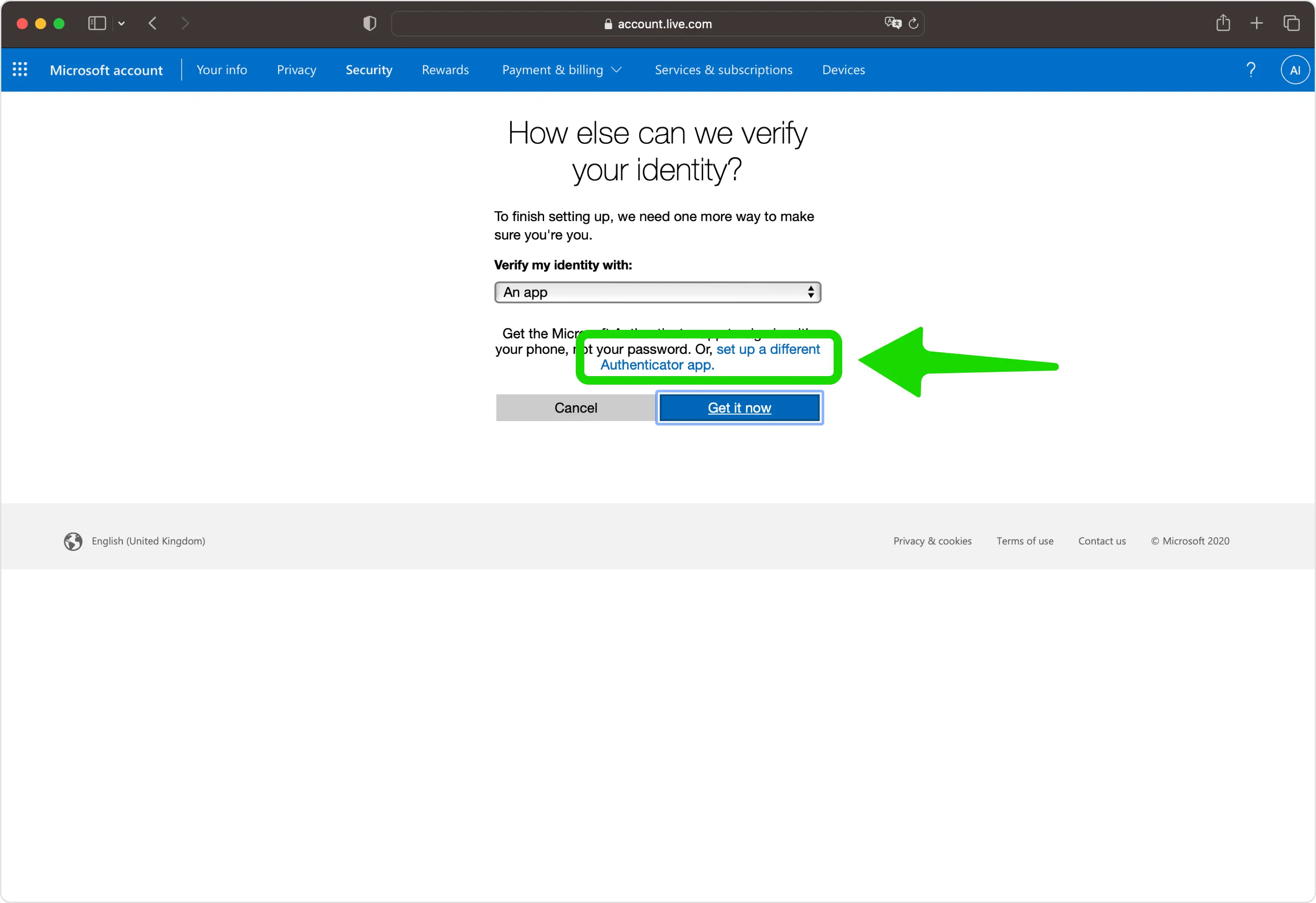
Elija configurar una aplicación de autenticación diferente
Seleccione "Configurar una aplicación de autenticación diferente" para poder usar su propia Authenticator App en lugar de la de Microsoft.
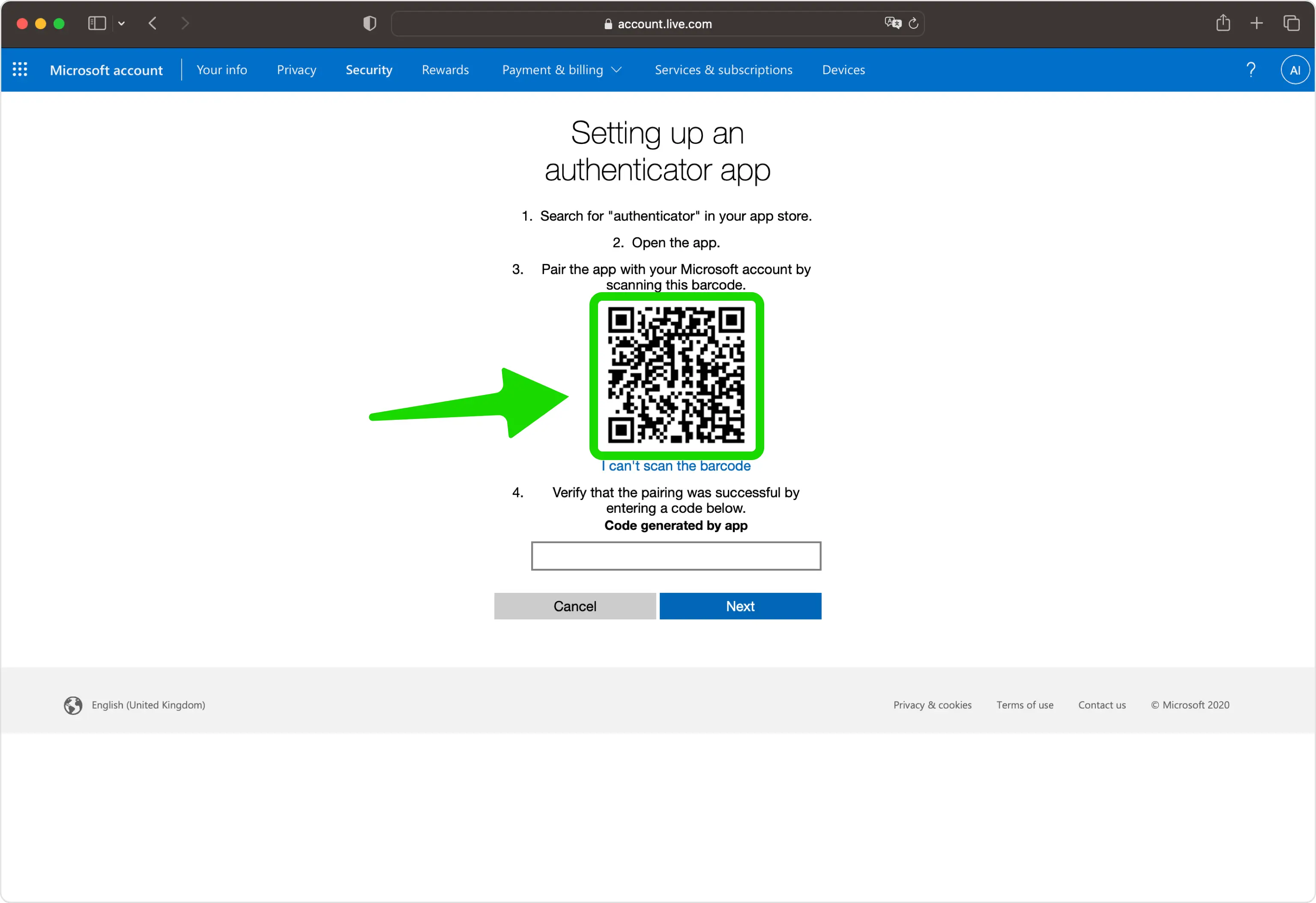
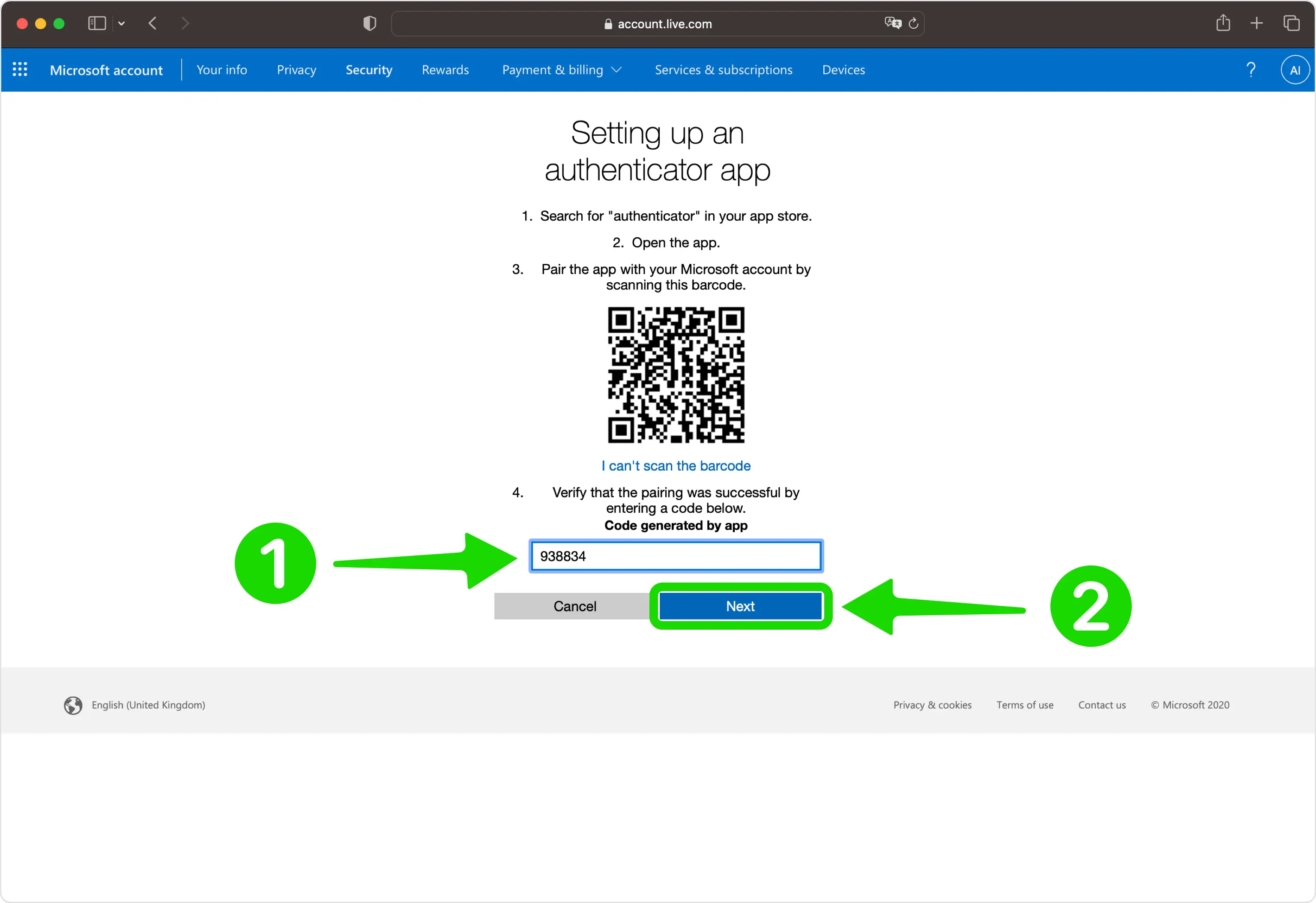
Revelar el código QR
Microsoft muestra un código QR que contiene su clave secreta. Deje esta página abierta en su computadora mientras levanta su teléfono.
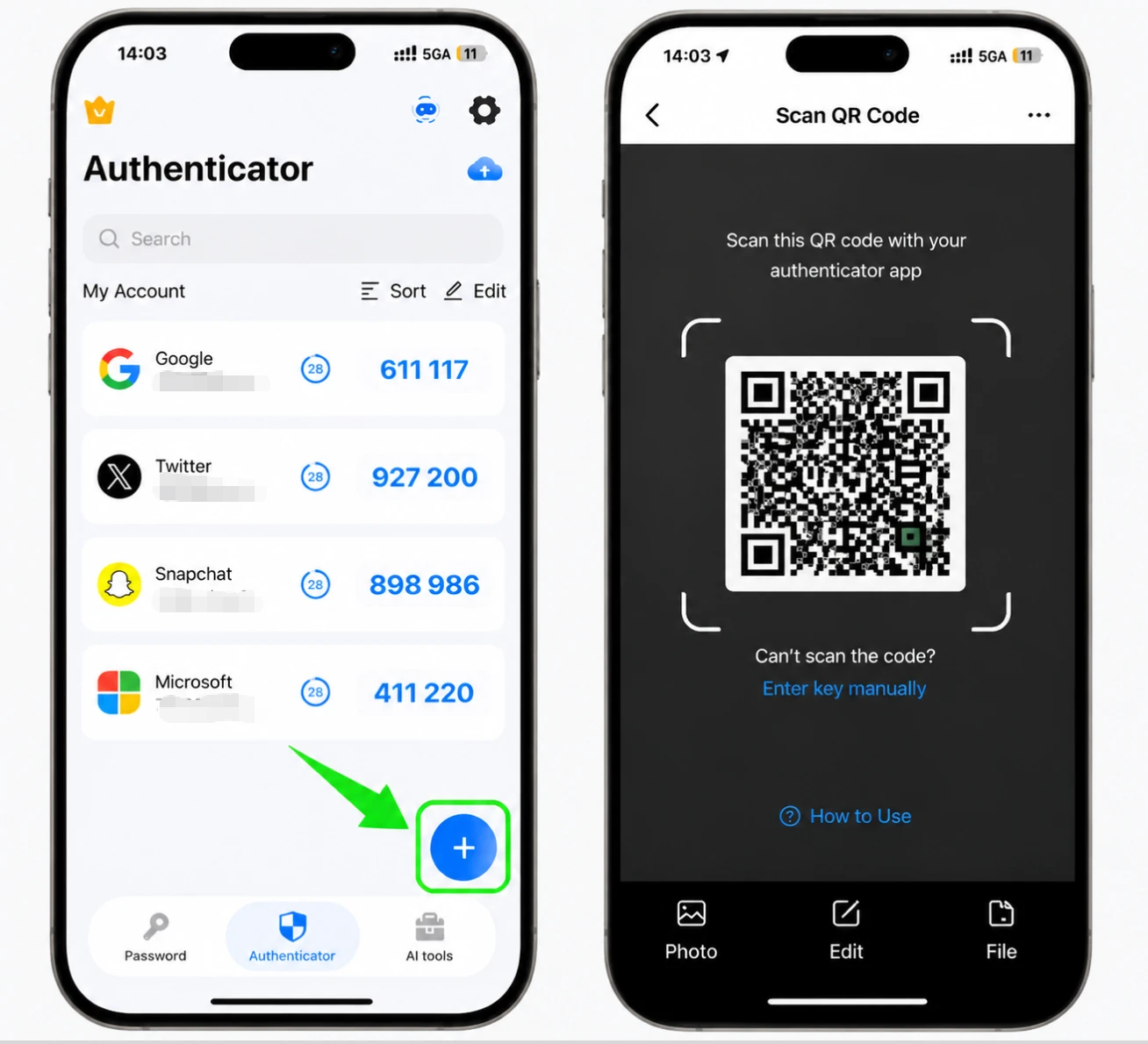
Escanea el código QR con tu Authenticator App
Abra Authenticator App en su iPhone, toque el botón + y apunte su teléfono a la pantalla para escanear el código QR que muestra Microsoft. Si no puede escanearlo, elija "No puedo escanear el código de barras" e ingrese la clave secreta manualmente.
Guarde la cuenta en su Authenticator App
Después del escaneo, Authenticator App completa automáticamente el nombre de la cuenta de Microsoft y la clave secreta. Toque Guardar para almacenar la nueva entrada, que luego comienza a generar códigos.
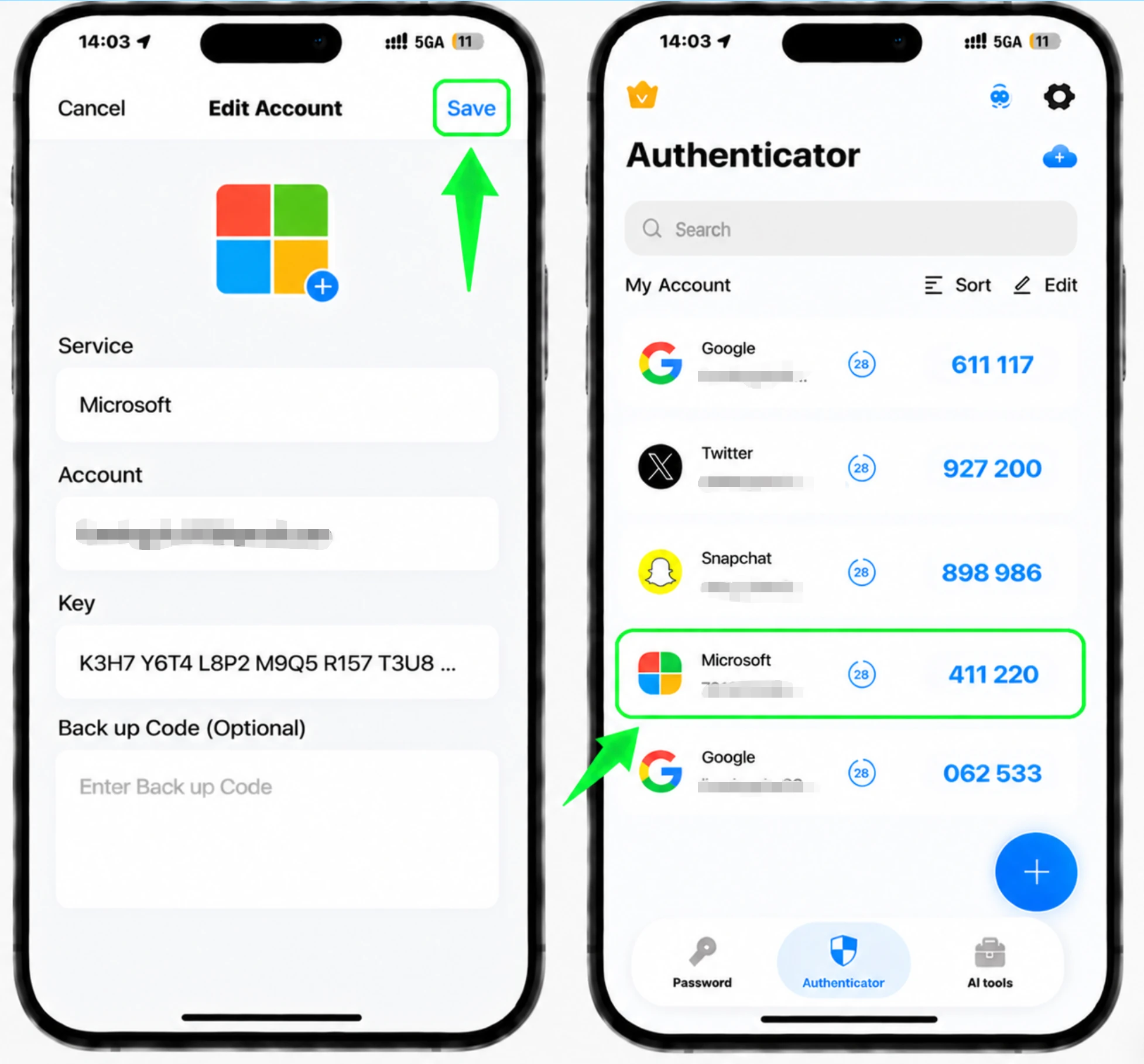
Ingresa el código de verificación de 6 dígitos
De vuelta en la página de Microsoft, escriba el código actual de 6 dígitos de su Authenticator App en el campo y luego haga clic en Siguiente.
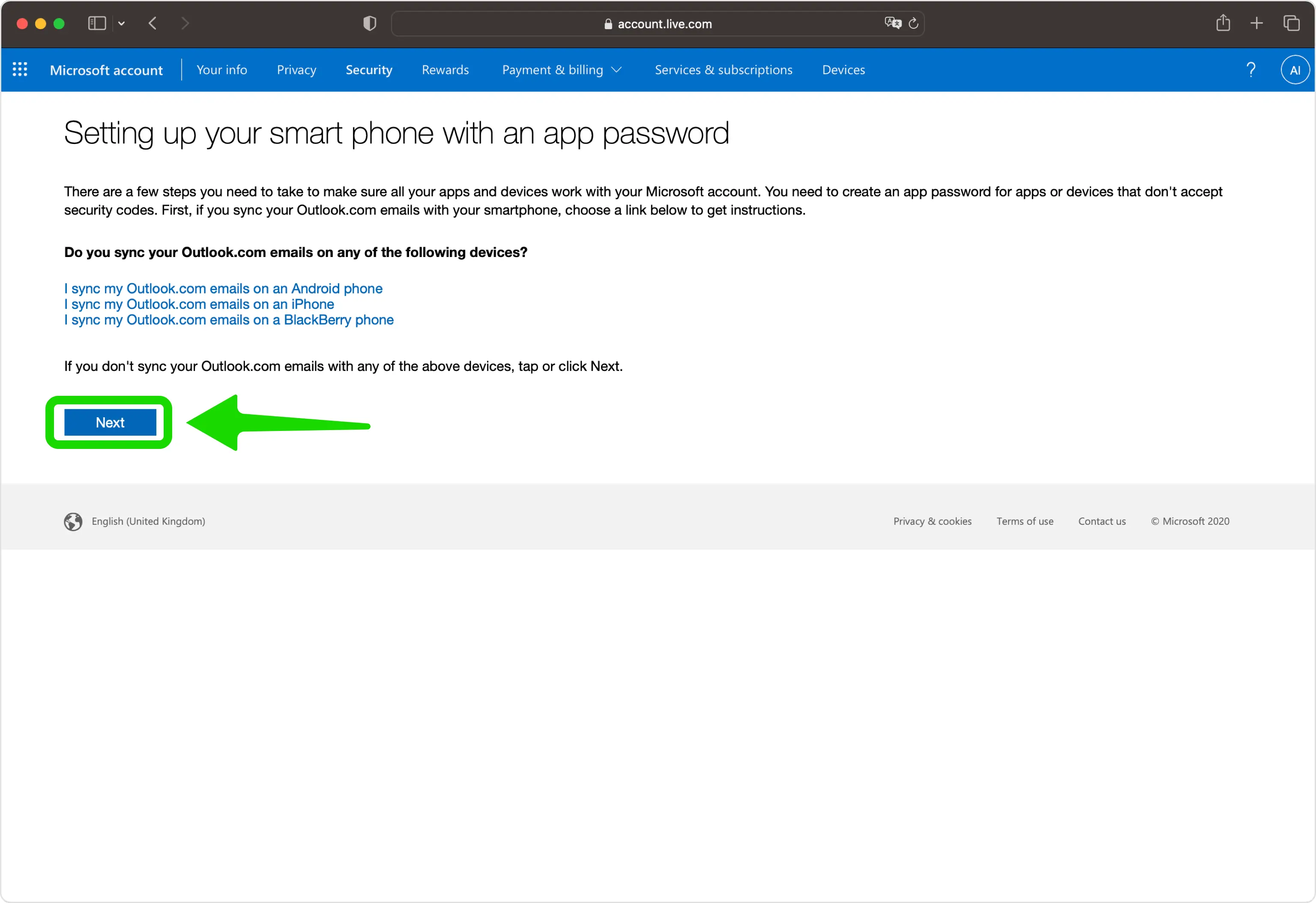
Continúe con el paso final.
Una vez aceptado el código, haga clic en Siguiente para pasar a la última pantalla.
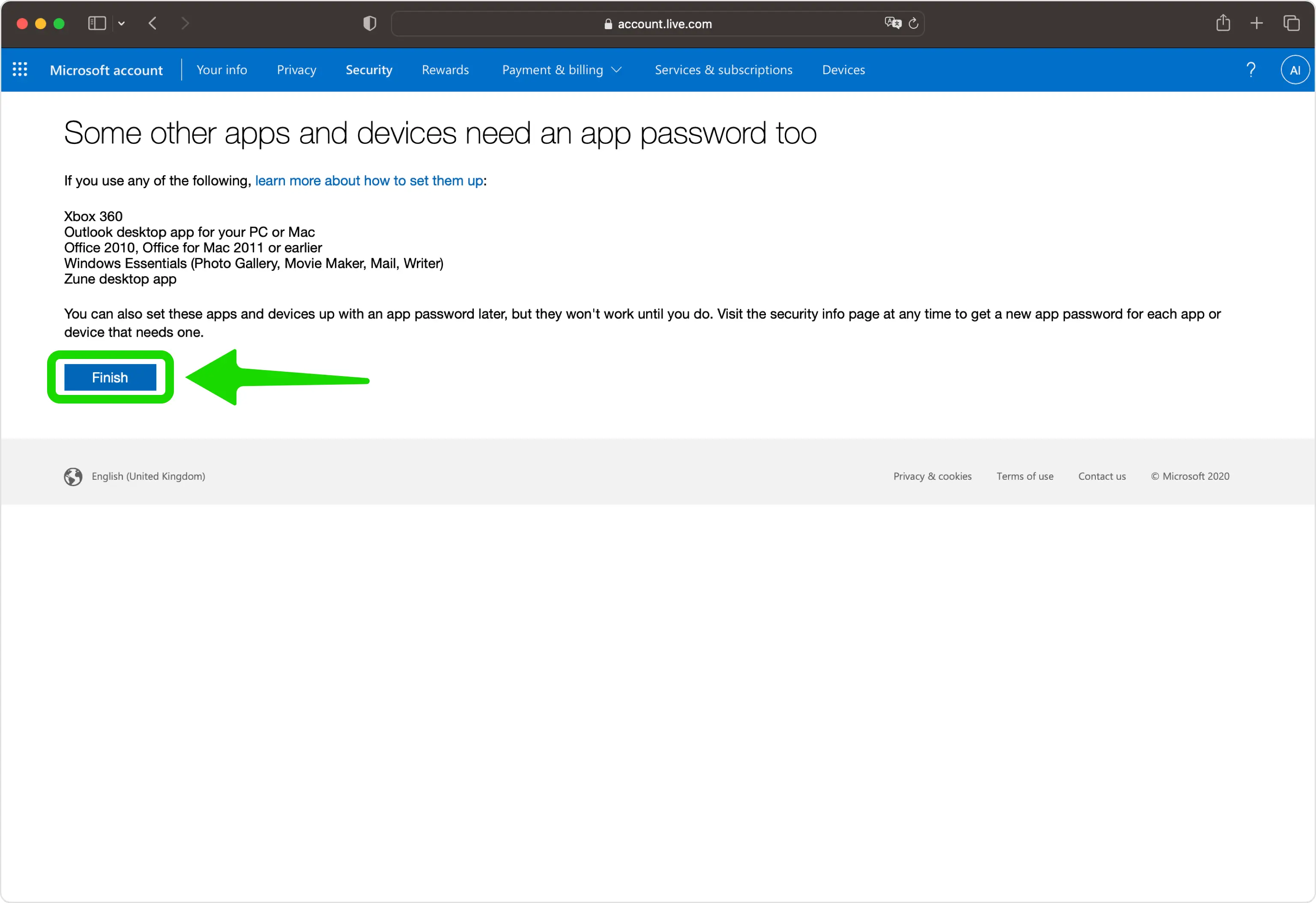
Finalizar la configuración
Haga clic en Finalizar para completar la configuración. Su Authenticator App ahora es un método de inicio de sesión y verificación, y lo usará cada vez que inicie sesión. Microsoft no muestra códigos de respaldo aquí, así que luego considere volver a Administrar cómo inicio sesión para generar un código de recuperación único de 25 dígitos y almacenarlo en un lugar seguro.



Copia de seguridad y recuperación
Haga clic en Finalizar para completar la configuración. Su Authenticator App ahora es un método de inicio de sesión y verificación, y lo usará cada vez que inicie sesión. Microsoft no muestra códigos de respaldo aquí, así que luego considere volver a Administrar cómo inicio sesión para generar un código de recuperación único de 25 dígitos y almacenarlo en un lugar seguro.
Listo: su cuenta de Microsoft ya está protegida con autenticación de dos factores. Guarde la información de recuperación de forma segura y consulte la documentación oficial del servicio si cambia la interfaz.
Ver todos los métodos 2FA soportados por Microsoft →


