

Cómo habilitar 2FA para su cuenta Instagram
Actualizado el 4 de agosto de 2026
La autenticación de dos factores (2FA) protege su cuenta Instagram incluso si se filtra su contraseña. Siga los pasos a continuación para generar códigos de verificación Instagram con Authenticator App en su iPhone, iPad o Mac.
Inicie sesión y abra el Centro de cuentas
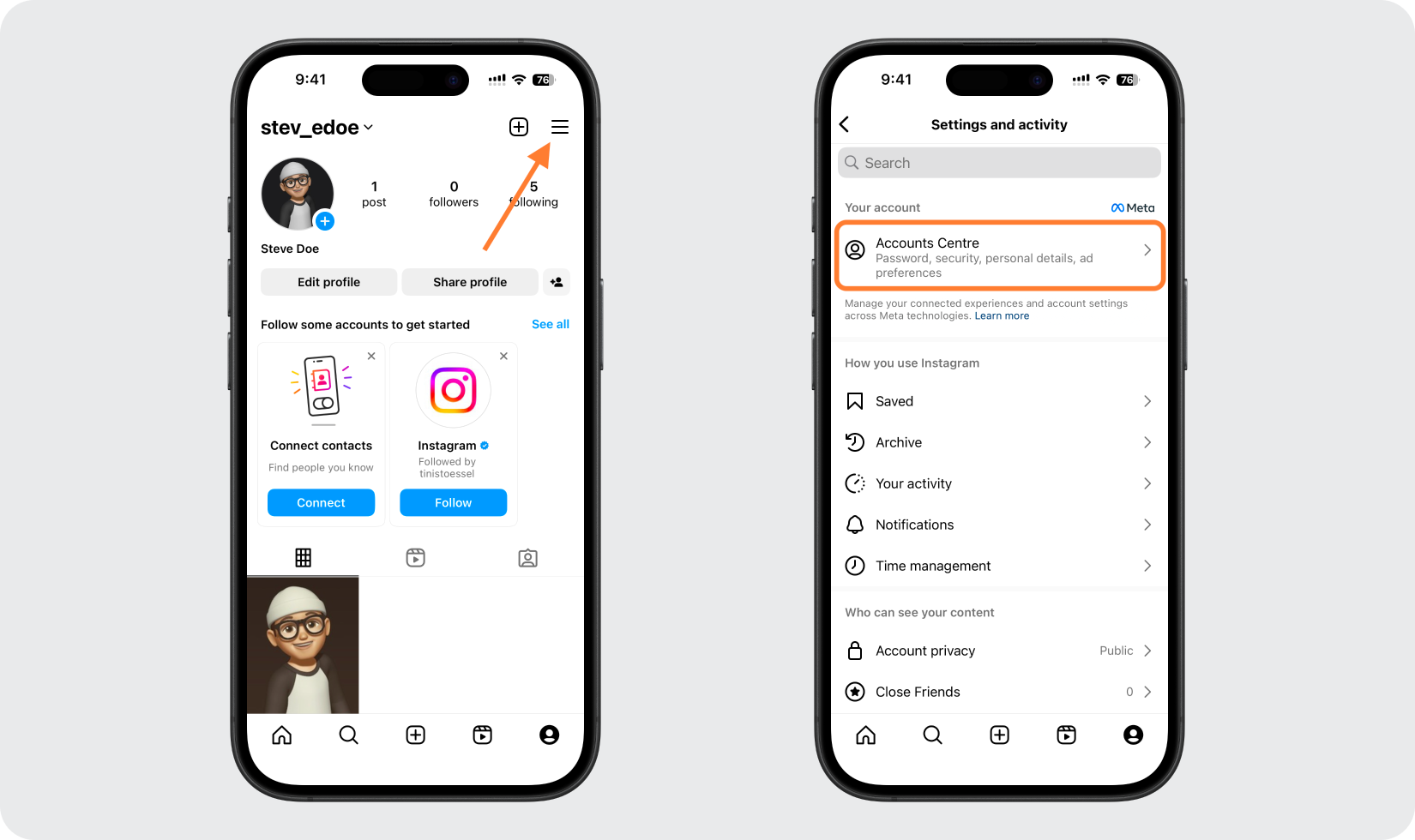
Inicie sesión en Instagram, luego abra Configuración y haga clic en Centro de cuentas. En el sitio web, primero haga clic en Más en el menú inferior izquierdo; En la aplicación, toca las tres líneas en la parte superior derecha para llegar a ella.
Vaya a Contraseña y seguridad, luego Autenticación de dos factores
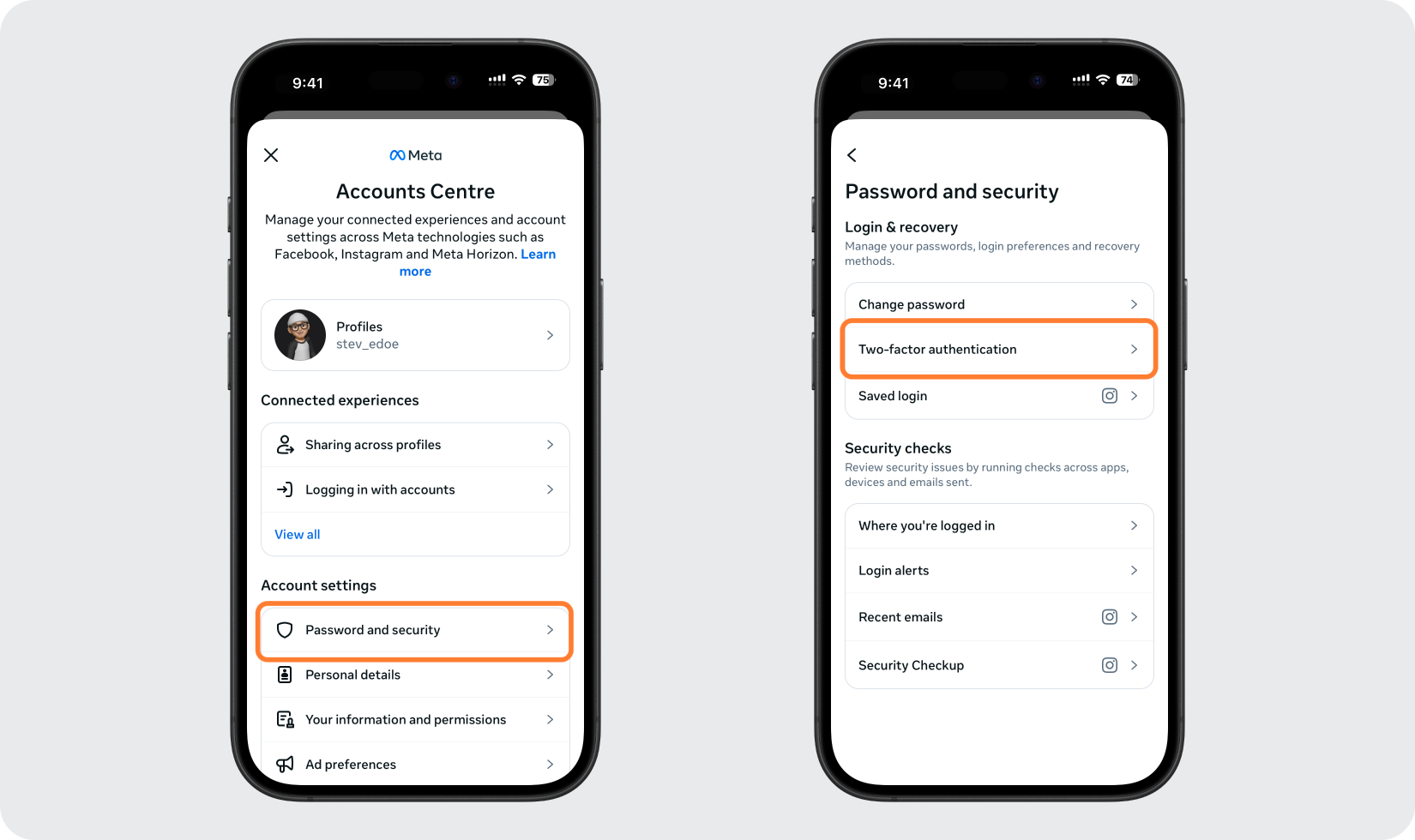
En Centro de cuentas, haga clic en Contraseña y seguridad, luego haga clic en Autenticación de dos factores.
Elija su cuenta y elija la aplicación de autenticación
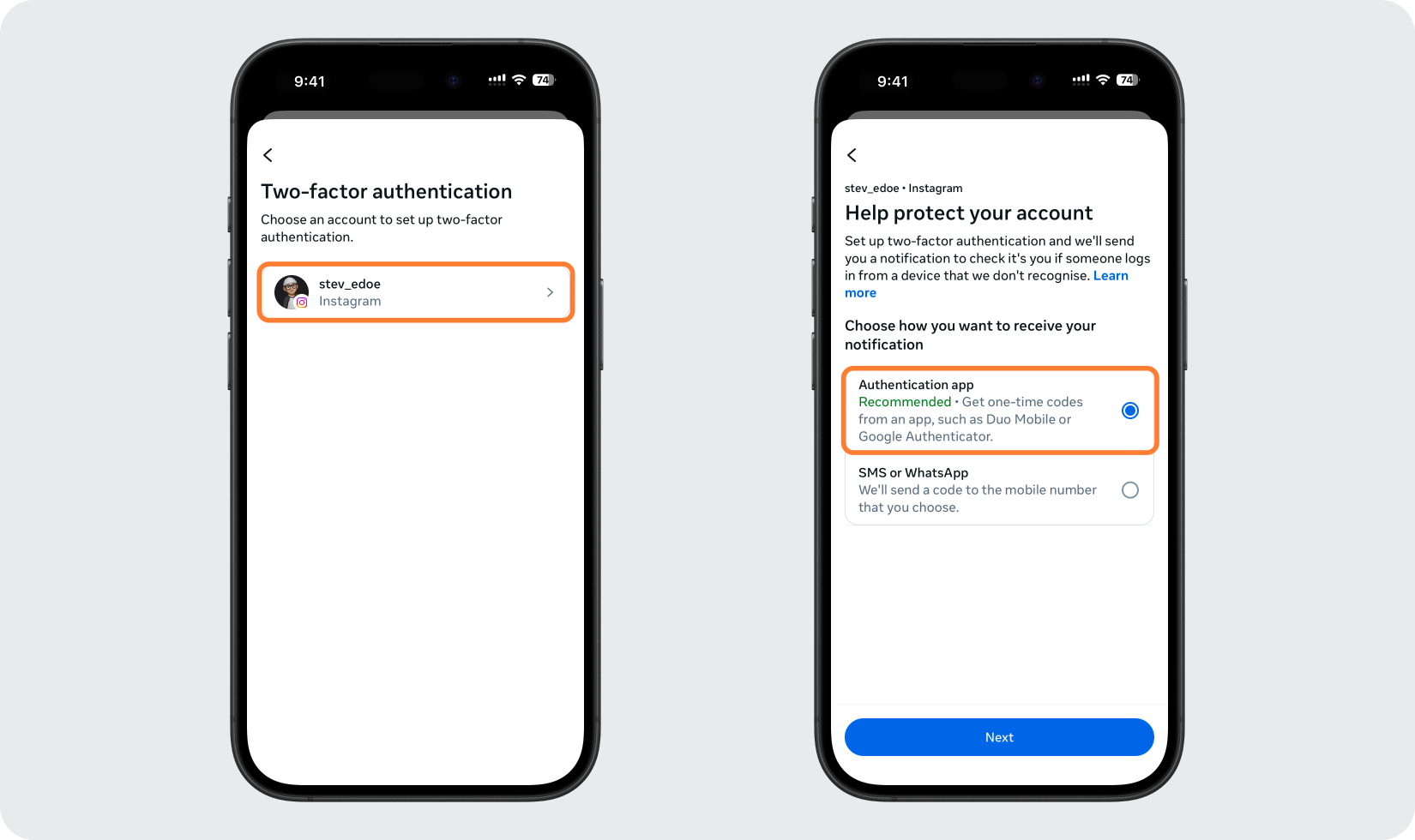
Seleccione la cuenta de Instagram que desea proteger, luego elija la opción de la aplicación Autenticación y continúe.
Ver el código QR o la clave de configuración
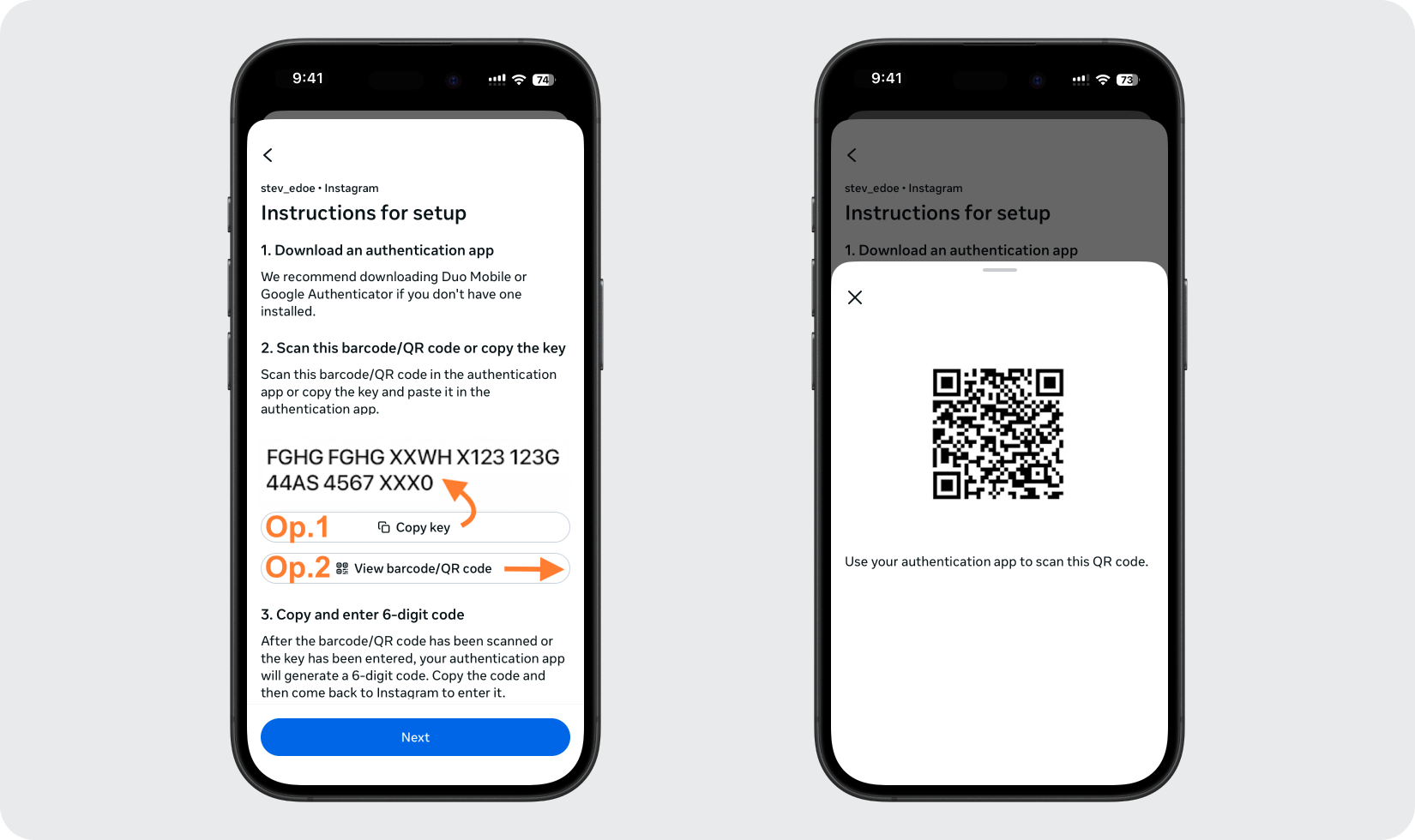
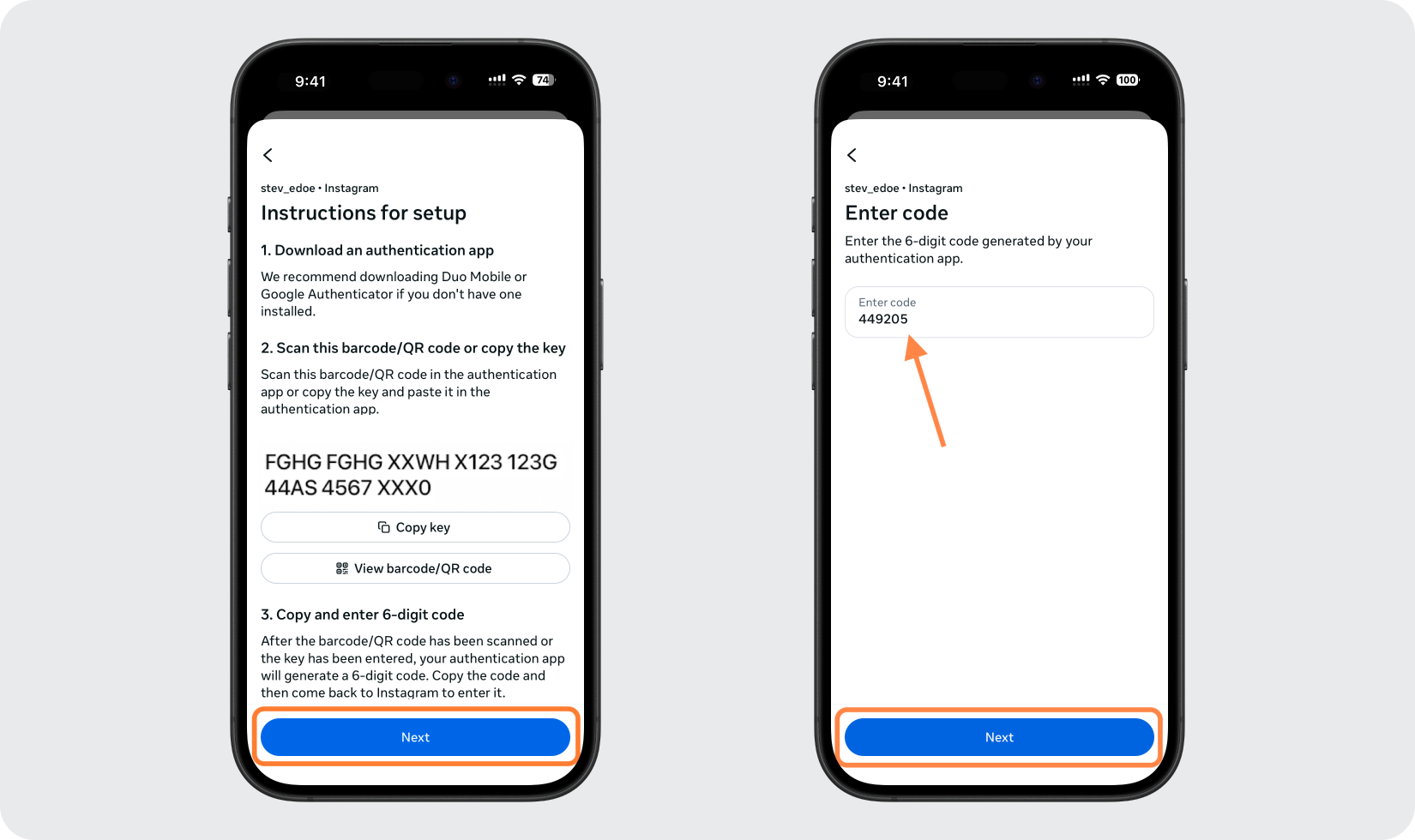
Instagram muestra un código QR junto con la opción de copiar una clave de configuración. Mantenga esta pantalla abierta mientras agrega la cuenta en su Authenticator App.
Agrega la cuenta en tu Authenticator App
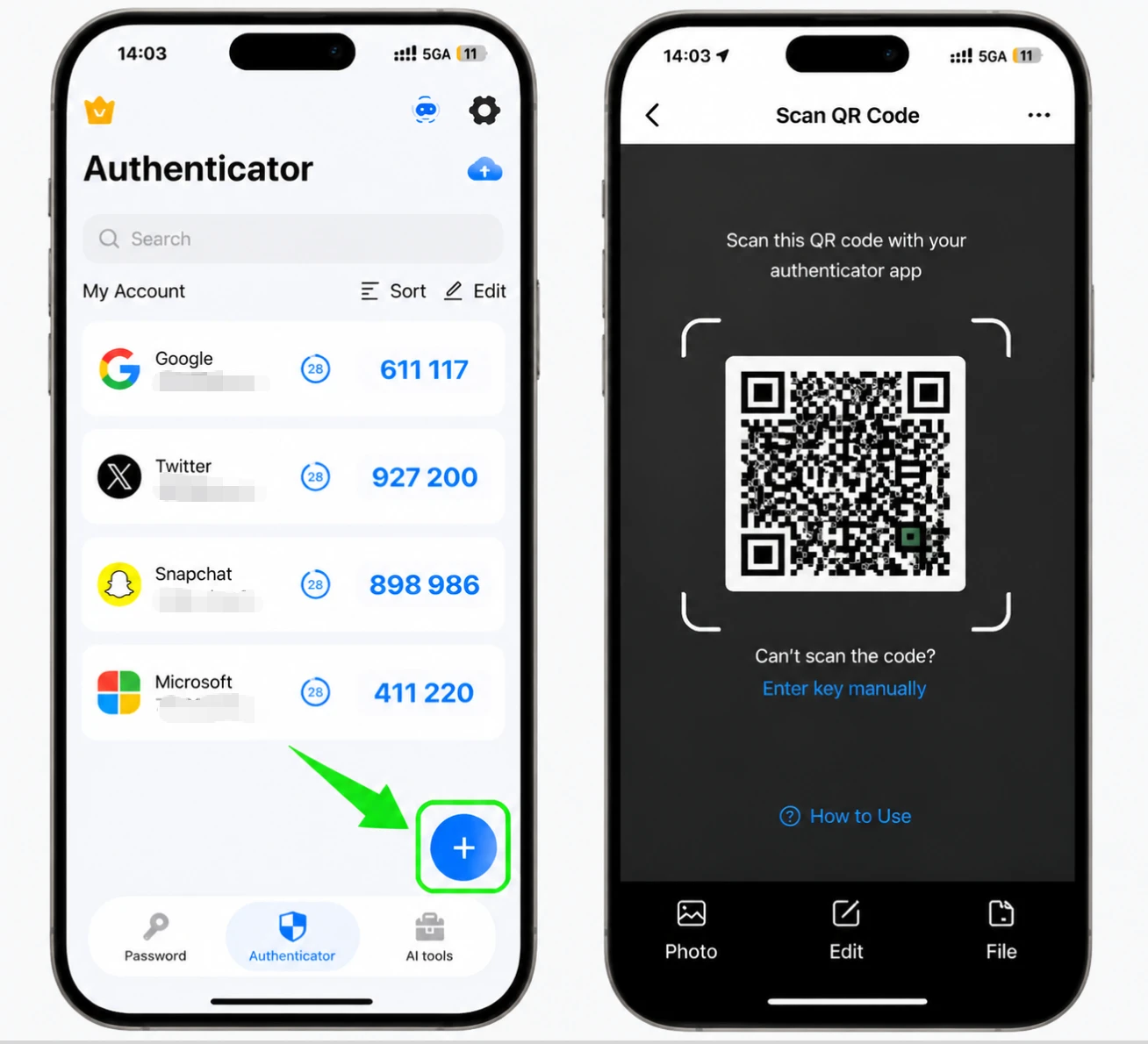
Abra Authenticator App en su iPhone y toque el botón + para escanear el código QR que muestra Instagram. Si no puede escanearlo, elija ingresar la clave de configuración manualmente.
Obtén tu código de 6 dígitos
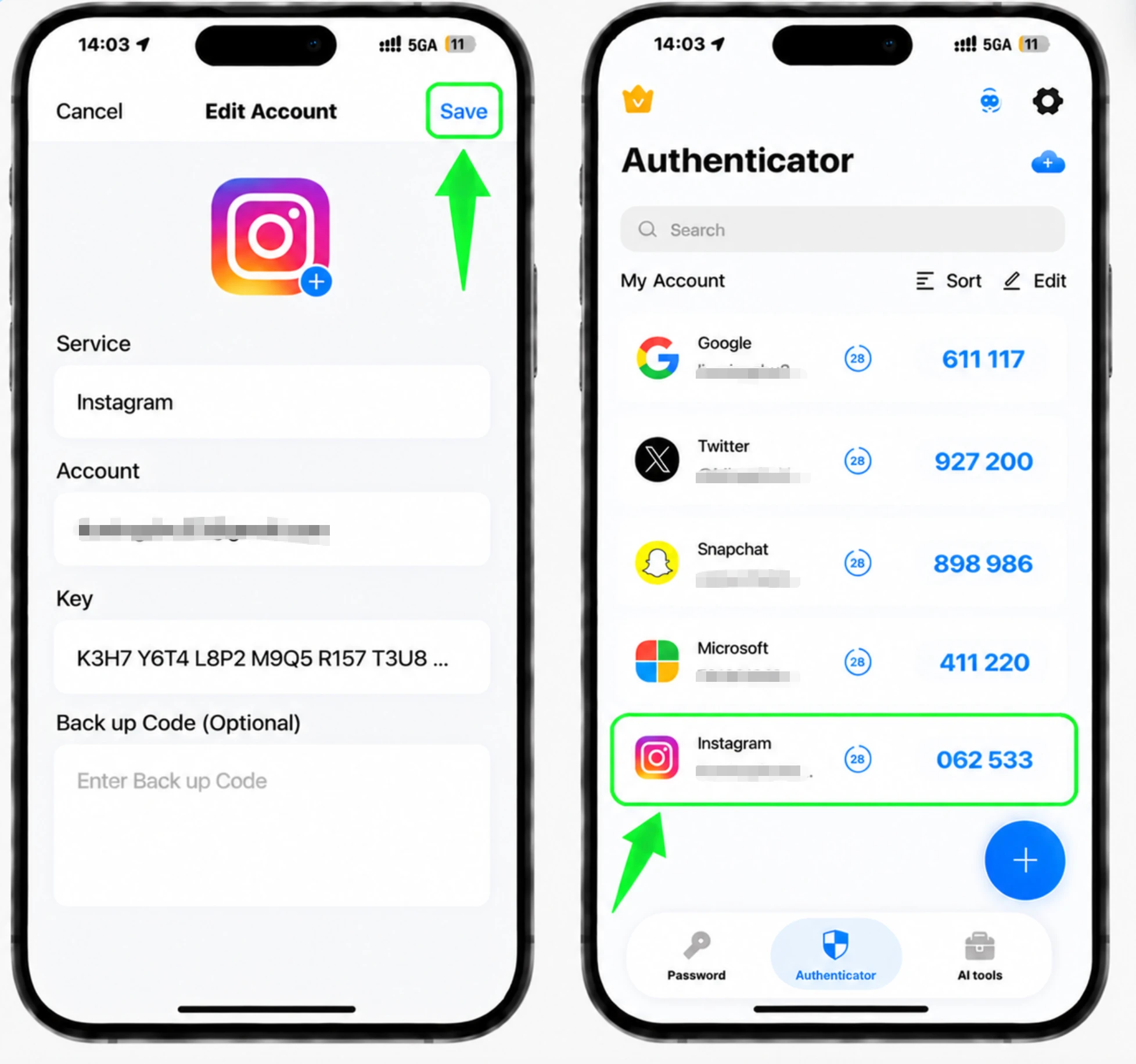
Una vez agregada la cuenta, Authenticator App muestra un código de 6 dígitos para Instagram que se actualiza periódicamente. Copie o anote el código actual.
Introduce el código para confirmar
Regrese a Instagram, escriba el código de 6 dígitos de su Authenticator App y confirme para terminar de vincular la aplicación.
Guarde sus códigos de respaldo
Una vez activada la autenticación de dos factores, Instagram proporciona códigos de respaldo. Guárdelos en un lugar seguro para poder iniciar sesión si alguna vez pierde el acceso a su aplicación de autenticación.



Copia de seguridad y recuperación
Una vez activada la autenticación de dos factores, Instagram proporciona códigos de respaldo. Guárdelos en un lugar seguro para poder iniciar sesión si alguna vez pierde el acceso a su aplicación de autenticación.
Listo: su cuenta de Instagram ya está protegida con autenticación de dos factores. Guarde la información de recuperación de forma segura y consulte la documentación oficial del servicio si cambia la interfaz.
Ver todos los métodos 2FA soportados por Instagram →


