

How to enable 2FA for your Slack account
Updated August 4, 2026
Two-factor authentication (2FA) protects your Slack account even if your password leaks. Follow the steps below to generate Slack verification codes with the Authenticator App on your iPhone, iPad or Mac.
Sign in and open your Account settings
Sign in to your Slack workspace in a web browser and go to your Account page at my.slack.com/account/settings.
Expand Two-factor Authentication
Next to "Two-factor Authentication," click Expand to reveal the setup options.
Start the setup
Click Set Up Two-Factor Authentication, then enter your password to continue.
Choose the authenticator app option
Click Use an app to set up two-factor authentication using a TOTP authenticator app rather than text message.
Scan the QR code with your Authenticator App
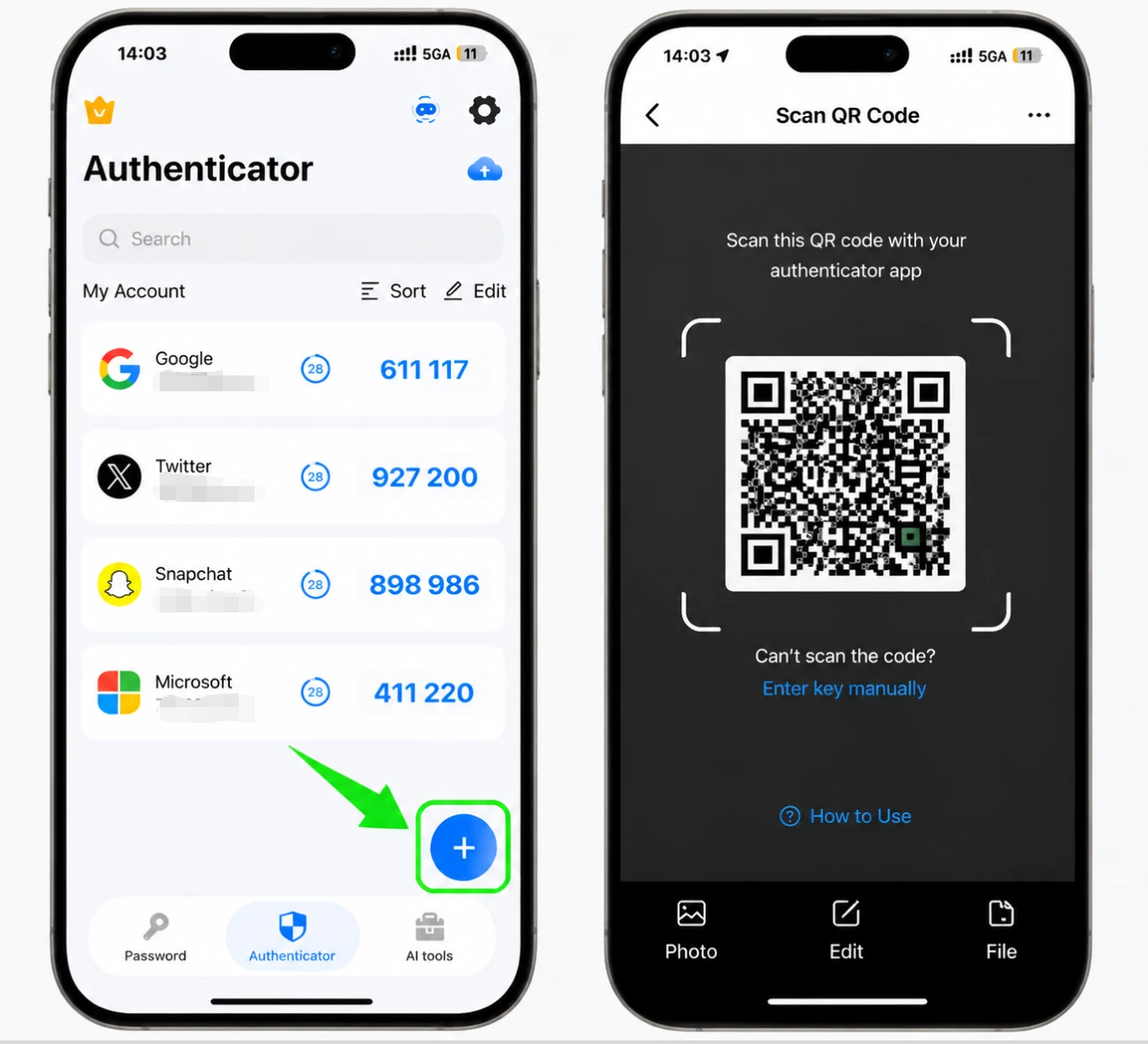
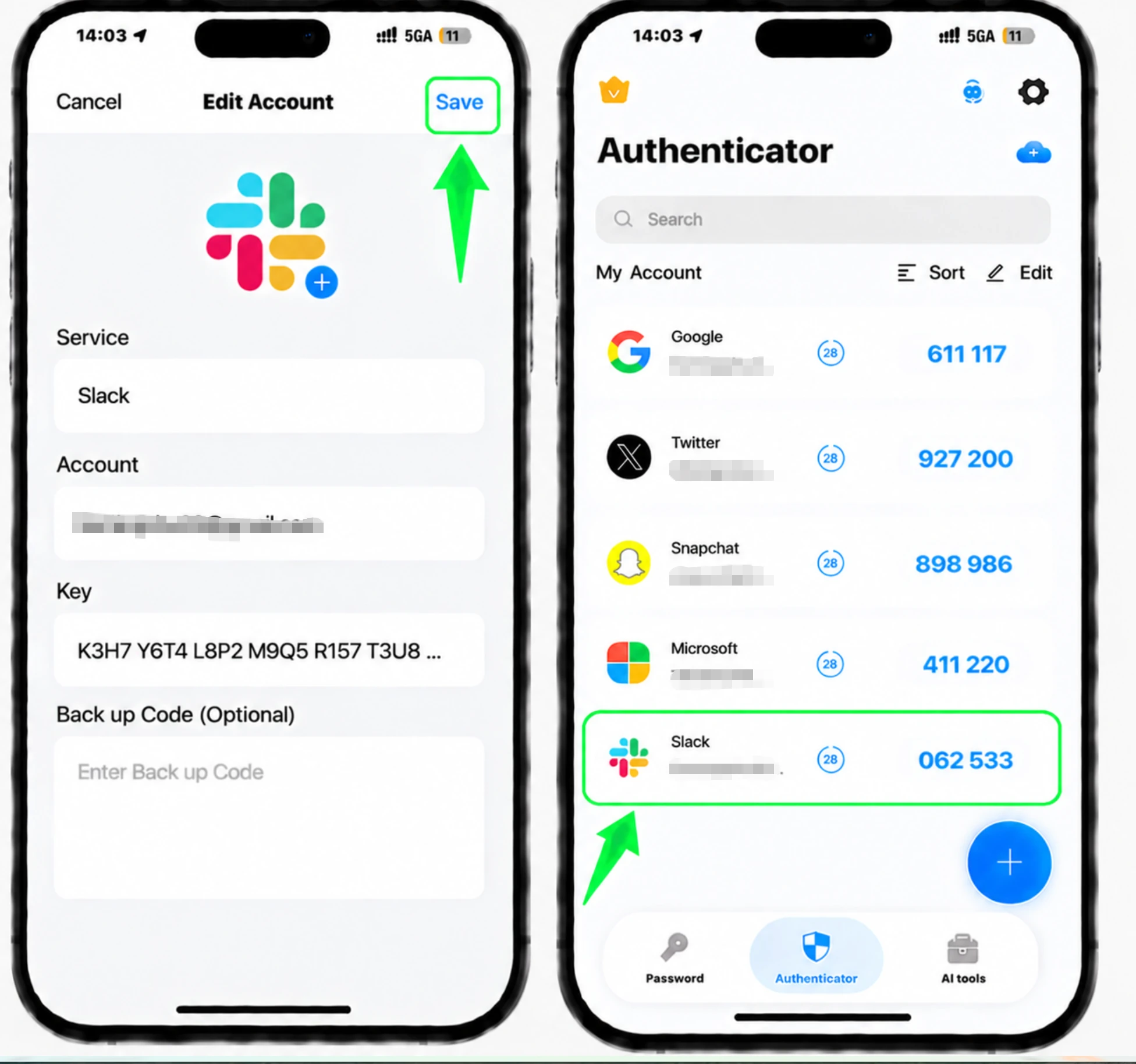
Open the Authenticator App on your iPhone, tap the + button, and scan the QR code shown by Slack. If you can't scan it, choose to enter the code by hand using the secret key Slack displays.
Enter the 6-digit code and verify
Back on Slack's 2FA configuration page, type the 6-digit verification code generated by your authenticator app, then click Verify Code to confirm.
Save your backup codes
Slack provides backup codes when you set up 2FA. Save them somewhere safe, as each code can be used only once to sign in if you lose access to your authenticator app. You can always find them again on your Account page.


Backup & recovery
Slack provides backup codes when you set up 2FA. Save them somewhere safe, as each code can be used only once to sign in if you lose access to your authenticator app. You can always find them again on your Account page.
That's it — your Slack account is now protected with two-factor authentication. Keep your recovery information safe and follow the service's official documentation if its interface changes.
See all 2FA methods supported by Slack →


