

How to enable 2FA for your Snapchat account
Updated August 4, 2026
Two-factor authentication (2FA) protects your Snapchat account even if your password leaks. Follow the steps below to generate Snapchat verification codes with the Authenticator App on your iPhone, iPad or Mac.
Find the 2FA settings in the Snapchat app
Two-factor authentication is set up in the Snapchat mobile app, not on the website. Open Snapchat, tap your profile picture in the top left to open your profile, then tap the gear icon in the top right to open Settings. Scroll to My Account, where the Two-Factor Authentication option lives.
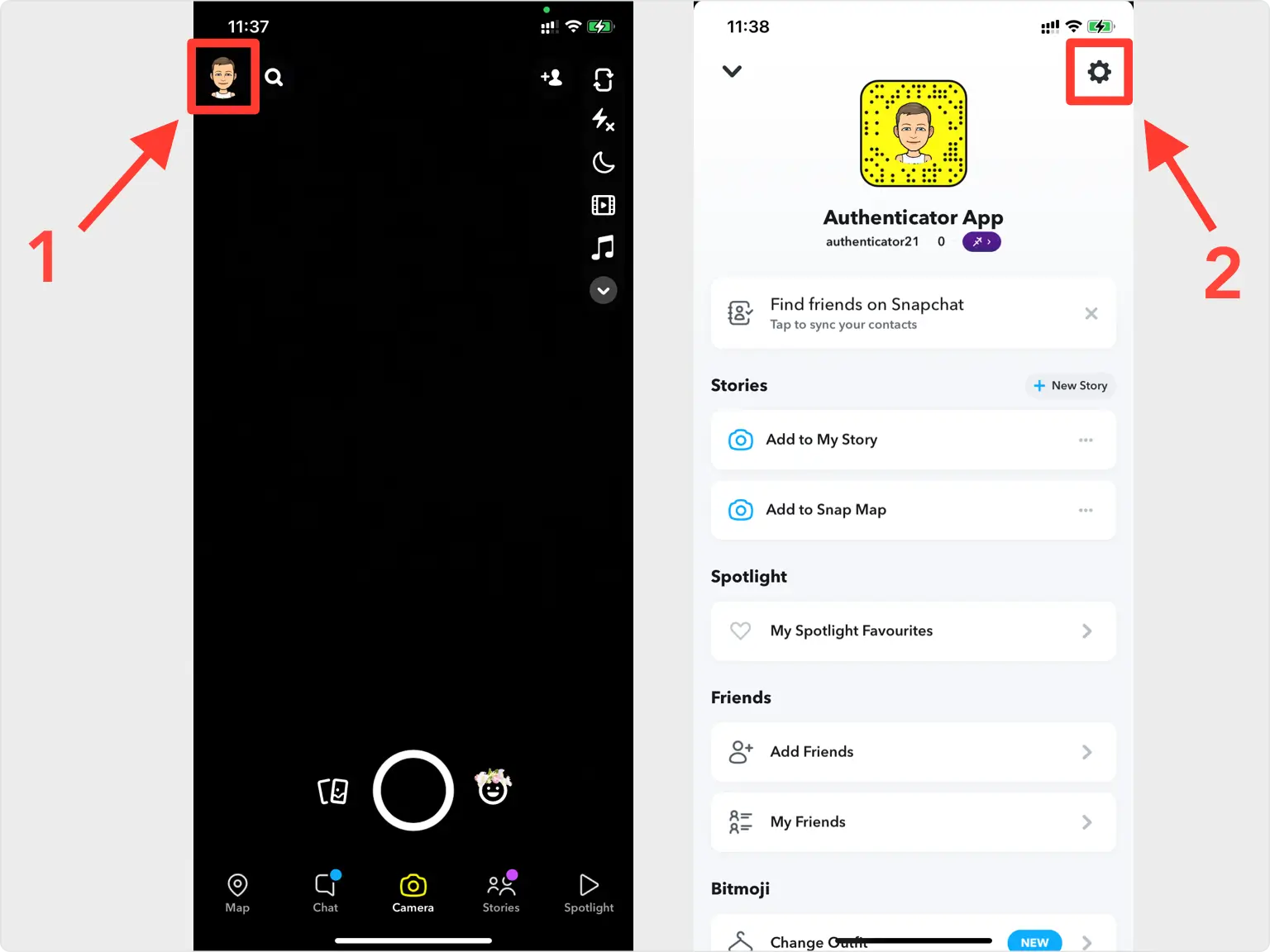
Open Two-Factor Authentication
Tap Two-Factor Authentication, then tap Continue and Let's do it to start the setup wizard.
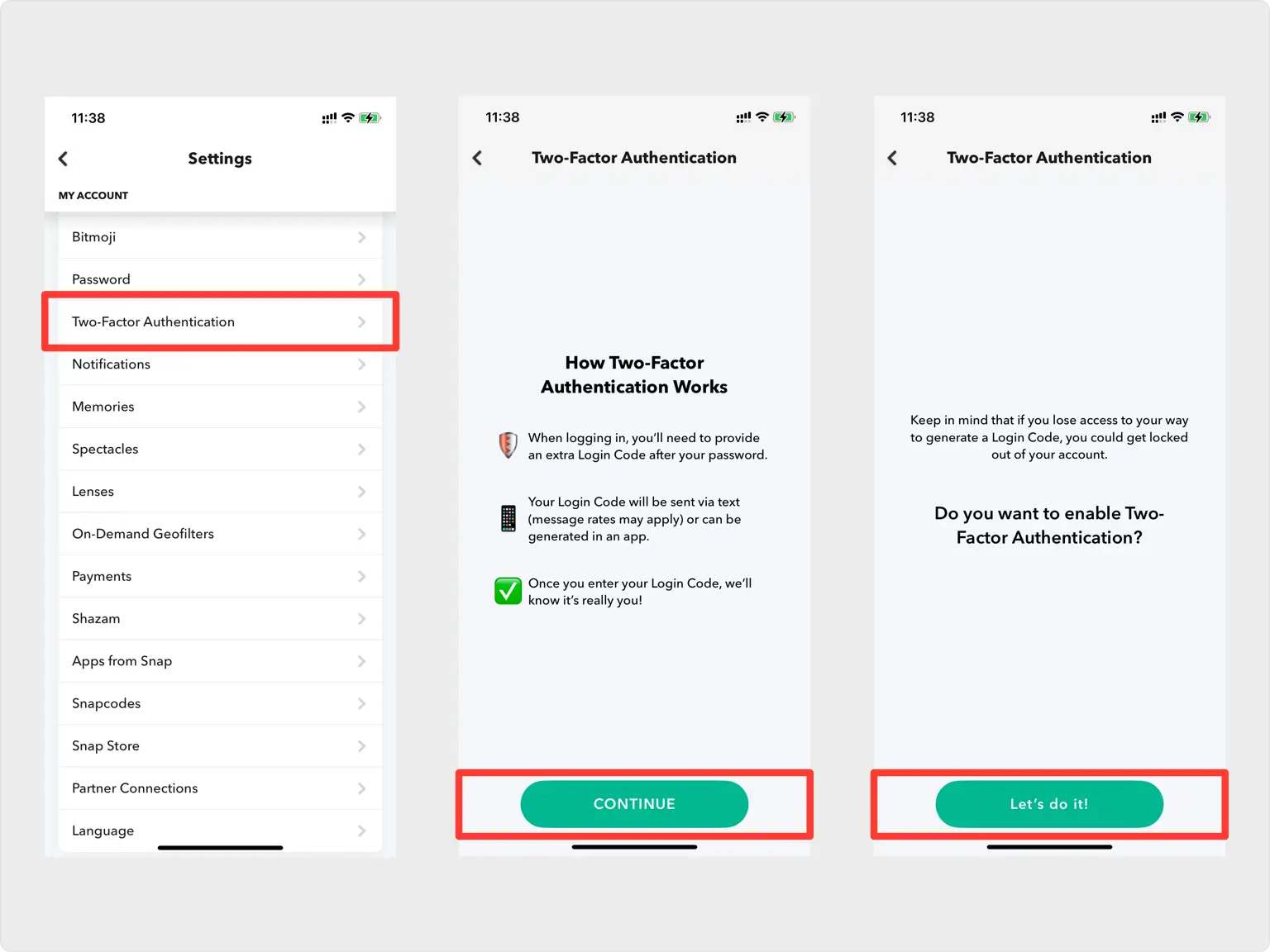
Choose Authentication App as your method
Pick Authentication App from the verification methods, since it is the most secure option. Note that Snapchat requires both a mobile number and an email address on your account before you can turn on 2FA.
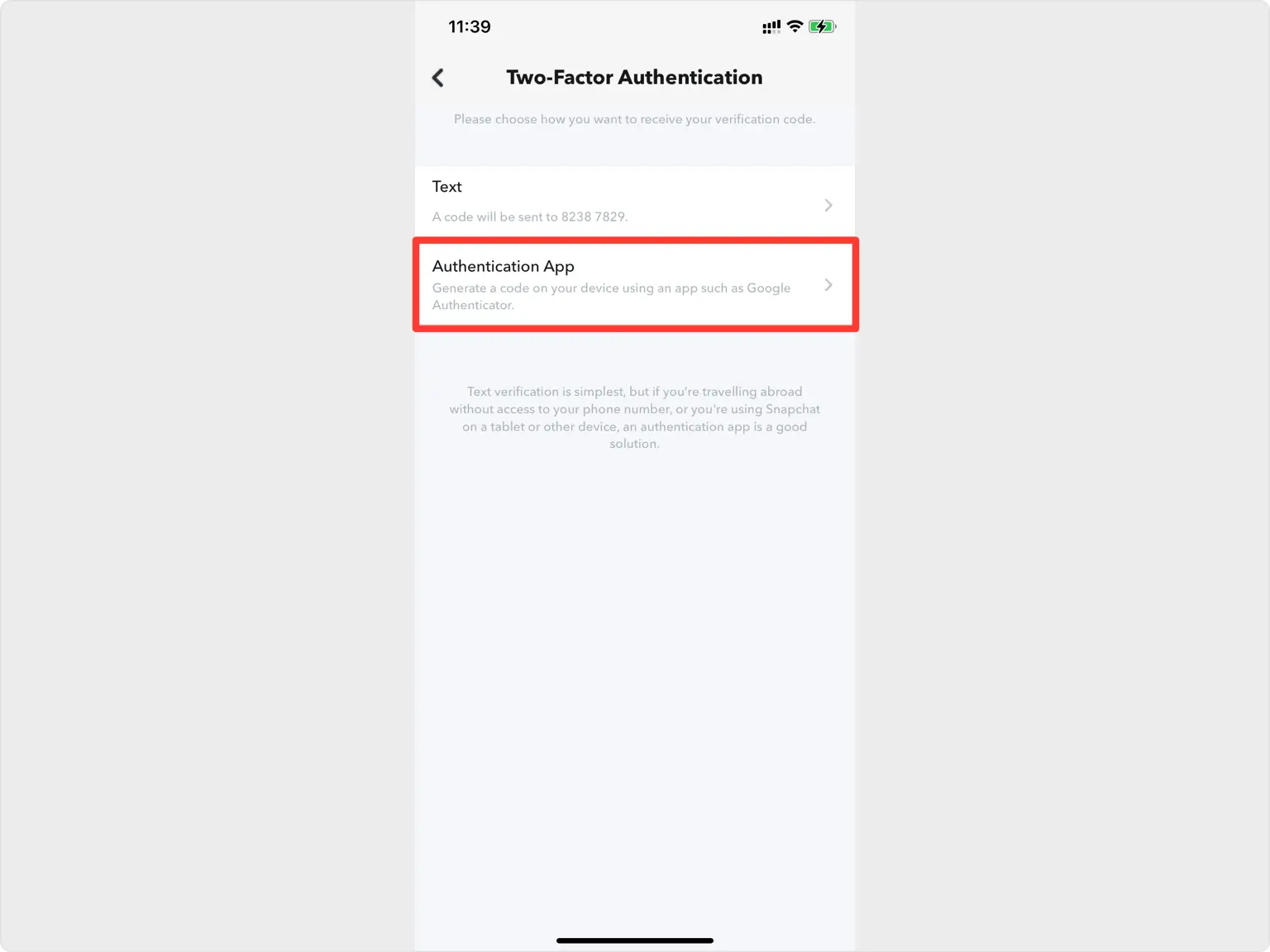
Select Set up Manually
On the next screen, choose Set up Manually so you can reliably get your Snapchat codes in your Authenticator App.
Capture the QR code
Snapchat shows a QR code in a pop-up. Because the code appears on the same phone, take a screenshot of it and save it to Files so you can import it into your Authenticator App.
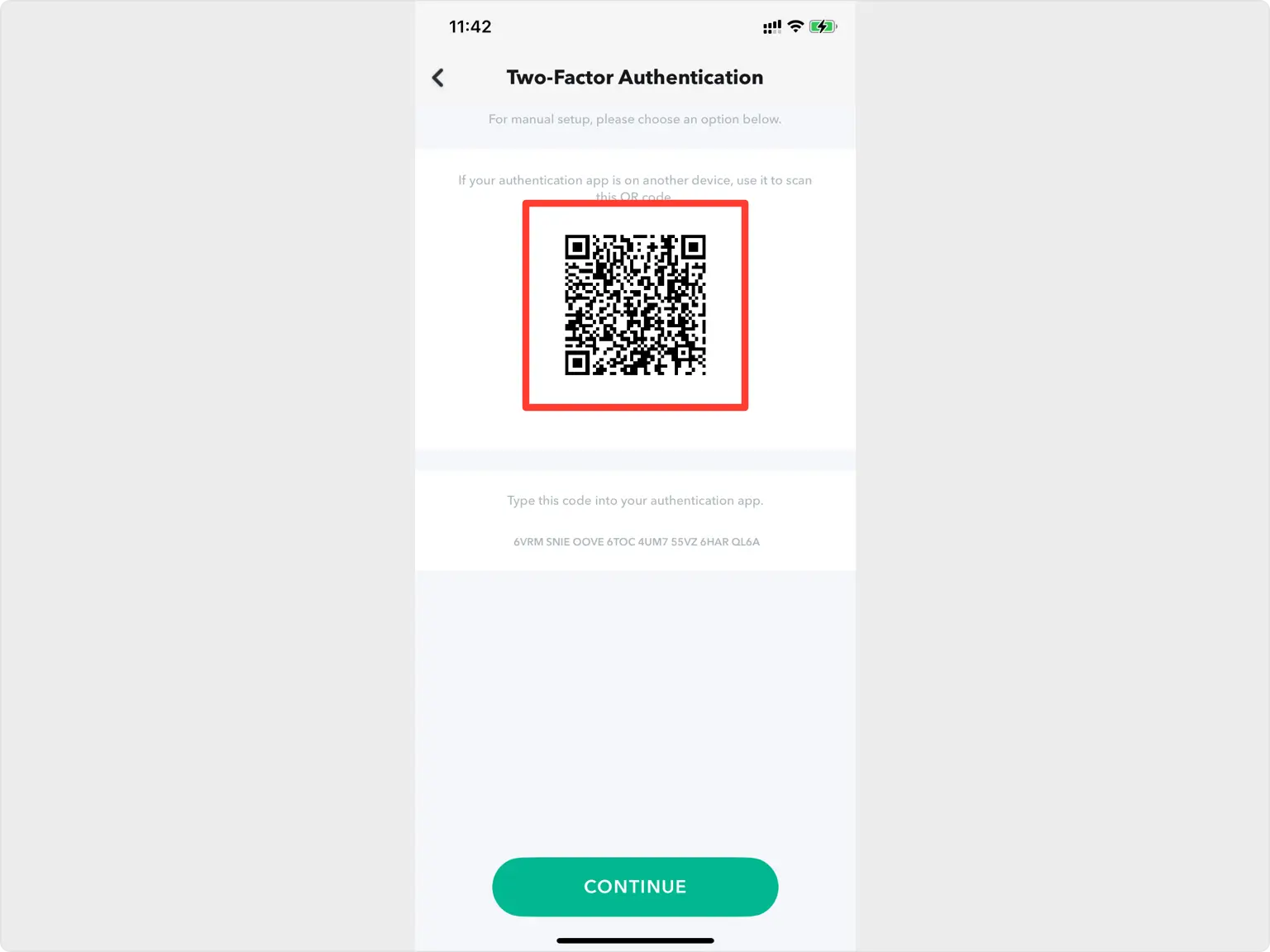
Import the QR code in your Authenticator App
Open the Authenticator App on your iPhone and tap the + button at the bottom. Choose Files, then select the QR code screenshot you just saved.
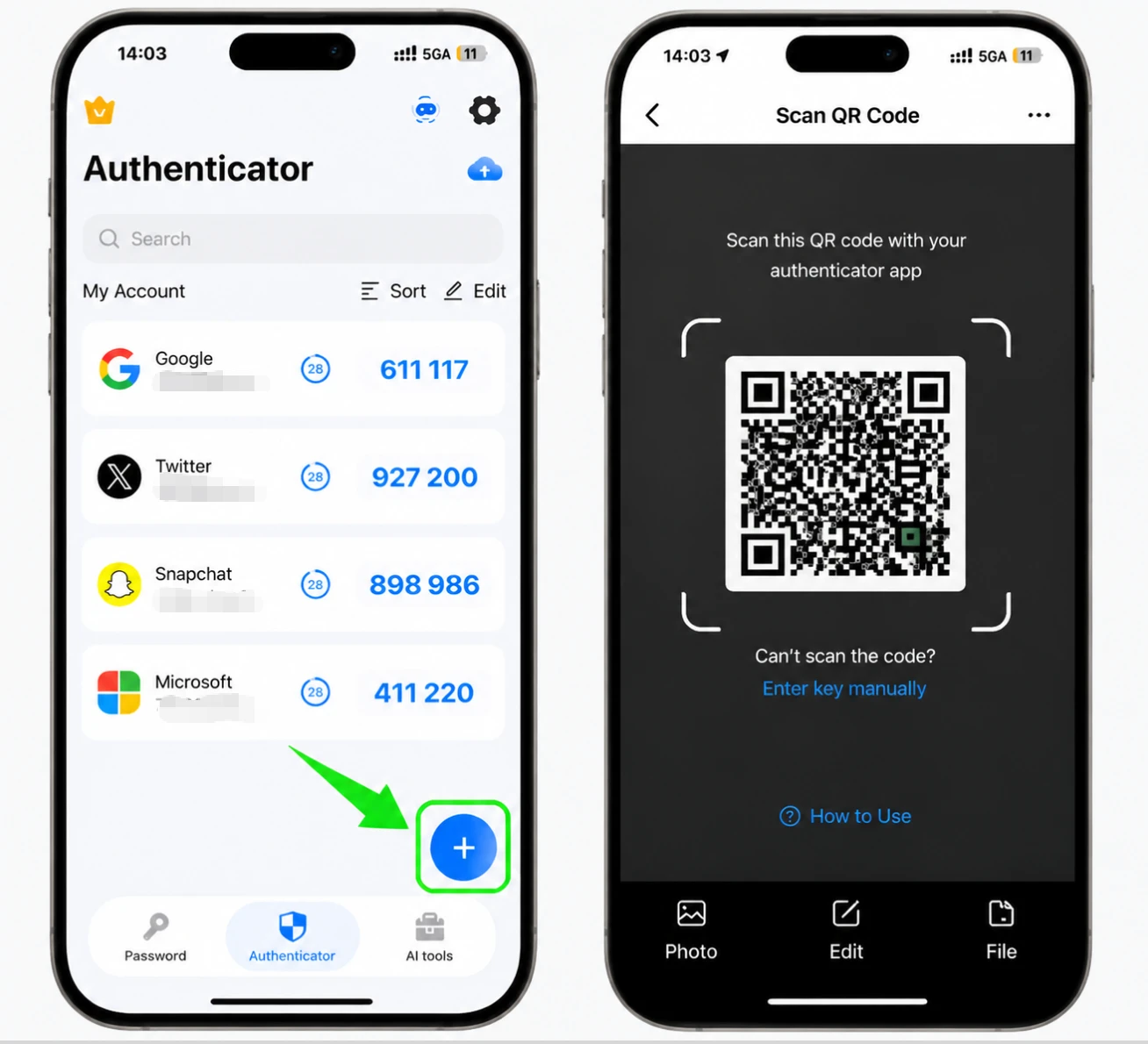
Save the Snapchat account
The Authenticator App reads the screenshot and fills in the Snapchat logo, account name, and secret key automatically. Check the details look right and tap Save.
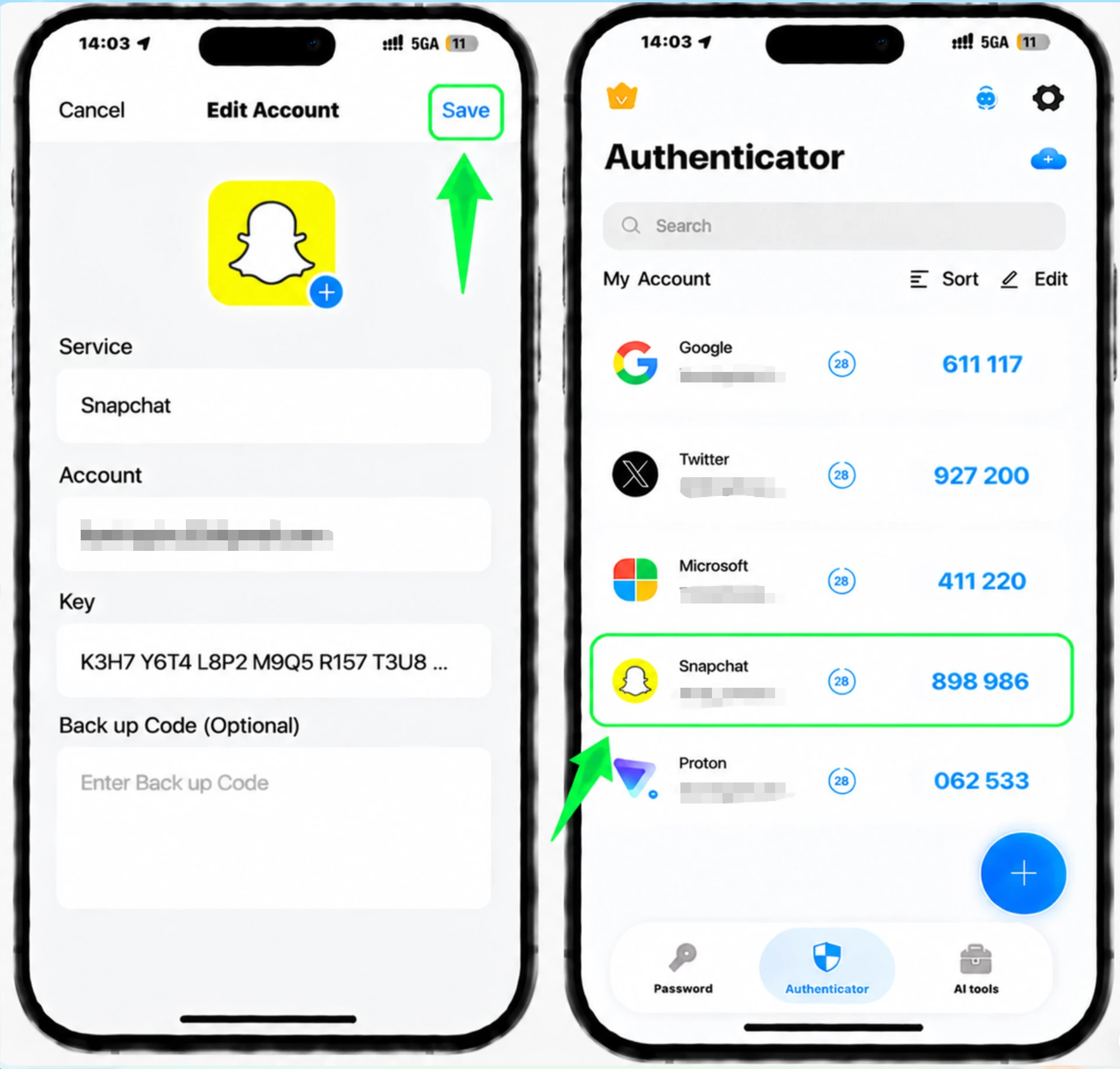
Enter the 6-digit code in Snapchat
Switch back to the Snapchat app and type the current 6-digit code from your Authenticator App into the verification field, then tap Continue to confirm.
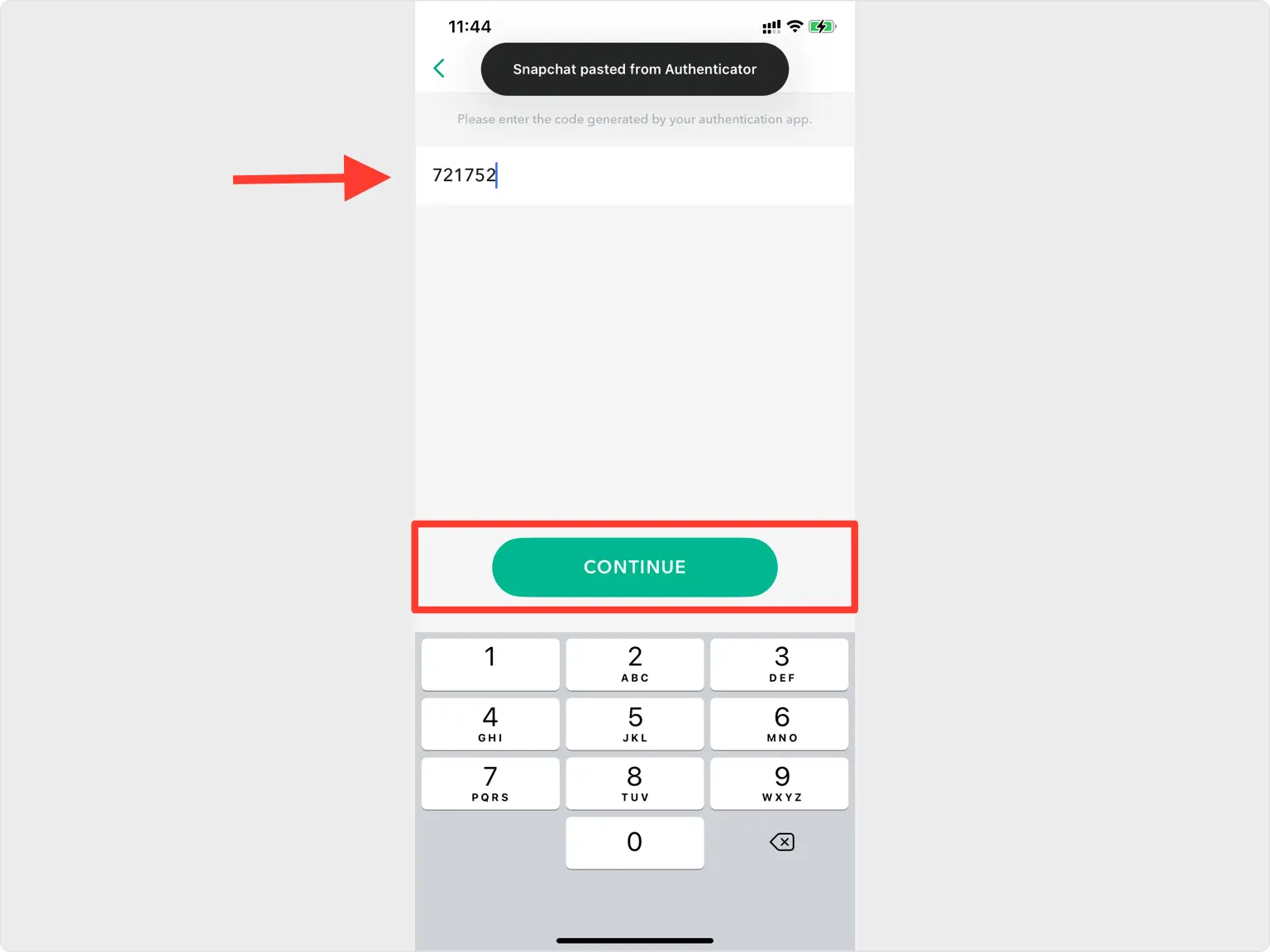
Save your Recovery (Backup) Code
Two-factor authentication is now on. Save the backup code Snapchat shows somewhere safe. You can also generate one later under Settings > My Account > Two-Factor Authentication > Recovery Code > Generate Code, entering your password. Snapchat cannot help recover a lost code, so store it securely.
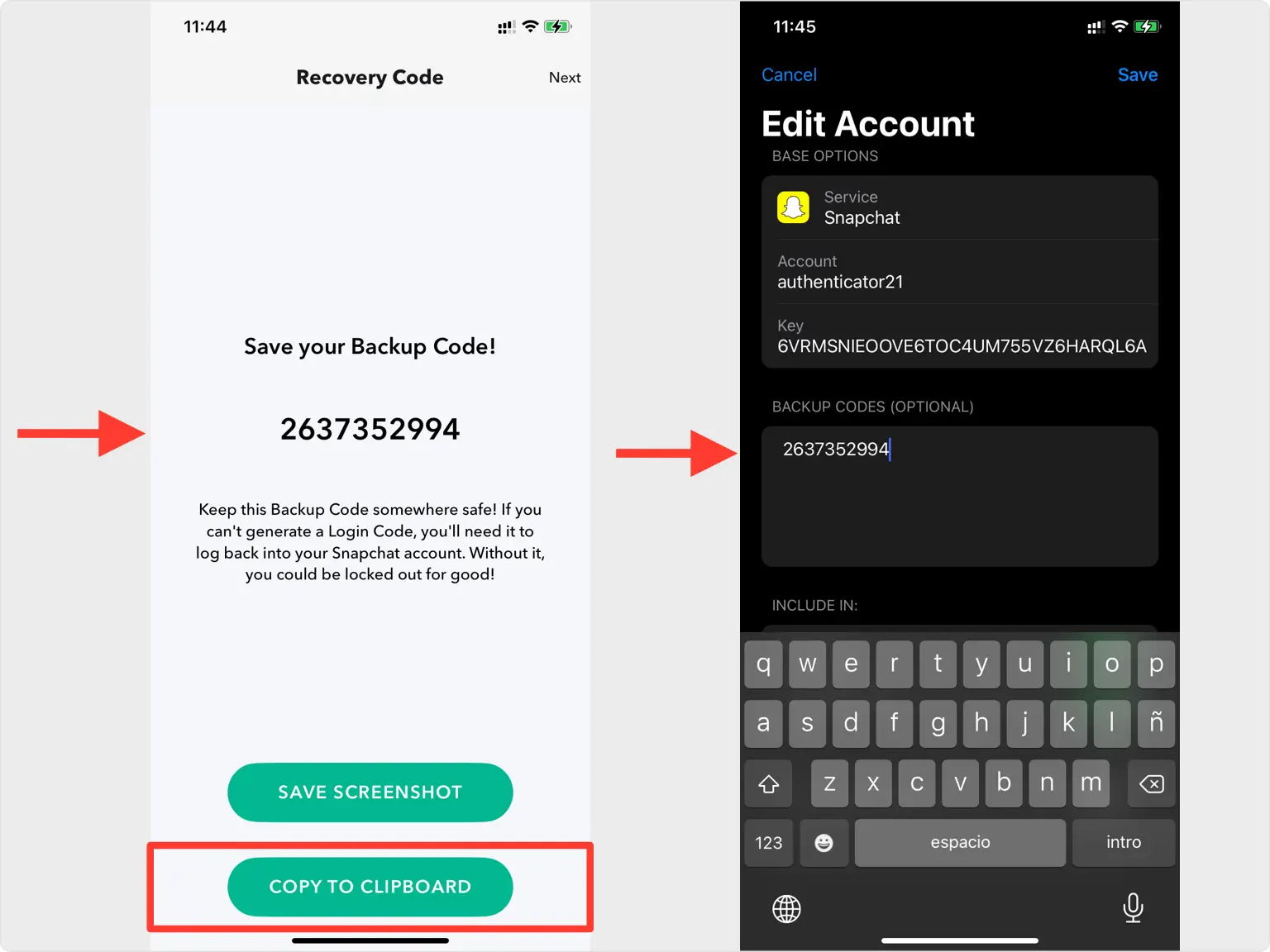


Backup & recovery
Two-factor authentication is now on. Save the backup code Snapchat shows somewhere safe. You can also generate one later under Settings > My Account > Two-Factor Authentication > Recovery Code > Generate Code, entering your password. Snapchat cannot help recover a lost code, so store it securely.
That's it — your Snapchat account is now protected with two-factor authentication. Keep your recovery information safe and follow the service's official documentation if its interface changes.
See all 2FA methods supported by Snapchat →


