

Cómo habilitar 2FA para su cuenta Shopify
Actualizado el 4 de agosto de 2026
La autenticación de dos factores (2FA) protege su cuenta Shopify incluso si se filtra su contraseña. Siga los pasos a continuación para generar códigos de verificación Shopify con Authenticator App en su iPhone, iPad o Mac.
Abra su configuración de seguridad
Inicia sesión en tu administrador de Shopify en un navegador web. Haga clic en el nombre de su tienda en la barra superior, seleccione su perfil y luego haga clic en Seguridad.
Activar la autenticación en dos pasos
En la sección Autenticación en dos pasos, haga clic en Activar dos pasos.
Confirma tu contraseña
Ingrese la contraseña de su cuenta para verificar su identidad, luego haga clic en Siguiente.
Elija la aplicación Autenticador
En la lista de métodos de autenticación, seleccione la aplicación Authenticator como método de dos pasos.
Escanea el código QR con tu Authenticator App
En tu iPhone, abre Authenticator App, toca el botón + y escanea el código QR que muestra Shopify. Si no puede escanearlo, elija ingresar una clave secreta/de configuración manualmente y escriba la clave que muestra Shopify.
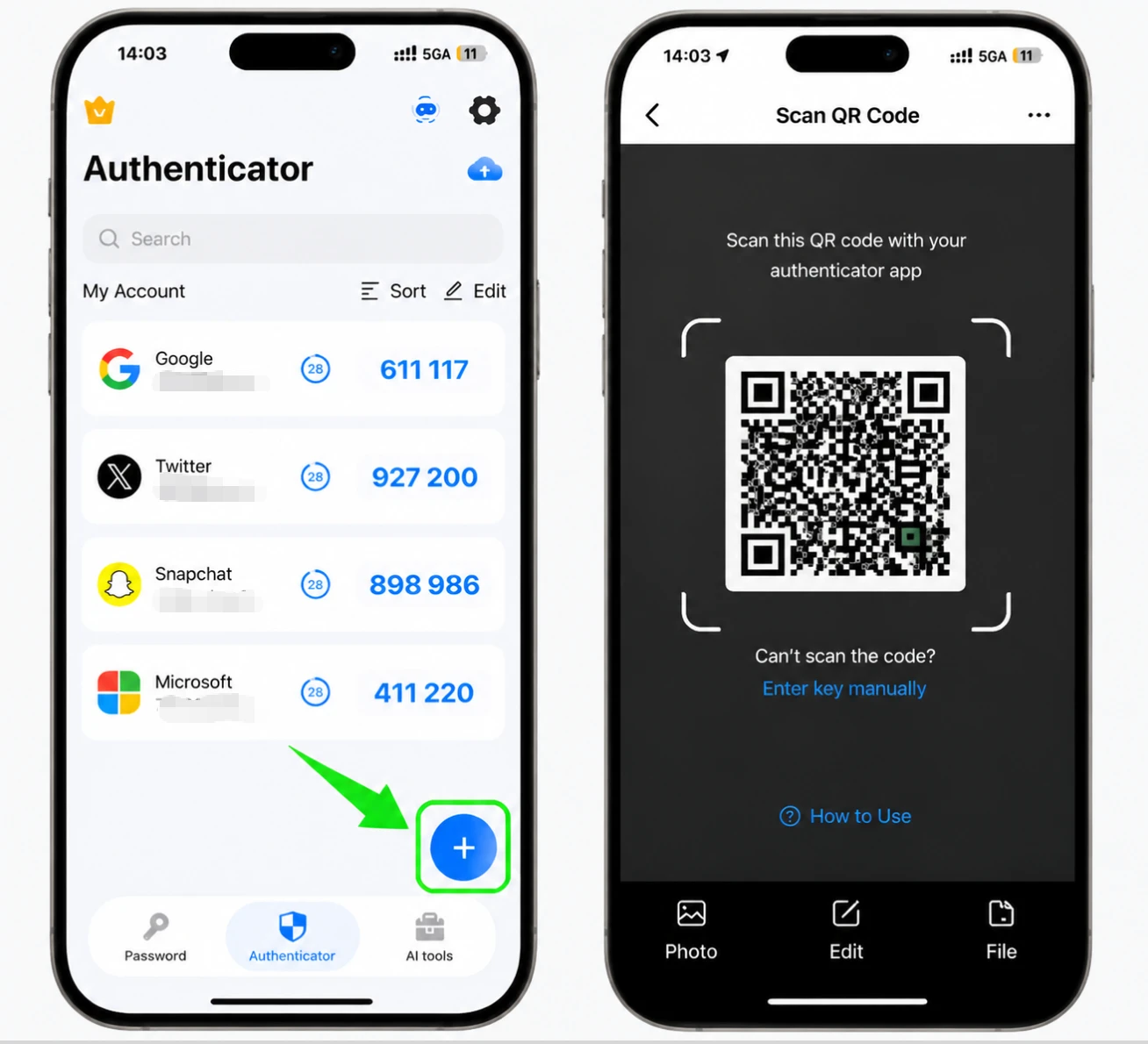
Ingresa el código de verificación de 6 dígitos
De vuelta en Shopify, ingresa el código de seis dígitos generado por tu aplicación de autenticación, luego haz clic en Activar para confirmar.
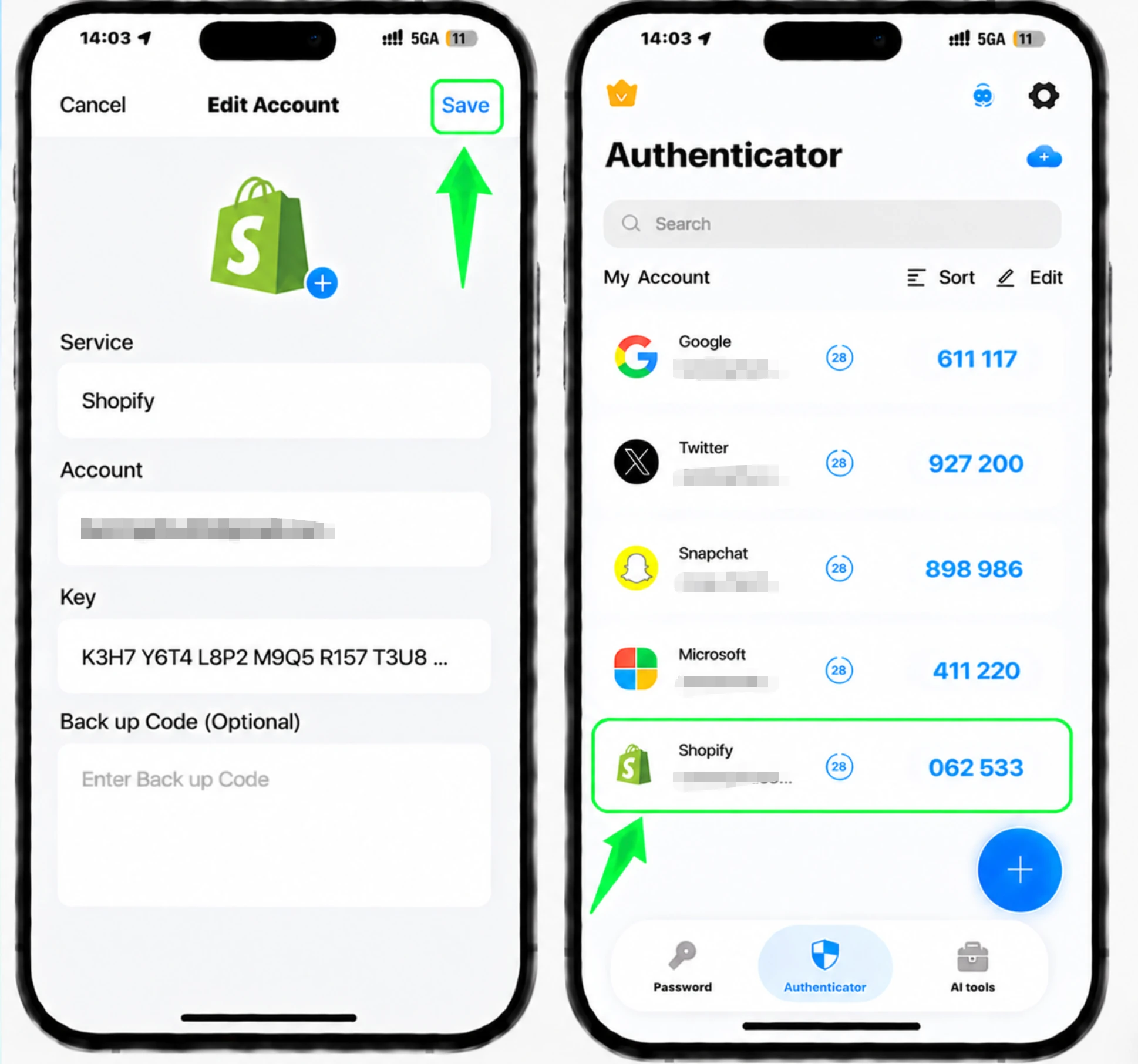
Guarde sus códigos de recuperación y método de respaldo
Configure un método de autenticación de respaldo opcional y guarde los códigos de recuperación que proporciona Shopify. Guárdelos en varios lugares seguros, como un administrador de contraseñas o una copia impresa.



Copia de seguridad y recuperación
Configure un método de autenticación de respaldo opcional y guarde los códigos de recuperación que proporciona Shopify. Guárdelos en varios lugares seguros, como un administrador de contraseñas o una copia impresa.
Listo: su cuenta de Shopify ya está protegida con autenticación de dos factores. Guarde la información de recuperación de forma segura y consulte la documentación oficial del servicio si cambia la interfaz.
Ver todos los métodos 2FA soportados por Shopify →


