

How to enable 2FA for your Discord account
Updated August 4, 2026
Two-factor authentication (2FA) protects your Discord account even if your password leaks. Follow the steps below to generate Discord verification codes with the Authenticator App on your iPhone, iPad or Mac.
Open your User Settings
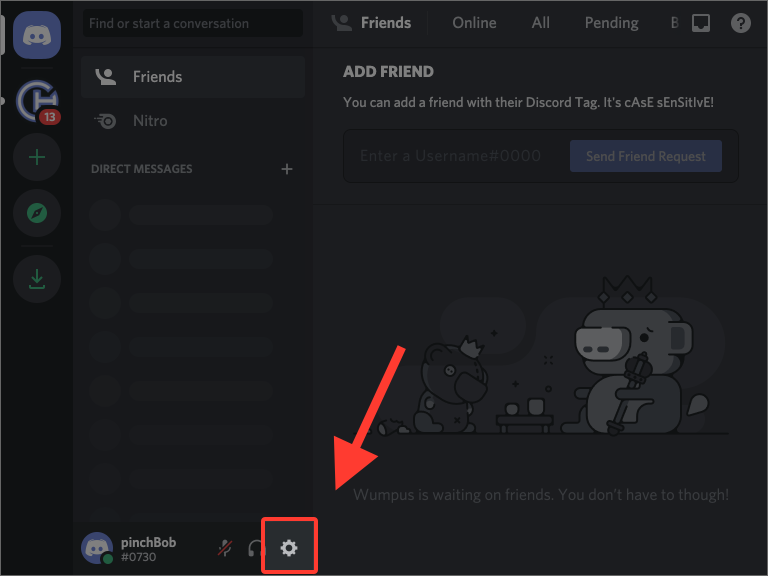
Sign in to Discord on the website, then click the cogwheel (settings icon) next to your username in the bottom-left corner to open your User Settings on the My Account page.
Enable the Authenticator App
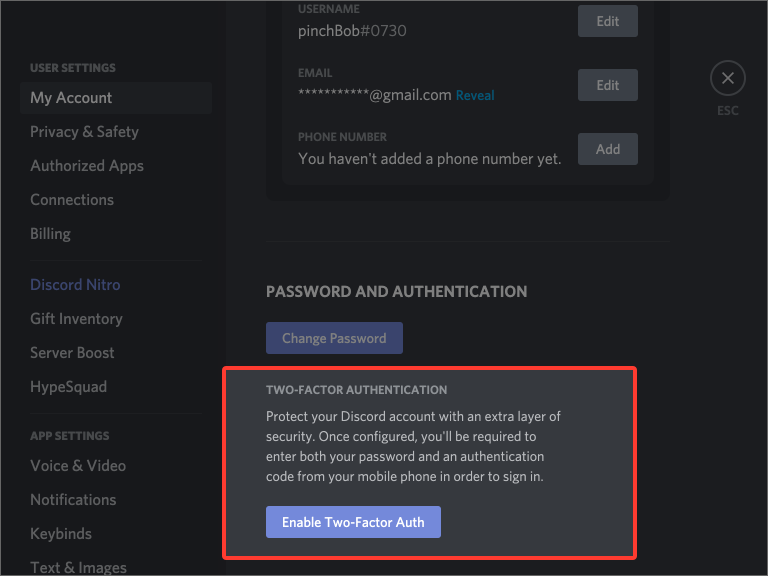
Scroll to the Password and Authentication section where the Multi-Factor Authentication options live, then press Enable Authenticator App. Discord will ask you to confirm your password before continuing.
Open the QR code window
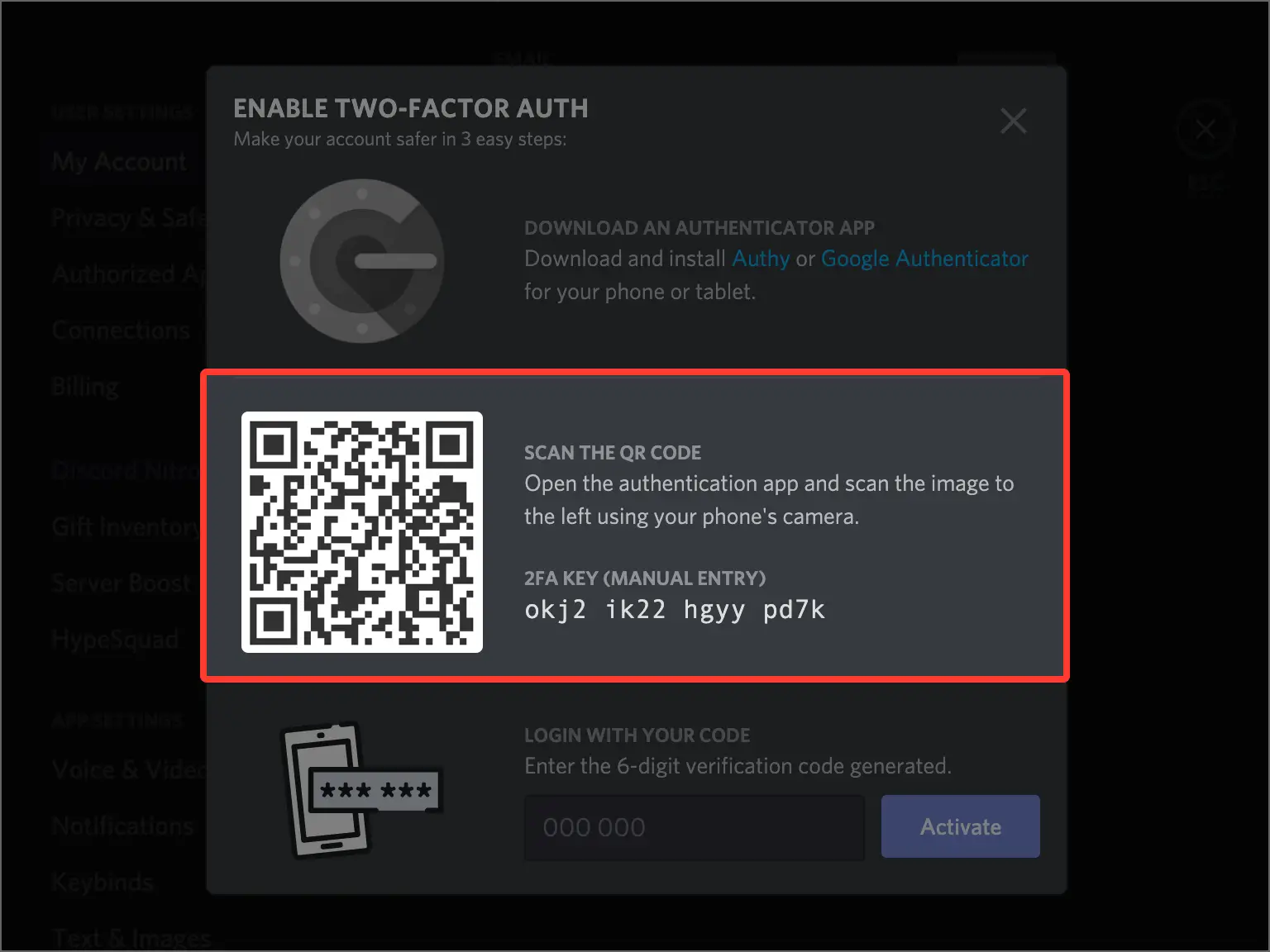
Discord opens a pop-up showing the QR code you'll scan with your Authenticator App. Leave this window open on your computer while you pick up your phone.
Scan the QR code with your Authenticator App
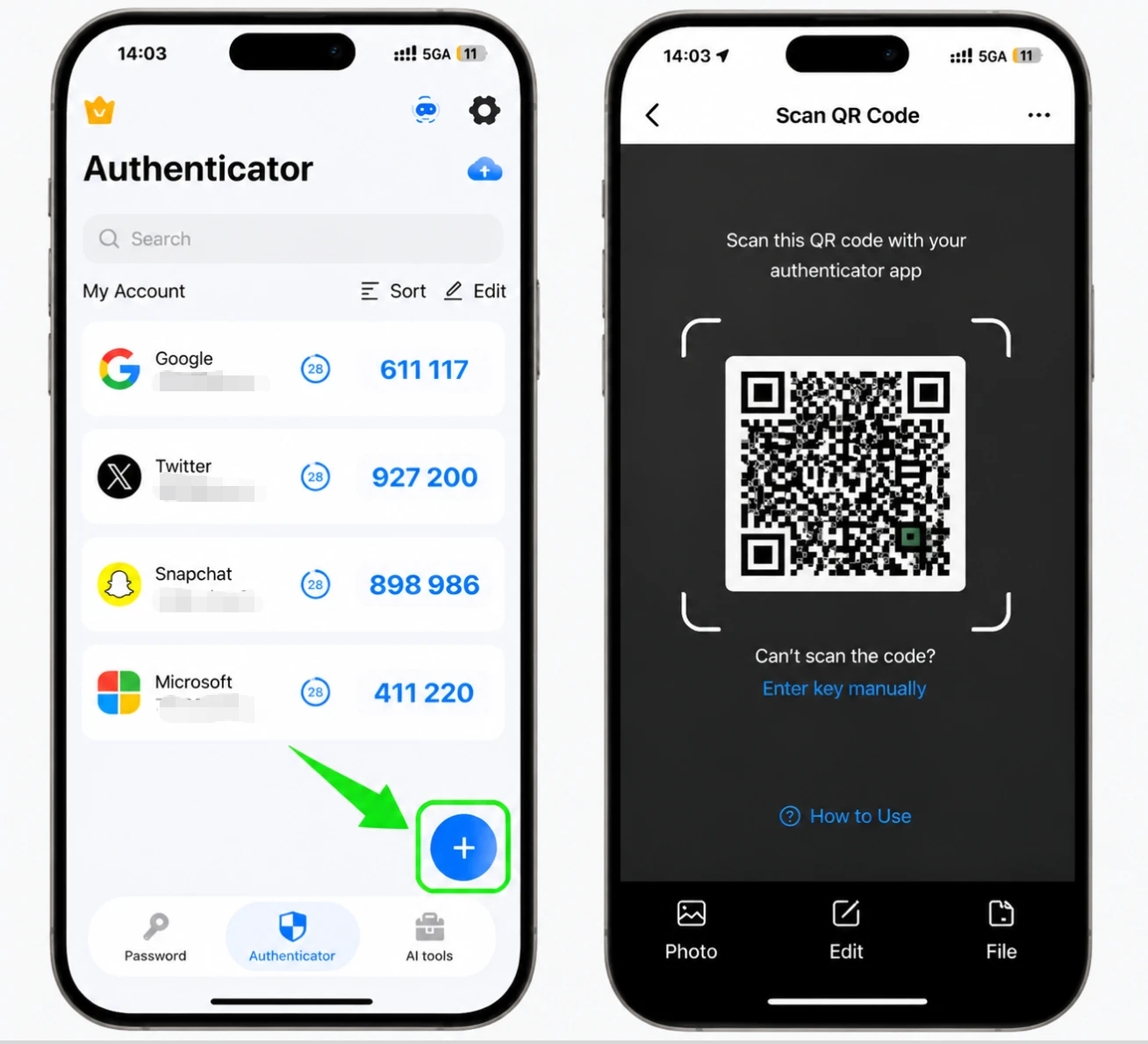
On your iPhone, open the Authenticator App and tap the + button to add a new account, then point your phone at the screen to scan the QR code Discord is showing. If you can't scan it, choose to enter a setup key manually and type in the secret key instead.
Save the Discord account in the app
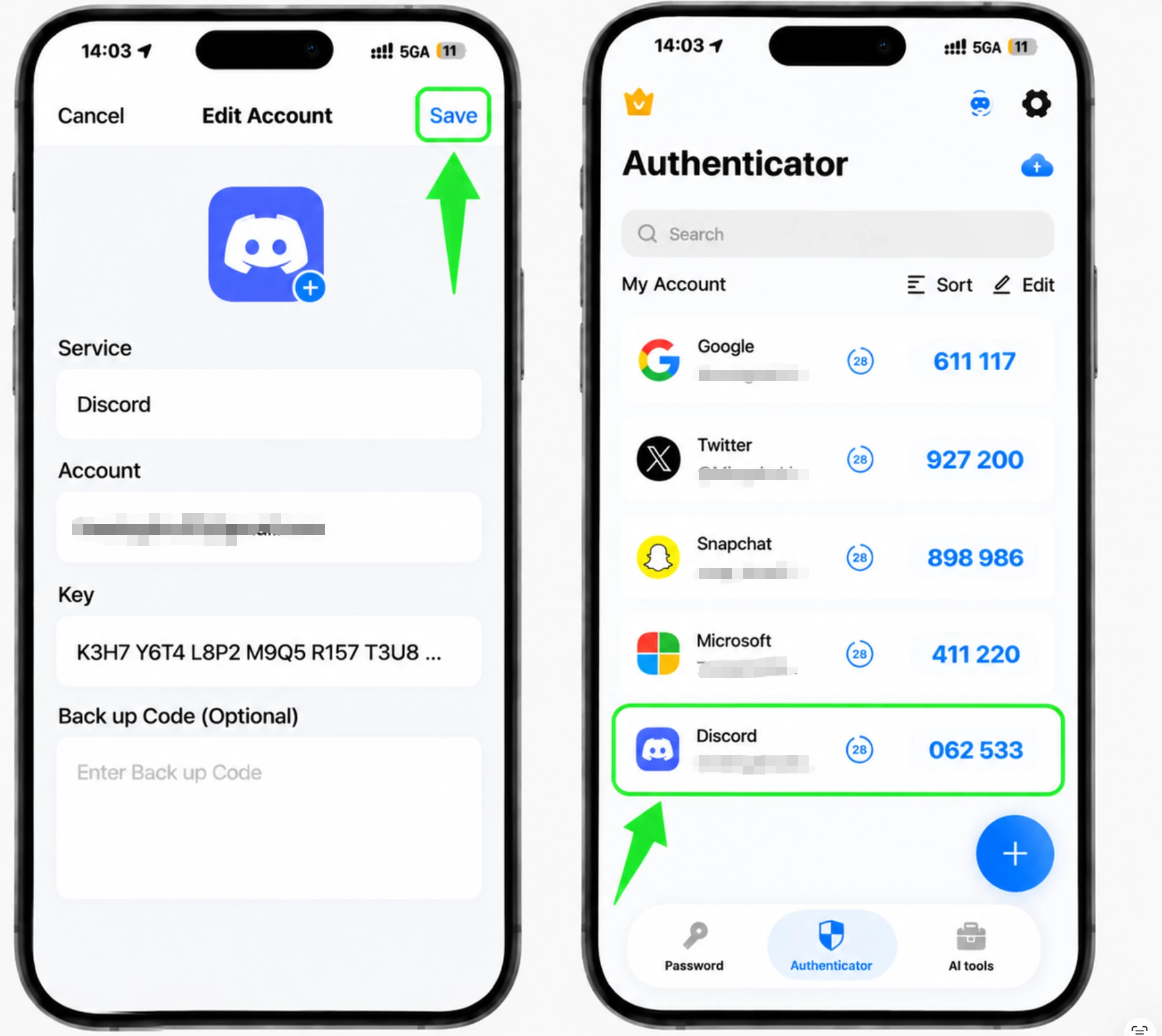
Once the scan succeeds, the Authenticator App fills in the Discord logo, account name, and secret key automatically. Check that the details look right and tap Save to store the account.
Read your 6-digit code
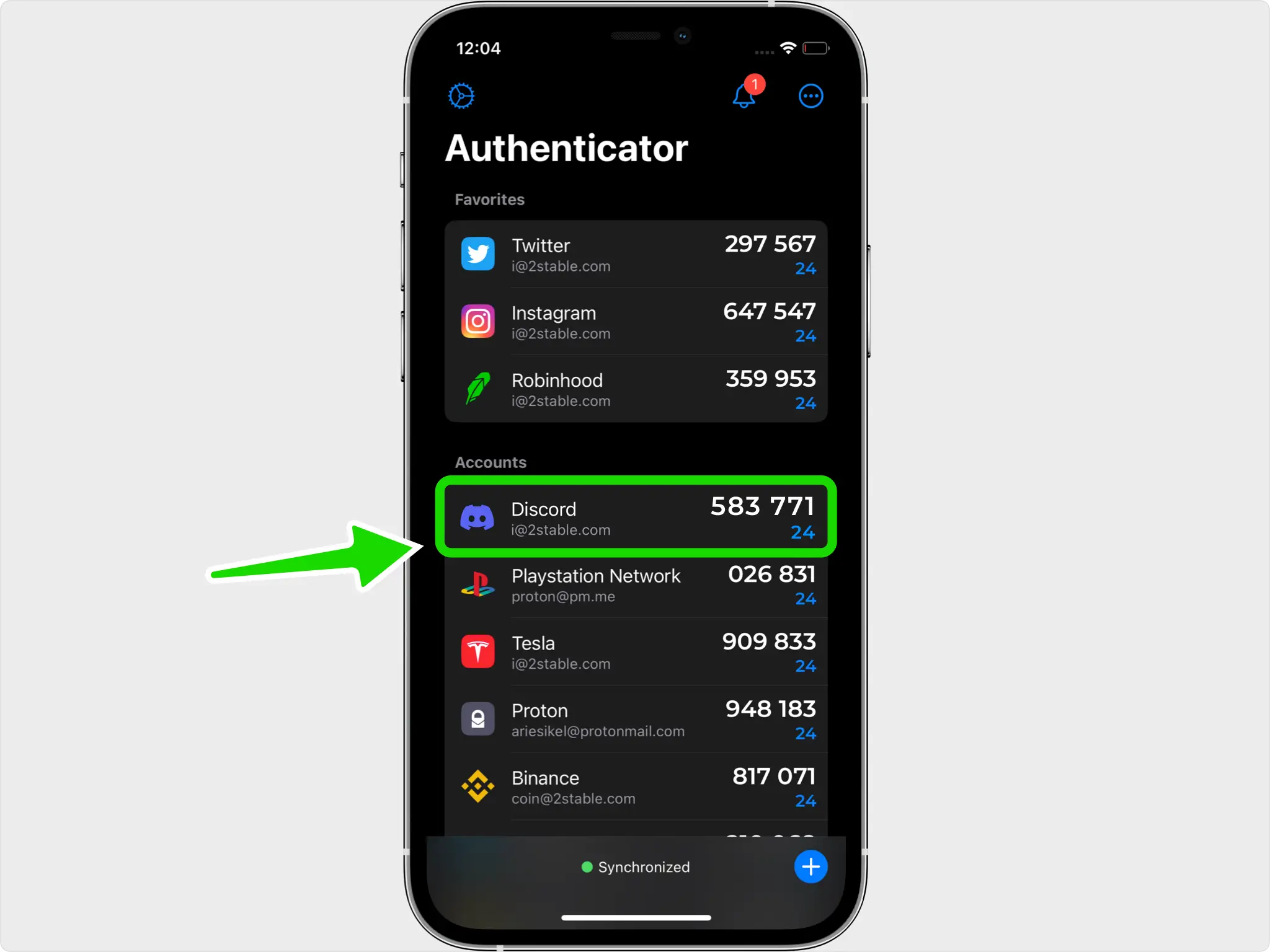
Your Authenticator App now shows a 6-digit code for Discord that automatically renews every 30 seconds. Note the current code so you can enter it before it changes.
Enter the code and activate
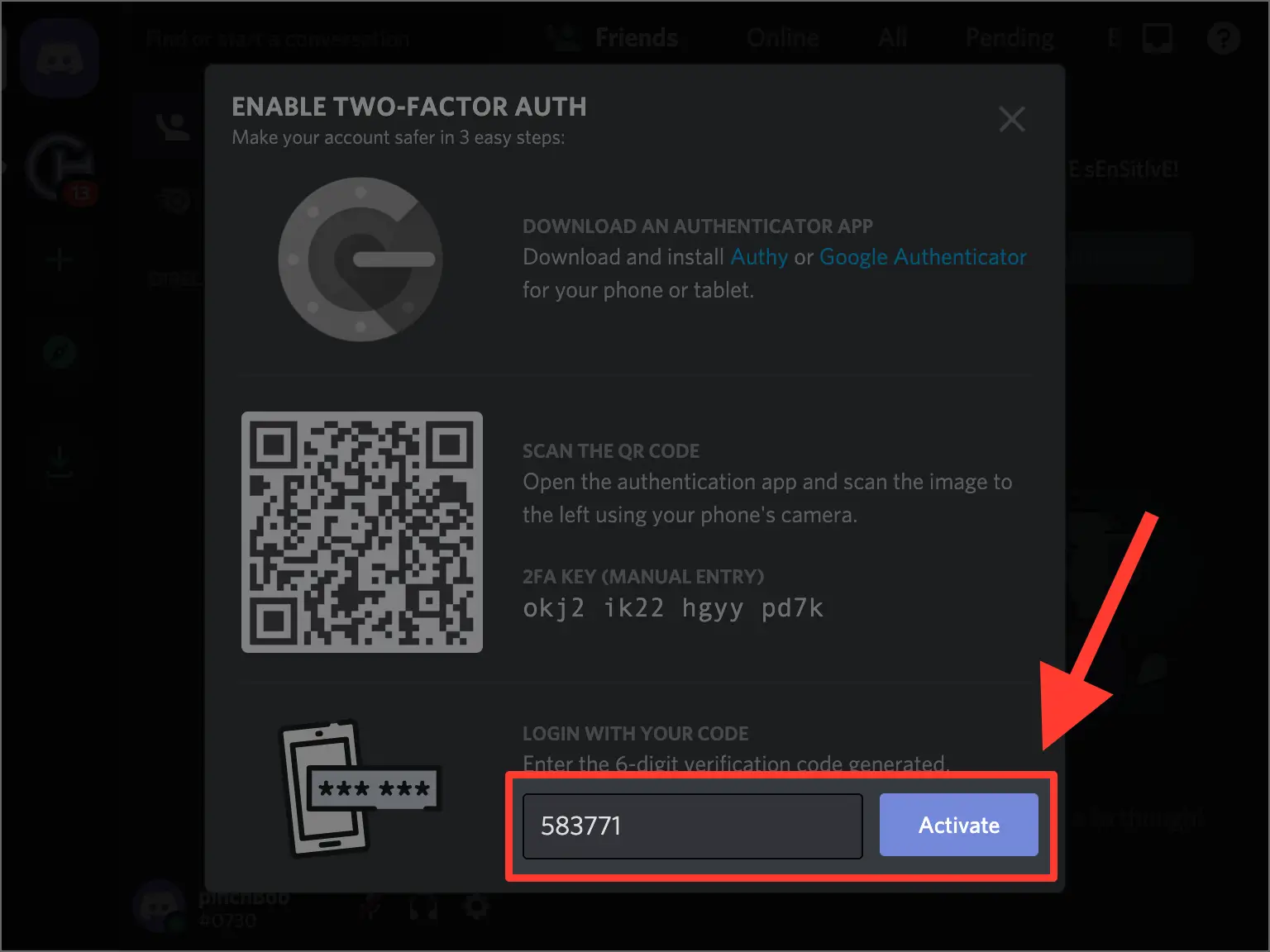
Back on the Discord website, type the 6-digit code into the "Login with your code" field and tap Activate to turn on two-factor authentication.
Save your backup codes
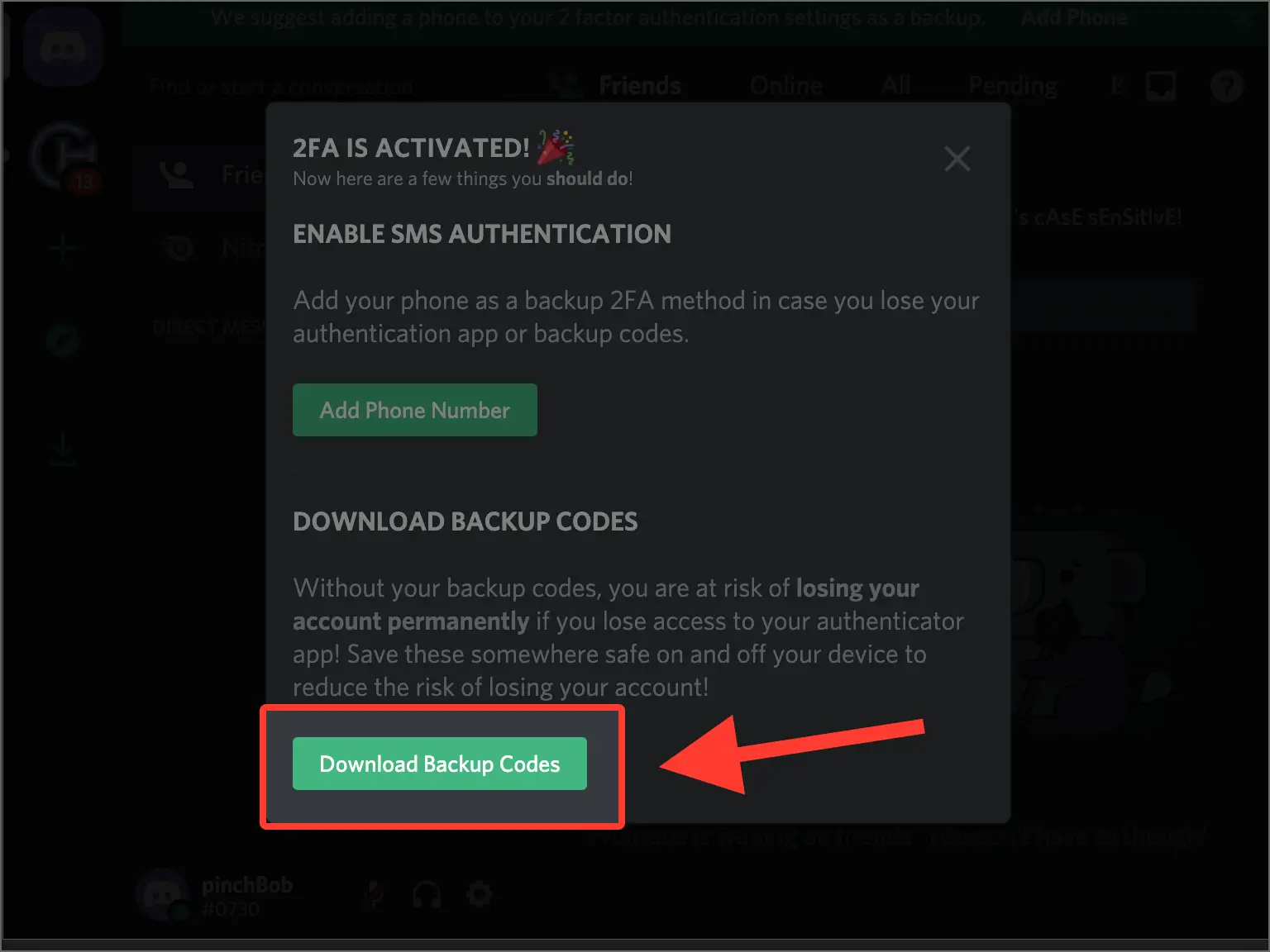
Discord then displays a list of one-time backup codes. Download them and keep them somewhere safe, since each can be used once to sign in if you lose access to your authenticator. You can press Generate Codes to create a fresh set, which replaces the old one.


Backup & recovery
Discord then displays a list of one-time backup codes. Download them and keep them somewhere safe, since each can be used once to sign in if you lose access to your authenticator. You can press Generate Codes to create a fresh set, which replaces the old one.
That's it — your Discord account is now protected with two-factor authentication. Keep your recovery information safe and follow the service's official documentation if its interface changes.
See all 2FA methods supported by Discord →


