

Comment activer 2FA pour votre compte Slack
Mis à jour le 4 août 2026
L’authentification à deux facteurs (2FA) protège votre compte Slack même en cas de fuite de votre mot de passe. Suivez les étapes ci-dessous pour générer des codes de vérification pour Slack avec Authenticator App sur votre iPhone, iPad ou Mac.
Connectez-vous et ouvrez les paramètres de votre compte
Connectez-vous à votre espace de travail Slack dans un navigateur Web et accédez à la page de votre compte sur my.slack.com/account/settings.
Développer l'authentification à deux facteurs
À côté de « Authentification à deux facteurs », cliquez sur Développer pour afficher les options de configuration.
Démarrer la configuration
Cliquez sur Configurer l'authentification à deux facteurs, puis saisissez votre mot de passe pour continuer.
Choisissez l'option de l'application d'authentification
Cliquez sur Utiliser une application pour configurer l'authentification à deux facteurs à l'aide d'une application d'authentification TOTP plutôt que par message texte.
Scannez le code QR avec votre Authenticator App
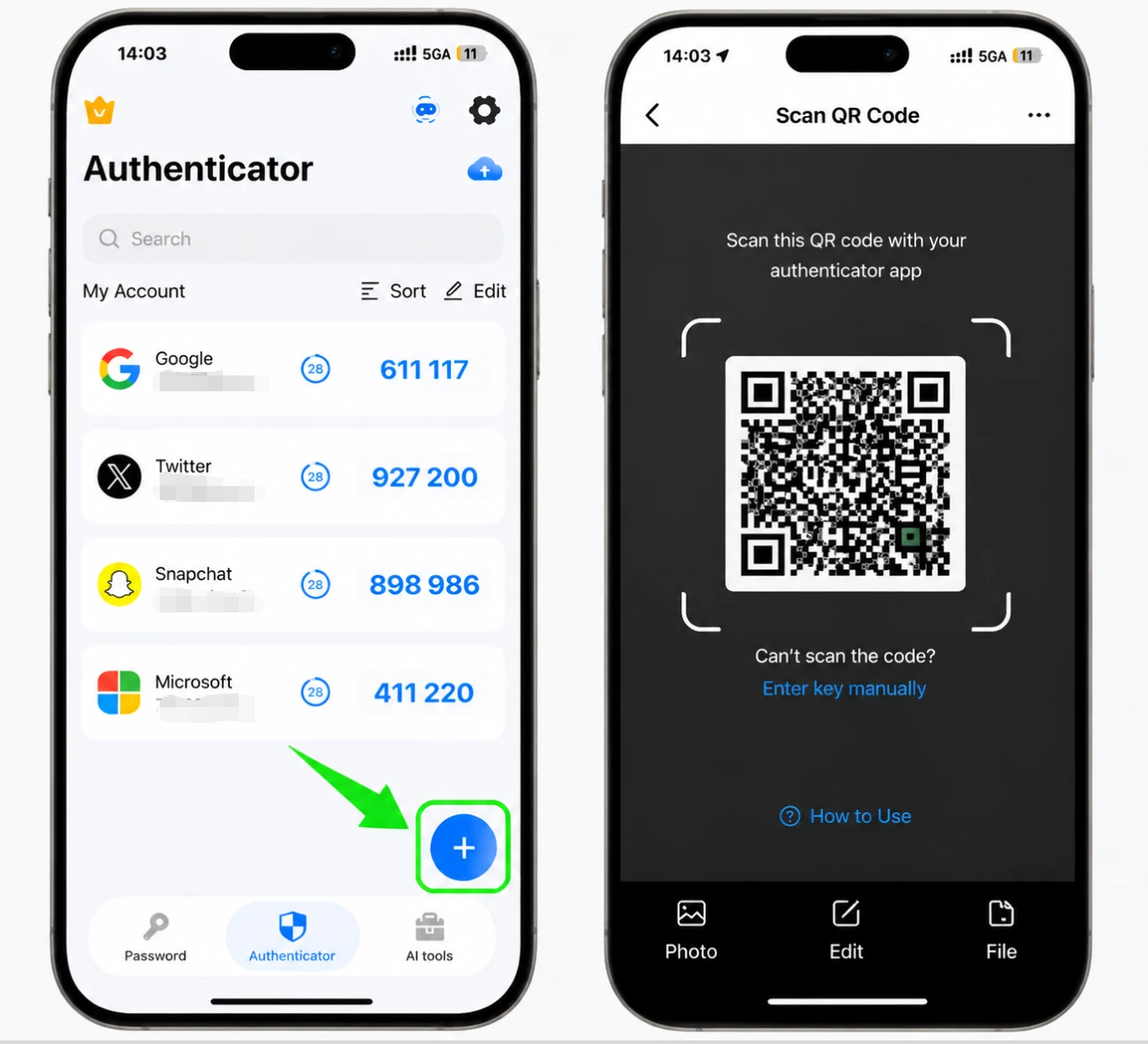
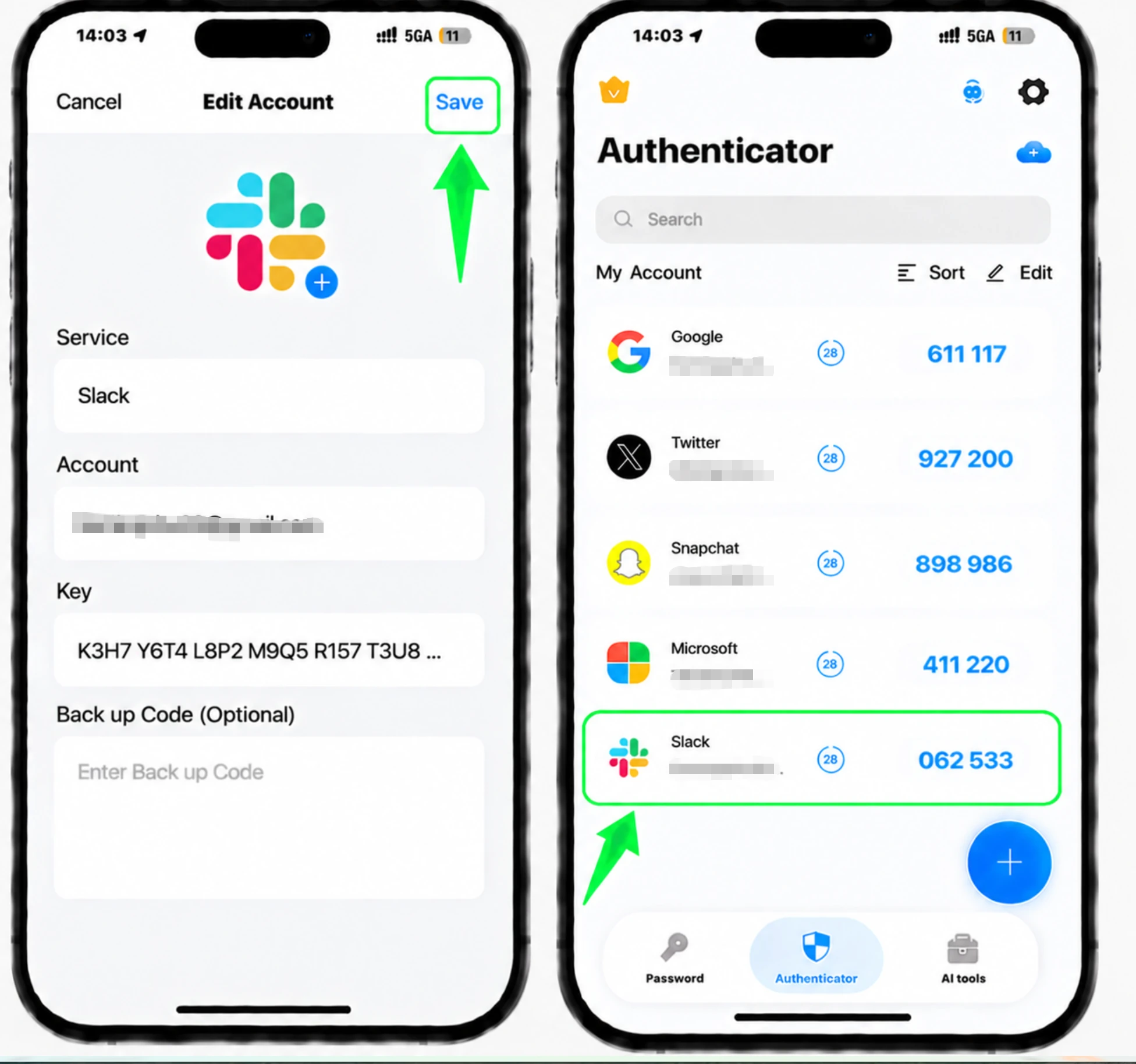
Ouvrez le Authenticator App sur votre iPhone, appuyez sur le bouton + et scannez le code QR affiché par Slack. Si vous ne pouvez pas le scanner, choisissez de saisir le code manuellement à l'aide de la clé secrète affichée par Slack.
Entrez le code à 6 chiffres et vérifiez
De retour sur la page de configuration 2FA de Slack, saisissez le code de vérification à 6 chiffres généré par votre application d'authentification, puis cliquez sur Vérifier le code pour confirmer.
Enregistrez vos codes de sauvegarde
Slack fournit des codes de sauvegarde lorsque vous configurez 2FA. Enregistrez-les dans un endroit sûr, car chaque code ne peut être utilisé qu'une seule fois pour vous connecter si vous perdez l'accès à votre application d'authentification. Vous pouvez toujours les retrouver sur la page de votre compte.


Sauvegarde et récupération
Slack fournit des codes de sauvegarde lorsque vous configurez 2FA. Enregistrez-les dans un endroit sûr, car chaque code ne peut être utilisé qu'une seule fois pour vous connecter si vous perdez l'accès à votre application d'authentification. Vous pouvez toujours les retrouver sur la page de votre compte.
C’est terminé : votre compte Slack est maintenant protégé par l’authentification à deux facteurs. Conservez vos informations de récupération en lieu sûr et consultez la documentation officielle du service si son interface évolue.
Voir toutes les méthodes 2FA prises en charge par Slack →


