

Comment activer 2FA pour votre compte Dropbox
Mis à jour le 4 août 2026
L’authentification à deux facteurs (2FA) protège votre compte Dropbox même en cas de fuite de votre mot de passe. Suivez les étapes ci-dessous pour générer des codes de vérification pour Dropbox avec Authenticator App sur votre iPhone, iPad ou Mac.
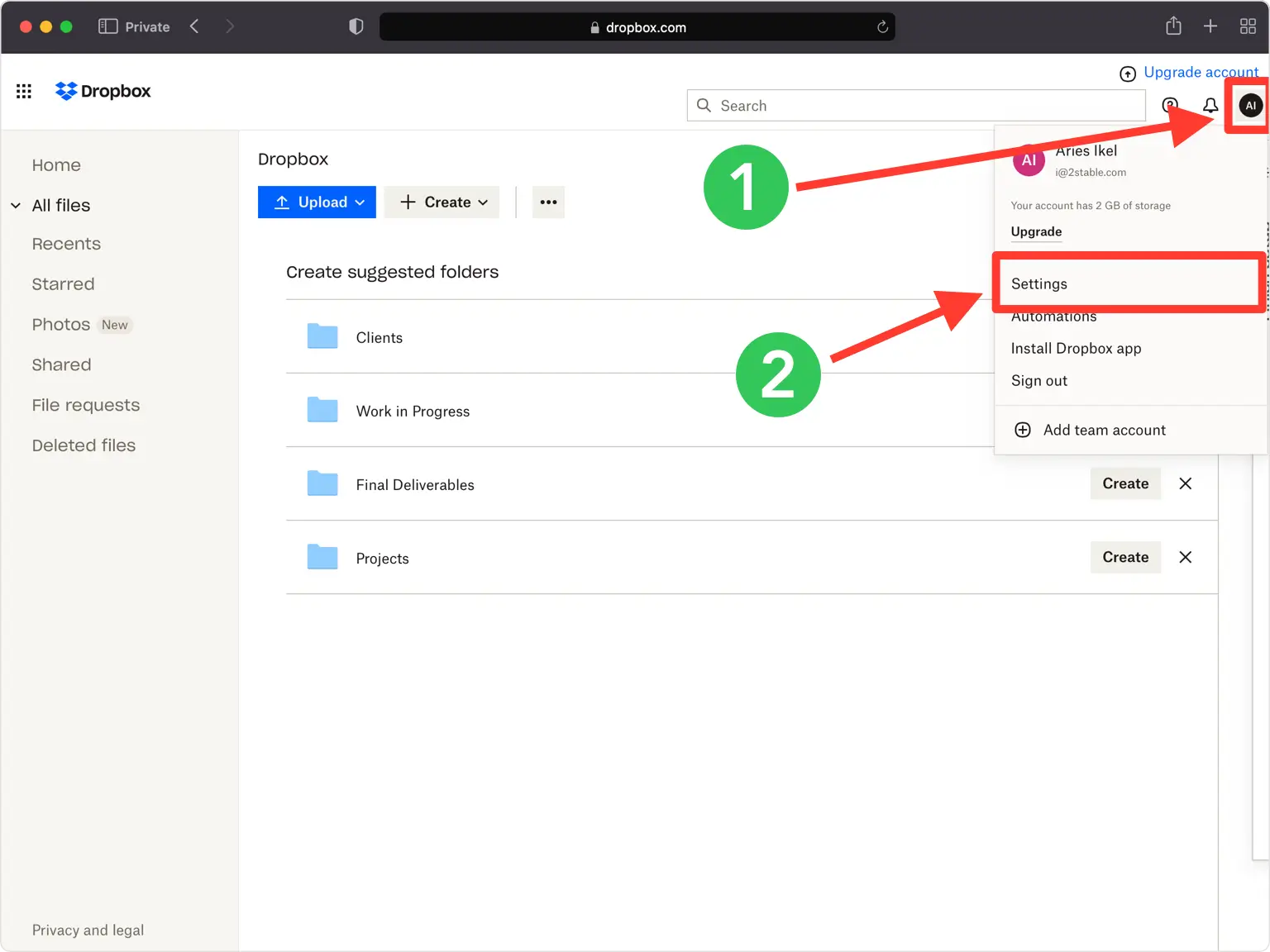
Ouvrez le menu de votre compte et accédez à Paramètres
Connectez-vous à dropbox.com dans un navigateur Web. Cliquez sur l'icône de votre compte (votre photo de profil ou vos initiales) dans le coin supérieur droit, puis choisissez Paramètres dans le menu déroulant.
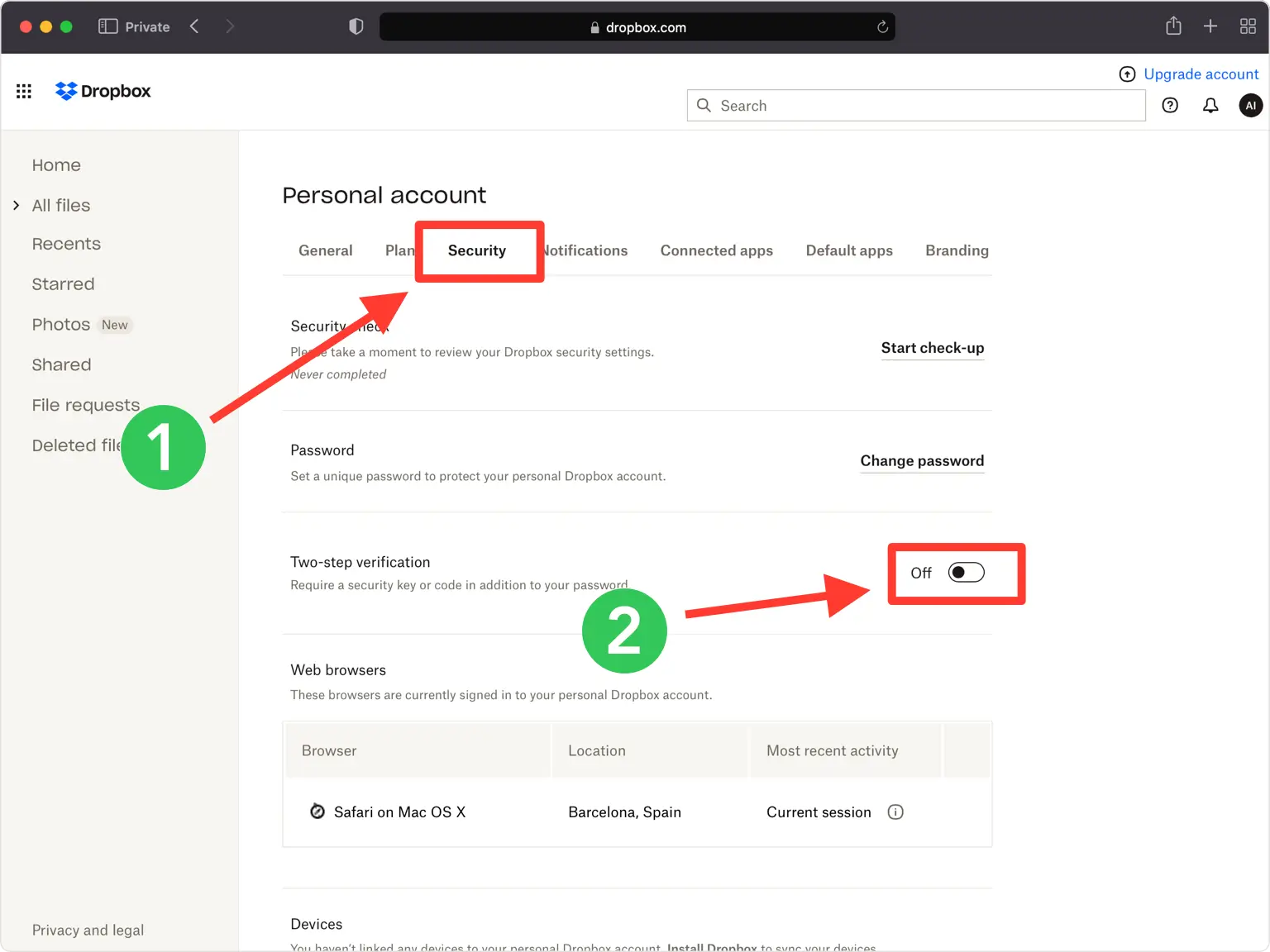
Activez la vérification en deux étapes sous Sécurité
Ouvrez l'onglet Sécurité et recherchez la section Vérification en deux étapes. Cliquez sur le bouton pour l'activer, puis saisissez à nouveau votre mot de passe et cliquez sur Soumettre lorsque vous y êtes invité.
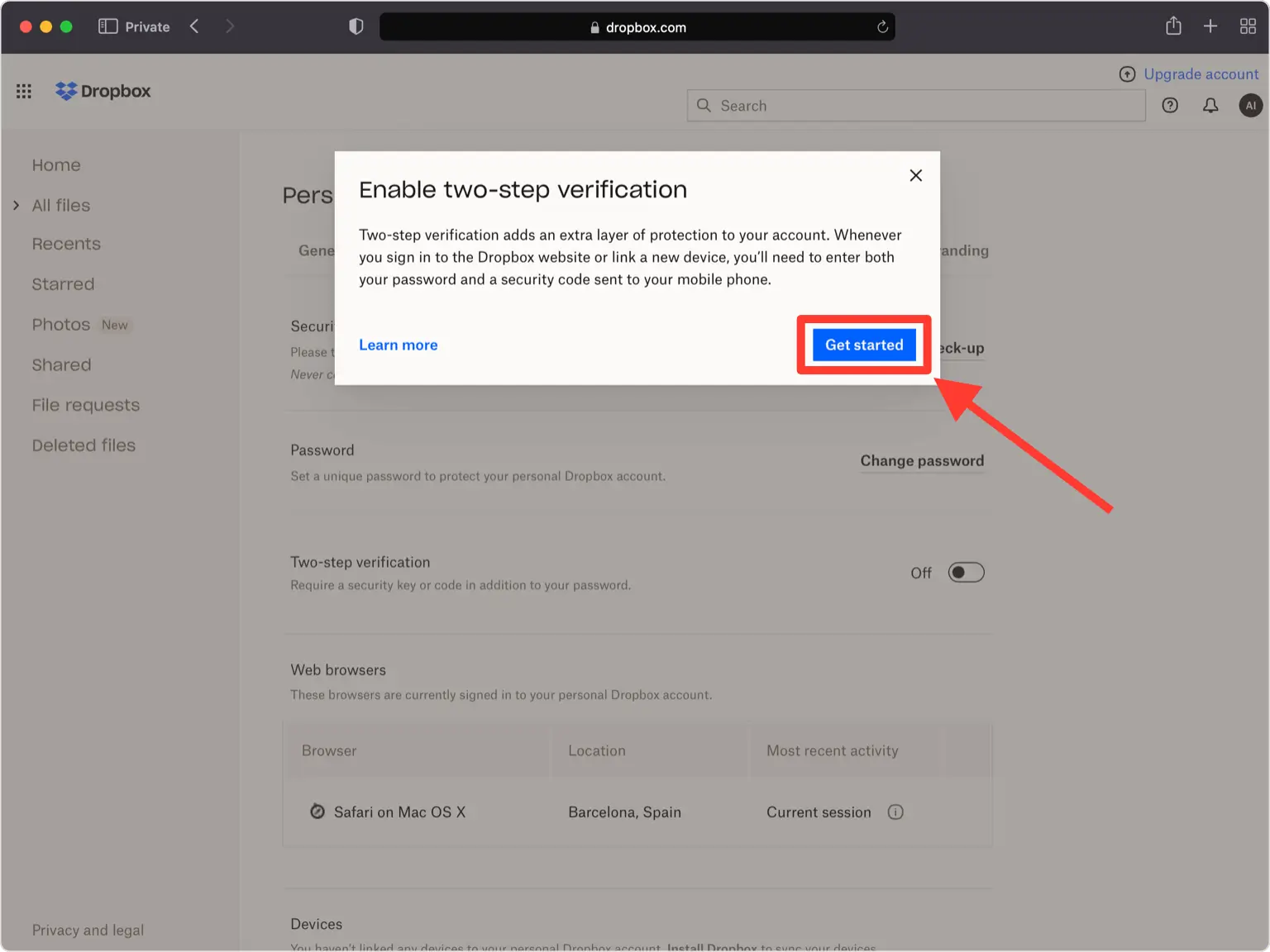
Cliquez sur Commencer
Dropbox ouvre un court assistant de configuration pour une vérification en deux étapes. Cliquez sur Commencer pour continuer.
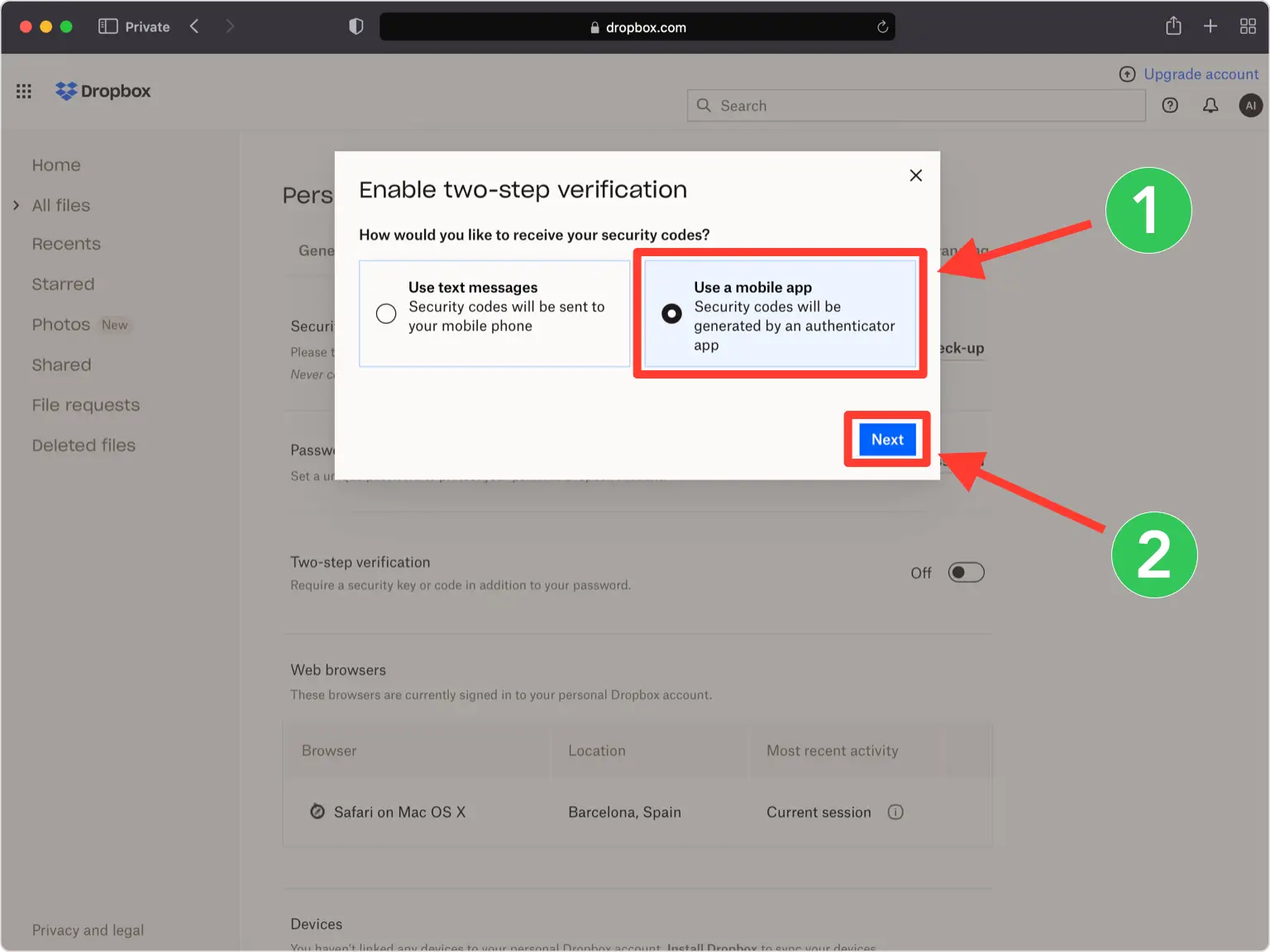
Choisissez l'option de l'application d'authentification
Lorsqu'on vous demande comment vous souhaitez recevoir vos codes, sélectionnez l'option de l'application d'authentification mobile (affichée comme Utiliser une application mobile), puis cliquez sur Suivant.
Afficher le code QR
Dropbox affiche un code QR (accompagné d'une clé secrète) dans une fenêtre contextuelle. Laissez cette fenêtre ouverte sur votre ordinateur pendant que vous prenez votre téléphone.
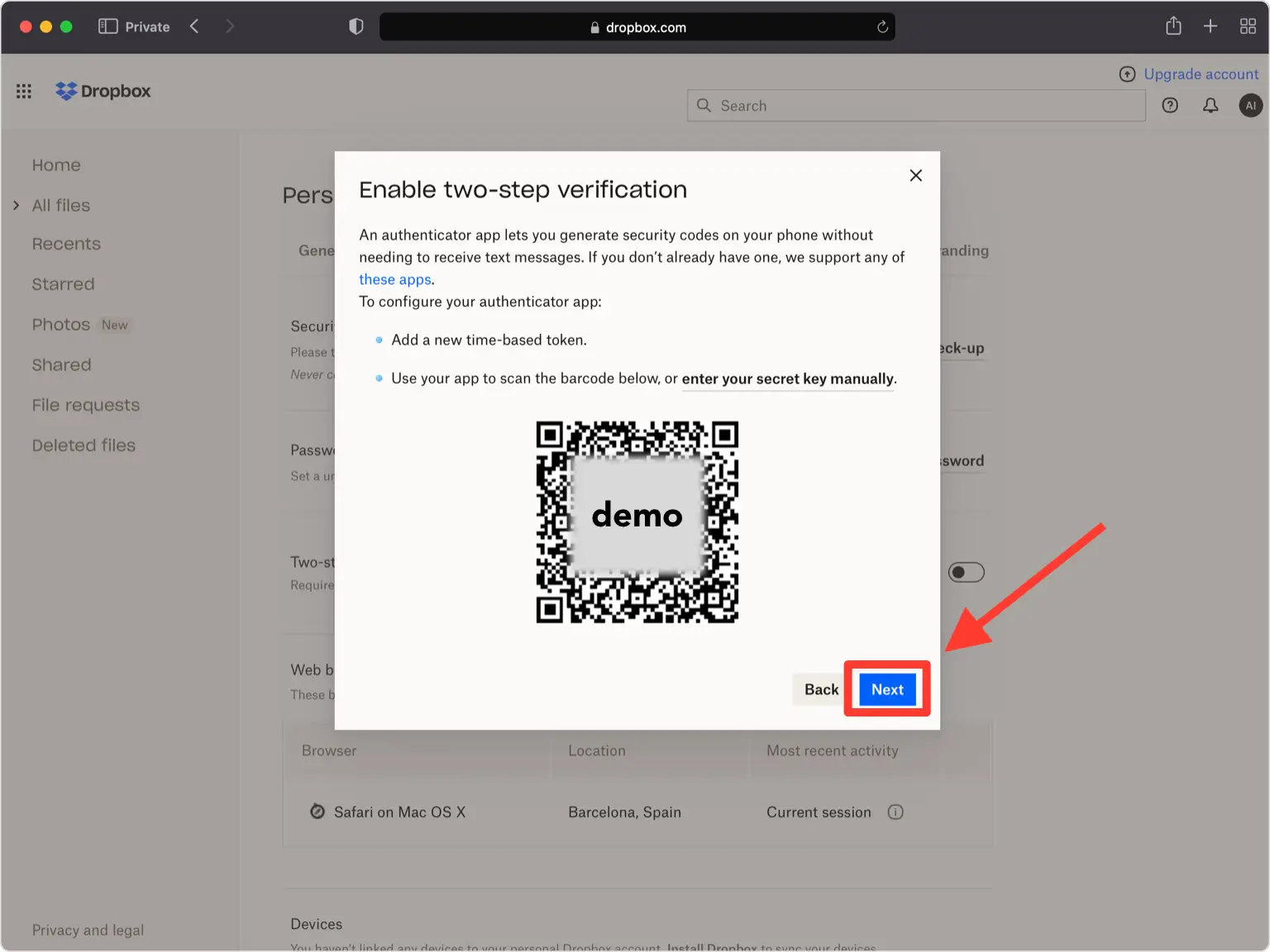
Scannez le code QR avec votre Authenticator App
Ouvrez le Authenticator App sur votre iPhone, appuyez sur le bouton + en bas de l'écran et pointez votre téléphone vers l'écran pour scanner le code QR affiché par Dropbox. Si vous ne pouvez pas le scanner, utilisez l'option manuelle et saisissez plutôt la clé secrète de Dropbox.
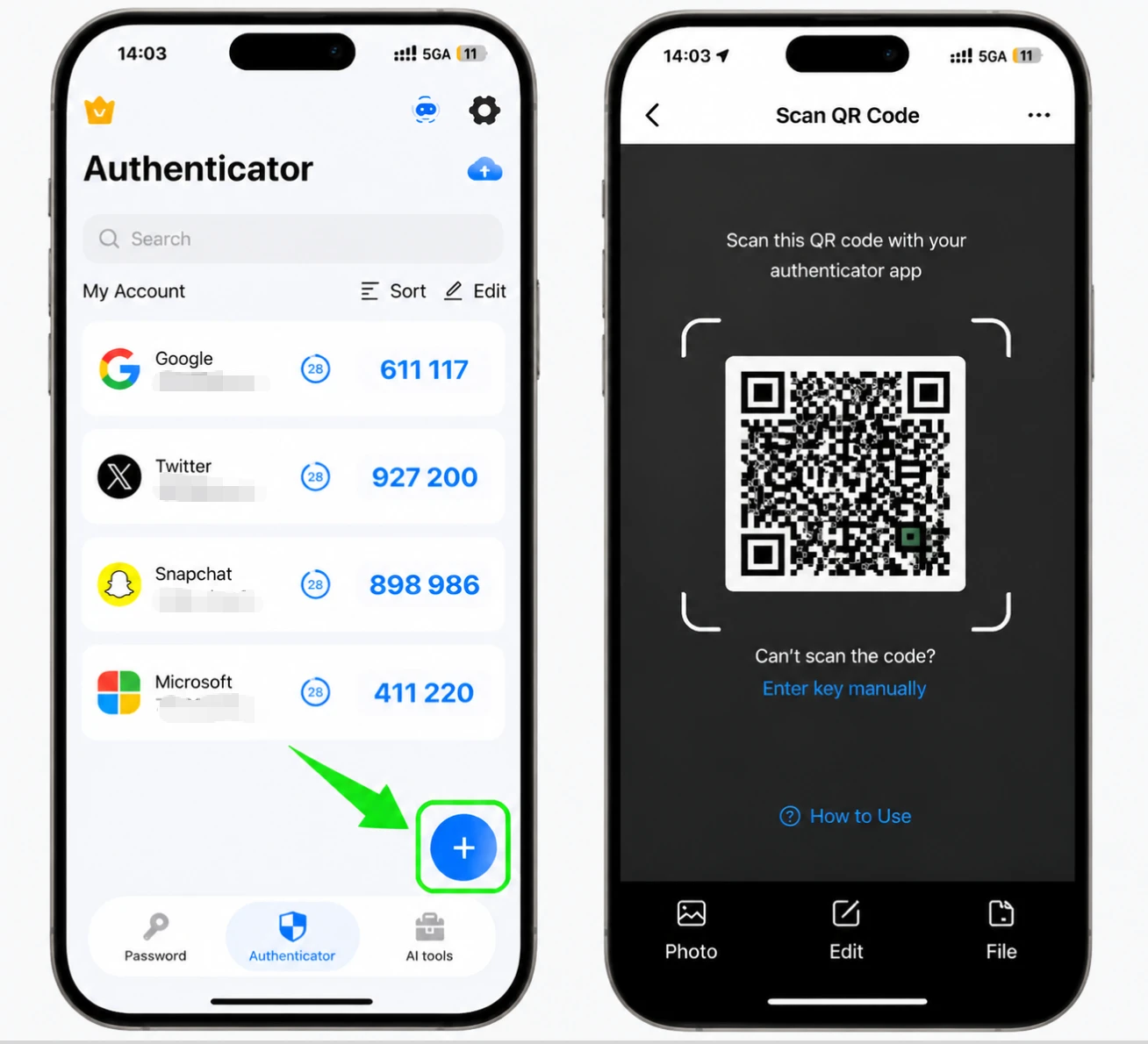
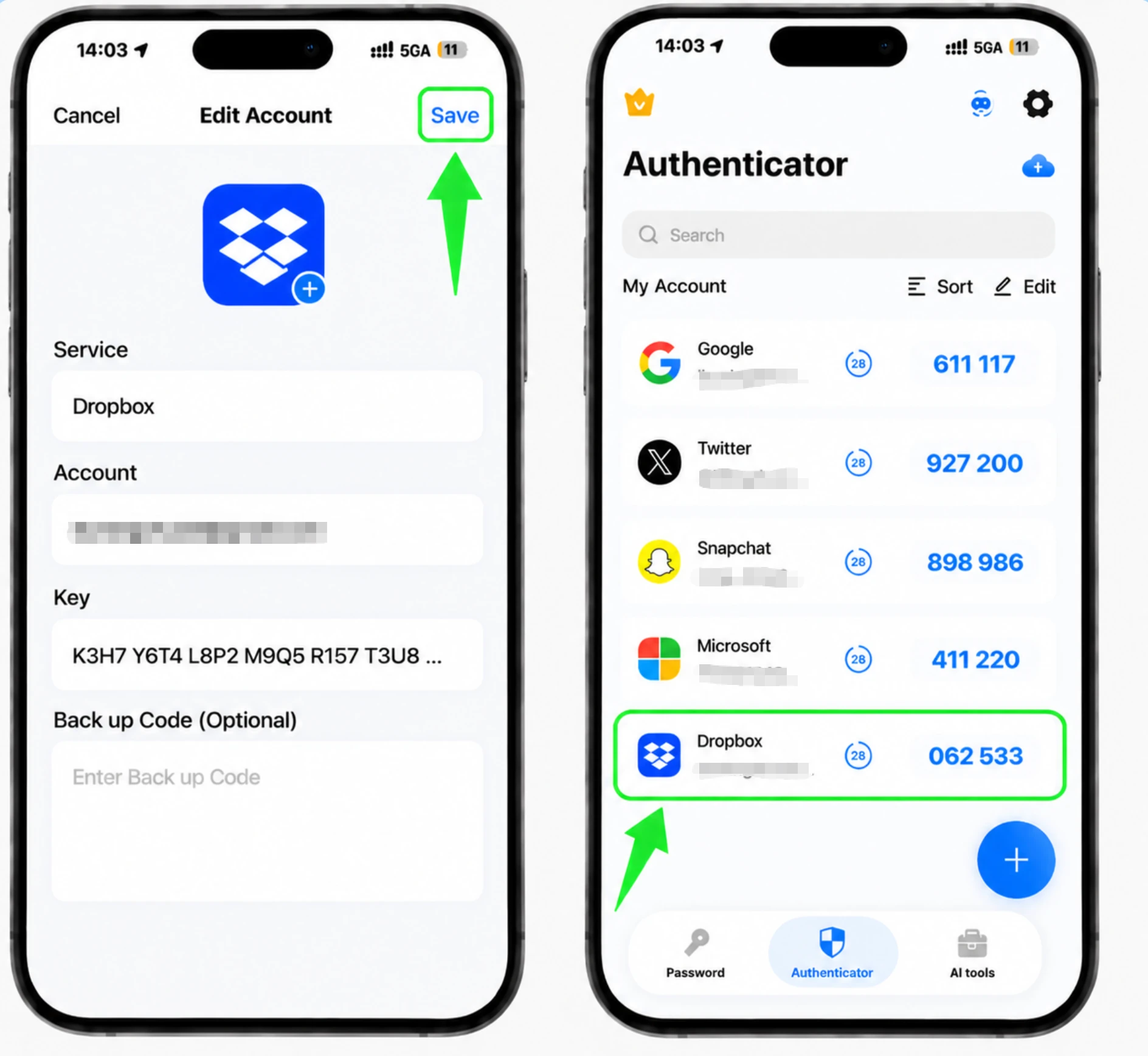
Enregistrez l'entrée Dropbox dans l'application
Après la numérisation, le Authenticator App remplit automatiquement le logo Dropbox, le nom du compte et la clé secrète. Ajustez l'icône ou le nom si vous le souhaitez, puis appuyez sur Enregistrer pour ajouter le compte.
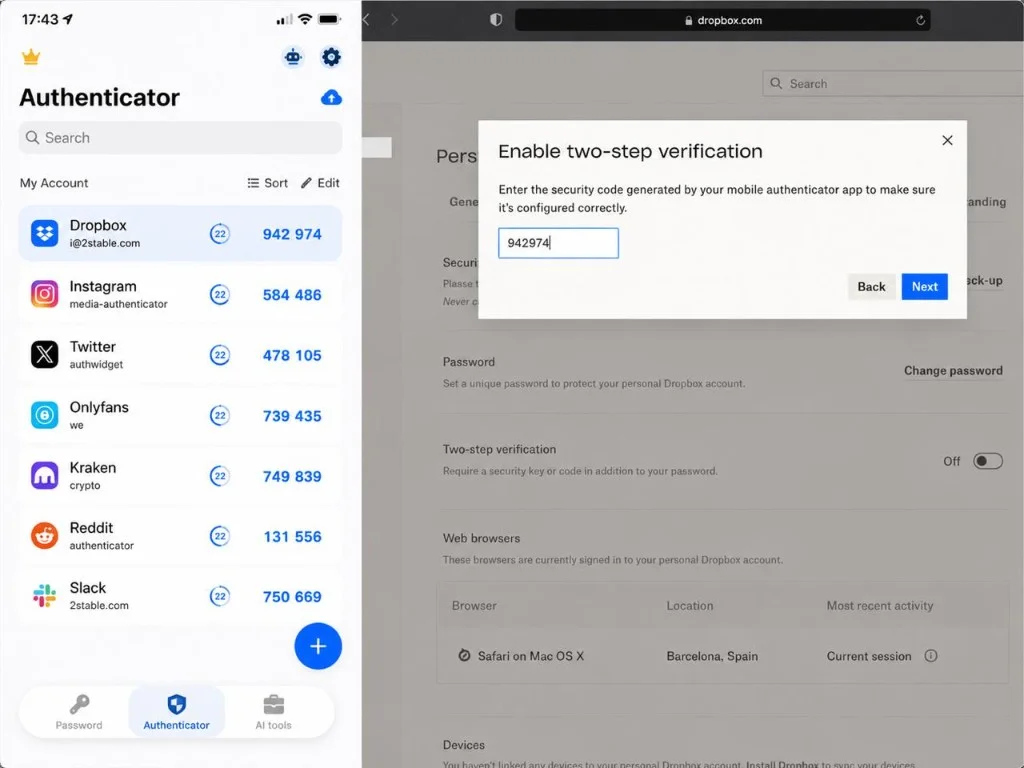
Entrez le code de vérification à 6 chiffres
Lisez le code à 6 chiffres que votre Authenticator App affiche désormais pour Dropbox et saisissez-le dans Dropbox, puis cliquez sur Suivant. Le code est actualisé toutes les 30 secondes, alors entrez rapidement le code actuel.
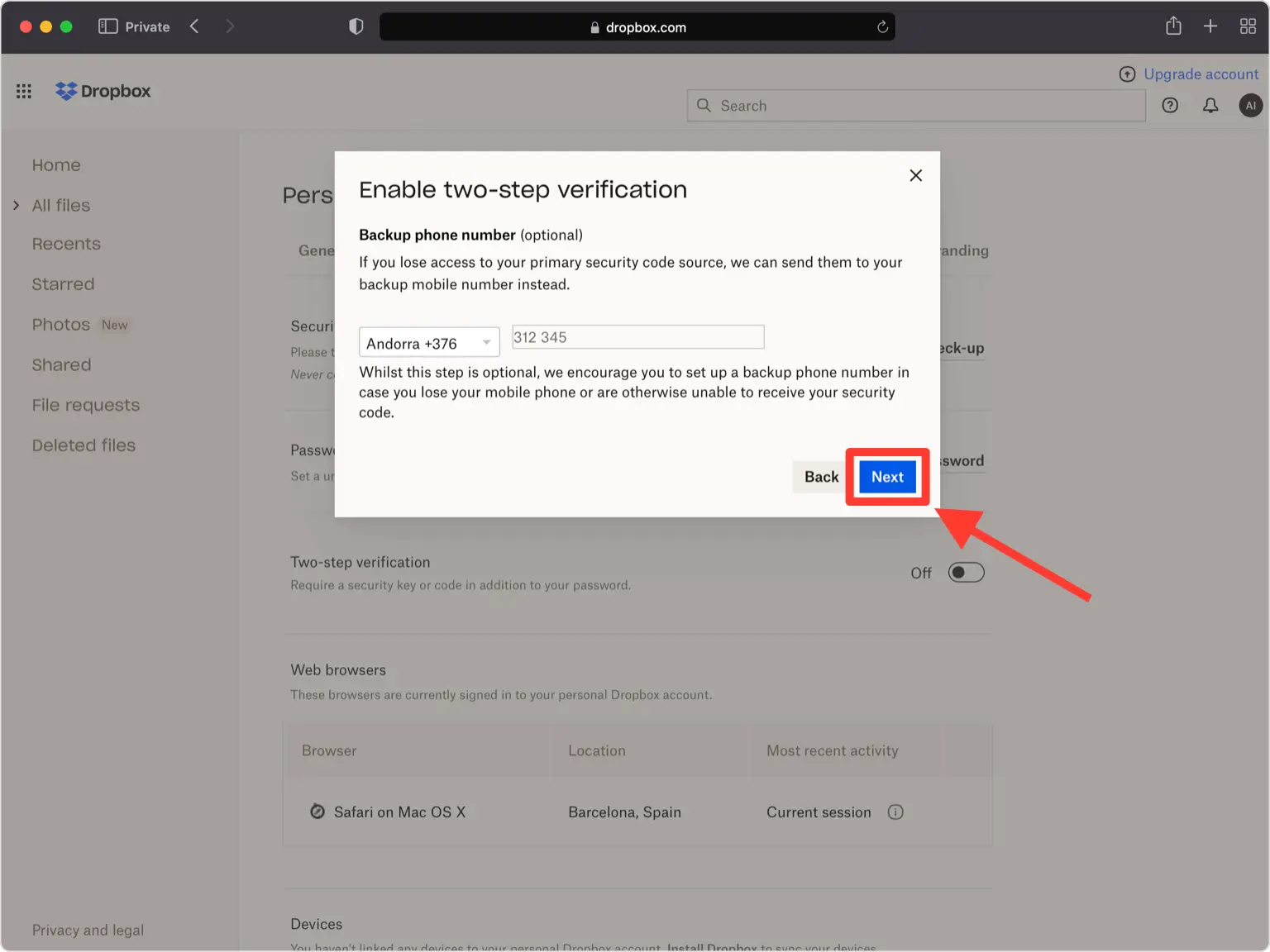
Ajouter un téléphone de secours (facultatif)
Vous pouvez ajouter un numéro de téléphone secondaire pour recevoir des codes de SMS en guise de sauvegarde, ou ignorer cette étape. Cliquez sur Suivant lorsque vous avez terminé.
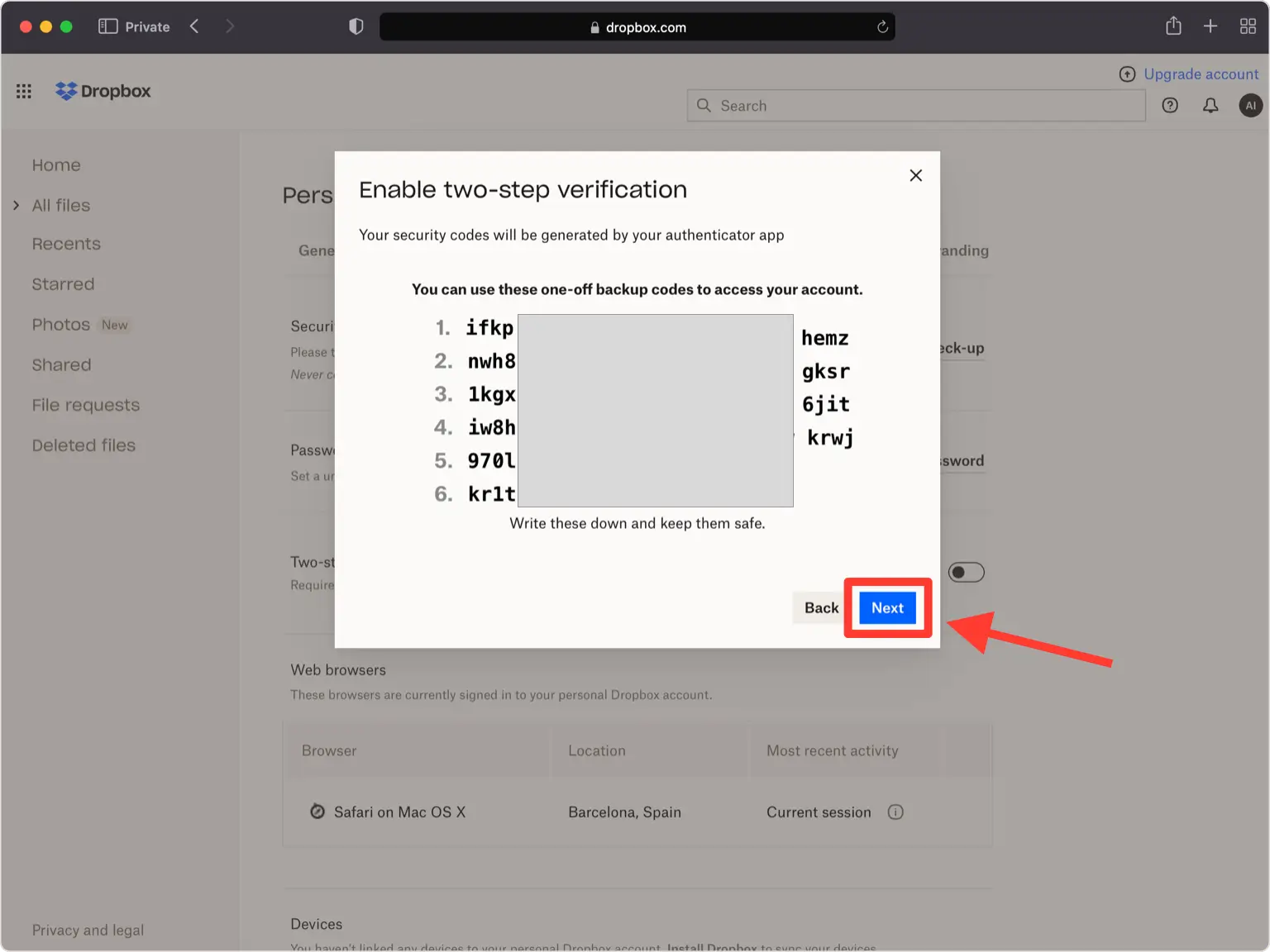
Enregistrez vos codes de récupération
Dropbox génère un ensemble de 10 codes de sauvegarde uniques. Enregistrez-les dans un endroit sûr (chacun ne fonctionne qu'une seule fois si vous perdez l'accès à votre application d'authentification), puis cliquez sur Suivant.
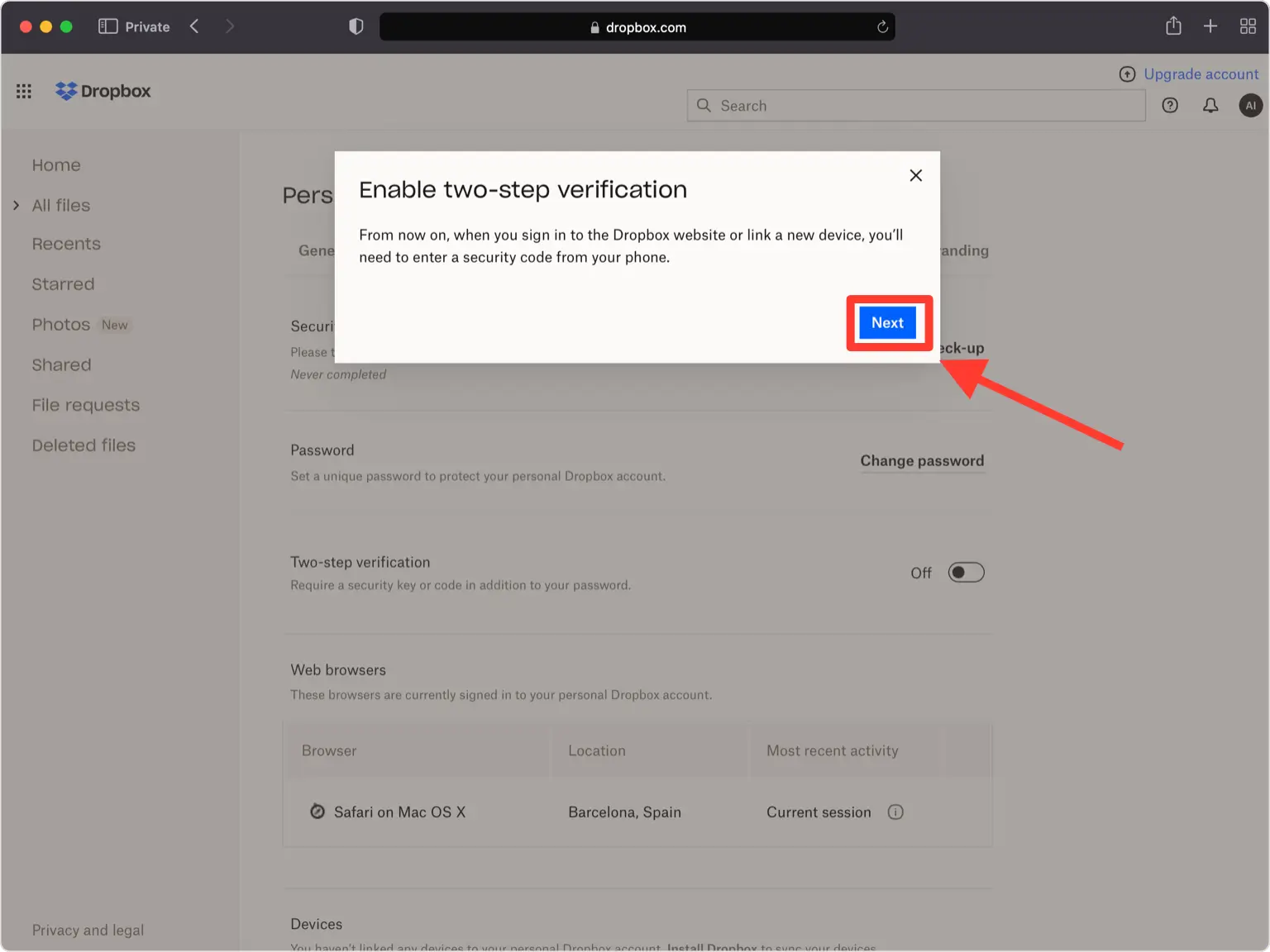
Terminer la configuration
La vérification en deux étapes est désormais activée sur votre compte Dropbox. À partir de maintenant, vous saisirez un code de votre Authenticator App lorsque vous vous connecterez.


Sauvegarde et récupération
Dropbox génère un ensemble de 10 codes de sauvegarde uniques. Enregistrez-les dans un endroit sûr (chacun ne fonctionne qu'une seule fois si vous perdez l'accès à votre application d'authentification), puis cliquez sur Suivant.
C’est terminé : votre compte Dropbox est maintenant protégé par l’authentification à deux facteurs. Conservez vos informations de récupération en lieu sûr et consultez la documentation officielle du service si son interface évolue.
Voir toutes les méthodes 2FA prises en charge par Dropbox →


