

Google 계정에서 2FA를 활성화하는 방법
2026년 8월 4일 업데이트
2단계 인증(2FA)은 비밀번호가 유출되더라도 Google 계정을 보호합니다. iPhone, iPad 또는 Mac에서 Authenticator App으로 Google 인증 코드를 생성하려면 아래 단계를 따르세요.
Google 계정 설정을 엽니다.
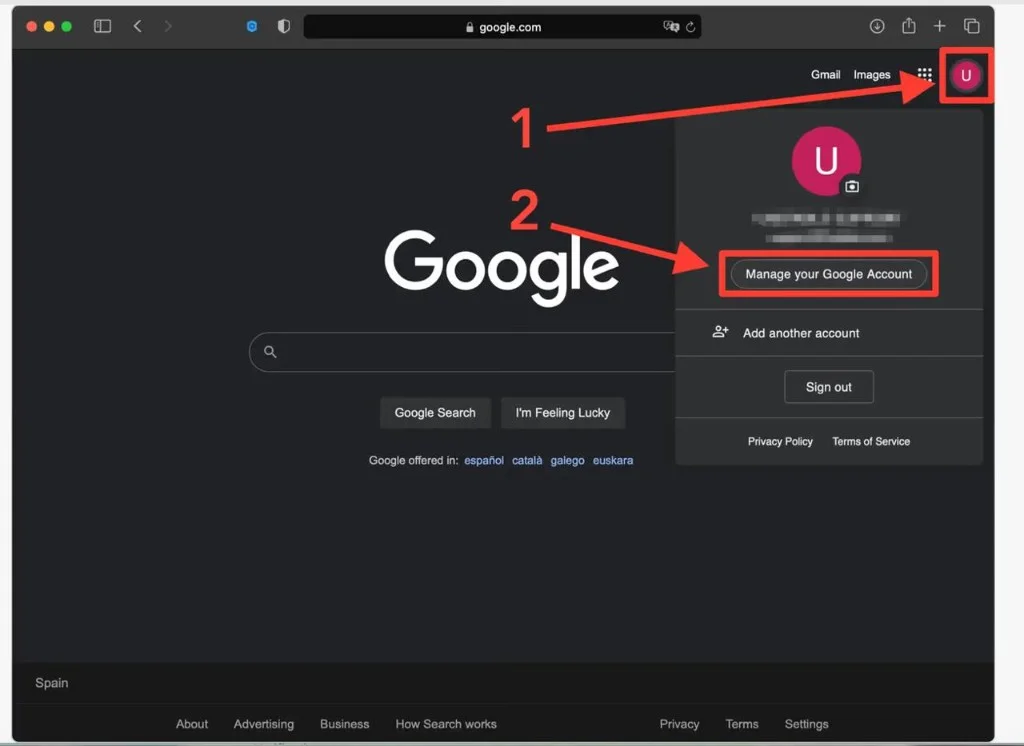
컴퓨터에 로그인한 후 오른쪽 상단에 있는 계정 아이콘을 클릭하고 Google 계정 관리를 선택하세요.
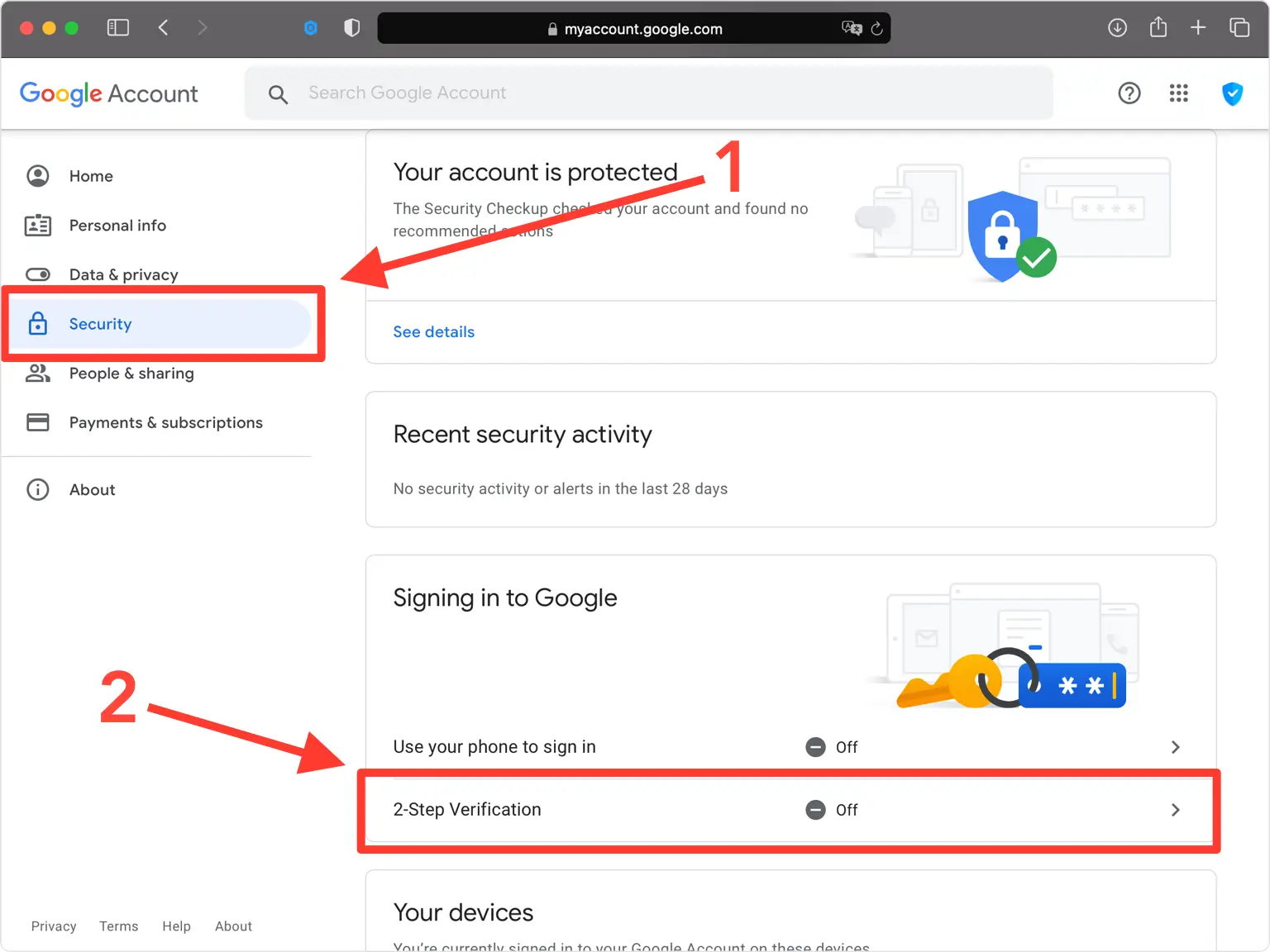
보안으로 이동하여 2단계 인증을 엽니다.
왼쪽 메뉴에서 보안을 선택한 다음 'Google에 로그인하는 방법'에서 2단계 인증을 클릭하세요.
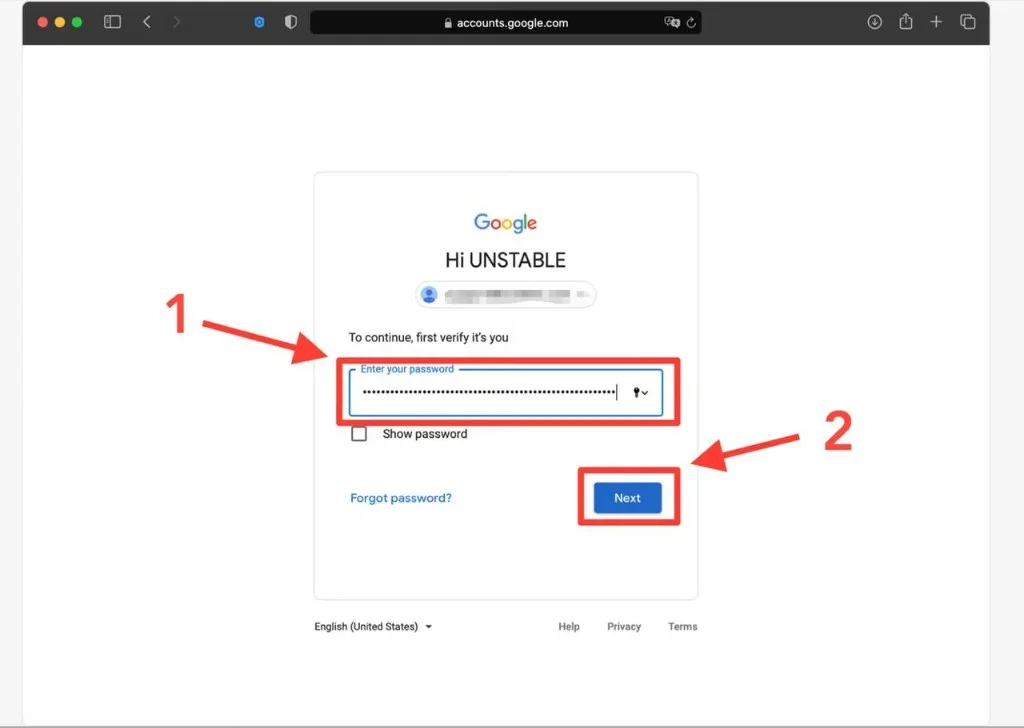
시작하고 비밀번호를 확인하세요
시작하기를 클릭한 후 Google 비밀번호를 다시 입력하고 다음을 클릭하여 본인임을 확인하세요.
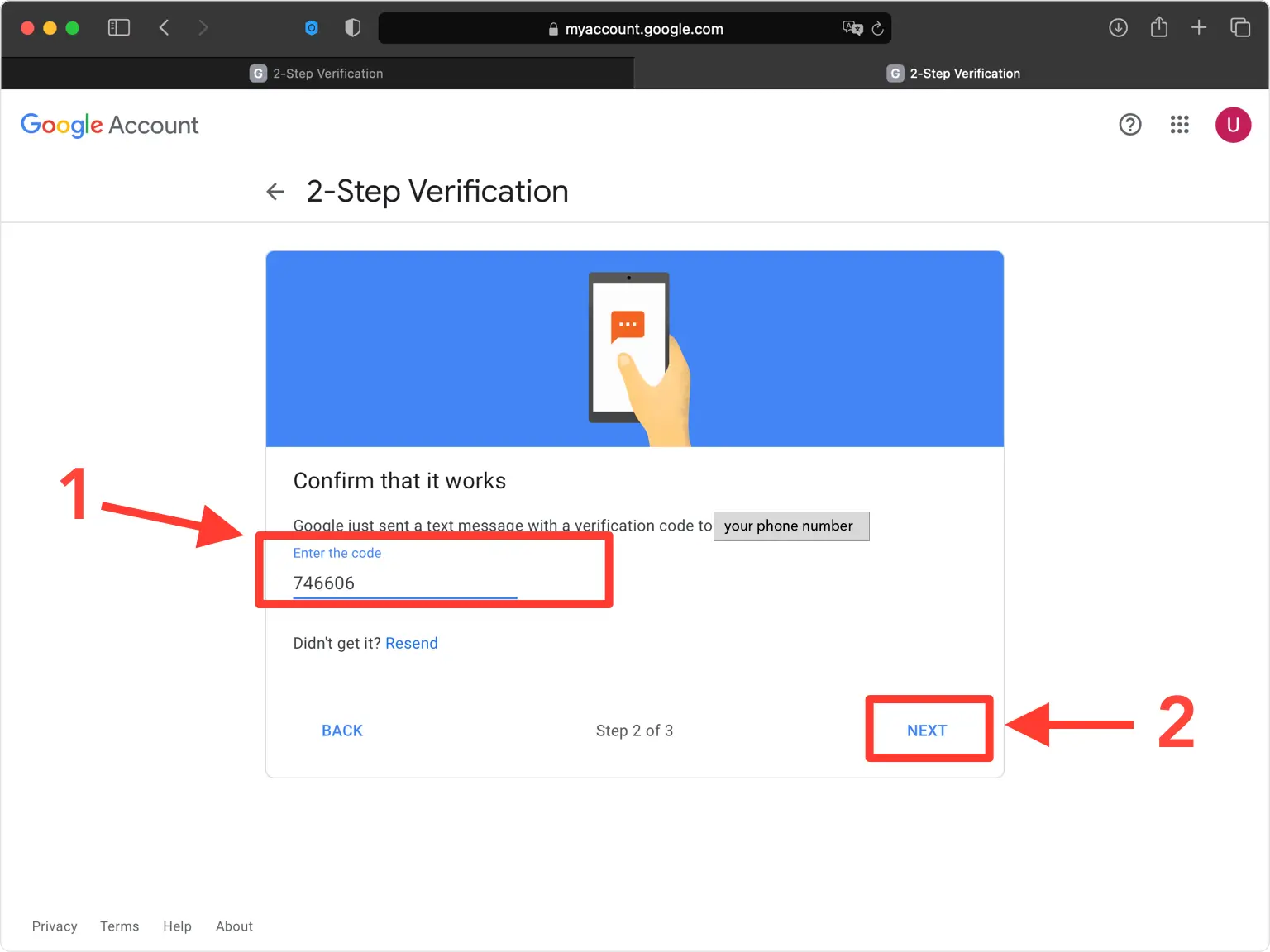
전화번호를 확인하세요
메시지가 표시되면 전화번호를 추가하고 코드 수신 방법을 선택한 후 Google에서 전송하는 6자리 코드를 입력하고 다음을 클릭합니다.
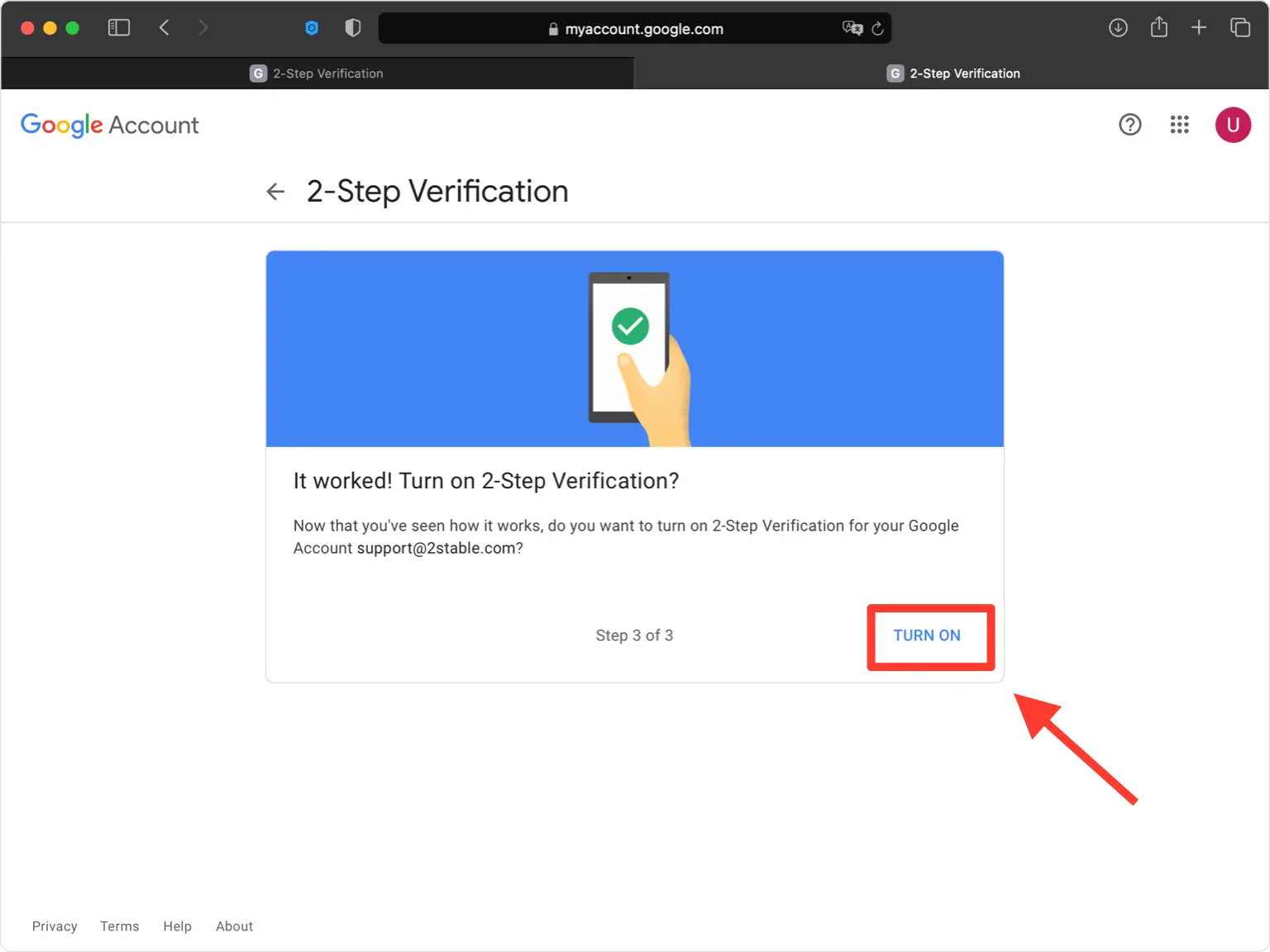
2단계 인증 켜기
계정에 대한 2단계 인증을 활성화하려면 켜기를 클릭하세요.
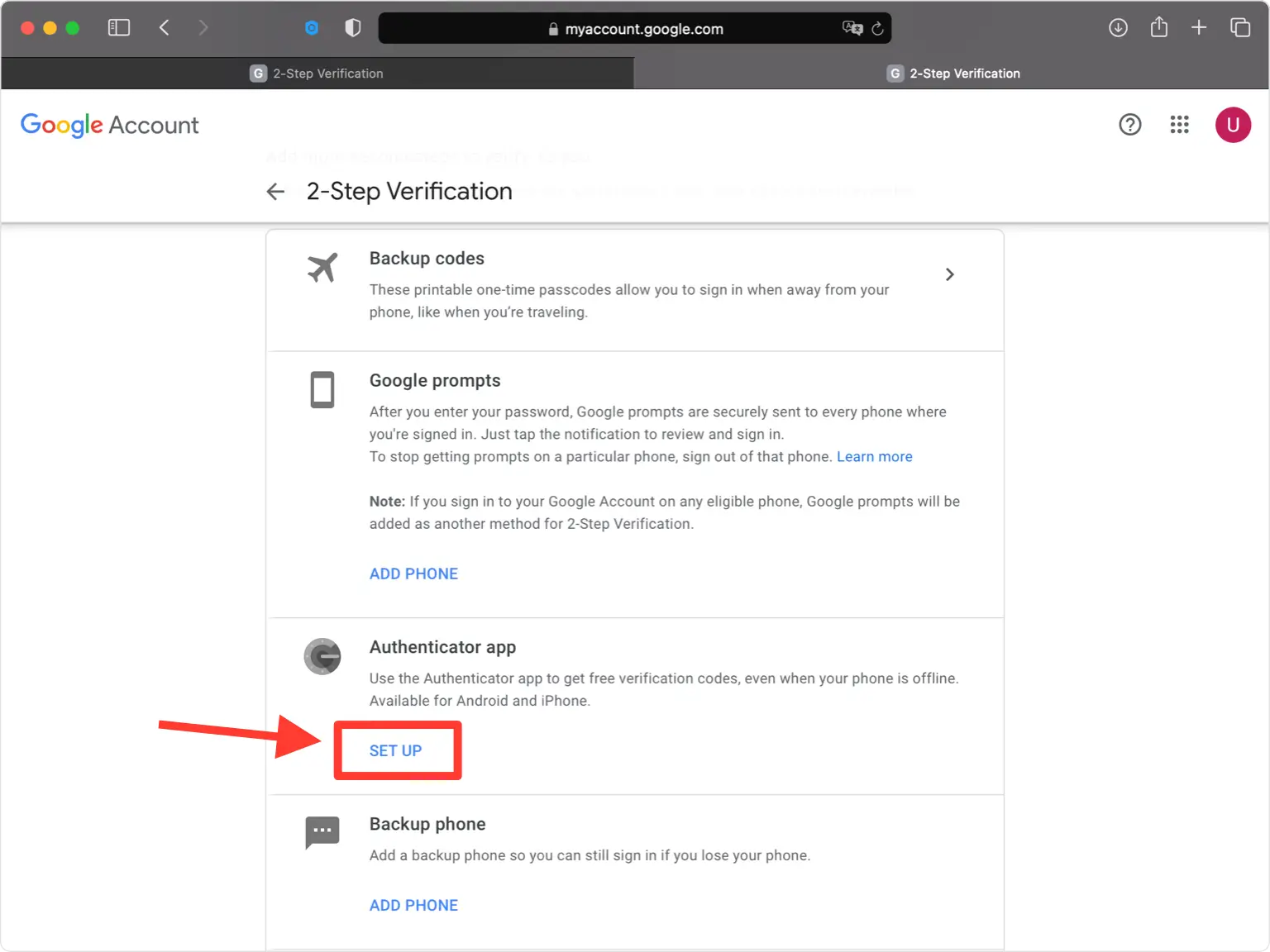
OTP 앱 옵션을 선택하세요
추가 두 번째 단계 목록에서 Authenticator 앱을 찾아 설정을 클릭하세요.
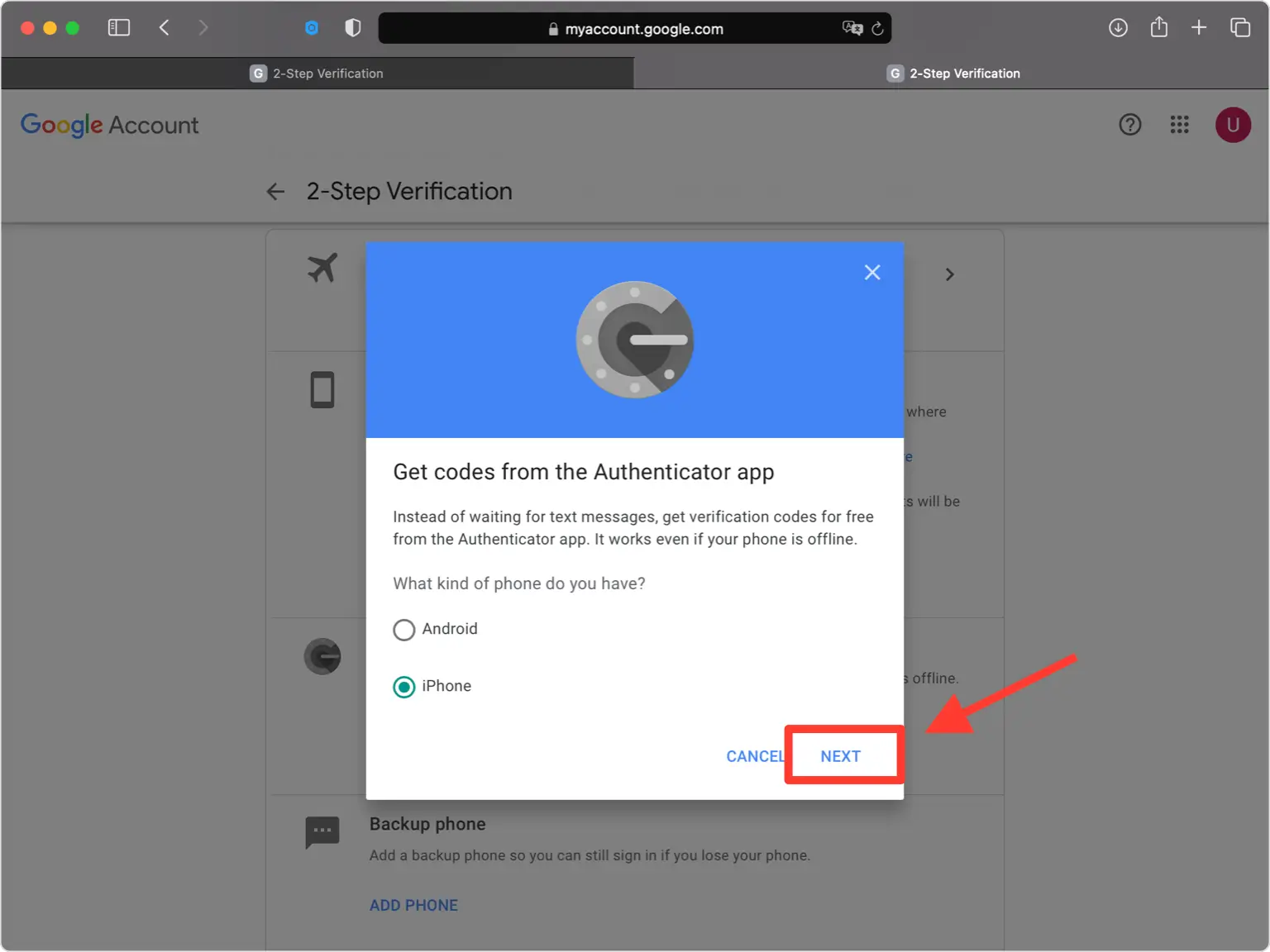
장치 유형을 선택하세요
인증기를 설정할 장치 종류를 선택한 후 다음을 클릭하세요. 그러면 Google에서 QR 코드를 표시합니다.
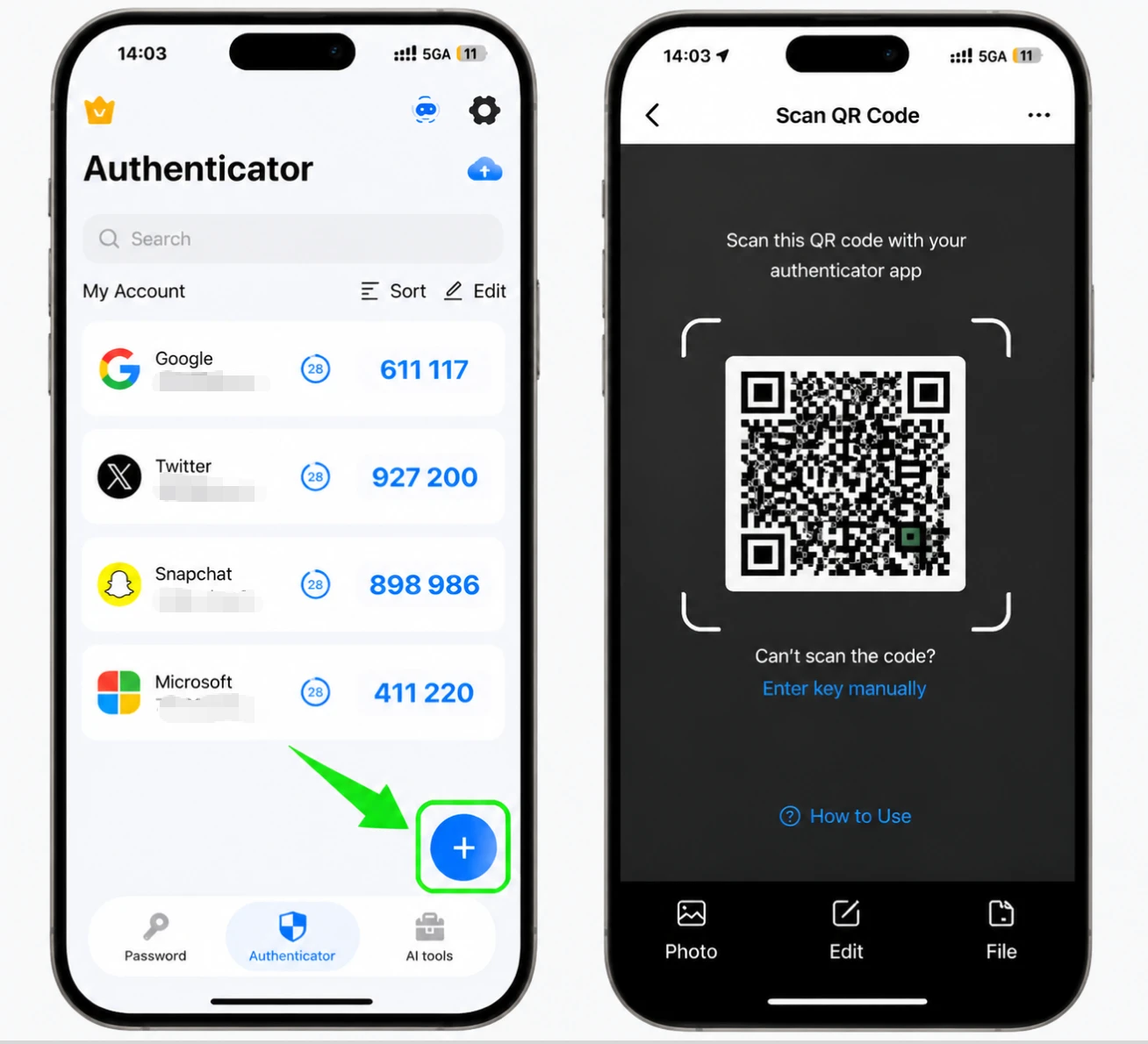
Authenticator App으로 QR 코드를 스캔하세요.
iPhone에서 Authenticator App을 열고 + 버튼을 탭한 후 Google이 화면에 표시하는 QR 코드를 스캔하세요. 스캔할 수 없는 경우 대신 설정 키를 수동으로 입력하도록 선택하세요.
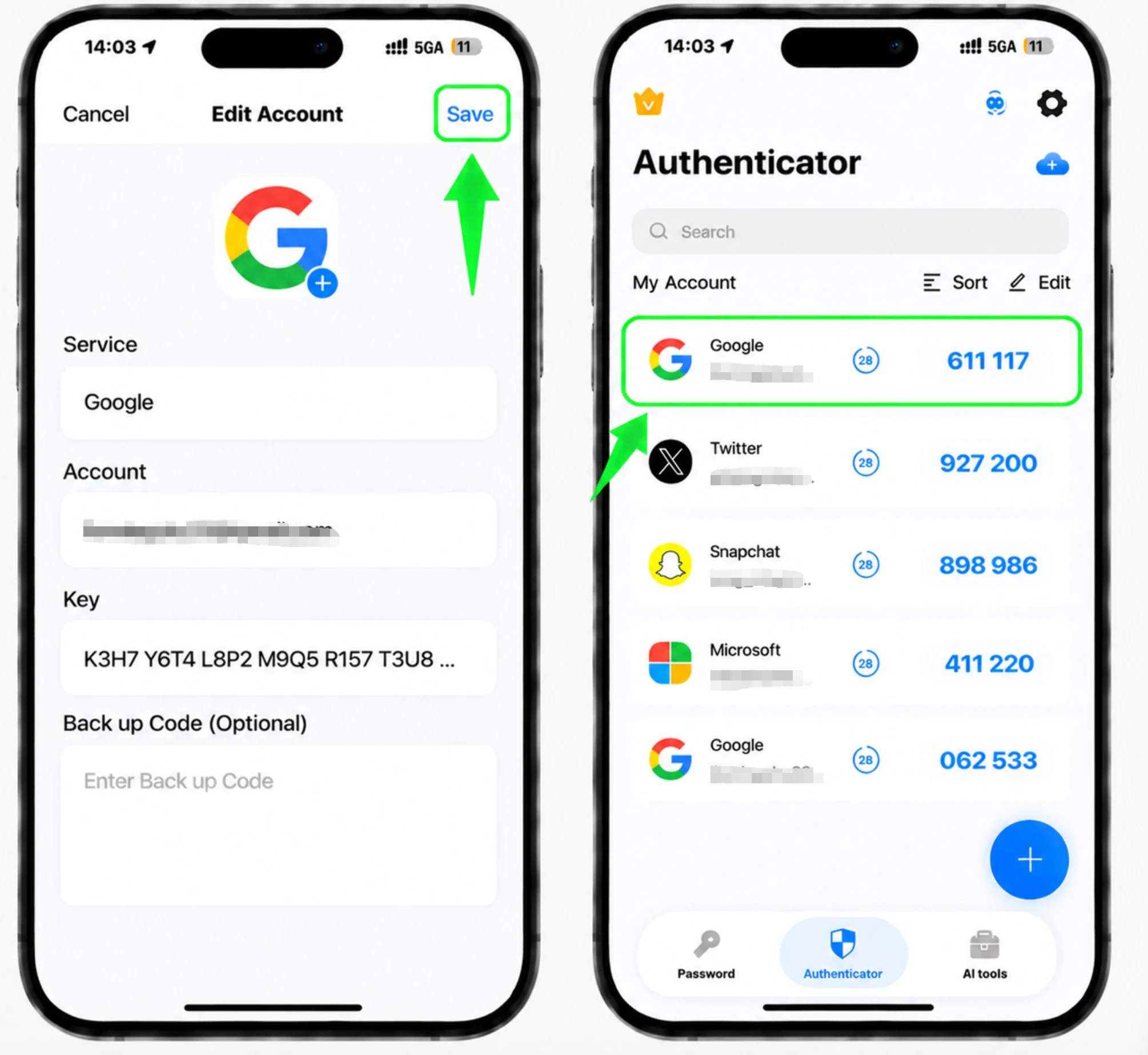
Authenticator App에 계정을 저장하세요.
스캔 후 Authenticator App은 Google 계정 이름과 비밀 키를 자동으로 입력합니다. 원하는 경우 아이콘이나 이름을 조정한 다음 저장을 탭합니다.
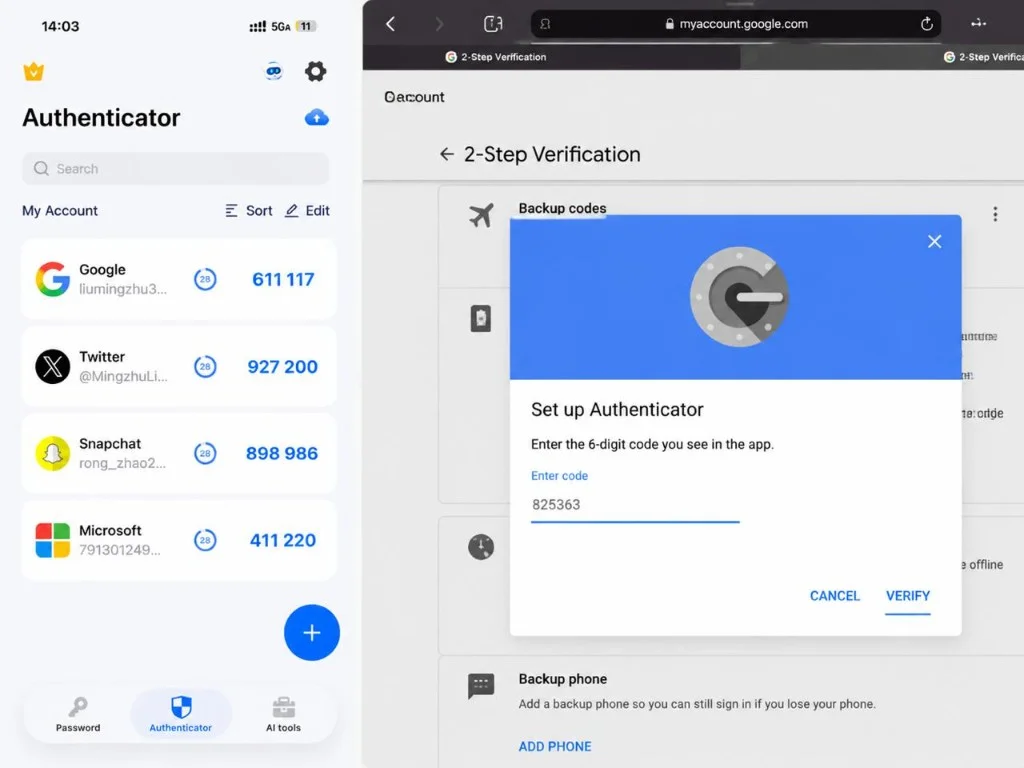
6자리 인증번호를 입력하세요
Authenticator App의 6자리 코드를 Google에 다시 입력하고 확인을 클릭하세요. 코드는 30초마다 새로 고쳐집니다.
백업 코드 저장
8자리 백업 코드 세트를 생성 및 다운로드하거나 인쇄한 다음 휴대폰에 액세스할 수 없는 경우를 대비하여 안전한 곳에 보관하세요.
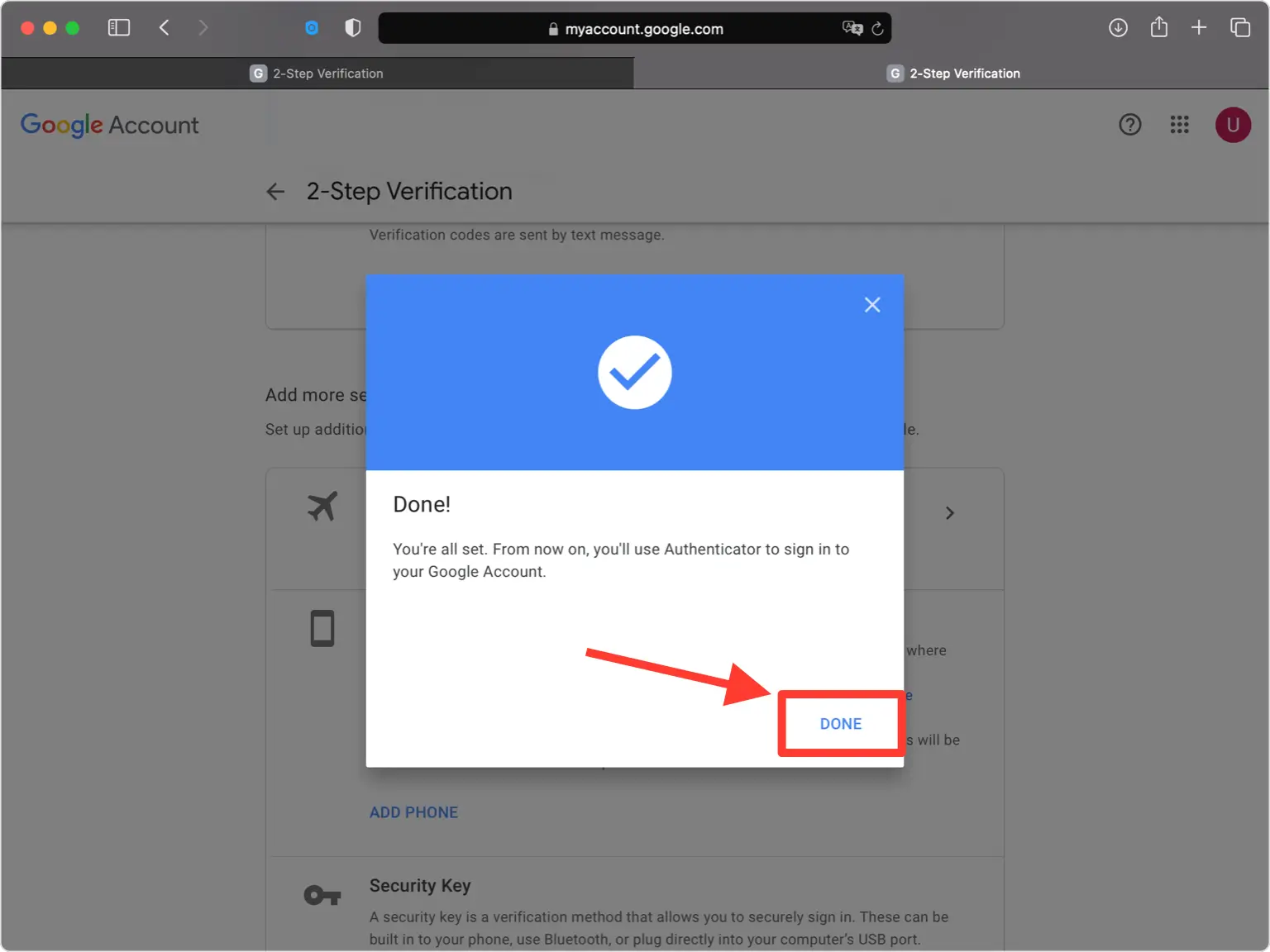
모든 준비가 완료되었습니다.
이제 Google 계정에 2단계 인증이 활성화되었습니다. 이제부터 로그인할 때 Authenticator App의 코드를 입력하게 됩니다.


백업 및 복구
8자리 백업 코드 세트를 생성 및 다운로드하거나 인쇄한 다음 휴대폰에 액세스할 수 없는 경우를 대비하여 안전한 곳에 보관하세요.
완료되었습니다. 이제 Google 계정이 2단계 인증으로 보호됩니다. 복구 정보를 안전하게 보관하고 인터페이스가 변경된 경우 해당 서비스의 공식 문서를 따르세요.


