

How to enable 2FA for your Kraken account
Updated August 4, 2026
Two-factor authentication (2FA) protects your Kraken account even if your password leaks. Follow the steps below to generate Kraken verification codes with the Authenticator App on your iPhone, iPad or Mac.
Open Security settings
While signed in to the Kraken website, click the profile icon in the upper-right corner, select Settings, then click Security.
Choose the Sign-in function and start setup
Find the function you want to protect (for example, Sign-in, Master key, Funding, or Trading) and click its OFF/ON toggle. If you already have 2FA set up for it, select Change method instead.
Select Authenticator app
From the list of 2FA options, select Authenticator app. Kraken will then display a QR code and a setup key on screen.
Scan the QR code with your Authenticator App
Open the Authenticator App on your iPhone, tap the + button, and scan the QR code shown by Kraken. If you cannot scan it, choose the manual-entry option in the app and type in the setup key Kraken displays.
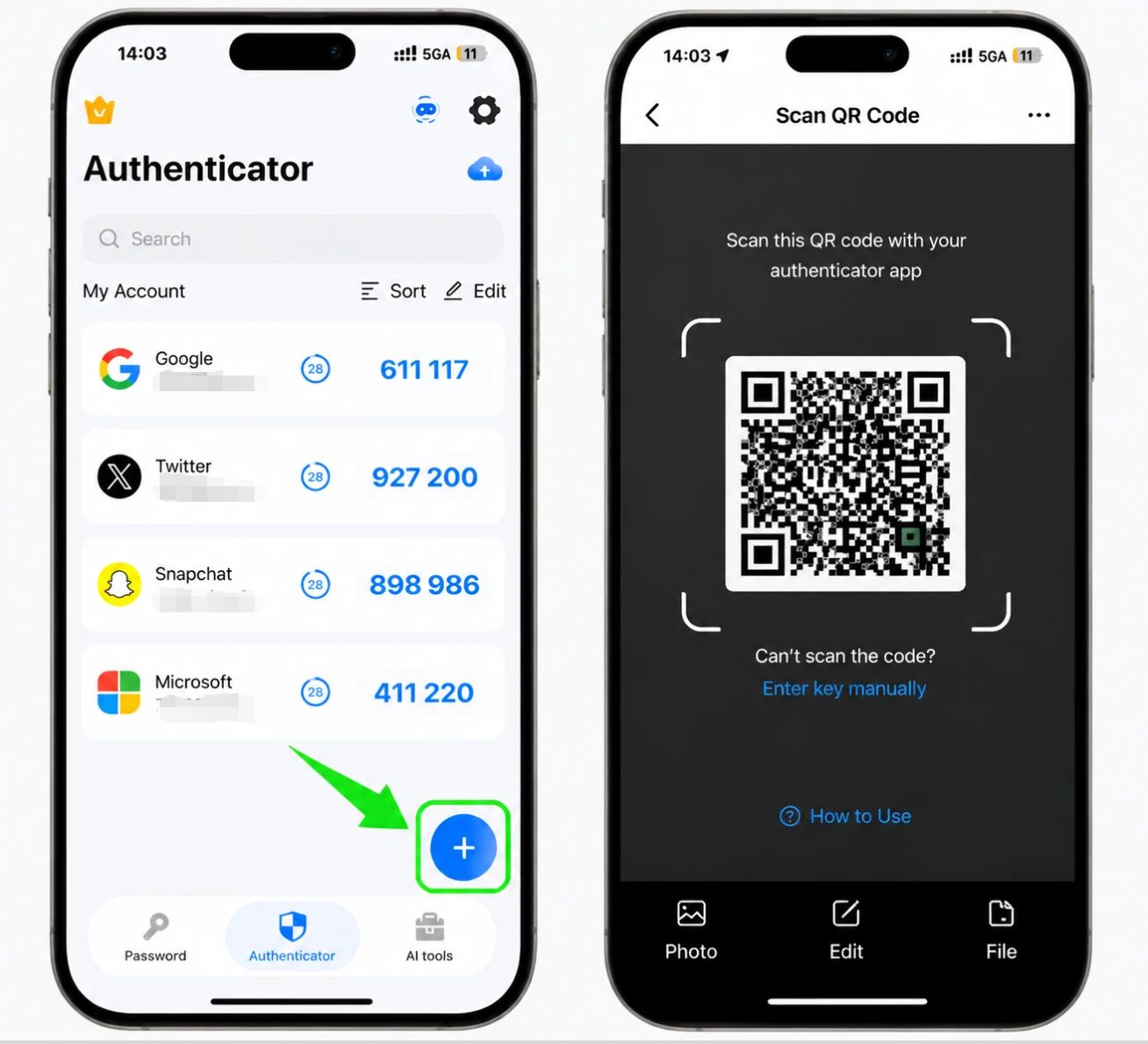
Enter the verification code and confirm
Your Authenticator App now shows a 6-digit code that refreshes every 30 seconds. Type the current code into the field on Kraken and click Confirm.
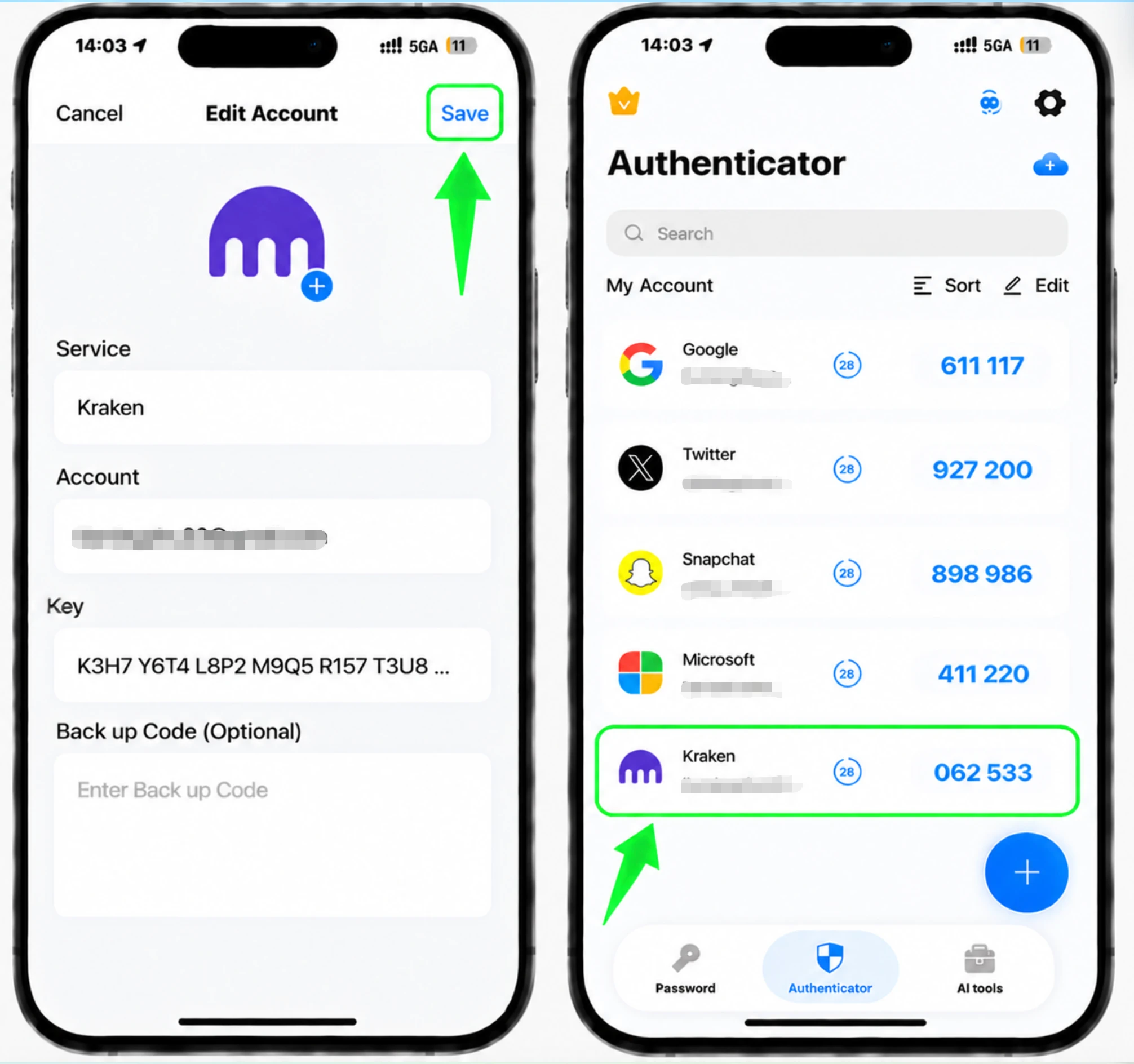
Verify 2FA is enabled and save your setup key
Kraken confirms success by showing "2FA app" as your authentication method (and the toggle moves to ON). Store the setup key Kraken showed you in a safe place so you can restore access if you lose your phone.


Backup & recovery
Kraken confirms success by showing "2FA app" as your authentication method (and the toggle moves to ON). Store the setup key Kraken showed you in a safe place so you can restore access if you lose your phone.
That's it — your Kraken account is now protected with two-factor authentication. Keep your recovery information safe and follow the service's official documentation if its interface changes.
See all 2FA methods supported by Kraken →


