

Comment activer 2FA pour votre compte PayPal
Mis à jour le 4 août 2026
L’authentification à deux facteurs (2FA) protège votre compte PayPal même en cas de fuite de votre mot de passe. Suivez les étapes ci-dessous pour générer des codes de vérification pour PayPal avec Authenticator App sur votre iPhone, iPad ou Mac.
Connectez-vous sur le site PayPal
Connectez-vous à votre compte sur paypal.com à l'aide d'un navigateur Web. La configuration de la vérification en deux étapes ne peut être effectuée que sur le site Web, et non dans l'application mobile PayPal.
Ouvrir les paramètres de sécurité
Cliquez sur l'icône Paramètres (engrenage) à côté de « Déconnexion » en haut de la page, puis cliquez sur Sécurité en haut de la page.
Commencer à configurer la vérification en deux étapes
Recherchez « Vérification en 2 étapes » et cliquez sur Configurer à droite de celle-ci.
Choisissez l'option de l'application d'authentification
Lorsqu'on vous demande comment vous souhaitez obtenir votre code, sélectionnez « Utiliser une application d'authentification », puis cliquez sur Configurer et suivez les étapes à l'écran.
Scannez le code QR avec votre Authenticator App
Ouvrez le Authenticator App sur votre iPhone, appuyez sur le bouton + et scannez le code QR affiché par PayPal. Si vous ne pouvez pas le scanner, choisissez de saisir manuellement une clé de configuration et saisissez la clé secrète (clé de série) que PayPal affiche à la place.
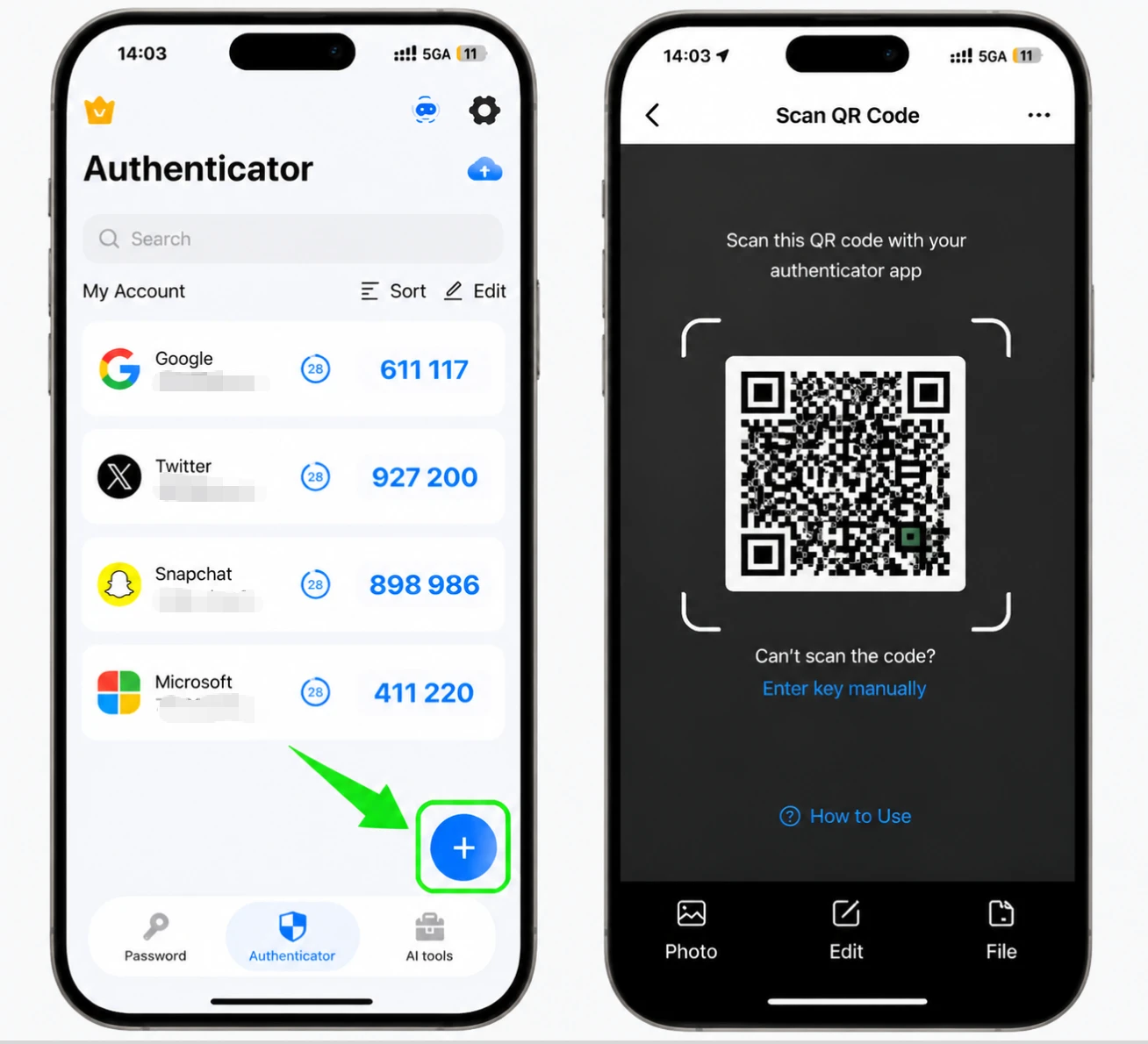
Entrez le code de vérification à 6 chiffres
Votre application d'authentification générera un code à 6 chiffres. Retapez ce code dans PayPal pour vérifier la connexion.
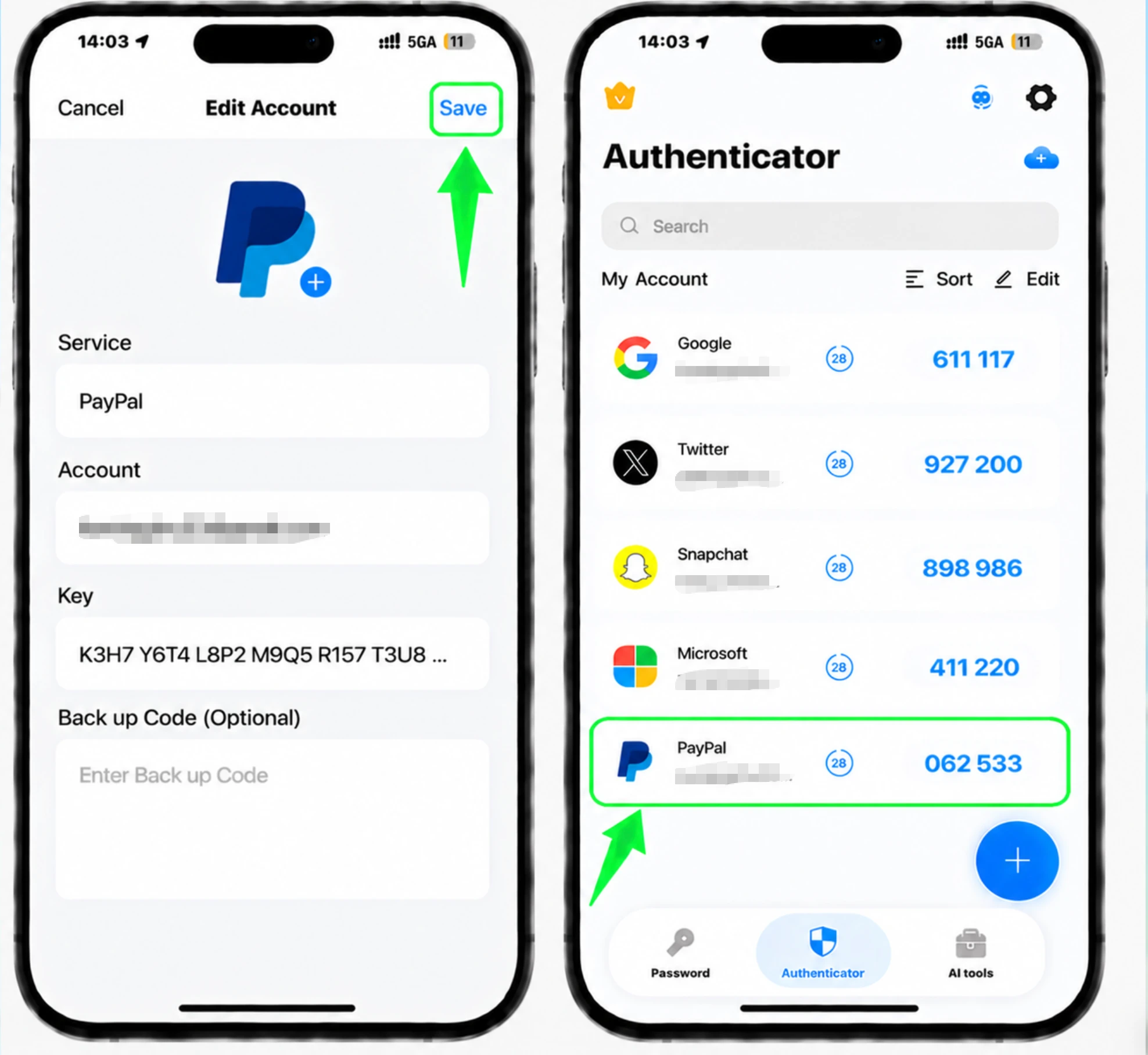
Confirmer et terminer
Confirmez pour terminer la configuration. PayPal affichera désormais que la vérification en 2 étapes est activée et que votre application d'authentification sera requise lors de la connexion à l'avenir.



Sauvegarde et récupération
Ouvrez le Authenticator App sur votre iPhone, appuyez sur le bouton + et scannez le code QR affiché par PayPal. Si vous ne pouvez pas le scanner, choisissez de saisir manuellement une clé de configuration et saisissez la clé secrète (clé de série) que PayPal affiche à la place.
C’est terminé : votre compte PayPal est maintenant protégé par l’authentification à deux facteurs. Conservez vos informations de récupération en lieu sûr et consultez la documentation officielle du service si son interface évolue.
Voir toutes les méthodes 2FA prises en charge par PayPal →


